Ir al contenido
ImágenesGratis

🪄 Cómo alterar fácilmente tus propias tomas

Guía práctica para editar tu propio metraje con Omni Reference de CapCut y el modelo Dreamina Seedance 2.0, con consejos para ampliar la duración y conservar el movimiento, los ángulos de cámara y la iluminación con gran fidelidad.

Generación de imágenes

Ejemplos de la fuente

Estas imágenes provienen de la fuente original. DROPIDEA no ha probado estos ejemplos; los resultados dependen del modelo y los ajustes.

Listo para personalizar

Tu prompt

Inglés

Sustituye las variables en rojo por tus datos. Copia el texto completo y úsalo con tu agente preferido.

TXT MD Versión en inglés
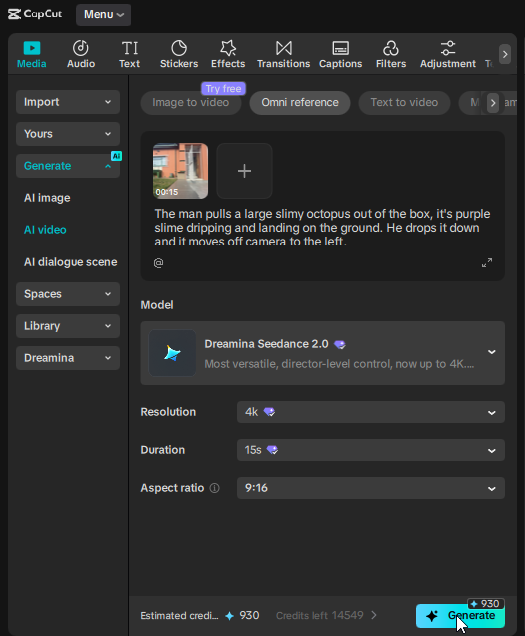
🪄 How Do I Alter My Own Footage? It's simple, if you're using @capcutapp, go to Generate, AI Video, Omni Reference, upload your video, select Dreamina Seedance 2.0, choose a resolution and duration, type your prompt describing what happens and click on Generate. BONUS TIP - Even if your footage was less than 15 seconds, you can still select 15 seconds, thus making your edited footage even longer than the footage you filmed. Another tip is that Seedance 2.0 can change the motion, it does not copy it 1 to 1 in relation to the original video BUT if you try this at the start of your prompt it can follow it a lot more closely. You can say "Keep the scene the same" or a slightly more detailed instruction "Preserve exactly: all camera angle, framing, motion, lighting, and background environment. If a character is present preserve their identity." If you know any other solid tips to keep the motion almost 1 to 1, feel free to share in the comments. #CapCutVideoStudio #CapCutSeedance2 #CapCutCPP
Ver resultados

Tu prompt

🪄 How Do I Alter My Own Footage? It's simple, if you're using @capcutapp, go to Generate, AI Video, Omni Reference, upload your video, select Dreamina Seedance 2.0, choose a resolution and duration, type your prompt describing what happens and click on Generate. BONUS TIP - Even if your footage was less than 15 seconds, you can still select 15 seconds, thus making your edited footage even longer than the footage you filmed. Another tip is that Seedance 2.0 can change the motion, it does not copy it 1 to 1 in relation to the original video BUT if you try this at the start of your prompt it can follow it a lot more closely. You can say "Keep the scene the same" or a slightly more detailed instruction "Preserve exactly: all camera angle, framing, motion, lighting, and background environment. If a character is present preserve their identity." If you know any other solid tips to keep the motion almost 1 to 1, feel free to share in the comments. #CapCutVideoStudio #CapCutSeedance2 #CapCutCPP

Guía de variables

Keep the scene the same

Frase corta colocada al inicio del prompt para pedir mantener la escena sin cambios.

La línea que empieza "Another tip is that Seedance 2.0 can change" - dentro de la primera frase entre comillas tras "You can say"

Valor de ejemplo

Keep the scene the same

Preserve exactly: all camera angle, framing, motion, lighting, and background environment. If a character is present preserve their identity.

Instrucción detallada en inglés para preservar ángulo de cámara, encuadre, movimiento, iluminación, fondo e identidad de personajes.

La línea que empieza "Another tip is that Seedance 2.0 can change" - dentro de la segunda frase entre comillas tras "a slightly more detailed instruction"

Valor de ejemplo

Preserve exactly: all camera angle, framing, motion, lighting, and background environment. If a character is present preserve their identity.

Qué obtienes

  • Una guía paso a paso para alterar tu propio metraje con Omni Reference en CapCut.
  • Un consejo para ampliar la duración a 15 segundos incluso con clips más cortos.
  • Dos frases listas en inglés para preservar la escena, el movimiento, los ángulos, la iluminación y la identidad de los personajes.

Casos de uso

  • Reencuadrar o mejorar tomas grabadas con el móvil.
  • Alargar clips cortos manteniendo el estilo visual.
  • Cambiar iluminación o entorno preservando la identidad del personaje y un movimiento casi idéntico.

Cómo usarlo

  • Abre CapCut (@capcutapp) y ve a Generate, luego AI Video y Omni Reference.
  • Sube tu propio vídeo grabado como referencia.
  • Selecciona el modelo Dreamina Seedance 2.0 y elige resolución y duración (puedes elegir 15 segundos aunque el original sea más corto).
  • Escribe tu prompt colocando la instrucción de preservación de la escena al principio para un seguimiento más fiel del movimiento.
  • Pulsa Generate, revisa el resultado y repite con ajustes hasta quedar satisfecho.

Prompts relacionados