Cómo ejecutar juegos en la tarjeta gráfica externa para obtener el mejor rendimiento en Windows 10
 Por Admin
Te mostramos en este artículo los pasos para ejecutar juegos en la tarjeta gráfica externa de tu computadora, ya sea PC o Laptop. Con este paso, harás que los juegos funcionen mejor, ya que por defecto se ejecutan en
la tarjeta gráfica
interna, la cual naturalmente tiene menor eficiencia y velocidad que la externa. A veces tu computadora tiene más de una GPU y hardware potente, sin embargo experimentas lag en los juegos y pausas constantes. La razón aquí es que el juego consume el rendimiento de la tarjeta gráfica interna de Intel o AMD.
Afortunadamente, no necesitas descargar herramientas o programas de terceros para ejecutar juegos en la tarjeta gráfica externa, ya que Microsoft agregó esta opción a Windows 10 después de la actualización de abril de 2018 que lanzó recientemente. Veamos cómo acceder a esta opción y utilizarla para obtener el mejor rendimiento y experiencia al ejecutar juegos sin obstáculos.
¿Cómo ejecutar juegos en la tarjeta gráfica externa?
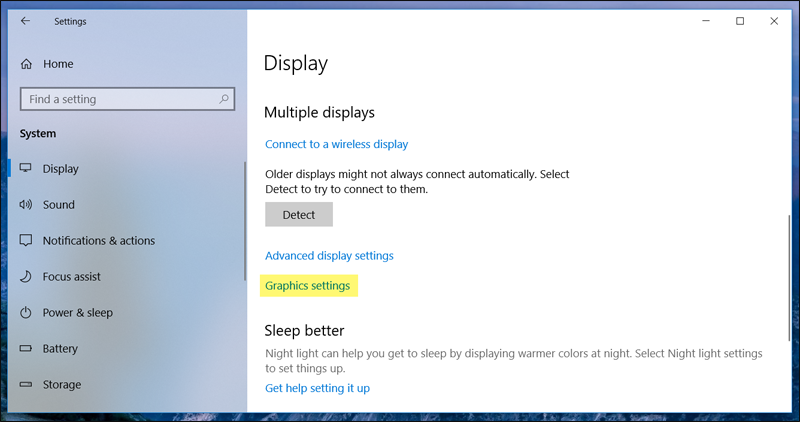
Lo único que el usuario debe hacer es abrir Configuración (Settings) en Windows 10 desde el menú Inicio (Start), el Centro de acciones (Action Center) o presionando las teclas de Windows + R juntas en el teclado. Después de que aparezca la ventana de Configuración, ve a la sección Sistema (System) y desplázate hacia abajo en la página de Pantalla (Display) para hacer clic en la opción Configuración de gráficos (Graphics settings) como se muestra en la imagen anterior. Ten en cuenta que si no encuentras una opción con este nombre, es porque no has actualizado tu sistema operativo para obtener la nueva actualización de abril de 2018.
También te puede interesar: 3 formas efectivas de hacer los juegos más rápidos en la computadora. En esta página encontrarás varias opciones. Lo primero que debes hacer es seleccionar una opción del menú Elige una aplicación para establecer preferencias (Choose and app to set preference), ya sea "Aplicación universal" (Universal app) o "Aplicación clásica" (Classic app). Si eliges la primera, aparecerá otra lista para seleccionar una aplicación de las aplicaciones instaladas en Windows 10, ya sea un juego o un servicio. Selecciónala y haz clic en Agregar (Add). Sin embargo, si quieres ejecutar juegos en la tarjeta gráfica externa, seleccionarás la segunda opción, que es Aplicación clásica (Classic app), y luego haz clic en el botón Examinar (Browse) para que aparezca una ventana donde puedas seleccionar el archivo ejecutable del juego (que tiene la extensión .exe). Simplemente selecciónalo para que el juego se agregue a la lista.
Por supuesto, puedes agregar un número ilimitado de juegos y programas. Después de eso, haz clic en cualquier juego de la lista y presiona el botón Opciones (Options). Aparecerá una ventana de Especificaciones de gráficos (Graphics specifications) como se muestra en la imagen adjunta anterior. Desde allí puedes seleccionar Ahorro de energía (Power saving) si deseas ejecutar este juego en la tarjeta gráfica interna y conservar batería, si estás usando una laptop, o seleccionar la opción Alto rendimiento (High performance), que es la mejor opción para ejecutar el juego en la tarjeta gráfica externa.
Finalmente, haz clic en Guardar (Save) para guardar los cambios. Ahora puedes activar la opción Alto rendimiento (High performance) con cualquiera de los juegos o aplicaciones agregadas a la lista para ejecutarlos en la tarjeta gráfica externa en lugar de la interna y obtener el mejor rendimiento. Si la aplicación, programa o juego requiere gráficos de alta calidad, la tarjeta gráfica interna de Intel o AMD ciertamente no podrá hacerlo y experimentarás lentitud en el rendimiento de estas aplicaciones o al ejecutar juegos.
DROPIDEA
Esperamos que este artículo te haya aportado valor real. En DROPIDEA, siempre nos esforzamos por ofrecer contenido de alta calidad que te ayude a crecer y evolucionar en el espacio digital. Síguenos para más artículos y guías útiles.
Admin
DROPIDEA
Últimos artículos

Peak XV eleva el límite de sus inversiones semilla a 5 millones de dólares

Esperada cena entre el CEO de Anthropic y Donald Trump en medio de desacuerdos sobre la seguridad de la inteligencia artificial

Google prueba las compras directas de Flipkart a través de Gemini en la India
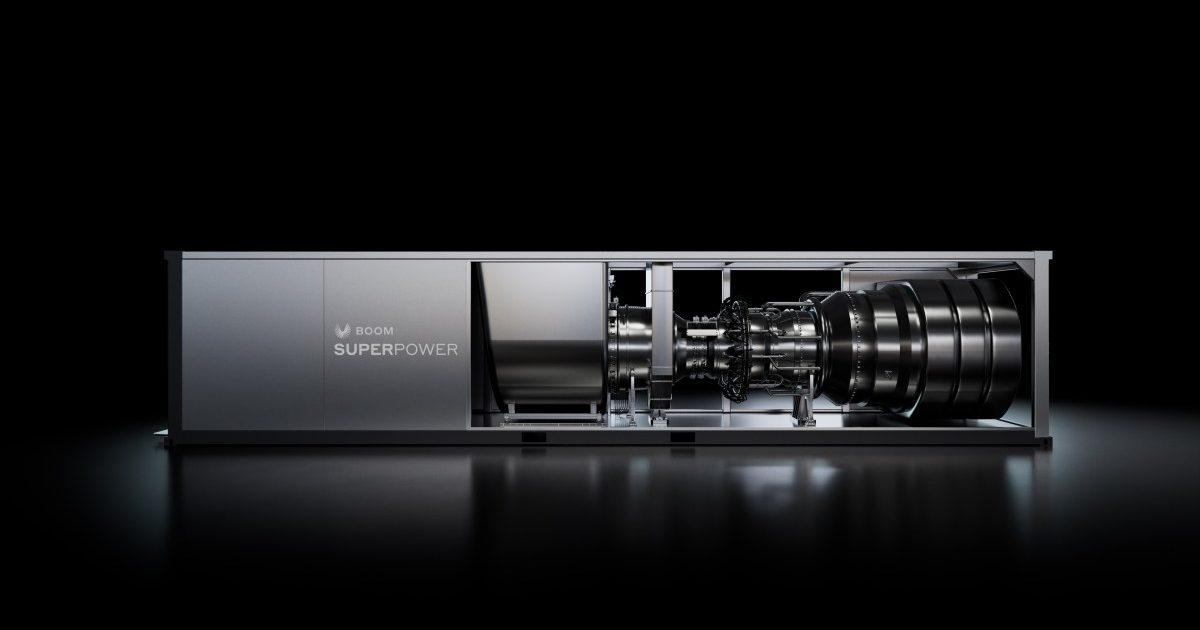
Crusoe cancela un acuerdo de 1.250 millones de dólares para turbinas de centros de datos