Visualizar imágenes en Windows 10 con Windows Photo Viewer
 Por Admin

Si instalaste Windows 10 en tu computadora, sin duda habrás notado que el sistema ya no utiliza Windows Photo Viewer como herramienta predeterminada para ver imágenes en Windows 10, ya que ahora se confía en la aplicación Photos para cumplir esta función. Aunque cumple bien su propósito, algunos se quejaron de que es lenta al ver imágenes. Por eso, veamos cómo hacer que Windows Photo Viewer sea la predeterminada en su lugar. Lee también cómo reproducir películas DVD en Windows 10 de forma gratuita Cómo restaurar Windows Photo Viewer para ver imágenes en Windows 10 Para recuperar la herramienta Windows Photo Viewer nuevamente y hacerla la predeterminada para ver imágenes en Windows 10, necesitaremos el Editor del Registro de Windows. Somos conscientes de que trabajar con él es complicado y difícil de explicar, por lo que hemos simplificado todos los comandos en un único archivo que puedes descargar desde aquí. – Después de descargar el archivo y descomprimirlo, se generará un archivo de registro.
– Haz doble clic en él y cuando aparezca el mensaje de la aplicación de comandos dentro del Editor del Registro, haz clic en Sí. – Listo, con esto hemos añadido la herramienta a Windows 10, solo falta hacerla predeterminada. – Haz clic derecho en cualquier imagen que tengas en tu computadora.
– Mueve el puntero del ratón hacia "Abrir con" y luego selecciona Windows Photo Viewer. – De esta manera, las imágenes se verán en Windows 10 usando la herramienta Windows Photo Viewer.
Fuente del archivo de
Ahmed Maher
DROPIDEA
Esperamos que este artículo te haya aportado valor real. En DROPIDEA, siempre nos esforzamos por ofrecer contenido de alta calidad que te ayude a crecer y evolucionar en el espacio digital. Síguenos para más artículos y guías útiles.
Admin
DROPIDEA
Últimos artículos

Peak XV eleva el límite de sus inversiones semilla a 5 millones de dólares

Esperada cena entre el CEO de Anthropic y Donald Trump en medio de desacuerdos sobre la seguridad de la inteligencia artificial
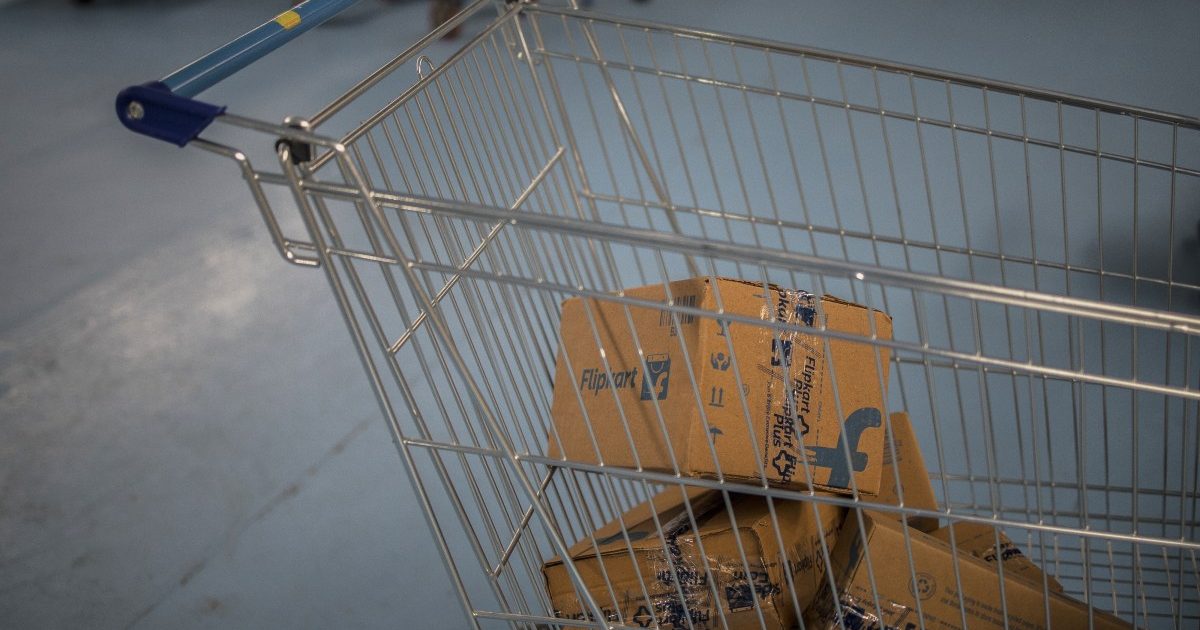
Google prueba las compras directas de Flipkart a través de Gemini en la India
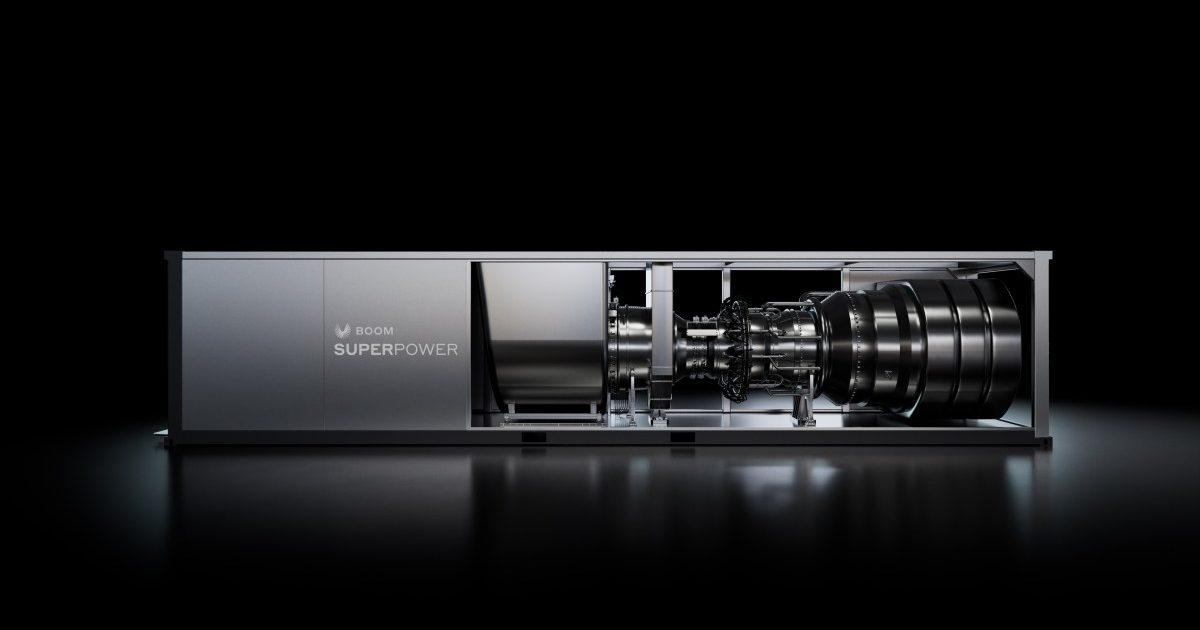
Crusoe cancela un acuerdo de 1.250 millones de dólares para turbinas de centros de datos