Skip to content
ImagesFree

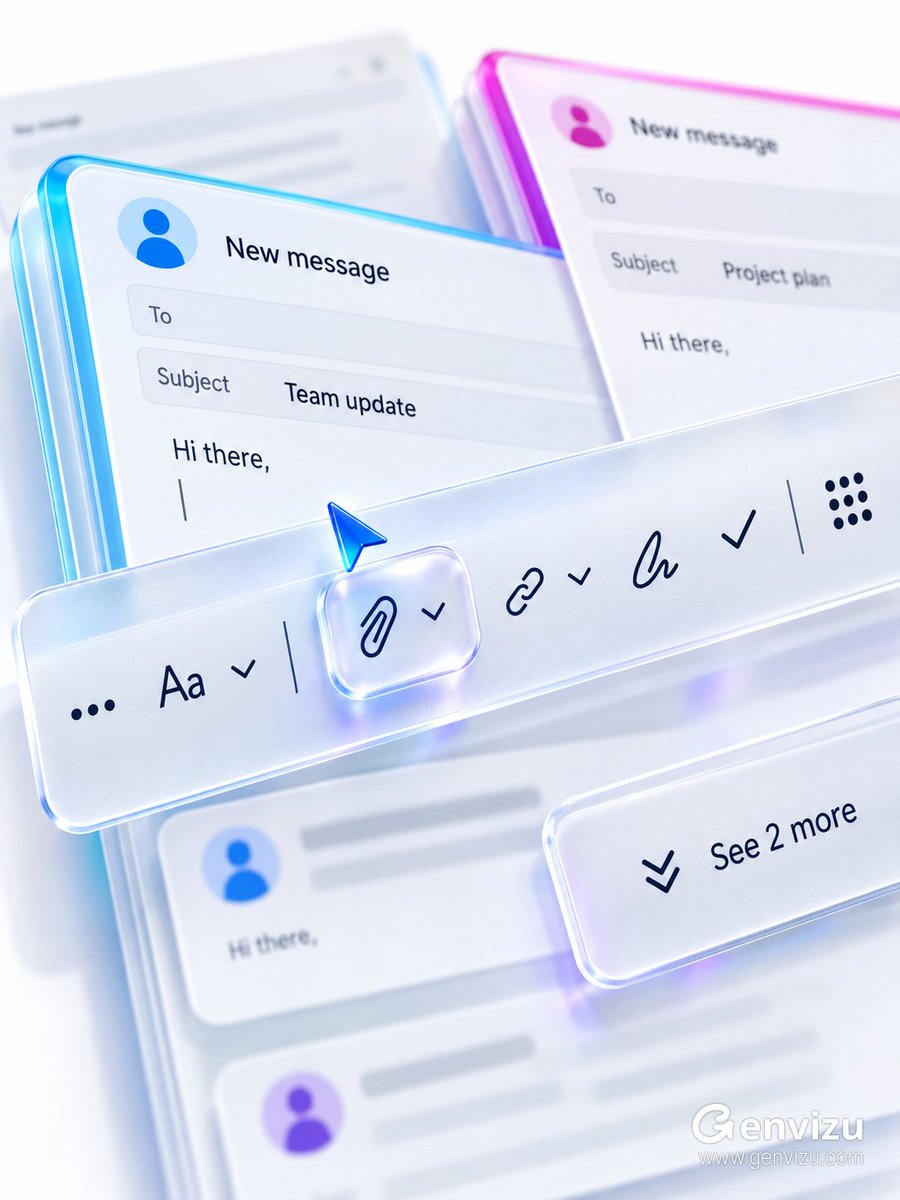
Macro Render of Email Compose Interface

A detailed prompt for generating a premium brandless Microsoft 365 / Fluent-inspired email compose interface macro render in a 3:4 portrait composition, featuring a razor-sharp frosted-acrylic toolbar, a full 12-item control sequence, blurred accent-colored email cards, and strict negatives excluding logos, watermarks, and personal data.

OpenAI

Source previews

These example images come from the original source. DROPIDEA has not independently tested these examples; results depend on the model and settings.

Ready to personalize

Your prompt

English

Replace the red variables with your information. Copy the full prompt and use it with your preferred agent.

TXT MD English version
Use case: ui-mockup. Asset type: premium brandless Microsoft 365 / Fluent-inspired email compose interface macro render. Create a precise 3:4 portrait composition on a solid opaque cool-white background. The final raster must be fully flattened RGB with no alpha channel and no transparent canvas. Show an extreme close-up of stacked email compose windows from a low oblique overhead angle, with perspective running lower-left to upper-right. A long frosted-acrylic toolbar crosses the middle and is the only razor-sharp focal plane. Display dark navy outline controls in sequence: ellipsis, text formatting, down chevron, divider, paperclip, down chevron, link, down chevron, handwriting pen, checkmark, divider, nine-dot grid. The raised paperclip control sits at the exact focal center inside a clear rounded capsule, with a small blue glass arrow cursor hovering above it. Behind it, cyan- and magenta-accented email cards recede into blur with anonymous avatars and neutral labels “New message”, “Team update”, “Hi there”. Add a lower-right action panel reading “See 2 more”. Use near-white, pale gray, cyan, productivity blue, violet and magenta; glossy clear acrylic rims, frosted surfaces, colored caustics, soft high-key light and creamy bokeh. No Microsoft logo, no Outlook logo, no third-party logo, no watermark, no QR code, no personal names, no old dates, no gibberish. ---- Made by ➡️ https://t.co/pfafZV9Bzt.
Preview results

Your prompt

Use case: ui-mockup. Asset type: premium brandless Microsoft 365 / Fluent-inspired email compose interface macro render. Create a precise 3:4 portrait composition on a solid opaque cool-white background. The final raster must be fully flattened RGB with no alpha channel and no transparent canvas. Show an extreme close-up of stacked email compose windows from a low oblique overhead angle, with perspective running lower-left to upper-right. A long frosted-acrylic toolbar crosses the middle and is the only razor-sharp focal plane. Display dark navy outline controls in sequence: ellipsis, text formatting, down chevron, divider, paperclip, down chevron, link, down chevron, handwriting pen, checkmark, divider, nine-dot grid. The raised paperclip control sits at the exact focal center inside a clear rounded capsule, with a small blue glass arrow cursor hovering above it. Behind it, cyan- and magenta-accented email cards recede into blur with anonymous avatars and neutral labels “New message”, “Team update”, “Hi there”. Add a lower-right action panel reading “See 2 more”. Use near-white, pale gray, cyan, productivity blue, violet and magenta; glossy clear acrylic rims, frosted surfaces, colored caustics, soft high-key light and creamy bokeh. No Microsoft logo, no Outlook logo, no third-party logo, no watermark, no QR code, no personal names, no old dates, no gibberish. ---- Made by ➡️ https://t.co/pfafZV9Bzt.

Variable guide

Use near-white, pale gray, cyan, productivity blue, violet and magenta

Replace the literal color list in the palette sentence with your brand colors while keeping the material and lighting style.

The "Use near-white..." sentence in the English source template.

Example value

near-white, pale gray, teal, productivity blue, violet, coral orange

“New message”, “Team update”, “Hi there”

Quoted English strings that must appear literally on the email cards; swap for neutral strings of similar length.

After "neutral labels" in the source template; strings inside quotation marks.

Example value

"Meeting notes", "Weekly digest", "Quick hello"

“See 2 more”

The lower-right action panel text; a quoted string that must appear literally in the output.

After "reading" in the source template; the text inside quotes.

Example value

"View 5 replies"

https://t.co/pfafZV9Bzt

The attribution link after the divider; replace with your own handle link or remove the credit line entirely.

Final line of the source template after "Made by ➡️".

Example value

https://twitter.com/yourhandle

raised paperclip control

The control sitting at the focal center inside the capsule; a creative choice that should stay consistent with the control sequence.

The "raised paperclip control" sentence in the source template.

Example value

the raised link control

What you get

  • A realistic brandless macro render of a Fluent-style email compose interface.
  • A precise 3:4 portrait composition on a solid opaque cool-white background.
  • A frosted-acrylic toolbar as the only razor-sharp focal plane with the complete 12-item control sequence.
  • Blurred cyan- and magenta-accented email cards with anonymous avatars and neutral quoted labels.
  • A small blue glass arrow cursor hovering above the paperclip at the focal center.
  • A fully flattened RGB raster with no alpha channel, ready for UI library use.

Use cases

  • UI assets for app design presentations and email client mockups.
  • Marketing drafts and social posts about productivity tools and email features.
  • Modern visual themes for marketplace design libraries.
  • Inspiration references for frosted glassmorphism and translucent material design.
  • Illustrations for UI design articles and tutorials.

How to use

  • Copy the full Arabic template and paste it into your preferred image generation tool.
  • Edit the editable values listed in the variable guide (colors, card labels, action panel text) to suit your project without introducing new placeholders.
  • Keep the technical settings unchanged: 3:4 ratio, fully flattened RGB with no alpha channel, and the solid opaque cool-white background, ensuring the asset meets UI mockup requirements.
  • Make sure the quoted English labels ("New message", "Team update", "Hi there", "See 2 more") remain in the prompt, since they must appear literally in the output image.
  • Review the generated image to confirm it contains no logos, watermarks, or personal names, and regenerate as needed to fine-tune blur and focus.

Related prompts