Skip to content
ImagesFree

7 Reasons Your AI Video Breaks Continuity

A practical guide to the reasons characters lose continuity in AI-generated video, with a 30-second fix for each, covering locked reference images, frame chaining, aspect ratios, seeds, and unified color grading.

Image generation

Source previews

These example images come from the original source. DROPIDEA has not independently tested these examples; results depend on the model and settings.

Ready to personalize

Your prompt

English

Replace the red variables with your information. Copy the full prompt and use it with your preferred agent.

TXT MD English version
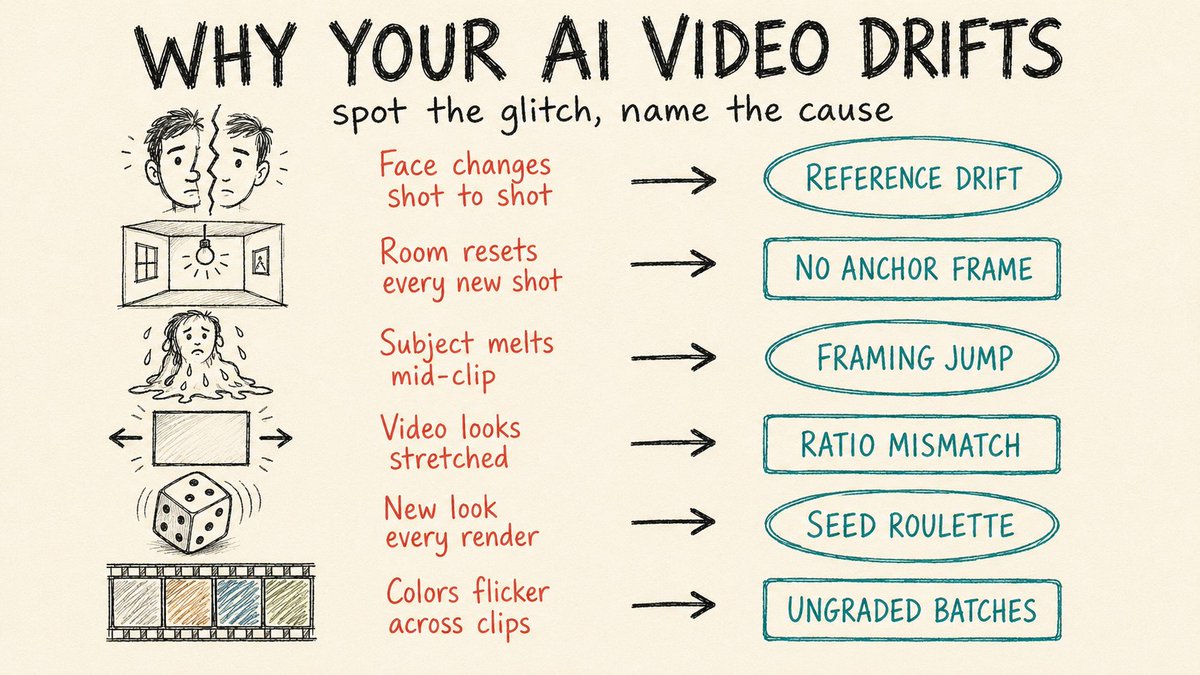
7 reasons your AI video breaks continuity. Your character changes face by shot three. Each one has a 30-second fix. 1. Lock one reference image. Pick a single high-quality portrait, crop it tight to 60-80% of the frame, and feed that exact file into every shot. The drift starts the moment you swap references between generations. 2. Use your last frame as the next first frame. Save the final frame of each clip and upload it as the opening frame of the next. Lighting, location, and props carry over instead of resetting to a fresh guess. 3. Keep first and last frames close in framing. Jumping from a wide shot to an extreme close-up forces the model to invent a camera move it can't do, and you get a smeared morph. Move medium to medium-close, or move the subject inside the same frame. 4. Match the frame's aspect ratio to the output. Upload a 16:9 still but render to 9:16, and the model stretches to fill. Set both to the same ratio before you generate. 5. Reuse the seed from your best take. When one generation nails the look, lock its seed and regenerate with small prompt tweaks. Random seeds hand you a different face every run. 6. Grade every clip to one reference. Clips from different batches drift in color temperature and contrast even when the character holds. Pull them all to a single grade in your editor, trim the unstable half-second at each clip's head and tail, and drop short cross-dissolves over the cuts that still jump. 7. Stop stuffing one prompt with five actions. Short clips can't hold a full sequence, so the model rushes and breaks. Use a multi-shot storyboard like Kling 3.0 or Seedance 2.0, or sequence shots with [cut] markers that share the same reference images.
Preview results

Your prompt

7 reasons your AI video breaks continuity. Your character changes face by shot three. Each one has a 30-second fix. 1. Lock one reference image. Pick a single high-quality portrait, crop it tight to 60-80% of the frame, and feed that exact file into every shot. The drift starts the moment you swap references between generations. 2. Use your last frame as the next first frame. Save the final frame of each clip and upload it as the opening frame of the next. Lighting, location, and props carry over instead of resetting to a fresh guess. 3. Keep first and last frames close in framing. Jumping from a wide shot to an extreme close-up forces the model to invent a camera move it can't do, and you get a smeared morph. Move medium to medium-close, or move the subject inside the same frame. 4. Match the frame's aspect ratio to the output. Upload a 16:9 still but render to 9:16, and the model stretches to fill. Set both to the same ratio before you generate. 5. Reuse the seed from your best take. When one generation nails the look, lock its seed and regenerate with small prompt tweaks. Random seeds hand you a different face every run. 6. Grade every clip to one reference. Clips from different batches drift in color temperature and contrast even when the character holds. Pull them all to a single grade in your editor, trim the unstable half-second at each clip's head and tail, and drop short cross-dissolves over the cuts that still jump. 7. Stop stuffing one prompt with five actions. Short clips can't hold a full sequence, so the model rushes and breaks. Use a multi-shot storyboard like Kling 3.0 or Seedance 2.0, or sequence shots with [cut] markers that share the same reference images.

What you get

  • A complete 7-reason guide to AI video continuity breaks.
  • Practical fixes of no more than 30 seconds each.
  • Exact preservation of technical values such as 16:9, 9:16, 60-80%, the names Kling 3.0 and Seedance 2.0, and [cut] markers.
  • Ready-to-publish formatted text for an educational post or short article.

Use cases

  • An educational post in a blog or newsletter about AI video production.
  • Content for social media accounts focused on video creation.
  • A quick reference for an editing or content generation team struggling with character drift.
  • Training material in workshops about AI video tools.

How to use

  • Read the seven reasons in order to understand where continuity typically breaks in AI video generation.
  • Apply fix 1 first by locking a single reference image cropped to 60-80% of the frame for every shot.
  • Chain the last frame as the next clip's opening frame as in fix 2 to preserve lighting, location, and props.
  • Set the aspect ratio and seed before generating as in fixes 4 and 5 to avoid stretching and shifting faces.
  • Unify color grading and trim unstable heads and tails as in fix 6 inside your editor.
  • Use a multi-shot storyboard or [cut] markers as in fix 7 instead of stuffing one prompt with five actions.

Related prompts