Skip to content
ImagesFree

🪄 How to Alter Your Own Footage Easily

A practical guide to editing your own filmed footage using CapCut's Omni Reference with the Dreamina Seedance 2.0 model, plus tips for extending duration and preserving motion, camera angles, lighting and identity closely.

Image generation

Source previews

These example images come from the original source. DROPIDEA has not independently tested these examples; results depend on the model and settings.

Ready to personalize

Your prompt

English

Replace the red variables with your information. Copy the full prompt and use it with your preferred agent.

TXT MD English version
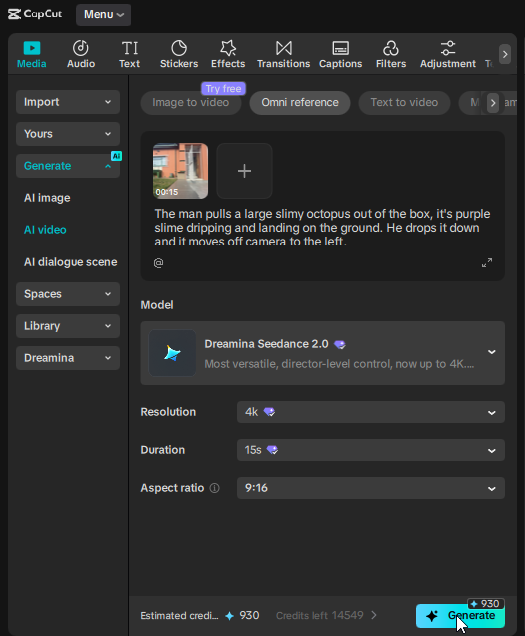
🪄 How Do I Alter My Own Footage? It's simple, if you're using @capcutapp, go to Generate, AI Video, Omni Reference, upload your video, select Dreamina Seedance 2.0, choose a resolution and duration, type your prompt describing what happens and click on Generate. BONUS TIP - Even if your footage was less than 15 seconds, you can still select 15 seconds, thus making your edited footage even longer than the footage you filmed. Another tip is that Seedance 2.0 can change the motion, it does not copy it 1 to 1 in relation to the original video BUT if you try this at the start of your prompt it can follow it a lot more closely. You can say "Keep the scene the same" or a slightly more detailed instruction "Preserve exactly: all camera angle, framing, motion, lighting, and background environment. If a character is present preserve their identity." If you know any other solid tips to keep the motion almost 1 to 1, feel free to share in the comments. #CapCutVideoStudio #CapCutSeedance2 #CapCutCPP
Preview results

Your prompt

🪄 How Do I Alter My Own Footage? It's simple, if you're using @capcutapp, go to Generate, AI Video, Omni Reference, upload your video, select Dreamina Seedance 2.0, choose a resolution and duration, type your prompt describing what happens and click on Generate. BONUS TIP - Even if your footage was less than 15 seconds, you can still select 15 seconds, thus making your edited footage even longer than the footage you filmed. Another tip is that Seedance 2.0 can change the motion, it does not copy it 1 to 1 in relation to the original video BUT if you try this at the start of your prompt it can follow it a lot more closely. You can say "Keep the scene the same" or a slightly more detailed instruction "Preserve exactly: all camera angle, framing, motion, lighting, and background environment. If a character is present preserve their identity." If you know any other solid tips to keep the motion almost 1 to 1, feel free to share in the comments. #CapCutVideoStudio #CapCutSeedance2 #CapCutCPP

Variable guide

Keep the scene the same

A short phrase placed at the start of the prompt asking to keep the scene unchanged.

The line starting "Another tip is that Seedance 2.0 can change" - inside the first quoted phrase after "You can say"

Example value

Keep the scene the same

Preserve exactly: all camera angle, framing, motion, lighting, and background environment. If a character is present preserve their identity.

A detailed English instruction to preserve camera angle, framing, motion, lighting, background and character identity.

The line starting "Another tip is that Seedance 2.0 can change" - inside the second quoted phrase after "a slightly more detailed instruction"

Example value

Preserve exactly: all camera angle, framing, motion, lighting, and background environment. If a character is present preserve their identity.

What you get

  • A step-by-step guide to altering your own footage via Omni Reference in CapCut.
  • A tip for extending output duration to 15 seconds even with shorter source clips.
  • Two ready-made English phrases for preserving scene, motion, camera angles, lighting and character identity.

Use cases

  • Reframing or enhancing footage shot on your phone.
  • Extending short clips while keeping the visual style.
  • Changing lighting or environment while preserving character identity and near-identical motion.

How to use

  • Open CapCut (@capcutapp) and go to Generate, then AI Video, then Omni Reference.
  • Upload your own filmed video as the reference.
  • Select the Dreamina Seedance 2.0 model, then choose a resolution and duration (you can pick 15 seconds even if the source is shorter).
  • Type your prompt, placing the scene-preservation instruction at the start for closer motion matching.
  • Click Generate, review the result, and re-run with adjustments until satisfied.

Related prompts