MindGrow — School Management Platform
Complete schools: students, teachers, parents, cafeteria, dismissal, virtual classes & store.
Open the systemAbout the system
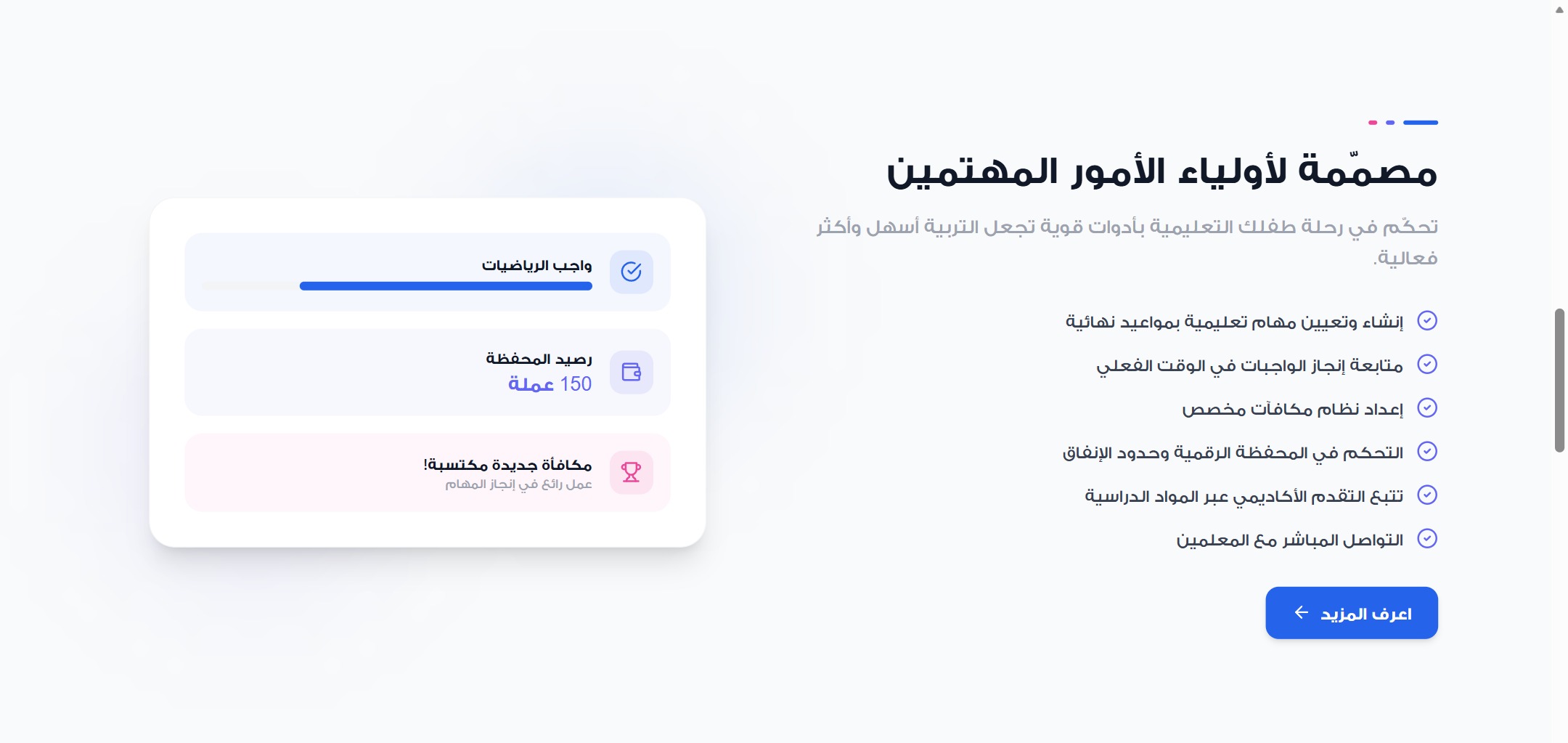
Academically it handles classes, timetables, curricula, attendance, behaviour and the full gradebook, and homework passes through the parent before it reaches the student, who attaches a reward to it and approves its completion.
For daily school life: a cafeteria with digital wallets and NFC cards, a school store with delivery zones and invoices, paid activities and events with refunds, plus certificates and grade reports.
Dismissal has a dedicated system with a live map: the parent announces arrival and receives a WhatsApp verification code near the gate, then the status moves through four documented steps between supervisor and parent until the student is handed over.
It is completed by virtual classrooms running inside the platform itself, real-time notifications, and direct teacher-to-parent messaging.
Key features
- School/Teacher/Parent/Student panels
- Attendance, behavior, grades
- Live dismissal map
- Cafeteria, wallets & store
- Virtual classrooms
- Mobile apps
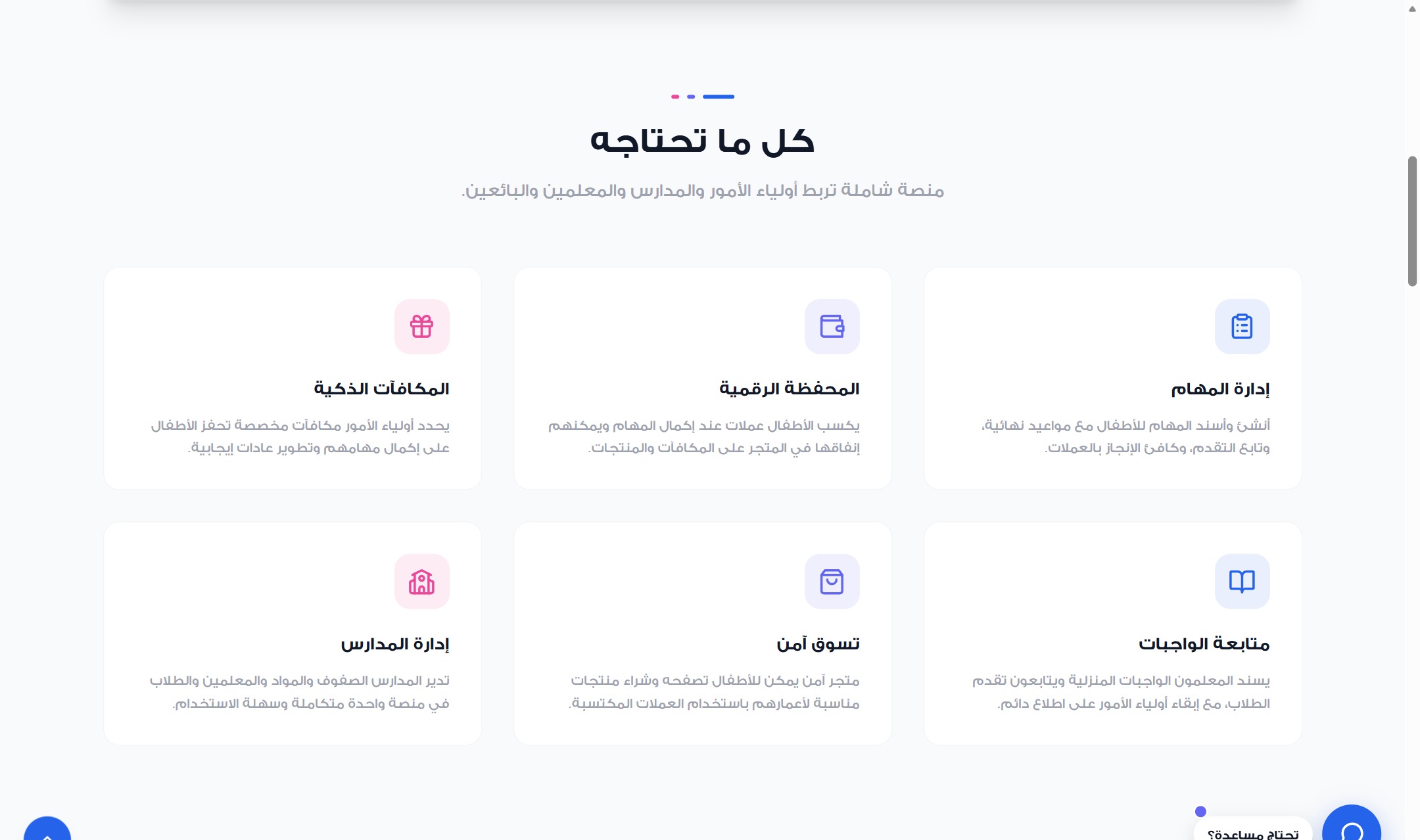
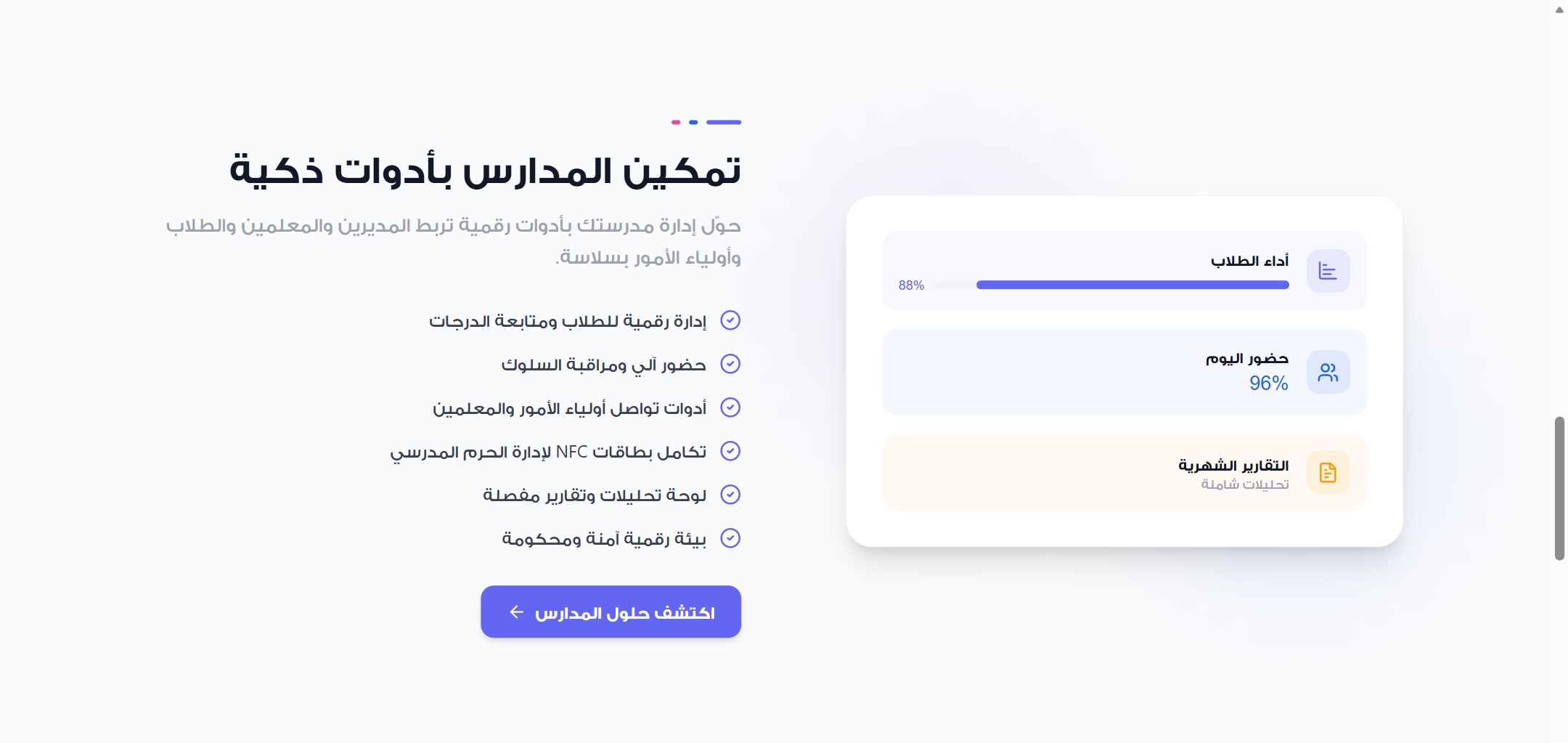
A guided tour of the platform
Real interface shots with a short note on what each screen does.
 Click to enlarge
 Click to enlarge
 Click to enlarge
 Click to enlarge
 Click to enlarge
How registration works
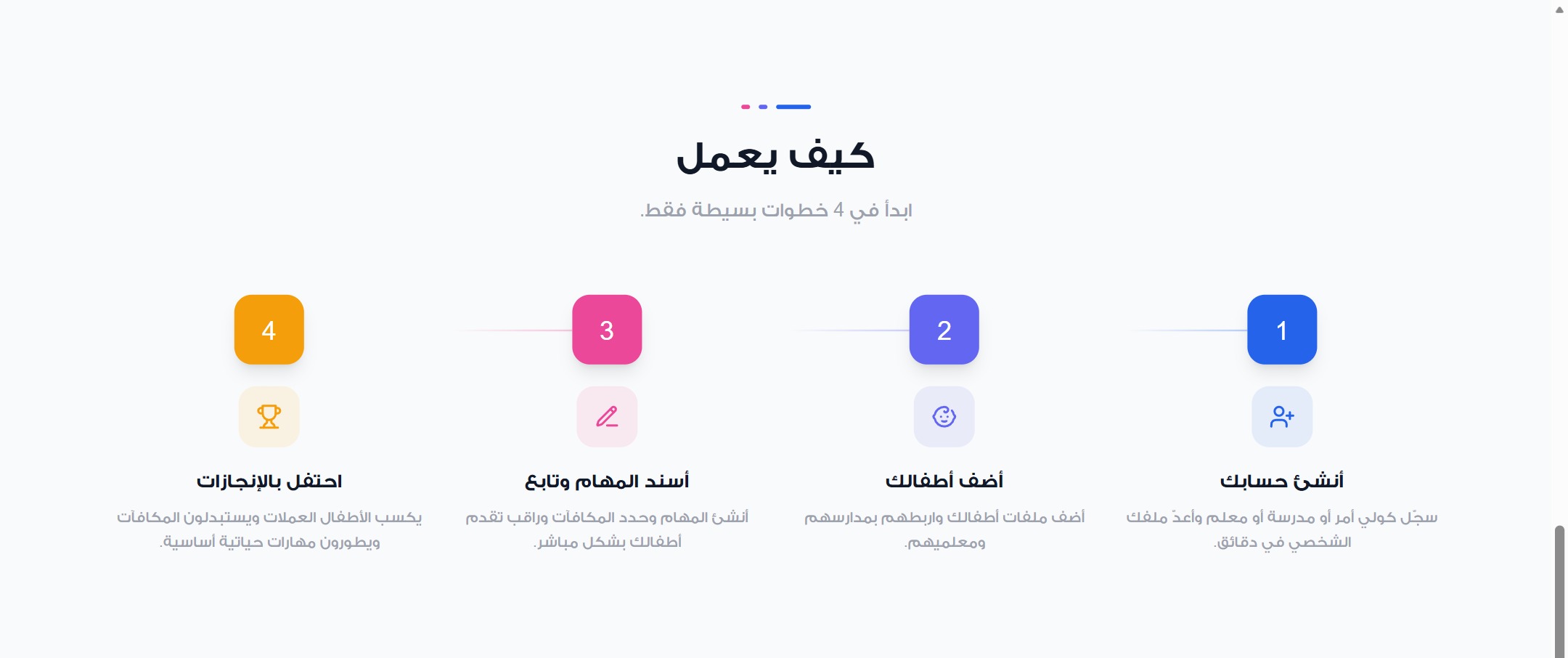
Registration in MindGrow starts from the school: the school panel is opened first, then teachers, parents and students join it through a linking code issued by the school itself. No student account is activated until the school approves it and assigns it to a class — which is what guarantees that everyone in the system is verified and genuinely linked to their school.
-
1
Step 1
Create your account on the platform and choose your role: parent, school, or teacher.
-
2
Step 2
A parent registers with their mobile number and confirms it with a verification code sent over WhatsApp.
-
3
Step 3
Add your children's profiles, then link them to their school using the linking code the school issues.
-
4
Step 4
The school approves the linking request and assigns the student to a class, which activates the timetable, attendance and grades and notifies the parent and the class teacher.
-
5
Step 5
Schools open their panel by contacting DROPIDEA, then create the accounts of teachers and cafeteria/dismissal supervisors themselves, each with their own role and permissions.
-
6
Step 6
Once linked, everything is available: tasks and rewards, attendance and grades, cafeteria, store and dismissal — from the website or the mobile app.