زيادة سرعة ووردبريس في 16 خطوة تضمن أداء موقعك | استراتيجيات متقدمة
 بقلم الأدمن
إذا كنت تريد إنشاء موقع ووردبريس ناجح أو تريد تطوير موقعك الإلكتروني فالنقطة الأهم التي يجب أن تهتم بها هي تحسين سرعة الموقع الإلكتروني لأنها تؤثر على كلٍ من نتائج محركات البحث وعلى تجربة المستخدم داخل موقعك. وعند البحث عن طرق زيادة سرعة الووردبريس ستجد العديد من الطرق المتداخلة التي يمكن أن تؤثر بشكل عكس على سرعة الووردبريس، وكذلك بعض النقاط تحتاج إلى شرح أكثر تفصيلاً حتى يتم التعديل عليها بالشكل الصحيح دون أن تؤثر على الموقع الإلكتروني. لذلك في مقال اليوم سنقدم لكم دليل شامل يتكون من 16 خطوة متقدمة تستطيع الاعتماد عليهم في زيادة سرعة موقعك الإلكتروني إلى أكثر من الضعف، فتابع القراءة معنا.
أهمية زيادة سرعة مواقع الووردبريس ؟ سرعة الموقع الإلكتروني تعد من أهم العوامل التي تؤثر على تجربة المستخدم بشكل مباشر، حيث عندما تقوم بوضع نفسك موضع الزائر وتقوم بالدخول إلى موقع يستغرق وقت تحميل طويل حتى يكتمل التحويل وتستطيع تصفح الموقع، ستجد أنك بشكل تلقائي تغادر الموقع وتبحث عن بديل يقدم نفس المحتوى ولكن بتجربة مستخدم أفضل. وبالتأكيد تعد تجربة المستخدم من أهم العوامل التي يحتاج أصحاب المواقع الإلكترونية إلى تطويرها في مواقعهم الإلكترونية، كما أن سرعة الووردبريس تؤثر أيضًا على محركات البحث في العديد من العوامل كالآتي: نتائج محركات البحث : تعتمد محركات البحث على سرعة الموقع كأحد العوامل الأساسية لترتيب نتائج الصفحات الأولى سواء سرعة الموقع على أجهزة الكمبيوتر أو على الجوال، والفترة القادمة ستعتمد محركات البحث عن مقياس Core Web Vitals والذي يضم سرعة الموقع من النقاط الرئيسية في التقييم والمقارنة على سبيل المثال عند تساوى موقعين في نفس القوة والمحتوى يتفوق الموقع الأسرع بشكل عام.
معدل التحويل : يرتبط معدل التحويل بشكل مباشر مع سرعة تحميل الموقع أيضًا، حيث طبقًا لدراسة موقع Akamai أن معدل تأخير تحميل الموقع بمقدار 100 مللي ثانية فقط يؤدى إلى خفض معدل التحويل 7 % وكذلك طبقًا لدراسة موقع Deloitte أن عند تحسين سرعة الموقع بمقدار 100 مللي ثانية يزيد من معدل التحويل بمقدار 8 % وتلك تعد نسبة جيدة بالتأكيد بدون مجهود إضافي.
معدل الارتداد : يتأثر معدل الارتداد بسرعة تحميل الموقع أيضًا، حيث طبقًا لدراسة موقع Pingdom أن معدل الارتداد مع الموقع يزيد بنسبة 6 % إذا تم تحميل الموقع الإلكتروني خلال ثانيتين أما إذا زادت فترة التحميل إلى 5 ثوان يزيد معدل الارتداد إلى 38 %، ونفس الأمر بالنسبة لدراسة Google توضح أن يزيد معدل الارتداد بنسبة 32 % إذا كانت فترة تحميل الموقع من 1 – 3 ثوان أما إذا كانت فترة التحميل من 1 – 5 ثوان يصل معدل الارتداد إلى 90 % وهذا رقم كبير جدًا. والجدير بالذكر أيضًا أن كلاً من معدل التحويل ومعدل الارتداد مع العوامل التي يعتمد عليها محرك البحث جوجل في ترتيب نتائج الصفحات الأولى.
لذلك يمكن القول أن السرعة تؤثر على الموقع الإلكتروني بشكل عام وتعد من أهم النقاط التقنية التي يجب أن تؤخذ في الاعتبار في خطة تطوير الموقع الإلكتروني. كيف يمكن قياس سرعة موقع الووردبريس؟ توجد العديد من الطرق التي يمكنك قياس بها سرعة موقع الووردبريس، ولكن أفضل تلك الطرق هو الاعتماد على أدوات قياس السرعة المعتمدة حيث أنها تقوم بقياس سرعة الموقع وكذلك تقديم تقرير بأسباب بطئ الموقع ونصائح تحسين سرعة الموقع.
ويوجد العديد من الأدوات التي يفضل الجمع بينهم للحصول على أفضل نتائج وأهم تلك الأدوات هو الآتي: Gtmetrix : الأداة الأهم في قياس سرعة الموقع هي أداء Gtmetrix حيث تقوم بتحليل كافة عناصر الموقع من حيث ملفات Javascript وملفات CSS وكذلك الصور والخطوط وغير ذلك الكثير. Pingdom : أداة Pingdom هي المنافس الأكبر لأداة Gtmetrix ويفضل الجمع بين نتائجهم لتحديد رؤية شاملة على موقعك الإلكتروني كما أنها تقدم لك فحص شامل بواسطة Lighthouse الذي يربط أداء الخادم والموقع بالنتائج المُعلنة، وكذلك يتيح لك اختيار أكثر من 7 مراكز بيانات مختلفة حتى تحاكي أقرب تجربة متاحة لزوار موقعك الإلكتروني. Query Monitor : تساعدك أداة Query Monitor على فحص المكونات الإضافية على موقعك الإلكتروني وتحديد المكونات التي تسبب البطئ بشكل عام والتي ترتبط أيضًا بزيادة عدد طلبات HTTP.
PageSpeed Insights : أداة PageSpeed Insights هي عبارة عن أداة مقدمة من جوجل لتحليل أداء وسرعة موقعك الإلكتروني وتقديم تحليل كامل لكافة المؤشرات الرئيسية على سبيل المثال مؤشر Largest Contentful Paint (LCP) أو مؤشر First Input Delay (FID) وغيرهم.
وكافة الأدوات السابقة تستطيع الاعتماد عليهم بشكل مجاني وكذلك بشكل مباشر عن طريق الدخول إلى الواجهة الرئيسية ووضع عنوان URL لموقعك الإلكتروني ثم إجراء الاختبار بشكل تلقائي. وحتى تحصل على أفضل النتائج هناك بعض المتغيرات التي يجب الانتباه إليها وأهم تلك المتغيرات هو الآتي: جهاز الاختبار : يجب أن تراعي نتائج الاختبار على كلاً من أجهزة الكمبيوتر والهواتف أيضًا وأغلب الأدوات السابقة تقدم تقارير لكل جاهز بشكل منفصل. موقع الاختبار : يجب أن تختار مركز بيانات قريب من موقع الزوار، لأن إذا تم اختيار مركز بيانات بعيد عن الزائر وقريب من مركز بيانات الاستضافة ستكون النتائج وهمية ولا تمثل تجربة واقعية للزائر.
سرعة الاتصال : تقوم الأدوات السابقة باختبار سرعة الموقع بواسطة انترنت فائق السرعة، لذلك يجب مراعاة تحديد سرعة الاختبار بما يتناسب مع الدول المُستهدفة ويمكنك التحكم في سرعة الاتصال من الخيارات المتقدمة في البحث في أغلب الأدوات السابقة. يمكنك أيضًا مراجعة مقال أفضل الأدوات لاختبار سرعة الموقع وحل المشكلات الناتجة من الاختبار
ماذا تعني نتائج اختبارات سرعة ووردبريس بواسطة أدوات
قياس السرعة ؟ عند إجراء اختبار لسرعة موقع ووردبريس بواسطة أدوات قياس السرعة السابقة ستجد العديد من النتائج والأرقام والتقارير المختلفة، وبالتأكيد ستختلف من أداة إلى أخرى. لا يجب عليك الاهتمام بكافة النتائج أو التقارير المقدمة وذلك لأنها عبارة عن نصائح تساعدك على تحسين أداء موقعك فقط ولكن الأهم هو الوقت الفعلي لتحميل الموقع وهذا الذي يؤثر على الزائر بشكل مباشر، وكذلك بعض المؤشرات الرئيسية وهم كالآتي : 1- مؤشرات قياس سرعة الموقع الرئيسية
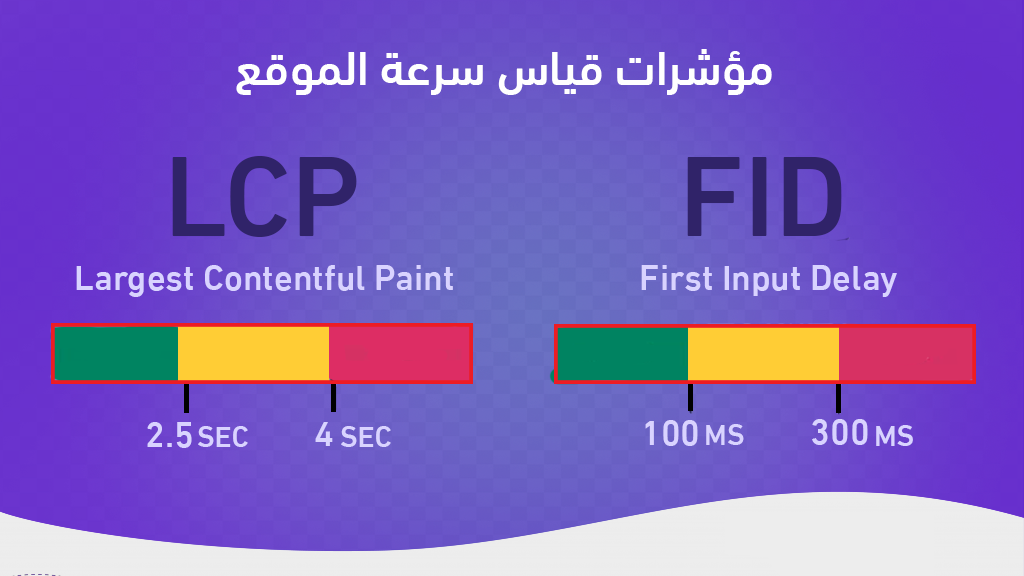
مؤشر Largest Contentful Paint (LCP) : هو مؤشر رئيسي يساعدك على تحديد سرعة تحميل المحتوى الرئيسي لموقعك الإلكتروني حتى يصبح جاهز للتصفح، وهذا يعني إذا كان هناك جزء في الموقع من الأسفل لم يكتمل تحميله لن يؤثر على مؤشر LCP ويجب أن يكون أقل من 2.5 ثانية ولا يزيد عن 4 ثواني كحد أقصى. مؤشر First Input Delay (FID) : هو مؤشر يساعدك على تحديد الوقت اللازم حتى تكون صفحتك جاهزة للاستجابة والتفاعل من المستخدم، على سبيل المثال وجود زر ديناميكي على الواجهة الرئيسية فيصبح جاهز يستطيع الزائر النقر عليه والقيام بوظيفته ويجب أن يكون أقل من 100 مللي ثانية ولا يزيد عن 300 مللي ثانية. اقرأ أيضًا: تحديث Core Web Vitals وإرشادات لتحسين صفحات الموقع لتتوافق معه
والآن بعد أن تعرفنا على أدوات قياس سرعة الووردبريس وأهم المؤشرات الرئيسية في نتائج الاختبار، دعنا نتعرف على أسباب بطئ مواقع الووردبريس وطريقة معالجة تلك الأسباب، فتابع القراءة معنا. ما هو سبب بطئ مواقع الووردبريس ؟ توجد العديد من الأسباب التي يمكن أن تؤدى إلى بطئ مواقع الووردبريس ويمكن تقسيم تلك الأسباب إلى نوعين أساسيين كالآتي: مشاكل الواجهة الخلفية Backend.
مشاكل الواجهة الأمامية Frontend. مشاكل الواجهة الخلفية تكون مرتبطة أكثر بمشاكل خادم الاستضافة أو الخدمات المرتبطة بها على سبيل المثال خدمات التخزين المؤقت أو إصدار PHP وغير ذلك. مشاكل الواجهة الأمامية تكون مرتبطة أكثر بالخيارات التي تضيفها على موقعك الووردبريس الجديد على سبيل المثال الآتي: استخدام قالب ووردبريس بطئ.
استخدام عدد كبير من الإضافات أو استخدام إضافات تسبب بطئ الووردبريس بشكل عام. وجود أكواد Javascript أو css غير محُسنة. وجود عدد كبير من الصور ذات الحجم الكبير.
وتوجد العديد من الأسباب الأخرى وحتى تعالج وتحسن سرعة موقع الووردبريس يجب أن تهتم بكلا النوعين السابقين وهذا ما سنوضحه في الفقرات التالية، فتابع القراءة معنا. خطوات زيادة سرعة الووردبريس سنقدم لكم خلال النقاط التالية طريقة تحسين سرعة الووردبريس إلى أكثر من الضعف وذلك خلال خطوات مرتبطة كالآتي: 1- اختيار شركة استضافة جيدة
بداية الأمر يجب عليك اختيار شركة استضافة جيدة ذات موارد وكفاءة تتناسب مع احتياجات وحجم موقعك الإلكتروني، وذلك لأن الاستضافة تعد هي العامل الأكبر الذي يؤثر على سرعة مواقع الووردبريس والمسبب الأول لمشاكل الواجهة الخلفية Backend كما وضحنا سابقًا. وإذا كان بالفعل المشكلة الأساسية من شركة الاستضافة، سيكون من الصعب الوصول إلى نتيجة مرضية حتى بعد إتباع كافة خطوات تحسين مشاكل الواجهة الأمامية Frontend التالية. ودائمًا ننصح عملاء موقعنا بالاعتماد عن الاستضافة المشتركة والتوجه إلى الاستضافة السحابية حيث أنها تعد أسرع بنسبة لا تقل عن 50 % والفارق في التكلفة المادية ليس كبير، وقد نشرنا تجربة سابقة في الانتقال من الاستضافة المشتركة إلى الاستضافة السحابية
في المشاركة التالية على مجتمع عرب ووردبريس: تجربة الانتقال إلى استضافة ديجتال أوشن كما أن أغلب شركات الاستضافة تقدم أكثر من مركز بيانات مختلف، وكلما كان مركز البيانات قريب من البلد المستهدف كلما كانت سرعة تحميل الموقع أكبر، لذلك حاول أن تختار أقرب مركز بيانات لزوار موقعك الإلكتروني.
ويمكن اختبار الاستضافة بشكل سريع بواسطة أداة KeyCDN لقياس زمن استجابة الخادم TTFB ويجب أن تكون النتيجة أقل من 200 مللي ثانية طبقا لتوصيات جوجل وإذا كانت النتائج أكبر من ذلك يجب البحث عن شركة استضافة أفضل ثم تقوم باستكمال الخطوات التالية، ويمكنك الاعتماد على مقال معايير اختيار شركة الاستضافة التالي: أفضل 4 شركات استضافة جدير الإعتماد عليها .
2- تحديث إصدار PHP
جميع مواقع الووردبريس تعمل بنظام البرمجة PHP، ونظام البرمجة PHP يتم تحديثه بشكل دوري مثل أي لغة برمجة أخرى، ومع كل عملية تحديث يتم تحسين أداء لغة البرمجة ومعالجة الأخطاء الأمنية المرتبطة بها. في عام 2015 تم إصدار نسخة PHP 7.4 والتي تعد أسرع بنسبة لا تقل عن 50 % من النسخ السابقة وذلك لأنها تعالج عدد أكبر من طلبات HTTP في نفس الوقت وكذلك تستخدم موارد أقل من الخادم خصوصًا في معالجة الصفحات الديناميكية. والإصدار الأحدث الذي تم الإعلان عنه مؤخرًا PHP 8.0 والذي يعتمد على خاصية حديثة JIT والتي تعمل على معالجة وترجمة الأكواد قبل إرسالها للخادم وبعد ذلك يتم إرسالها للخادم وتلك الخاصية تزيد من سرعة مواقع الووردبريس بنسبة لا تقل عن 10 %.
لذلك يجب مراجعة إصدار PHP الذي يعمل على موقعك الووردبريس وأغلب الشركات لم توفرًا حاليا إصدار PHP 8.0 كما أن أغلب إصدارات إضافات الووردبريس لا تزال لم تتوافق معه، لذلك يجب أن تتأكد أن موقعك يعمل على الأقل على إصدار PHP 7.4 ويمكنك بسهولة طلب تحديث إصدار PHP من الدعم الفني الخاص بشركة الاستضافة. 3- استخدام قالب ووردبريس سريع عند إنشاء موقع ووردبريس جديد تحتاج إلى قالب جاهز من أجل تصميم واجهات موقعك بشكل سريع وعند البحث عن قوالب الووردبريس ستجد خيارات متعددة بشكل مجاني ومدفوع.
وتلك القوالب يمكن أن تؤثر على سرعة الووردبريس بشكل مباشر على سبيل المثال لغة برمجة القالب إذا كانت Vanilla JavaScript تكون أسرع من القوالب ذات لغة البرمجة jQuery بنسبة تزيد عن 30 % وذلك لأن كود Vanilla JavaScript أنظف وأسرع. كما أن قوالب الووردبريس ترتبط بعدد طلبات HTTP، حيث كلما كانت الوجهة معقدة أو تحتوى على عناصر ديناميكية كثيرة تحتاج إلى عدد كبير من طلبات HTTP وبالتالي يستغرق الخادم وقت أطول لمعالجة كافة طلبات HTTP المطلوبة والذي تنعكس على بطء سرعة تحميل صفحات الووردبريس. كما يفضل أن تبتعد على قوالب الووردبريس التي تعتمد على أدوات منشئ الصفحات على سبيل المثال Elementor أو DIVI وغير ذلك، وذلك لأن تلك الأدوات تٌضيف عدد كبير من أكواد CSS و JavaScript ضمن قواعد البيانات والتي نتعكس على زيادة فترة تحميل الموقع، ويمكن إذا لزم الأمر الاعتماد على منشئ الصفحات Oxygen أو GeneratePress حيث انهم خيارات أقل ضررًا وأسرع بشكل كبير ولكن الأفضل بالتأكيد عدم الإعتماد على أدوات منشئ الصفحات تمامًا.
لذلك يفضل أن تخصص وقت كافي من أجل اختيار قالب ووردبريس مناسب لموقعك الإلكتروني ويساعد على تحسن سرعة الووردبريس ويمكنك مراجعة مقال كيف تحصل على أسرع قالب ووردبريس؟ نصائح وتوصيات كما يفضل أن تقوم بحذف كافة القوالب الغير مستخدمة أو الغير نشطة بشكل عام وذلك لتخفيف حجم قواعد البيانات والتي تنعكس على سرعة الووردبريس واستهلاك موارد الخادم أيضًا.
4-استخدام خاصية التخزين المؤقت للصفحة عندما يقوم الزائر بالدخول إلى موقعك الإلكتروني فأنه يقوم بتحميل كافة ملفات الموقع من الخادم على متصفح الويب الخاص به، ويتم تكرار نفس العملية عند الانتقال من صفحة إلى أخرى داخل الموقع أو إعادة الدخول إلى الموقع مرة أخرى. لذلك يمكن أن تستخدم خاصية التخزين المؤقت للصفحة وتلك الخاصية تعمل على تخزين ملفات الموقع الرئيسية على متصفح الويب للزائر، وبالتالي عندما يقوم بالدخول إلى الموقع مرة أخرى يتم تحميل الملفات بشكل مباشر من خادم الويب ولا يحتاج إلى تحميلها من جديد من خادم شركة الاستضافة.
وبالتالي هذا ينعكس بالتأكيد على سرعة تحميل موقع الووردبريس بنسبة لا تقل عن 40 % ويتغلب على أغلب مشاكل الخادم الرئيسية كما يوفر من استهلاك موارد الخادم أيضَا ولكن ذلك بالتأكيد بعد الزيارة الأولى للعميل. وتوجد العديد من الإضافات التي يمكن أن تعتمد عليها في تفعيل خاصية التخزين المؤقت للصفحات والتحكم فيها وأهم تلك الخيارات هوإضافة WP Rocket على المستوى المدفوع أو إضافة WP Super Cache على المستوى المجاني وتلك التي سنعتمد عليها في المقال.
حيث تقوم بالدخول إلى لوحة تحكم الووردبريس الرئيسية وبعد ذلك تختار إضافات من القائمة الجانبية ومنها تختار أضف جديد وبعد ذلك تقوم بالبحث عن إضافة WP Super Cache وتقوم بالضغط على تنصيب الآن المجاورة لها كما موضح في الصورة التالية: 2- تنصيب إضافة WP Super Cache على الووردبريس وبعد الإنتهاء من التنصيب تقوم بتفعيل إضافة WP Super Cache ثم تقوم بالرجوع إلى قائمة الووردبريس الرئيسية وتختار الإعدادات من القائمة الجانبية وتختار منها WP Super Cache وبعد ذلك تقوم بتفعيل خاصية Caching on من خيار Caching ثم تقوم بالضغط على Update Status وذلك كما موضح في الصورة التالية: 3- التعديل على إضافة WP Super Cache على الووردبريس وبعد ذلك تقوم باختيار تبويب Advanced من القائمة العلوية وتفعل خيار Enable Caching أيضًا وكذلك تفعل خيار Don’t cache pages with GET parameters وخيار Disable caching for logging
in Visitors وبعد ذلك تقوم بالضغط على Update status وذلك كما موضح في الصورة التالية: 4- التعديل على خصائص إضافة WP Super Cache على الووردبريس وبعد ذلك تقوم بالنزول إلى أسفل وتقوم بتفعيل خيار Clear all cache files when a post or page is published or updated من أجل تحديث المقالات والصفحات بشكل دوري ثم تقوم بالضغط على Update status وذلك كما موضح في الصورة التالية: وبعد ذلك تقوم الدخول إلى تبويب Preload من القائمة العلوية وتقوم بالتعديل على خيار Refresh Preloaded cache file every إلى 3600 ثانية وذلك ليتم تحميل تحميل الكاش بشكل مسبق ثم تقوم بالضغط على Save Settings وذلك كما موضح في الصورة التالية: 6- ضبط خصائص تحميل الكاش المسبق في إضافة WP Super Cache على الووردبريس
وبعد ذلك تقوم باختيار تبويب Contents من القائمة العلوية وتقوم بالضغط على زر Delete Cache من أجل حذف الكاش القديم بالكامل وذلك كما موضح في الصورة التالية: 7- حذف الكاش القديم في إضافة WP Super Cache على الووردبريس بعد ذلك تقوم بإعادة اختبار سرعة الووردبريس وستجد أن النتائج تحسنت بنسبة كبيرة بالتأكيد، والجدير بالذكر أن أغلب شركات الاستضافة توفر خدمة التخزين المؤقت بشكل مجاني مع خطط الاستضافة لذلك يجب مراجعة تلك النقطة في البداية قبل الاعتماد على إضافات خارجية.
5- تحسين ومعالجة الصور
الصور تعد من أهم عناصر صفحات الموقع الإلكتروني وستجد أن حجم الصور يتجاوز 50 % في أغلب الصفحات الرئيسية والمقالات، لذلك تحسين ومعالجة الصور يؤدى إلى زيادة سرعة الووردبريس بالتأكيد. ويمكنك تحسين أداء الصور بشكل يدوي عن طريق النصائح التالية: مراعاة الحجم الأقصى للصور لا يتجاوز 500 كيلوبايت ويمكنك ضغط الصور دون أن تؤثر على الجودة بواسطة أداة Tinypng وغيرها الكثير.
أبعاد الصورة يجب أن لا تتجاوز 800 بكسل كحد أقصى. استخدام صيغ الصور الخفيفة على سبيل المثال JPEG أو PNG أو Webp . كما يمكنك الاعتماد على خاصية التحميل الكسول أيضًا للصور، وتلك خاصية تعمل على تحميل الصفحة بالكامل ثم يتم تحميل الصور بشكل تدريجي مع تصفح الزائر للصفحة أو المقال دون أن يشعر وبالتالي تزيد من سرعة تحميل صفحات الووردبريس.
ويمكنك أيضًا الاعتماد على إضافات الووردبريس من أجل تفعيل كافة الخصائص السابقة بشكل تلقائي خصوصًا إذا كنت تمتلك عدد كبير من الصور أو الكتاب على موقعك الإلكتروني، على سبيل المثال يمكنك الاعتماد على إضافة WP Smush وهي إضافة مجانية وتقدم إصدار متقدم يساعدك على تحويل الصور إلى صيغة Webp بشكل تلقائي ولكن يمكن الاعتماد على الإصدار المجاني. بداية الأمر تقوم بتنصيب إضافة WP Smush كما فعلنا في الإضافة السابقة ثم تقوم باختيار Smush من القائمة الجانبية وبعد ذلك تختار Bulk Smush. بعد ذلك تقوم بتفعيل خيار ALL من Image Sizes حتى تتعامل مع كافة أحجام الصور ثم تقوم بتفعيل خيار Automatic compression وخيار Super Smush وخيار Metadata وذلك كما موضح في الصورة التالية:
8 – ضبط إعدادات إضافة Smush على الووردبريس بعد ذلك تقوم بالنزول إلى أسفل نسبيا وتقوم بتفعيل خيار Image Resizing وتحديد عرض وارتفاع الصور الأقصى 800 بيكسل ثم تقوم بالضغط على Save Settings وذلك كما موضح في الصورة التالية: 9 – تحديد أقصى أبعاد للصور في إضافة Smush على الووردبريس ثم تقوم بالصعود إلى أعلى مرة أخرى وتضغط على Bulk Smush Now من أجل فحص ومعالجة جميع الصور على موقعك الإلكتروني مرة واحدة بشكل تلقائي وذلك كما موضح في الصورة التالية: 10 – تحسين أداة الصور على الووردبريس بواسطة إضافة Smush
والآن نحتاج إلى تفعيل خاصية التحميل الكسول، فتقوم باختيار تبويب Smush من القائمة الجانبية ثم تختار Lazy Load وبعد ذلك تقوم بالضغط على Activate كما موضح في الصورة التالية: 11 – تفعيل خاصية التحميل الكسول للصور على الووردبريس بواسطة إضافة Smush بعد ذلك سيتم إعادة تحميل الصفحة فتقوم بتحديد كافة أنواع الصور من Media Types وكذلك كافة تصنيفات Output Locations وذلك كما موضح في الصورة التالية: 12 – التعديل على خاصية التحميل الكسول للصور في إضافة Smush ثم تقوم بالنزول إلى أسفل وتقوم بتحديد كافة صفحات موقع الووردبريس في خيار Include/Exclude ثم تقوم بالضغط على Save Settings وذلك كما موضح في الصورة التالية: 13 – تفعيل خاصية التحميل الكسول للصور على كافة صفحات الموقع في إضافة Smush
وبهذا الشكل تم معالجة كافة الصور السابقة والصور المستقبلية بشكل تلقائي وكذلك تفعيل خاصية التحميل الكسول بواسطة إضافة Smush الإصدار المجاني منها. 6- تحسين أكواد CSS و JavaScript
الخطوة التالية نحتاج إلى تحسين أكواد CSS و
JavaScript وذلك لأن موقع الووردبريس يتكون من عدد ضخم من سطور CSS و JavaScript ولكن نحتاج إلى إعادة ترتيب تلك السطور وضغط حجمها حتى تصبح نظيفة وخفيفة تمامًا في المعالجة. ويوجد استراتيجيتان أساسيتان لتحسين أكواد CSS و JavaScript وذلك كالآتي: تقليل حجم ملفات CSS و JavaScript عن طريق إزالة المسافات والسطور الفارغة.
جمع ملفات CSS و JavaScript
في ملفات مشتركة وبالتالي تقلل من عدد طلبات HTTP خصوصًا إن طلب HTTP لملف كبير أفضل بكثير من طلب HTTP للعديد من الملفات الصغيرة. ويفضل دائمًا تطبيق كلاً من استراتيجيتين السابقتين خصوصًا النقطة الثانية لما لها من تأثير كبير على تحسين مؤشر Largest Contentful Paint، ويمكن القيام بهذا الأمر يدويًا ولكن الأمر مرهق جدًا خصوصًا مع توفر إضافات ووردبريس يمكنها القيام بالأمر بواسطة خطوات بسيطة جدًا على سبيل المثال إضافة Autoptimize المجانية. يمكنك بنفس الخطوات السابقة تنصيب وتفعيل إضافة Autoptimize على موقعك الإلكتروني وبعد ذلك تختار الإعدادات من قائمة الووردبريس الجانبية وتختار منها Autoptimize.
وبعد الدخول إلى إضافة Autoptimize تبحث عن خيار CSS Options وتقوم بتفعيل الخيارات التالية: Optimize CSS Code Aggregate CSS-files وذلك من أجل ضغط ملفات CSS وتجميع الملفات وذلك كما موضح في الصورة التالية: 14 – تحسين ملفات CSS على الووردبريس بعد ذلك تقوم بالنزول إلى أسفل نسبيًا والبحث عن خيار JavaScript Options وتقوم بتفعيل الخيارات التالية: Optimize JavaScript Code Aggregate JS-files وذلك من أجل ضغط ملفات JavaScript وتجميع الملفات أيضًا كما موضح في الصورة التالية: 15- تحسين ملفات Javascript على الووردبريس وبعد ذلك تقوم بالنزول إلى أسفل وتضغط على Save Changes and empty cache وبهذا الشكل تم تحسين كافة أكواد CSS و JavaScript على موقعك وزيادة سرعة الووردبريس.ا اقرأ أيضًا: شرح جافا سكريبت للمبتدئين
7- تأجيل تحميل ملفات JavaScript كما اتفقنا سابقًا أن الووردبريس يتكون من عدد كبير من ملفات JavaScript وهي المسئولة عن المحتوى في صفحات موقعك الإلكتروني، لذلك ضمن الاستراتيجيات الناجحة هو تأجيل تحميل ملفات JavaScript مؤقتا ويتم تحميلها بشكل تدريجي مع تصفح الزائر للموقع.
ويمكنك الاعتماد على
إضافة Async JavaScript المجانية أيضًا في تلك الوظيفة وهي تابعة لاضافة Autoptimize السابقة، حيث تقوم باضافة Async JavaScript على الووردبريس كما فعلنا سابقًا. وبعد ذلك تختار الإعدادات من قائمة الووردبريس الجانبية وتختار منها Async JavaScript ثم تقوم باختيار تبويب Settings من القائمة العلوية لها. وتبحث عن خيار Enable Async JavaScript وتقوم بتفعيل الخيار ثم تقوم بالنزول إلى أسفل وتضغط على Save Changes وذلك كما موضح في الصورة التالية: 16 – تأجيل تحميل ملفات Javascript على الووردبريس
وبهذا الشكل تم تأجيل تحميل ملفات Javascript أثناء تحميل ملفات الموقع الرئيسية، ويمكنك مراجعة اختبار سرعة الموقع ستجد أن سرعة الووردبريس تحسنت بشكل ملحوظ. 8- تحديد أو تعطيل المراجعات عند كتابة مقالات موقعك الإلكتروني يقوم الووردبريس بتخزين كافة نسخ المراجعات حتى تتم عملية النشر الأساسية، ويتم تخزين كافة تلك المعلومات وتؤثر بالسلب على قواعد البيانات.
لذلك يجب عليك تعطيل حفظ المراجعات أو على الأقل تحديد عدد المراجعات كحد أقصى 2 ويمكن ذلك بالاعتماد على إضافة wp-revisions-control المجانية أو يمكنك تفعيلها بشكل يدوي بخطوات بسيطة. بداية الأمر تذهب إلى مدير الملفات في خادم شركة الاستضافة وتقوم بالبحث عن ملف wp-config.php وتقوم بكتابة الكود التالي في السطور الأخيرة: define(‘WP_POST_REVISIONS’, 2); وذلك من أجل تحديد أقصى عدد للمراجعات مرتين فقط أو يمكنك إغلاقها تمامًا بواسطة الكود التالي: define(‘WP_POST_REVISIONS’, false); وبعد ذلك تقوم بحفظ ملف wp-config.php وبهذا الشكل تم التحكم في عدد المراجعات التي يتم حفظها على موقعك الإلكتروني. 9-
استخدم ضغط Gzip من التقنيات المتقدمة التي يعتمد عليها خادم شركة الاستضافة هي خاصية ضغط Gzip ويمكن تشبيه خاصية ضغط Gzip بضغط الملفات على جهاز الكمبيوتر ببرنامج Winrar حيث ستجد أن حجم الملف أصبح أصغر ويضم نفس البيانات، وهذا نفس الأمر مع Gzip حيث تقوم بضغط كافة ملفات الموقع على الخادم بشكل متقدم حيث تقلل من حجم الملفات نسبة لا تقل عن 80 % ويمكنك أيضًا تفعيل تلك الخاصية بواسطة إضافات الووردبريس على سبيل المثال إضافة WordPress Gzip Compression المجانية وغير ذلك ولكن الأفضل تفعيل تلك الخاصية بشكل يدوي لأنها تكون أكثر كفاءة. ويمكنك ذلك عن طريق الدخول إلى مدير ملفات خادم الاستضافة وتبحث عن ملف htaccess وتقوم بإضافة الكود التالي في السطور الأخيرة:
# Compress HTML, CSS, JavaScript, Text, XML and fonts AddOutputFilterByType DEFLATE application/javascript
AddOutputFilterByType DEFLATE application/rss+xml
AddOutputFilterByType DEFLATE application/vnd.ms-fontobject AddOutputFilterByType DEFLATE application/x-font AddOutputFilterByType DEFLATE application/x-font-opentype
AddOutputFilterByType DEFLATE application/x-font-otf AddOutputFilterByType DEFLATE application/x-font-truetype AddOutputFilterByType DEFLATE application/x-font-ttf
AddOutputFilterByType DEFLATE application/x-javascript AddOutputFilterByType DEFLATE application/xhtml+xml AddOutputFilterByType DEFLATE application/xml
AddOutputFilterByType DEFLATE font/opentype AddOutputFilterByType DEFLATE font/otf AddOutputFilterByType DEFLATE font/ttf
AddOutputFilterByType DEFLATE image/svg+xml AddOutputFilterByType DEFLATE image/x-icon AddOutputFilterByType DEFLATE text/css
AddOutputFilterByType DEFLATE text/html AddOutputFilterByType DEFLATE text/javascript AddOutputFilterByType DEFLATE text/plain
AddOutputFilterByType DEFLATE text/xml # Remove browser bugs (only needed for ancient browsers) BrowserMatch ^Mozilla/4 gzip-only-text/html
BrowserMatch ^Mozilla/4.0[678] no-gzip BrowserMatch bMSIE !no-gzip !gzip-only-text/html Header append Vary User-Agent
وبعد ذلك تقوم بحفظ التعديلات وذلك كما موضح في الصورة التالية: 17 – تفعيل خاصية Gzip على الووردبريس وبعد ذلك تقوم بالضغط على حفظ، وتستطيع اختبار تفعيل خاصية Gzip عن طريق م وقع Giftofspeed حيث تقوم بوضع رابط الموقع ثم تقوم بإجراء البحث كالآتي: 18- اختبار خاصية Gzip على الووردبريس
ستلاحظ جملة Gzip Is Enabled هذا يعني أنه تم ضغط ملفات الموقع بشكل ناجح، وستلاحظ نسبة ضغط الملفات وصلت إلى 83.27 % وتلك نسبة كبيرة جدًا وبالتأكيد عندما تقوم بإعادة اختبار سرعة الموقع ستجد أن سرعة الووردبريس زادت بنسبة لا تقل عن 30 % من المؤشرات السابقة. 10- استخدم شبكة توصيل المحتوى (CDN) شبكة توصيل المحتوى CDN هي عبارة عن مجموعة ضخمة من الخوادم المترابطة والموزعة في جميع أنحاء العالم.
وعندما تقوم بربط موقعك الإلكترونى بشبكة توصيل المحتوى CDN سيتم رفع ملفات الموقع على كافة خوادم الشبكة المترابطة، وبالتالي عندما يقوم الزائر بالدخول إلى موقعك سيتم إرسال ملفات الموقع المطلوبة من أقرب خادم للعميل مما يقلل مسافة نقل الملفات وينعكس بالتأكيد على زيادة سرعة الووردبريس. وتوجد العديد من خيارات شبكات توصيل المحتوى المتاحة على سبيل المثال خدمات Cloudflare على المستوى المجاني أو خدمات KeyCDN على المستوى المدفوع أو يمكنك الاعتماد على خدمات CDN المقدمة مع شركات الاستضافة على سبيل المثال LiteSpeed CDN وذلك إذا كان متاح بالتأكيد بشكل مجاني ضمن خطة الاستضافة. 11- تحسين طلبات الجهات الخارجية
يحتاج أصحاب المواقع إلى إضافات الطرف الثالث التي تؤدي إلى زيادة الطلبات الخارجية وبالتالي تسبب بطئ تحميل مواقع الووردبريس ويظهر الفرق بشكل كبير في مؤشرات السرعة الرئيسية. على سبيل المثال استخدام أكواد Google Adsense في موقعك لإضافة إعلانات ادسنس أو استخدام أكواد Facebook Pixel لتتبع الزوار في موقعك ونفس الأمر أيضًا مع أكواد Google Analytics لتتبع أداء موقعك في محركات البحث وغيرهم الكثير. ويمكنك معالجة تلك المشكلة عن طريق إضافة الاكواد السابقة عن طريق إضافات تساعد على استضافة الأكواد خارجية وتفعيل خاصية التحميل المٌسبق للأكواد وبالتالي لا تؤثر على سرعة تحميل الموقع على سبيل المثال إضافة Wp Rocket المدفوعة أو إضافات Flying Scripts المجانية وهي عبارة عن مجموعة من الإضافات مخصصة لكل استخدام بشكل منفصل كما موضح في الصورة التالية: 19- إضافات Flying Scripts المجانية على الووردبريس.
وبهذا الشكل تستطيع إضافة أكواد الطرف الثالث الخارجية دون أن تؤثر على سرعة موقع الووردبريس. 12- تحسين البرامج النصية على مستوى الموقع توجد العديد من إضافات الووردبريس التي تعمل على تحميل العديد من البرامج النصيبة على كافة صفحات الموقع الإلكتروني حتى مع الصفحات التي لا تعتمد على تلك الإضافات.
على سبيل المثال إضافة Woocommerce تعد من أشهر الإضافات التي تعمل على تحميل عدد كبير من الاكواد النصية في كافة صفحات الموقع الإلكتروني التي لا تعتمد عليها على سبيل المثال المقالات أو الصفحات الرئيسية وغير ذلك. ويمكنك معالجة تلك المشكلة بشكل بسيط عن طريق الإعتماد على إضافة Disable Bloat for WordPress & WooCommerce المجانية ولا تحتاج إلى خبرة تقنية بمجرد تحميل وتفعيل الإضافة تقوم بمعالجة مشاكل الأكواد النصية الخاصة باضافة Woocommerce.
ويوجد العديد من الإضافات الأخرى إلى يمكن أن تسبب نفس المشكلة على سبيل المثال Elementor أو WPForms وغيرهم الكثير، وهنا يمكنك الاعتماد على إضافة Asset CleanUp: Page Speed Booster المجانية أو إضافة Perfmatters المدفوعة. على سبيل المثال إضافة Asset CleanUp: Page Speed Booster تقوم بتنصيبها وتفعيلها على موقعك الإلكتروني وتقوم باختيار Asset CleanUp من القائمة الجانبية ثم CSS / JS Manager وستظهر لك كافة إضافات الووردبريس التي تسبب تحميل أكواد نصية إضافية، تقوم بتحديد الإضافة المطلوبة وتقوم بتعطيل تفعيلها في الصفحات الغير مرتبطة بها وبعد ذلك تقوم بالضغط على Update وذلك كما موضح في الصورة التالية: 20 – تعطيل الإضافات التي تسبب تحميل أكواد نصية إضافية على الووردبريس
وبهذا الشكل تم تعطيل الإضافات التي تسبب تحميل أكواد نصية إضافية على الووردبريس وستلاحظ زيادة سرعة الووردبريس في الصفحات الرئيسية وكذلك انخفاض عدد طلبات HTTP بشكل ملحوظ. 13- تحسين Gravatars إذا كنت مفعل خاصية التعليقات على مقالات وصفحات موقعك الإلكتروني فيجب أن تعلم أن مع كل تعليق يتم توليد طلب HTTP جديد ونفس الأمر بطلب HTTP أخر لصورة Gravatars الخاصة بالتعليق.
كما أن حجم الصور Gravatars كبير خصوصًا مع وجود عدد كبير من التعليقات وبالتأكيد لا أنصح تمامًا بإغلاق التعليقات لأنها تساعد على زيادة التفاعل على مقالات موقعك الإلكتروني، ولكن يمكن أن تعمل على تحسين Gravatars. بداية الأمر يمكن أن تعمل على تحديد مجموعة من الصور الثابتة التي يختار منها أعضاء موقعك الإلكتروني ويتم استضافة تلك الصور بشكل محلي على خادم الاستضافة ويمكنك الاعتماد على إضافة Simple Local Avatars
المجانية في تحديد تلك الصلاحيات والصور وذلك كما موضح في الصورة التالية: 21 – إضافة Simple Local Avatars على الووردبريس وبعد ذلك يمكنك تفعيل خاصية التخزين المؤقت لكافة صور Gravatars على موقعك الإلكتروني وبالتالي لا يحتاج الزائر إلى إعادة تحميل الصور في كل مرة خصوصًا مع وجود نماذج جاهزة، وهنا يمكنك أن تعتمد على إضافة Optimum Gravatar Cache المجانية أيضًا، ولا تحتاج إلى تخصيص كثير حيث أنها تعمل بشكل جاهز بمجرد التنصيب والتفعيل على موقعك الإلكتروني.
الخطوة الأخيرة والتي تساعدك على القضاء على كافة مشاكل صور Gravatars على موقعك الإلكتروني هي تفعيل خاصية التحميل الكسول لهم أيضًا، حيث لا يتم تحميل جزء التعليقات إلا بعد أن يتم تحميل الصفحة كاملة وعندما يقترب الزائر من قسم التعليقات وبالتالي لن يشعر بتأخير التحميل تمًامًا ويمكنك ذلك أيضًا بواسطة الإعتماد على إضافة Lazy Load for Comments المجانية. 14- تحسين الفيديوهات
الفيديوهات هو الجزء الأكبر على صفحات الموقع الإلكتروني، وإذا تم تضمين فيديو واحد فقط على صفحات موقعك ستلاحظ زيادة حجم الصفحة بنسبة لا تقل عن 40 % وهذا الرقم يتضاعف مع زيادة عدد الفيديوهات في صفحاتك موقعك والتي تعد من العناصر الأساسية أيضًا التي يجب الاعتماد عليها. لذلك في بداية الأمر تجنب تمامًا رفع الفيديوهات أو مقاطع الصوت بشكل مباشر على موقعك الإلكتروني ولكن دائمًا اعتمد على منصات خارجية ثم تقوم بتضمين الفيديو داخل الصفحة. وعند تضمين الفيديو في صفحات موقعك يجب أن تراعي أن استبدال إطار الفيديو بصورة معاينة ثابتة وبالتالي تعامل معاملة الصور وعندما يضغط الزائر على الفيديو يتم البدء في تحميل iFrame الخاص بالفيديو وهو المسبب في زيادة الحجم وليس الصورة.
كما يمكنك أيضًا تفعيل خاصية التحميل الكسول للفيديوهات وهذا بدوره سيحل مشكلة الفيديوهات تمامًا، فإذا كنت تعتمد على اليوتيوب يمكنك الاعتماد على إضافة WP YouTube Lyte أو يمكنك الاعتماد على إضافة Perfmatters أو Wp Rocket كخيار مدفوع والذي يدعم كافة منصات الفيديوهات المختلفة. 15- تحسين إضافات الووردبريس
إضافات الووردبريس هي السبب الأساسي الذي يسبب أغلب مشاكل الواجهة الأمامية Frontend وتؤدي إلى بطئ سرعة الووردبريس، وذلك بسبب العديد من الأسباب أهمها أنها تستهلك عدد كبير من طلبات HTTP مع كل عملية استخدام له. بداية الأمر يجب أن تقوم بفحص كافة الإضافات على موقعك الإلكتروني وتقوم بحذف الإضافات التي لا تحتاج إليها، وكذلك يفضل أن تعتمد على الإضافات متعددة الأستخدام، وذلك لأنها توفر عليك تنصيب أكثر من إضافة منفصلة، على سبيل المثال إضافة WP Rocket قد تقدم وظيفة أغلب إضافات السرعة السابقة ولكنها مدفوعة والبعض يبحث عن الخيار المجاني. ولكن يمكن القول أنك تستطيع استخدام الخيارات المجانية دون مشاكل وكذلك العديد من الإضافات الآخرى التي تحتاج إليها بشرط أن تتأكد أنها لا تؤثر على سرعة الووردبريس ويمكنك ذلك عن طريق إضافة WP Hive | A Better WordPress Plugin Repo المجانية على متصفح جوجل كروم، حيث تقوم بالدخول إلى هذا الرابط
وتضغط على زر إضافة إلى Chrome كما موضح في الصورة التالية: 22 – تنصيب إضافة WP Hive | A Better WordPress Plugin Repo على جوجل كروم وبعد الإنتهاء من التنصيب تقوم بالدخول إلى إضافات الووردبريس ستجد تبويب جديد تم إضافته يعمل على فحص الإضافة قبل التنصيب ويقدم لك تحليل إذا كانت تؤثر على سرعة الووردبريس أم لا وذلك كما موضح في الصورة التالية: 23 – اختبار أداة WP Hive على جوجل كروم يجب أن تتأكد أن نتيجة الاختبار في قسم WP Hive Insights خضراء بالكامل في استهلاك ذاكرة الخادم أو التأثير على سرعة الموقع، وتم مراعاة أن أغلب الإضافات المجانية المُختارة في مقال اليوم تقدم نتائج إيجابية بالكامل في تحليل أداة WP Hive.
16- تحسين قواعد البيانات قاعدة البيانات هي المكان الذي يتم تخزين فيه كافة بيانات موقعك الإلكتروني بشكل دوري، ومع انتشار وزيادة حجم موقعك الإلكتروني ستجد أن قواعد البيانات تتضاعف بشكل كبير. والجدير بالذكر أن قواعد البيانات أن تشتمل على بيانات غير هامة وتؤثر على استهلاك الخادم وسرعة الووردبريس، على سبيل المثال مراجعات المقالات السابقة، والتعليقات والرسائل العشوائية وإعدادات إضافات الووردبريس القديمة، وملحقات قوالب الووردبريس القديمة وغير ذلك الكثير.
لذلك تحتاج إلى تنظيف قواعد البيانات من فترة إلى أخرى للتخلص من كافة البيانات الغير هامة ويمكن الاعتماد على إضافة WP-Optimize – Cache, Clean, Compress المجانية. فتقوم بتنصيب وتفعيل إضافة WP-Optimize – Cache, Clean, Compress بنفس الخطوات السابقة، وبعد ذلك تختار Wp-Optimize من القائمة الجانبية وتختار Database. وبعد ذلك تقوم بتحديد كافة قواعد البيانات على موقعك الإلكتروني من علامة التحديد المجاورة لكلمة Optimization ثم تقوم بالضغط على Run All Optimizations وذلك كما موضح في الصورة التالية:
وقد يستغرق الأمر من 5 – 15 دقيقة حسب حجم قواعد البيانات على موقعك الإلكتروني، وبعد ذلك تقوم باختيار تبويب Tables من القائمة العلوية وذلك كما موضح في الصورة التالية: 25 – الدخول إلى تبويب Table من إضافة WP-Optimize – Cache, Clean, Compress وبعد ذلك ستظهر لك كافة الإضافات والقوالب الغير منصة على الموقع ولكن لها جداول بيانات في قواعد البيانات، وتلك هي ملحقات الإضافات والقوالب السابقة على موقعك الإلكتروني، فتقوم بالبحث عنهم وتضغط على Remove المجاورة لهم وذلك كما موضح في الصورة التالية: 26 – حذف ملحقات الإضافات والقوالب السابقة على الموقع الإلكتروني. وبهذا الشكل تستطيع تحسين قواعد البيانات على موقع الووردبريس وحذف كافة البيانات الغير مفيدة.
خاتمة سرعة الووردبريس تعد من أهم المعايير التي يجب أن يهتم بها أصحاب المواقع الإلكتروني لمدى تأثيرها على تجربة المستخدم ونتائج محركات البحث. وتوجد العديد من الخيارات والطرق التي يمكن أن تتبعها من أجل زيادة سرعة الووردبريس، ولكن في مقال اليوم حاولنا تقديم أهم تلك الخطوات بشكل مرتب مع شرح تفصيلي لها، ومع تطبيق كافة الخطوات السابقة وإعادة اختبار سرعة الووردبريس مرة أخرى ستجد مؤشرات السرعة أصبحت أفضل بنسبة لا تقل عن 50 % بإذن الله.
وإذا واجهت مشكلة في أي خطوة من الخطوات السابقة أو تريد الاستفسار عن نقطة خاصة يمكنك التعليق أسفل المقال وسيتم الرد عليكم في أقرب وقت متاح من قبل الدعم الفني بإذن الله. كما يمكنك مشاركة تجربتك في تطبيق كافة الخطوات السابقة على موقعك الإلكتروني بالنتائج السابقة والحالية على مجتمع عرب ووردبريس وستجد مجموعة من الكفاءات الفنية تقدم لك نصائح لتطوير النتائج بشكل أفضل.
دروب أيديا - DROPIDEA
نأمل أن تكون هذه المقالة قد أضافت لك قيمة حقيقية. في دروب أيديا نسعى دائمًا لتقديم محتوى عربي عالي الجودة يساعدك على النمو والتطور في المجال الرقمي. تابعنا للمزيد من المقالات والشروحات المفيدة.
الأدمن
DROPIDEA
أحدث المقالات

هل تصيّد ماسك إطلاق أداة «Dots» من OpenAI عبر نطاق dot.com؟

بيك إكس في ترفع سقف استثماراتها البذرية إلى 5 ملايين دولار

عشاء مرتقب بين رئيس أنثروبيك ودونالد ترامب وسط خلافات حول أمان الذكاء الاصطناعي

جوجل تختبر الشراء المباشر من فليبكارت عبر Gemini في الهند



