طريقة تفعيل التحقق OTP من رقم الهاتف للعميل دخل متجر ووكومرس عند إتمام الطلب
 بقلم الأدمن
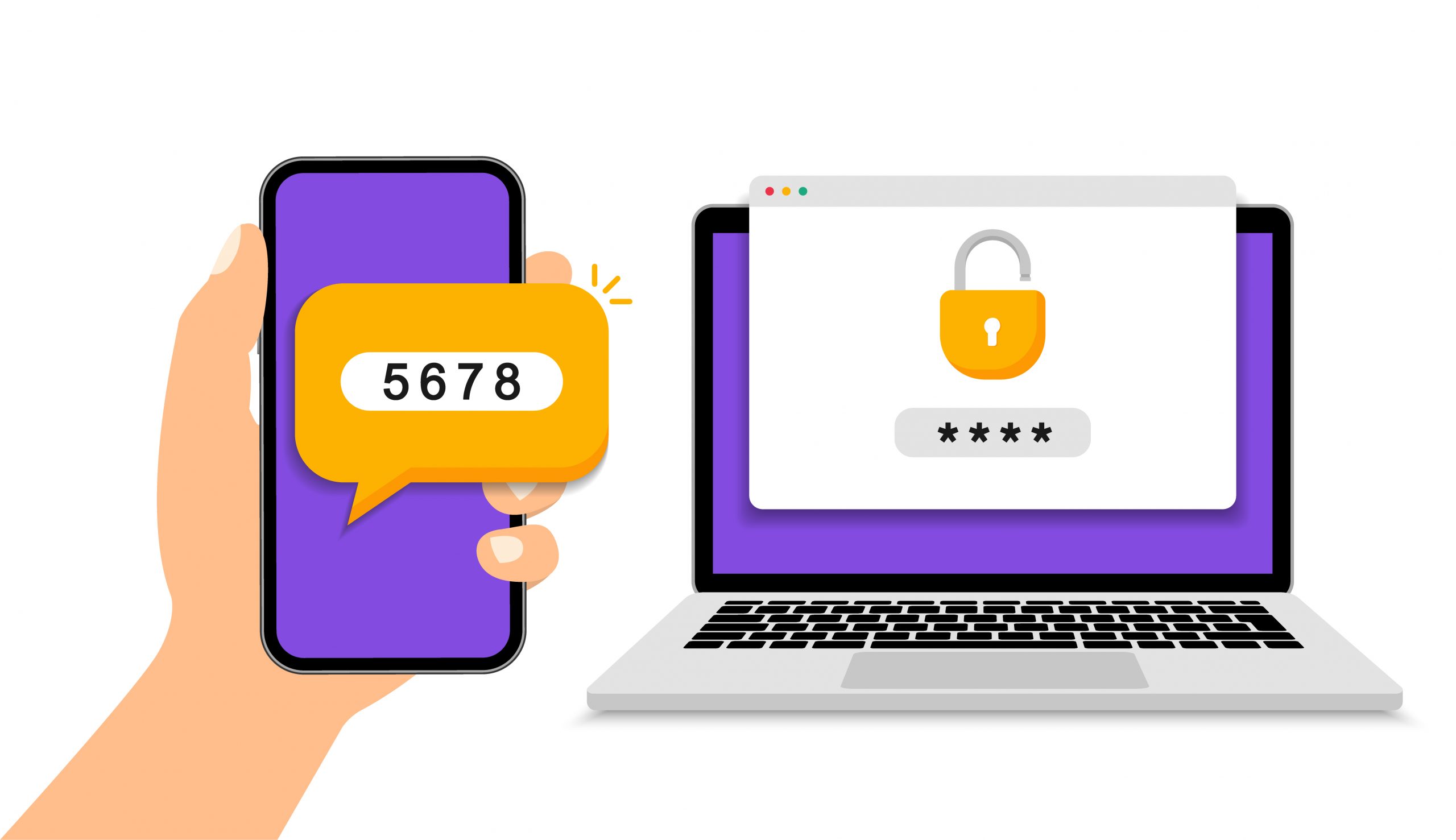
إذا كنت صاحب متجر إلكتروني، فمن المحتمل أنك واجهت مشكلة الطلبات المزيفة، وهي طلبات يتم إرسالها على منتجات المتجر باستخدام بيانات وهمية إما بخطأ من العميل أو بسبب سلوك خاطئ من المستخدم مما قد يسبب إزعاجًا لفريق الدعم لديك وربما الخسائر في بعض الأحيان. باعتمادك على نظام التحقق OTP الذي يطلب من المستخدم عمل التأكيد من خلال رسالة تأتيه على رقم هاتفه، فإن ذلك يساعدك في الحصول على الطلبات الحقيقية من العملاء الحقيقين. في هذه المقالة ستتعرف على أهمية تفعيل نظام التحقق من رقم هاتف العميل OTP، كما تتعرف على الطريقة التي يعمل بها هذا النظام، ومن خلال الخطوات العملية ستعرف طريقة تفعيل نظام التحقق من رقم الهاتف داخل متجرك الإلكتروني للتصدي للطلبات الوهمية أو المزيفة.
يعمل نظام التحقق من رقم الهاتف OTP،من خلال 3 خطوات أساسية وهي: يبدأ العميل بإدخال بياناته والتي من ضمنها رقم الهاتف داخل الموقع أو المتجر. يقوم برنامج OTP بالتحقق من رقم الهاتف الذي تم إدخاله، وإذا كان رقم هاتف صالح، يتم إرسال رسالة SMS إلى الشخص تحتوي على رمز مكون من أرقام أو أرقام وأحرف مميزة. يقوم العميل بإدخال رمز التأكيد في الموقع وبالتالي يتم التحقق من أنه شخص حقيقي أولاً، وكذلك التأكد من أنه يستخدم رقم هاتف صحيح ثانياً أهمية تفعيل التحقق OTP داخل متجرك الإلكتروني بشكل مباشر أو غير مباشرة فإن نظام التحقق من خلال رقم الهاتف يساعدك على رفع كفاءة الطلبات التي تأتي لك، وذلك من خلال ما يلي: تقليل نسبة المرتجعات داخل المتجر : تقوم بعض المتاجر الإلكترونية بإرسال الطلبات مباشرة إلى شركة الشحن التي لديها مخزون المنتجات، وبالتالي في حال كان رقم الهاتف الخاص بالعميل غير صحيح، فسوف يتم تعيين الطلب على أنه مرتجع، وبالتالي إذا تم تفعيل التحقق من رقم هاتف العميل فإن ذلك يسهم بصورة كبيرة في قلة نسبة مرتجعات المتجر.
التحقق من بيانات عملاء المتجر : تفعيل التحقق OTP يساعدك على التأكد من أن بيانات عملائك داخل المتجر صحيحة، وبالتالي تستطيع استخدامها في أغراض تسويقية أو إرسال خصومات وهدايا لعملائك، بخلاف ما إذا لم تكن متأكدًا من بيانات عملائك مما يعني إهداء جهودك التسويقية التصدي لظاهرة الإحتيال الإلكتروني : قد يقوم بعض المخربين باستخدام برامج لإرسال كميات كبيرة من الطلبات داخل متجرك بهدف استهلاك موارد السيرفر الخاص بالمتجر، وعند تفعيل نظام التحقق OTP فلن يتم قبول أي طلب أو معالجته إلا بعد التأكد من رقم الهاتف الخاص بالعميل، وبالتالي تستطيع التصدي بصورة كبيرة لعمليات الإحتيال داخل متجرك.
تقليل الأخطاء الغير مقصودة : أحياناً يقوم أحد الأشخاص بالدخول إلى المتجر وإنشاء طلب، ويقوم بإدخال رقم الهاتف الخاص به بطريقة غير صحيحة بدون قصد، وبالتالي قد لا يستطيع استلام الطلب، لكن إذا قام بتأكيد رقم الهاتف عبر كود التحقق OTP فإن ذلك يساعد على تقليل نسبة مثل هذه الأخطاء الغير متعمّدة. خطوات تفعيل التحقق OTP من رقم الهاتف أثناء إتمام الطلب داخل المتجر من أجل تفعيل خدمة تفعيل التحقق OTP، سنقوم باستخدام إضافة Sms Verification والتي يمكنك البدء بها مجاناً للتحقق من رقم الهاتف الخاص بعملاء متجرك الإلكتروني عند إتمام الطلب.
تم تطوير هذه الإضافة من شركة FraudLabs المتخصصة في إنتاج الأنظمة البرمجية التي تدعم تأمين وحماية المواقع الإلكترونية والتصدي لعمليات الإحتيال، وتوفّر الإضافة فرصة مجانية لأصحاب الووردبريس لتجربة تفعيل التحقق OTP حيث تعطيك الإضافة 500 نقطة مجانية في حسابك كل شهر، وكل رسالة يتم إرسالها لأحد العملاء تخصم الإضافة نقاط من رصيد النقاط المجانية الخاص بك، وإذا أردت الحصول على نقاط أكثر يمكنك الترقية إلى إحدى الخطط المدفوعة . بع د تنصيب وتفعيل الإضافة على موقعك ، ستتوجه إلى تبويب الإعدادات الخاص بالإضافة من داخل لوحة تحكم ووردبريس، ونلاحظ أن رصيد النقاط المتاح لنا هو 0، لذلك يجب أن نقوم بالنقر على زر (أضف المزيد من الاعتمادات ) لكي يقوم بتحويلنا إلى الموقع الخاص بالإضافة حيث نقوم بتسجيل حساب مجاني للحصول على رصيد 500 نقطة مجاناً: سيتم تحويلنا مباشرة إلى الموقع الرسمي للإضافة، ومنه نقوم بالنقر على زر التسجيل المجاني Try for free: يجب أن تقوم بتسجيل حساب مجاني في الموقع حيث تفتح لك نافذة التسجيل التي تضع فيها بياناتك مثل الاسم والبريد الإلكتروني ثم النقر على زر التسجيل: بعدما تقوم بتسجيل الحساب بنجاح، ستفتح أمامك لوحة تحكم حسابك في الموقع، والتي تجد فيها كود الربط الخارجي API Key: قم بنسخ هذا الكود API Key ثم توجه إلى لوحة تحكم الووردبريس وتحديداً داخل تبويب الإعدادات الخاص بالإضافة، ثم قم بلصق كود API في المكان المخصص له: داخل نفس صفحة الإعدادات الخاصة بالإضافة، تجد مجموعة من الإعدادات المتعلقة بطريقة إرسال واستقبال رسائل التأكيد OTP لرقم الهاتف الخاص بعملاء المتجر، ومن هذه الخيارات ما يلي: الحد الأقصى لمحاولات الرسائل القصيرة، وفيه يمكنك تعيين عدد المحاولات القصوى التي تسمح فيها للعميل بطلب إرسال كود OTP.
تعليمات التحقق من الرسائ ل: وفيه تقوم بكتابة النص الذي ترغب في ظهوره داخل صفحة إتمام الدفع لكي تطلب من العميل ضروري تأكيد رقم الهاتف الخاص به. محتوى رسائل SMS: وفيه تكتب النص الذي يتم ارساله في رسالة نصية SMS إلى رقم هاتف العميل مع الرمز التأكيدي الخاص به. مهلة SMS : وهي الفترة الزمنية التي يكون فيها كود التأكيد OTP صالح للاستخدام بعد ارساله في رسالة نصية للعميل.
رمز البلد : وهنا تختار الدولة الخاصة بالمتجر، بحيث يتم إرسال الرسائل التأكيدية باستخدام رقم هاتف يستخدم رمز البلد وهو ما يعطي الميل ثقة أكبر في محتوى الرسائل. تجد أيضا داخل نفس صفحة الإعدادات بعض الخيارات الأخرى مثل: 6. رسالة رقم الهاتف غير صالح: وهنا تكتب النص الذي يظهر أمام العميل في حالة كتابة رقم الهاتف بطريقة غير صحيحة.
7. رسالة OTP غير صحيحة: وهنا تكتب النص الذي يظهر أمام العميل في حال قام بإدخال رمز التأكيد OTP المرسل إلى هاتفه بطريقة خاطئة. وفي النهاية بعدما تقوم بتهيئة وإكمال كافة الإعدادات الخاصة بالإضافة بالطريقة التي شرحناها، وبالأسلوب المناسب لمتجرك، لاتنسى النقر على زر حفظ التغييرات.
الأن تبقى خطوة واحدة فقط لكي يتم تشغيل نظام التأكيد OTP لأرقام الهواتف على متجرك، وهي من خلال الدخول إلى صفحة إعدادات الإضافة ثم التوجه إلى تبويب Woocommerce ثم النقر على زر (تمكين)، وأسفل زر التمكين نجد خيار لتحديد نوعية العملاء الذي ترغب في التأكيد من أرقام هواتفهم، حيث تجد بعض الخيارات مثل (عميل جديد) أو (عميل من بلد معينة)، يمكنك اختيار الخيار المناسب لك ثم حفظ التغييرات في هذه الصفحة: عند هذه الخطوة تكون قد أكملت كافة الإعدادات الأساسية لتشغيل نظام التحقق من رقم هاتف العملاء داخل المتجر أثناء إتمام الطلب. الأن قم بزيارة متجرك وإنشاء طلب جديد لاحد المنتجات، سوف تلاحظ في صفحة إكمال الطلب إشعار يخبرك بضرورة تأكيد رقم الهاتف الخاص بك والذي قمت بإدخاله في نموذج إكمال الطلب بالتأكيد: ملاحظة : النص الموجود على الزر باللغة الإنجليزية (Verify your phone number now) لا تسمح الإضافة بترجمته بشكل إفتراضي، وبالتالي يمكنك استخدام إحدى إضافات الترجمة في ووردبريس لترجمة النص إلى اللغة العربية إذا أردت ذلك.
عند النقر على زر التأكيد، يطلب منك التأكيد من رقم الهاتف الذي سيتم إرسال كود التأكيد OTP إليه: بعدها مباشرة سيتم إرسال كود التأكيد OTP إلى رقم الهاتف: وتظهر لك نافذة تطلب منك إدخال الرمز التأكيدي الذي تم إرساله إلى هاتفك:
بعدما تقوم بإدخال الرمز التأكيدي والنقر على زر التأكيد Verify سيتم تحويلك مجدداً إلى نموذج إتمام الطلب وتلاحظ إشعار يخبرك بأنه تم التحقق من رقم الهاتف الخاص بك بنجاح، وتستطيع إكمال الطلب الخاص بك داخل المتجر: وبالنهاية فمن الضروري أن تقوم بتأمين موقعك أو متجرك الإلكتروني ويعتبر نظام التحقق OTP من الطرق الفعالة لتصدي لعمليات الاحتيال والتأكد من جودة الطلبات التي تصل إليك.
دروب أيديا - DROPIDEA
نأمل أن تكون هذه المقالة قد أضافت لك قيمة حقيقية. في دروب أيديا نسعى دائمًا لتقديم محتوى عربي عالي الجودة يساعدك على النمو والتطور في المجال الرقمي. تابعنا للمزيد من المقالات والشروحات المفيدة.
الأدمن
DROPIDEA
أحدث المقالات

هل تصيّد ماسك إطلاق أداة «Dots» من OpenAI عبر نطاق dot.com؟

بيك إكس في ترفع سقف استثماراتها البذرية إلى 5 ملايين دولار

عشاء مرتقب بين رئيس أنثروبيك ودونالد ترامب وسط خلافات حول أمان الذكاء الاصطناعي

جوجل تختبر الشراء المباشر من فليبكارت عبر Gemini في الهند



