طريقة تعديل CSS في ووردبريس بإحترافية
 بقلم الأدمن
هل قمت بإنشاء موقع ووردبريس في الآونة الأخيرة وتحديد قالب مناسب لمجالك ولكنك ترغب في التعديل على شكل هذا القالب؟ هل أعجبك موقع ما على الإنترنت في نفس مجالك وكُنت ترغب في تغيير شكل موقعك ليصبح مثل شكل هذا الموقع؟
هل تتساءل عن كيفية تغيير لون موقع ووردبريس
وحجم الخط وشكل ظهور الصور إلى آخره؟ إذا كُنت كذلك فإن هذه العملية تتم عن طريق تعديل CSS في ووردبريس وتتم هذه العملية داخل ملف معين في موقع ووردبريس الخاص بك يطلق عليه ملف style.css.
ما هو ووردبريس؟
– لماذا يجب عليك استخدام ووردبريس؟ ما هي لغة CSS في ووردبريس؟
– لماذا يجب عليك تعديل CSS في ووردبريس؟
طريقة تعديل CSS في ووردبريس – تعديل CSS في ووردبريس في المقالات والصفحات – تعديل CSS في ووردبريس للقالب – تعديل CSS في ووردبريس من داخل قسم تخصيص أفضل إضافات تعديل CSS في ووردبريس أخطاء يجب تجنبها عند تعديل CSS في ووردبريس ما هو ووردبريس؟ ووردبريس هي منصة مفتوحة المصدر تم إطلاقها بحلول عام 2003 وبالأخص في شهر مايو، لتكون منصة مجانية بالكامل ومتاحة لكافة المستخدمين حول العالم، وتمنحهم إمكانية إنشاء المواقع والمدونات الإلكترونية، بالإضافة إلى ذلك فإنها تمكنك من إنشاء متجرك الإلكتروني بكفاءة عالية من خلال إضافة WooCommerce التي تمنحك هذه الإمكانية والتي يمكنك تثبيتها بشكل مجاني بالكامل. من المهم ذكر أن هناك العديد من الأشخاص الذين يعتقدون أنّ ووردبريس مدفوع!
ولكن لحسن الحظ ووردبريس مجاني بالكامل ولكن الشيء المدفوع هي الاستضافة والتي يتم شراؤها عن طريق الشركات الرائدة في هذا المجال على سبيل المثال (هوستنجر، بلو هوست، هوست جيتور، استضافة كونتابو، نيم شيب، وغيرها)، وفور شراء هذه الإستضافة بإمكانك إنشاء موقع ووردبريس مجاني . كما أن ووردبريس مبني بواسطة لغة البرمجة الشهيرة Php وهي عبارة عن لغة يتم إستخدامها بشكل كبير في مجال تطوير أنظمة إدارة المحتوى (CMS)، ويعتمد على قواعد البيانات MYSQL، ويمتاز wordpress بواجهة مُستخدمة سلسلة وسهلة للغاية وتمكنك من التعالم مع كافة العناصر داخل موقع الويب الخاص بك بشكل سهل للغاية، بالإضافة إلى ذلك فإنه يدعم الكثير والكثير من اللغات والتي من بينها اللغة العربية واللغة الإنجليزية وغيرها من اللغات المختلفة حول العالم؛ وهذه من أبرز مميزات ووردبريس حيث أن ذلك يسهل الكثير على المستخدمين ويمنحهم تجربة مستخدم غاية في الروعة.
– لماذا يجب عليك استخدام ووردبريس؟ ووردبريس يمنحك تجربة مستخدم مميزة تسهل عليك الكثير ورغم ذلك فإنه مجاني وعلى الرغم من ذلك فإنه يهتم بك كثيرًا ويعد أفضل خدمة لإدارة المحتوى في الوقت الحالي حيث أنه يمتاز بالسرعة الفائقة، ويقدم لك كافة الإعدادات التي سوف تحتاج إليها في حالة كُنت مالك موقع ويب مثل إدارة المحتوى بجودة عالية مع إمكانية نشر المقالات وتحريرها وتنسيقها من داخل قسم محدد داخل ووردبريس، إمكانية حذف المقالات، تعديل المقالات القديمة وتحديثها، تغيير عناوين Url بسهولة تامة، وضع المقالات في حالة المسودة وغيرها الكثير من الأمور التي يمكنك تنفيذها داخل قسم (مقالات).
بإمكانك إدارة جميع صفحاتك الأساسية داخل ووردبريس مثل صفحة سياسة الخصوصية وصفحة اتفاقية الاستخدام، وبالطبع لا ننسى قسم الإضافات والذي يتيح لك الكثير ويسهل عليك العديد من الأمور على سبيل المثال في حالة كُنت ترغب في ربط موقعك مع جوجل سيرش كونسول أو محرك بحث بينج أو إدارة الأمور التي تخص seo وتحسين محركات البحث فسوف تتمكن من فعل ذلك بتثبيت إضافة رانك ماث التي تتيح لك الكثير من الأمور داخل نسختها المجانية أو إضافة Yoast SEO التي تمنحك كافة الإمكانيات المتواجدة في رانك ماث وغيرها من الإضافات. أيضًا إذا كُنت ترغب في تعديل CSS في ووردبريس فهناك العديد من الإضافات التي تتيح لك تنفيذ هذه الخطوة على أكمل وجه والتي من بينها الإضافات التالية ()، هذا مجرد تعريف بسيط حول إضافات تعديل CSS في ووردبريس ولكن خلال السطور التالية سوف نتحدث عن إضافات تعديل CSS في ووردبريس بشكل مكثف عن ذلك.
ما هي لغة CSS في ووردبريس؟ أوراق الأنماط المتتالية باللغة الإنجليزية Cascading Style Sheets أو كما يطلق عليها البعض لغة CSS هي عبارة لغة مخصصة لتنسيق وتصميم صفحات ومواقع الويب حيث أنها تلعب دورًا هامًا في تصميم ونمط صفحة أو موقع الويب وتزودها بشكل ومظهر فريد يمتاز بالتناسق والشكل الرائع، إذا كانت لغة html تمثل هيكل الموقع على سبيل المثال تمثل حجر الأساس والأعمدة فإن css تمثل شكل ومظهر هذا العمود حيث من الممكن جعل هذا العمود هذا رفيع، ذو لون أحمر، ذو عرض معين، بإختصار لغة css هي ديكور موقع الويب حيث أنها تكسبه المظهر والحجم المحدد وتتحكم في الألوان والطول والعرض وهكذا.
– لماذا يجب عليك تعديل CSS في ووردبريس؟
هناك الكثير من الأسباب التي قد تدفعك إلى تعديل CSS في ووردبريس والتي نتعرف عليها كالآتي: على سبيل المثال قد رأيت موقع ما وعجبك تصميم ذلك الموقع وترغب في تقليده وجعل موقعك يشبه. ترغب في تغيير لون الموقع لتحويله من اللون الأحمر إلى اللون الأخضر على سبيل المثال. رأيت ميزة في موقع آخر ونال إعجابك وَارَدْتُ أن توفره في موقع الويب خاصّتك.
ترغب في تغيير حجم الشعار الخاص بموقعك. تعديل صفحة معينة في موقع الويب الخاص بك. الحاجة إلى إنشاء صفحة ويب بمظهر معين وبشكل متناسق أكثر.
طريقة تعديل CSS في ووردبريس في حالة كُنت ترغب في الحصول على موقع جذابًا ورائعًا، فإن تعديل CSS في ووردبريس سوف يمنحك إمكانية تخصيص القالب خاصّتك وتحويله إلى قالب مختلف وأنيق، ولكن عزيزي الزائر إن عملية تعديل CSS في ووردبريس لا ينصح أن تكون بشكل مباشر بمعنى لا تقوم بتحرير ملف “style.css” بشكل مباشر من داخل ملفات موقعك لتجنب حدوث المشاكل ومن الممكن أن تفقد الموقع الخاص بك (مظهره القديم، شكله السابق). ولذلك يجب عليك قبل تعديل CSS في ووردبريس أو تعديل أي شيء آخر أن تقوم بأخذ نسخة إحتياطية من موقع الويب الخاص بك، ويمكنك تنفيذ هذه العملية بتثبيت إضافة UpdraftPlus WordPress Backup Plugin ، وسوف تساعدك هذه الإضافة كثيرًا حيث أنها تقدم لك مميزات كثيرة من بينها النسخ الإحتياطي لكامل ملفات موقعك بشكل مجاني بالكامل وغيرها من المزايا التي يمكنك إكتشافها بنفسك. لتتمكن من أخذ نسخة إحتياطية من كامل ملفات موقعك واسترجاعها في وقت لاحق في حال حدوث مشكلة ما في موقعك عن طريق Updraft Plus، قم بالتوجه نحو إعدادات الإضافة داخل موقع الووردبريس خاصّتك، ثم الضغط على خير نسخة إحتياطية الآن (Backup Now) كما موضع بالصورة الآتية.
الآن، بعد أَخَذَ النسخة الإحتياطية من ملفات موقعك، قم بمتابعة شرح كيفية تعديل CSS في ووردبريس بعدة طرق عن طريق السطور القليلة القادمة. – تعديل CSS في ووردبريس في المقالات والصفحات يمكنك
تعديل CSS في ووردبريس
في المقالات والصفحات الخاصة بموقعك بطريقة سلسلة وسهلة للغاية، وإليك كيفية تعديل CSS في ووردبريس في المقالات والصفحات كالآتي: قم بالتوجه نحو المقالة أو الصفحة التي ترغب في تعديلها من خلال موقع ووردبريس. ويمكنك الوصول إلى المقال من خلال قسم مقالات داخل لوحة تحكم ووردبريس. ويمكنك الوصول إلى الصفحات من خلال قسم صفحات داخل لوحة تحكم الووردبريس.
بعد فتح المقالة التي ترغب في تعديل CSS في ووردبريس. قم بالضغط على خيار (تخصيص) الظاهر بالقائمة العلوية في الجهة اليمنى من الصفحة، كما هو مشار إليه بالصورة التالية السهم التالي. بمجرد الضغط على خيار تخصيص سيتم فتح صفحة جديدة تحتوي على الكثير والكثير من الإعدادات.
ولكن الأمر المهم بالنسبة لنا هو تعديل CSS في ووردبريس ولذلك قم بالضغط على خيار “تنسيقات (CSS) إضافية”، لتتمكن من متابعة معنا باقي الشرح. بعد فتح خيار تنسيقات (CSS) إضافية سوف تجد أمامك محرر كامل عن طريقه يمكنك إضافة جميع أكواد css الإضافية التي ترغب في تخصيصها. وبعد القيام بتخصيص صفحتك أو مقالتك وكتابة أكواد css، قم بالضغط على خيار حفظ ليتم حفظ التغييرات بعد ذلك قم بالنقر فوق خيار نشر ليتم نشر جميع التغغيرات وسوف تجد كافة الأمور التي قمت بتحريرها بمجرد الضغط على خيار نشر.
وبذلك قمنا بشرح لكم كيفية تعديل CSS في ووردبريس في المقالات والصفحات بشكل سلسل وسهل للغاية، وإليك الآن شرح كيفية تعديل CSS في ووردبريس للقالب. – تعديل CSS في ووردبريس للقالب إن عملية تعديل CSS في ووردبريس للقالب أمر مهم للغاية ومعقدة بالنسبة للكثير من الأشخاص لاحتواء القالب على العديد من المَلفات وذلك الأمر يعقد من عملية التعديل حيث أنّ هناك عدة قوالب تعتمد على أكثر من ملف CSS على سبيل المثال تمتلك قالب يدعم اللغتين العربية والإنجليزية فبالتالي سوف يعمل الموقع بنظام أساسي إنجليزي ونظام آخر عربي يدعم RTL وتلك الخاصية تحتاج إلى ملف css منفصل وبذلك سوف يتكون القالب من عدة ملفات css و تصعب عملية تعديل css في ووردبريس. ولكن لا تقلق حيث أننا في نمتلك الكثير من الحلول لهذه المشكلة والتي تعد بالنسبة لنا مشكلة صغيرة للغاية ولن تأخذ منك كثيرًا من الوقت أو المجهود لتتمكن من حلها، كالآتي شرح كيفية تعديل CSS في ووردبريس للقالب:
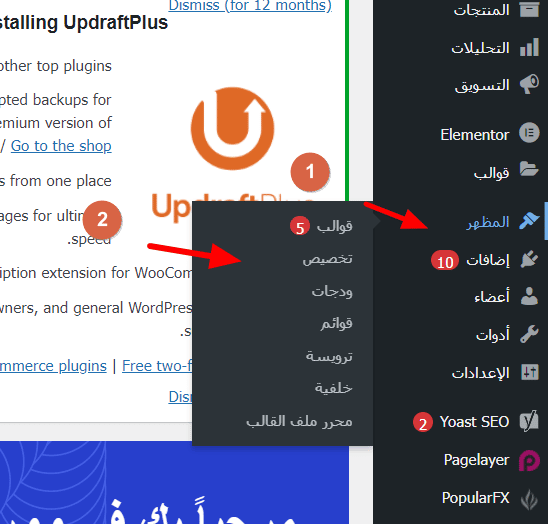
قم بتسجيل الدخول إلى لوحة تحكم ووردبريس خاصّتك، بكتابة اسم المستخدم أو البريد الإلكتروني وإضافة كلمة السر. ثم قم بالتوجه نحو اللوحة المتواجدة على يمين الصفحة في حالة كُنت تعمل باللغة العربية، وفي حالة كُنت تعمل باللغة الإنجليزية سوف تجدها على اليسار. بعد الوصول إليها قم بتمرير الماوس اتجاه خيار (المظهر) حتى يظهر أمامك عدة خيارات قم بتحديد خيار (محرر ملف القالب)، كما هو موضح بالصورة التالية.
سوف تظهر لك رسالة تتضمن نص تنبيهي تخبرك بأن تعمل بشكل جيد لتفادي الوقوع في المشاكل ولكن قم بالضغط على خيار (فهمت!) لتخطي الرسالة ومتابعة معنا الشرح. الآن سوف تجد كافة ملفات القالب الخاص بك والتي من بينها ملف css وسوف تجده بمجرد فتح المحرر وسوف تجده مُسجل بهذا الإسم style.css كما حدثتك عنه في بداية المقالة.
الآن يمكنك تغيير كافة أكواد css و تعديل CSS في ووردبريس للقالب وكتابة وإضافة جميع أكواد css بكل سهولة ويسر. وبمجرد كتابة أو تعديل كود ما، قم بالضغط على خيار تحديث الملف حتى يتم تحديث ملف style.css وحفظ كافة التعديلات الخاصة بك وعدم فقدها. وبعد الضغط على خيار تحديث الملف سيتم تحديث ملف css الخاص بقالبك وسوف تجد رسالة تخبرك بنجاح العملية في حالة كُنت قد كتبت الكود بشكل صحيح كما هو موضح بالصورة التالية، ولكن في حالة كُنت قد كتبت كود css بطريقة خاطئة فلن يتم حفظ التغييرات الخاصة بك.
– تعديل CSS في ووردبريس من داخل قسم تخصيص تتيح منصة ووردبريس هذه الميزة للمستخدمين حتى يقومون بتعديل ملفات css بشكل سهل للغاية مع إمكانية معاينة النتائج قبل القيام بالضغط على زر حفظ وذلك أمر مميز ورائع للغاية وبذلك سوف يتم تعديل المطلوب بكل سهولة وبدون مواجهة أي مشكلة وبشكل علني ويمكنك التعرف على كيفية تنفيذ هذه العملية من خلال السطور القادمة كالآتي: لتتمكن من الوصول إلى خدمة محرر تنسيقات css المُدمج داخل منصة ووردبريس قم بفتح الصفحة الرئيسية الخاصة بموقع الووردبريس خاصّتك. ثم التوجه نحو الأعلى على يمين الصفحة بالنسبة للغة العربية ثم قم بالضغط على خيار المظهر ثم تخصيص حتى يتم فتح قائمة تتضمن مجموعة كبيرة من الإعدادات. ولكن الإعداد الذي نحن بحاجة له هو تعديل CSS في ووردبريس وسوف تجد هذا الخيار تحت مسمى تنسيقات css إضافية.
قم بالضغط على هذا الخيار حتى يتم فتح محرر كبير للغاية عن طريقه يمكنك كتابة جميع أكواد css التي ترغب في كتابتها بكل سهولة. ثم قم بالضغط على خيار “نشر” حتى تتم عملية حفظ التغييرات ونشرها على موقع الويب الخاص بك والاستمتاع بكافة تعديلاتك.
أفضل إضافات تعديل CSS في ووردبريس إضافة TJ
Custom CSS : وهي إضافة مخصصة لتعديل كامل ملفات css المتواجدة في موقع الويب الخاص بك وتمنحك القدرة على التلاعب بكامل أكواد css خاصّتك بطريقة آمنة للغاية بدون مواجهة أي مشكلة، ويمكنك تحميلها عن طريق موقع ووردبريس كإضافة جديدة بشكل مجاني تمامًا بدون الدفع من أجل الإشتراك أو أي شيء من هذا القبيل.
إضافة
SiteOrigin CSS : هي عبارة عن أداة مجانية بالكامل يتم تثبيتها على موقع الووردبريس الخاص بك عن طريق لوحة التحكم الخاصة بك وبكل سهولة فقط قم بنسخ أسمها من هذه المقالة ثم التوجه نحو لوحة التحكم الخاصة بك ثم البحث عنها ثم تثبيتها وبدء إستخدامها في تحرير جميع أكواد css داخل موقعك بالإضافة إلى ذلك فإنه يمنحك العديد من العناصر المرئية التي تمكنك من تعديل CSS في ووردبريس وتغيير مظهر وهيئة موقعك في الوقت الفعلي، ومن أبرز مزايا هذه الإضافة هي سهولة الإستخدام وذلك حيث أنها مطورة بواجهة مستخدم سلسة وسهلة للغاية ويمكنك لكافة المستخدمين التعالم معها سواء كُنت مبتدئ أو محترف فسوف تتمكن بكل تأكيد من التعامل معها و تعديل CSS في ووردبريس. إضافة Advanced CSS Editor:
هي عبارة عن إضافة مميزة للغاية تمتاز بسهولة الإستخدام ومختلفة للغاية عن باقي الإضافات المتواجدة في هذا المجال وذلك حيث أنها خفيفة الوزن ولا تأخذ الكثير من مساحة الإستضافة الخاصة بك وعلى الرغم من ذلك فإنها تقدم خدمة تخصيص وتعديل CSS في ووردبريس على أكمل وجه وتمتاز بخاصية رؤية النتائج في الوقت الفعلي والتي تتيح لك إمكانية مشاهدة ما قمت بفعله قبل الشروع في خطوة الحفظ وهذا أمر مميز للغاية. إضافة them over: محرر كامل وشامل يمكنك من تعديل CSS في ووردبريس سواء كُنت مبتدئ أو محترف في هذه العملية وذلك حيث أنها قادمة بواجهة مستخدم سلسة للغاية وسهلة ويمكنك التعامل معها بإحترافية ولكن لسوء الحظ فإن هذه الإضافة ليست مجانية ولكن سوف يتعين عليك الدفع من أجل إستخدامها وهذا أمر قد يكون معقد بالنسبة للبعض وسهل بالنسبة للبعض ولكن في حالة كُنت ترغب في إستخدام الإضافات المجانية التي تعرفنا عليها معًا فيمكنك فعل ذلك حيث أنها تقدم نفس الخدمة وبشكل مجاني. إضافة CSS Hero :
تعديل CSS في ووردبريس أصبح سهل للغاية بHستخدام هذه الإضافة المميزة التي تتيح لك إمكانية تخصيص موقعك بشكل كامل دون الحاجة إلى تعديل الملف المصدر والذي قد يكون أمر غير محبب للبعض حيث من الممكن أن يسبب ذلك حدوث مشكلة في موقعك ولكن عبر هذه الإضافة سوف تتمكن من تخصيص موقعك بشكل كبير للغاية وتغيير مظهر موقعك بشكل سلسل للغاية، سيتعين عليك الإشتراك في هذه الإضافة لإستخدامها حيث أنها غير مجانية على عكس باقي الإضافات في هذا المجال. أخطاء يجب تجنبها عند تعديل CSS في ووردبريس الخطأ الأول: القيام بتعديل ملف “style.css” من داخل لوحة تحكم موقعك Cpanel حيث أنّ هذه الخطوة قد تؤدي إلى حذف ملف ما من ملفات موقعك الثمينة والتي من الممكن أن تتسبب في حدوث مشكلة في موقع ووردبريس خاصّتك وذلك الأمر غير محبب، بالإضافة إلى ذلك في حالة تم حذف ملف ما وأردت أن تستعيده فسوف تكون هذه العملية صعبة إلى حد ما وخصوصًا في حالة كُنت مستخدم مبتدئ فسوف تكون هذه العملية صعبة عليك.
الخطأ الثاني: عدم أخذ نسخة إحتياطية قبل بدء التعديل في ملفات css خاصّتك أو تعديل أي شيء كان حيث أن هذه العملية مهمة للغاية حيث أنه تضمن لك عملية إستعادة كامل ملفات موقعك من جديد والعمل على استرجاعها بكل سهولة بالضغط على خيار Restore في حالة كُنت تستخدم اضافة UpdraftPlus التي تقدم لك خدمة الاحتفاظ بنسخة احتياطية من موقعك بشكل مجاني بالكامل. الخطأ الثالث:
عدم الإستعانة بشخص خبير لتنفيذ عملية تعديل CSS في ووردبريس في حالة كُنت غير قادر على تنفيذ هذه العملية وذلك لتجنب حدوث المشاكل وضياع وقتك في تنفيذ شيء أنت غير قادر على فعله ولذلك ننصحك أن تطلب يد المساعدة في حالة كُنت غير قادر على إتباع خطوات تعديل CSS في ووردبريس. الخطأ الرابع: عدم بتثبيت إضافة تقوم بمساعدتك في تخصيص وتعديل ملفات css محملة بشكل غير رسمي وذلك حيث أنها من الممكن أن تحتوي على البرمجيات الخبيثة والملفات الضارة والفيروسات التي من الممكن أن تؤدي إلى إختراق موقعك الويب والوقوع في العديد والعديد من المشاكل المعقدة التي تنتهي بإصابة كامل ملفات موقعك بالفيروسات الخبيثة.
الخاتمة: الآن، لقد كان هذا شرح كامل حول كيفية تعديل CSS في ووردبريس بعدة طرق مُحتلفة لتتمكن من تعديل CSS في ووردبريس بالطريقة المناسبة بالنسبة لك بدون العناء وضياع الكثير من الوقت في تنفيذ هذه الخطوة، الجدير بالذكر أن هذه العملية قد تكون معقدة ولكن يمكنك التعامل معها بكل سهولة من خلال النقاط التي تناولنا سابقًا. **************************
دروب أيديا - DROPIDEA
نأمل أن تكون هذه المقالة قد أضافت لك قيمة حقيقية. في دروب أيديا نسعى دائمًا لتقديم محتوى عربي عالي الجودة يساعدك على النمو والتطور في المجال الرقمي. تابعنا للمزيد من المقالات والشروحات المفيدة.
الأدمن
DROPIDEA
أحدث المقالات

هل تصيّد ماسك إطلاق أداة «Dots» من OpenAI عبر نطاق dot.com؟

بيك إكس في ترفع سقف استثماراتها البذرية إلى 5 ملايين دولار

عشاء مرتقب بين رئيس أنثروبيك ودونالد ترامب وسط خلافات حول أمان الذكاء الاصطناعي

جوجل تختبر الشراء المباشر من فليبكارت عبر Gemini في الهند



