تحرير عشرات المقالات والصفحات في الووردبريس بالجملة بدلًا من الطريقة اليدوية
 بقلم الأدمن
في حال كنت صاحب موقع ذات محتوى ضخم من الصفحات أو المقالات وتريد تحرير صفحاته بالجملة، بدلا من فتح كل مقالة أو صفحة على حده ثم تطبيق التغييرات المطلوبة سواءًا على مستوى العنوان أو المحتوى أو الصور البارزة أو حتى التصنيفات والأوسمة. تحرير المقالات واحدة تلو واحدة يستهلك الكثير من الوقت والمجهود خصوصا عند الرغبة في تحرير عدد كبير من المقالات داخل الموقع. في هذه المقالة سنتطرق إلى كافة الطرق المتاحة أمامك لتطبيق العديد من التعديلات على مختلف المقالات أو صفحات أو حتى التعليقات في الموقع، حيث سنتحدث عن الطرق والأدوات المتاحة أمامك بشكل افتراضي داخل لوحة تحكم الووردبريس، وأيضا سنتطرق إلى استخدام الإضافات المساعدة Plugins للحصول على أدوات أكثر احترافية للتعديل على محتوى الموقع بالجملة.
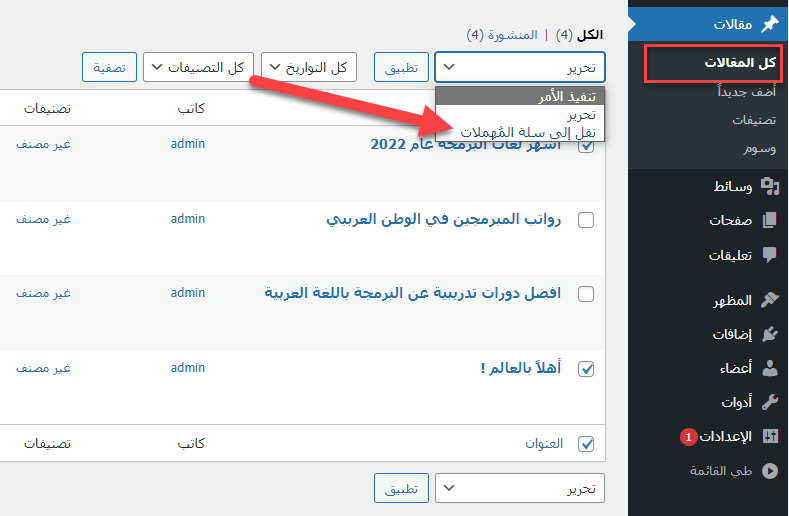
تحرير المقالات والصفحات بالجملة باستخدام الأدوات الافتراضية يوفر ووردبريس بعض الأدوات البسيطة التي تساعدك في تحرير مقالات أو صفحات الموقع بالجملة، لكن خيارت التعديل المتاحة بشكل افتراضي في الووردبريس بسيطة للغاية ولا يمكن الاستفادة منها بشكل كبير وفي أغلب الأحيان. من أشهر أدوات التعديل بالجملة في الووردبريس هي أداة التحرير بالجملة لمقالات أو صفحات الموقع، فعند دخولك إلى تبويب ( المقالات ) على سبيل المثال ستظهر أمامك كافة المقالات المنشورة داخل موقعك، ومن هذه الشاشة تستطيع اختيار مجموعة متنوعة من المقالات ثم النقر على زر ( تحرير ) لتظهر لك قائمة بها خيارات تعديل بالجملة ومنها تستطيع على سبيل المثال إرسال المقالات المختارة بالجملة إلى سلة المهملات لحذفها من الموقع: كما يمكنك القيام بتحرير المقالات المختارة أيضا جملة واحدة بدلا من إرسالها إلى سلة المهملات، حيث بعد اختيار المقالات التي ترغب في تحريرها يمكنك النقر على زر ( تحرير ) سوف تفتح لك شاشة تحرير المقالات المختارة بالجملة والتي يظهر بها عناوين المقالات المختارة وايضا تبويب التصنيفات الذي منه تستطيع اضافة المقالات المختارة إلى أي من التصنيفات المتوفرة داخل موقعك.
كذلك تجد تبويب الوسوم الذي من خلاله يمكنك تطبيق العديد من التعديلات بالجملة على المقالات المختارة وتتمثل هذه التعديلات في : تعيين اسم كاتب من الكتاب في الموقع على المقالات المختارة السماح بالتعليقات أو الغاء عدم السماح بها أسفل المقالات المختارة تعديل الحالة بالجملة مثل تعيين المقالات على أنه منشورة أو خاصة أو قيد المراجعة… التعديل على التنبيهات المسموح بها للمقالات المختارة. امكانية تثبيت المقالات المختارة في مدونة الموقع.
كذلك يوفر الووردبريس بشكل افتراضي أدوات للتعديل بالجملة على التصنيفات الموجودة بالموقع، ولكن للاسف لا يوجد أي خيارات تعديل بالجملة سوى الخيار ( حذف ) أي أنه بإمكانك فقط اختيار عدد كبير من التصنيفات ثم حذفها جملة واحدة: كما لاحظت أن خيارات التعديل بالجملة في الاعدادات الافتراضية للووردبريس بسيطة بشكل كبير ولا تفي بالغرض في الحالات التي نحتاج فيها إلى التعديل الاحترافي على مقالات وصفحات الموقع مثل التعديل على العنوان والمحتوى والصور البارزة وكافة العناصر المختلفة داخل المحتوى جملة واحدة. لذلك في الفقرات التالية سنشرح طريقة أخرى للتعديل بالجملة على مقالات وصفحات الووردبريس بشكل أكثر احترافية وذلك باستخدام احدى اضافات الووردبريس المتخصصة في هذا الشأن.
تحرير المقالات والصفحات بالجملة باستخدام الإضافات
كما اشرنا سابقا أن الإعدادات الإفتراضية للتعديل بالجملة في ووردبريس لا توفر الكثير من خيارات التعديل مثل التعديل على العناوين أو المحتوى أو غيرها من عناصر المحتوى داخل المقالة أو الصفحة، لذلك سنقوم بتنصيب إضافة ووردبريس لتساعدنا على تحرير مقالات وصفحات الموقع بالجملة داخل شاشة واحدة. سنقوم بتنصيب إضافة Bulk Edits التي تعتبر واحدة من أشهر اضافات التعديل على محتوى الموقع بالجملة.
بعد تنصيب الاضافة وتفعيلها على الموقع، ستظهر لك شاشة الإعدادات العامة للاضافة والتي تطلب منك اختيار نوع البيانات المراد تعديلها بالجملة، وستجد نوعين أساسيين من البيانات المتاح تعديلها بالجملة، الأول وهو المقالات والصفحات، والنوع الثاني وهو التصنيفات والوسوم والأعضاء والصور وهذا النوع من المحتوى يتطلب منك تنصيب اضافة أخرى لكل نوع حيث يظهر رابط تنصيب الإضافة اللازمة بجوار كل نوع من أنواع محتوى الموقع: بعد حفظ اعدادات الاضافة سيتم بدء تشغيلها على موقعك، وستجد التعديل على المقالات Edit داخل لوحة تحكم الاضافة يمكنك النقر عليه للبدء في الدخول إلى لوحة تحرير المقالات بالجملة: تفتح لك لوحة التعديل على مقالات الموقع بالجملة، وكما تشاهد فإن كافة المقالات المنشورة بالموقع تظهر أمامك بجوار كل مقالة تظهر الخيارات التالية: خيار التعديل على عنوان كل مقالة Title بالنقر على العنوان والبدء في تعديله أو تغييره مباشرة خيار التعديل على المحتوى Content حيث يمكنك النقر على زر تعديل المحتوى بجوار أي مقالة للبدء في تعديل المحتوى الخاص بها بطريقة مباشرة. الخيار الثالث بالنقر عليه يتم فتح محرر الووردبريس للتعديل على المقالة بدلا من استخدام محرر الاضافة للتعديل عليها. خيار مشاهدة المقالة كزائر View حيث بالنقر عليه يمكنك زيارة المقالة داخل الموقع.
امكانية التعديل على عنوان نشر المقالة Date حيث يمكن النقر على التاريخ الظاهر لنشر المقالة واختيار تاريخ النشر المراد تعيينه لها. يمكنك سحب شريط التمرير أسفل الصفحة لتظهر لك المزيد من الإعدادات الخاصة بالتعديل على المقالات بالجملة: خيار التعديل على التعليقات حيث يمكنك تفعيل امكانية اضافة تعليقات اسفل كل مقالة باختيار مربع التعليقات Comments الموجود بجوار عنوان كل مقالة. رفع الصورة البارزة أو تعديلها Featured image حيث يمكنك التحكم في الصورة البارزة للمقالة المختارة من هذا الخيار.
تبويب التصنيفات Categories والذي من خلاله يمكنك تعديل وتخصيص التصنيفات الخاصة بالمقالات حيث يمكنك اختيار التصنيف المناسب لكل مقالة من التصنيفات الموجودة بالفعل داخل موقعك. بنفس الطريقة التي يمكنك التعديل بها على مقالات الموقع بالجملة، يمكنك أيضا التعديل على صفحات الموقع بالجملة، حيث تجد زر التعديل على الصفحات Edit داخل لوحة اعدادات الاضافة: سوف تفتح لك شاشة التعديل على الصفحات وهي مشابهة بشكل كبير لشاشة التعديل على المقالات التي شرحناها سابقا، وكما تلاحظ إذا كنت تقوم بتشغيل متجر إلكتروني على موقعك يمكنك أيضا التعديل على صفحات المتجر التي تظهر لك داخل شاشة التعديل على صفحات الموقع بالجملة: خاتمة تحرير المقالات والصفحات في الووردبريس بالجملة يعتبر من الأمور التي توفر الكثير من الوقت والمجهود على كتاب
ومحرري الموقع خصوصا في المواقع التي تحتاج إلى التعديل والتحرير المتكرر للصفحات والمقالات التي يتم نشرها بشكل مستمر داخل الموقع. كام لاحظت أن الووردبريس يوفر بعض خيارات التعديل البسيطة على محتوى الموقع مثل الصفحات والمقالات والتصنيفات، لكنها خيارات تعديل بسيطة ومحدودة بالكامل، لكن يزال بإمكانك استخدام اضافات الووردبريس مثل التي قمنا بشرحها داخل المقالة للوصول إلى خيارات تعديل أكثر احترافية سواء للمقالات أو الصفحات أو حتى للمنتجات داخل متجرك الإلكتروني.
دروب أيديا - DROPIDEA
نأمل أن تكون هذه المقالة قد أضافت لك قيمة حقيقية. في دروب أيديا نسعى دائمًا لتقديم محتوى عربي عالي الجودة يساعدك على النمو والتطور في المجال الرقمي. تابعنا للمزيد من المقالات والشروحات المفيدة.
الأدمن
DROPIDEA
أحدث المقالات

هل تصيّد ماسك إطلاق أداة «Dots» من OpenAI عبر نطاق dot.com؟

بيك إكس في ترفع سقف استثماراتها البذرية إلى 5 ملايين دولار

عشاء مرتقب بين رئيس أنثروبيك ودونالد ترامب وسط خلافات حول أمان الذكاء الاصطناعي

جوجل تختبر الشراء المباشر من فليبكارت عبر Gemini في الهند



