تعلم إنشاء موقع تواصل اجتماعي بالووردبريس بدون خبرة برمجية
 بقلم الأدمن
عند الحديث عن مواقع التواصل الاجتماعي سيخطر في بالك على الفور الشركات المشهورة في مجال التواصل الاجتماعي مثل فيسبوك وتويتر وغيرها.. ولكن لا يشترط أن تبني منصة تواصل اجتماعي بهذا الحجم. قد تحتاج إلى إنشاء موقع تواصل اجتماعي تستخدمه من أجل توفير منصة تواصل اجتماعي بين موظفي الشركة لديك على سبيل المثال، أو حتى على مستوى الاصدقاء والعائلة، بحيث تكون منفصلة مستقلة بذاتها وغير مرتبطة بفيسبوك أو باقي منصات التواصل الأخرى.
في هذه المقالة ستتعرف على طريقة إنشاء موقع للتواصل الاجتماعي، ونشر التحديثات بين الأعضاء، والتفاعل والدردشة الداخلية، والعديد من الخيارات التي يمكنك توفيرها داخل منصة التواصل الإجتماعي التي ستكون كما ذكرنا مستقلة بذاتها عن باقي منصات التواصل الإجتماعي الأخرى وهو ما يعطيها الخصوصية الكاملة ويعطيك حرية التصرف فيها وإدارتها بالشكل الذي تريد. فوائد إنشاء موقع التواصل الإجتماعي مستقل بذاته عندما ترغب في إنشاء موقع تواصل اجتماعي مستقل بذاته تماما عن أي منصة تواصل اجتماعي متواجدة حول العالم فسوف تحصل على العديد من الامتيازات ومنها: سيكون الموقع عبارة عن منصة تواصل إجتماعي قابلة للإدارة والتحكم الكامل بعيدا عن سياسات شركات التواصل الإجتماعي.
يفيد الموقع في إنشاء منصة تواصل بين موظفي الشركة أو مجموعة من الأفراد بشكل آمن وبدون مضايقات من أي شخص خارج المجموعة. عند إنشاء موقع تواصل اجتماعي خاص بك، يمكنك الاقتصار على إضافة أعضاء بعينهم وإلغاء تسجيل أي أعضاء جدد. يمكن للأعضاء الدردشة فيما بينهم دون الخوف من تسريب بياناتهم أو معلوماتهم التي أجروها داخل الدردشة وهذا يعتمد بالتأكيد على درجة تأمين الموقع.
يمكن إنشاء مجموعات تواصل اجتماعي داخل الموقع لتقسيم الأعضاء داخل الموقع إلى مجموعات مختلفة على حسب اهتماماتهم. يمكن للأعضاء إنشاء ملفات شخصية لعرض بياناتهم داخل الحساب الخاص بهم داخل الموقع. حرية النشر داخل الموقع بحيث لا توجد سياسات تمنعك من نشر أي نوع من المحتوى طالما تلتزم بحقوق الملكية في المحتوى المنشور.
خطوات إنشاء موقع تواصل اجتماعي بالووردبريس خطوات إنشاء موقع تواصل اجتماعي مستقل بذاته في ووردبريس ليست بالأمر المعقد، ويمكنك القيام به في حال كنت تمتلك بعض المهارات التقنية البسيطة ولديك خلفية في التعامل مع الووردبريس كنظام إدارة محتوى متخصص في تصميم وإطلاق المواقع الإلكترونية عبر الإنترنت. إليك الخطوات الأربعة الأساسية لإطلاق موقع تواصل اجتماعي بالووردبريس: 1- حجز الاستضافة وشراء الدومين الخطوة الأولى وهي الأساسية في عملية إطلاق الموقع، حيث تقوم بشراء وتجهيز استضافة الموقع ، وهي المساحة عبر الإنترنت التي يتم تخزين بيانات وملفات الموقع داخلها.
أيا كان نوع الاستضافة التي تقوم بشرائها من أي من شركات الاستضافة المعروفة، حاول دائما أن تختار استضافة مساحتها كافية وتوفر خيارات الأمان المطلوبة، وهناك شركة توفر استضافات ووردبريس متخصصة لمواقع الووردبريس حيث يتوفر معها اداة تنصيب الووردبريس المجانية والعديد من الأدوات المساعدة في إعداد وتجهيز الموقع.
كذلك يجب شراء الدومين وهو الرابط التعريفي الذي يتم استخدامه للدخول إلى محتوى الموقع الإلكتروني ويكون على الصيغة www.wpar.net .
ما هو الدومين؟
وكيف يعمل نظام إدارة النطاقات | شرح للمبتدئين حاول أن تختار اسم دومين قصير ويسهل التعرف عليه، وبعد شراء الدومين تأكد من
ربط الدومين بالاستضافة
لتجهيز الموقع لخطوة رفع الووردبريس عليه. 2- تنصيب الووردبريس بعد تجهيز الاستضافة والدومين والتأكد من ربطهما بشكل سليم، تأتي الخطوة التالية وهي أول خطوة عملية لإطلاق الموقع حيث يتم تنصيب الووردبريس
على الاستضافة التي تم تجهيزها من قبل. يستخدم الووردبريس كنظام إدارة محتوى متخصص في إطلاق المواقع الإلكترونية على مختلف تخصصاتها ومجالاتها، حيث يوفر العديد من أدوات إدارة المواقع الإلكترونية باحترافية عالية.
3- تنصيب القالب
بعد تنصيب الووردبريس على الاستضافة، نقوم في الخطوة التالية بتنصيب القالب ، والقالب هو عبارة عن إطار كامل للموقع يسهل علينا مرحلة التصميم والتطوير، حيث بمجرد تنصيب القالب على الووردبريس يظهر الموقع بشكل متناسق ومرتب ويعتمد مظهر الموقع في هذه الحالة على نوع القالب المنصب عليه. إليك قائمة قوالب ووردبريس متنوعة يمكنك الاختيار من بينها ما يتناسب مع الشكل والمظهر العام للموقع الذي تريد إطلاقه.
خلال شرحنا في هذه المقالة سنقوم بتنصيب قالب Avada لسهولة استخدامه و مظهره الجيد والمناسب لتخصص الموقع الذي نقوم بإنشاءه. استخدام إضافة Buddypress يعتمد نظام الووردبريس على الإضافات (plugins) التي تضيف وظائف جديدة أو توسع الوظائف الحالية على موقعك، ويتم استخدامها مثل البرامج الجاهزة التي تقوم بالعديد من الإجراءات بالنيابة عنك مما يسمح لك بإنشاء أي نوع من مواقع الويب تقريبًا.
سنقوم باستخدام اضافة Buddypress الشهيرة المتخصصة في تنصيب نظام تواصل اجتماعي داخل موقع الووردبريس الخاص بنا. تساعدنا هذه الإضافة في إطلاق موقع تواصل إجتماعي متكامل حيث توفر لنا العديد من الأدوات مثل (إنشاء حسابات للأعضاء، وتفعيل الدردشة الخاصة بين أعضاء الموقع، وإنشاء صفحة التغذية أو المنشورات، وكذلك إنشاء المجموعات العامة أو الخاصة، والعديد من الخيارات الأخرى التي يمكنك تنفيذها داخل موقع التواصل الاجتماعي الخاص بك) تنصيب إضافة Buddypress وتهيئة الإعدادات الخاصة بها
أولى الخطوات العملية لإطلاق موقع تواصل اجتماعي هي تنصيب إضافة Buddypress، ويمكنك الإطلاع على شرح تنصيب إضافات الووردبريس للقيام بهذا الأمر بسهولة.
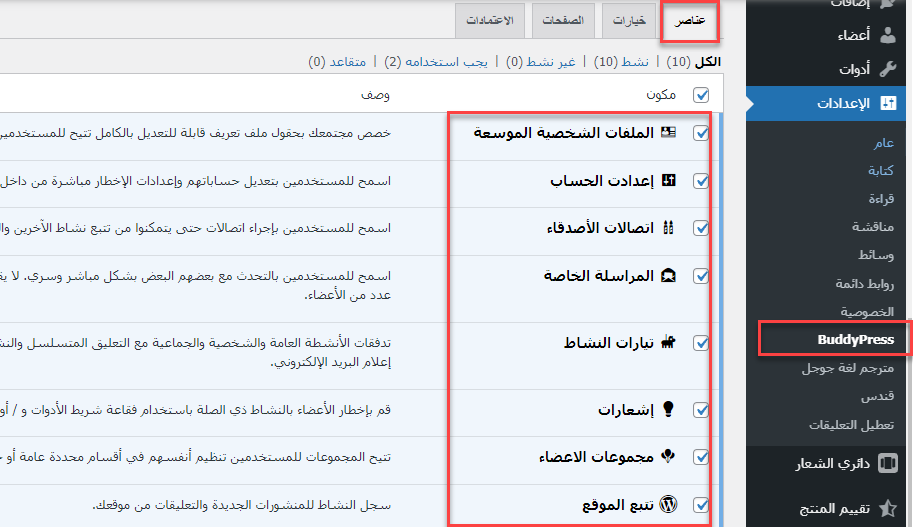
بعد تنصيب الإضافة وتفعيلها بنجاح، يمكنك التوجة إلى تبويب الإعدادات داخل لوحة التحكم، ثم تبويب Buddypress ، لتفتح لك صفحة ا لإعدادات العامة للإضافة والتي تجد فيها العديد من الخيارات كما هو موضح في الصورة التالية: ستجد أنه توجد العديد من الخيارات التي يمكنك اختيارها أو إلغاء اختيارها على حسب رغبتك في تخصيص طريقة عمل الموقع ويمكن اختصار فوائد تلك الخيارات فيما يلي: الملفات الشخصية الموسعة: عند تحديد هذا الخيار سيتم السماح للأعضاء بإنشاء ملفات شخصية مثل صفحة الملف الشخصي على فيسبوك التي تحتوي على الصورة والبيانات الشخصية. إعدادات الحساب: عند تفعيل هذا الخيار سيتمكن الأعضاء من التحكم في حسابهم وإجراء كافة التعديلات عليها كماسيكون
بإمكانهم حذف الحساب. اتصالات الأصدقاء:
عند تفعيل هذا الخيار
سيتمكن الأعضاء من إرسال طلبات اتصال أو طلبات صداقة للأعضاء الأخرين. المراسلة الخاصة: عند تفعيله سيتم إتاحة الفرصة للأعضاء داخل الموقع بفتح مربع دردشة خاصة بينهم.
تيارات النشاط: عند تفعيل الخيار هذا سيتم تفعيل صفحة التغذية أو صفحة النشاطات مثل الصفحة الرئيسية للفيسبوك التي تعرض كافة التحديثات التي يقوم الأعضاء بنشرها على مدار اليوم. إشعارات:
عند تفعيله سيكون من المتاح إرسال الإشعارات ذات الصلة بالمحتوى الذي ينشره الاعضاء ويتفاعلون معه. مجموعات الأعضاء: عند تفعيله فيكون من المتاح للأعضاء إنشاء مجموعات خاصة بهم داخل الموقع.
قم بتفعيل الخيارات التي ترى أنها مناسبة لموقع التواصل الاجتماعي الذي تريد إطلاقه، ثم انتقل إلى تبويب ( خيارات ) لتحصل على المزيد خيارات التحكم في الموقع: كما شاهدت بالصورة أعلاه، في هذا التبويب يوجد العديد من خيارات التحكم في طريقة عمل الموقع، مثل إمكانية اظهار شريط أدوات ووردبريس أو إخفاءه للأعضاء المسجلين بالموقع. كذلك توجد العديد من خيارات التحكم التي يمكن إتاحتها للأعضاء مثل إمكانية حذف الحساب، وإمكانية تحميل صور الملف الشخصي، وصور الغلاف وإمكانية إرسال دعوة الانضمام إلى الموقع من قبل الأعضاء الحاليين. كذلك داخل تبويب ( خيارات ) تجد المزيد من خيارات التحكم في المجموعات، حيث يمكنك السماح للأعضاء بإنشاء المجموعات الخاصة داخل شبكة التواصل الاجتماعي، والتحكم في صورة الغلاف الخاص بالمجموعة وغيرها من الخيارات الأخرى التي يمكنك تخصيصها بالطريقة التي تناسبك، ولا تنسى النقر على زر ( حفظ التغييرات ) بعد إكمال كافة التعديلات المطلوبة: بعد ذلك تجد تبويب ( الصفحات ) داخل صفحة الإعدادات العامة للإضافة، والذي من خلاله يمكنك التحكم في الصفحات الأساسية للموقع: كما لاحظت فإن تبويب الصفحات يمكنك من خلاله تغيير الصفحات الافتراضية للموقع، حيث تقوم الإضافة بشكل افتراضي بإنشاء مجموعة من الصفحات داخل الووردبريس الضرورية لإنشاء شبكة تواصل اجتماعي، مثل صفحة الأعضاء التي تعرض بيانات أعضاء الموقع.
وكذلك صفحة تيارات النشاط التي تعرض آخر المنشورات والتحديثات التي يقوم الأعضاء بنشرها وغيرها من الصفحات التي يمكن إبقائها كما هي أو تغييرها بصفحات أخرى تقوم أنت بإنشائها بنفسك.
تجربة صفحات موقع التواصل الاجتماعي وتخصيص الصفحات الداخلية
يمكنك الآن الدخول إلى صفحة النشاطات أو التحديثات وهي صفحة تشبه الصفحة الرئيسية للفيسبوك التي تقوم بعرض آخر المنشورات والتحديثات، للدخول إلى صفحة النشاطات يمكنك كتابة رابط الموقع متبوعا بكلمة Activity كالتالي www.mysite.com/activity وسوف تفتح امامك صفحة التغذية الرئيسية للموقع: كما لاحظت فإن صفحة التغذية تنقسم إلى مربعين رئيسيين، الأول يحتوي على مربع إدخال يمكن للعضو استخدامه لنشر تحديث أو منشور خاص به. والمربع
الثاني يحتوي على كافة المنشورات التي قام الأعضاء الأخرين بنشرها داخل الموقع. ستلاحظ أسفل كل منشور توجد خيارات التحكم فيه الموضحة بالصورة التالية: تستخدم أدوات التحكم في التي توجد أسفل كل منشور لحذفه بالكامل من الموقع أو إضافته إلى قائمة المنشورات المفضلة، أو حتى لكتابة تعليق أسفل المنشور. لاحظ أن أدوات التحكم تختفي أمام الزوار غير المسجلين بالموقع: يمكنك أيضا تعيين صفحة النشاطات والتحديثات على أنها الصفحة الرئيسية للموقع، بحيث عند الدخول الزائر إلى الصفحة الرئيسية مباشرة يمكنه رؤية تحديثات ومنشورات الأعضاء الآخرين وكذلك نشر التحديثات الخاصة به.
لتفعيل صفحة النشاطات على أنها الصفحة الرئيسية يمكنك الدخول إلى تبويب ( الإعدادات ) ثم ( قراءة ) ثم اختر صفحة النشاطات Activity على أنها الصفحة الرئيسية: إنشاء المجموعات الخاصة واضافة الأعضاء داخلها من أهم الخيارات التي تكون متاحة بالموقع أيضا هو خيار إنشاء مجموعات تواصل داخل الموقع وإضافة أعضاء محددين إليها، حيث يمكنك الدخول إلى صفحة المجموعات من خلال إضافة كلمة groups إلى رابط الموقع بالشكل التالي: ww.mysite.com/groups لتفتح لك صفحة المجموعات الحالية وكذلك رابط ( أنشئ مجموعة) الذي يمكن للعضو النقر عليه لإنشاء المجموعة الخاصة به: عند النقر على زر إنشاء المجموعة تفتح لك صفحة إنشاء مجموعة جديدة حيث تبدأ في إضافة تفاصيل المجموعة مثل العنوان والوصف: ثم في تبويب (الإعدادات) يمكنك اختيار ما إذا كنت تريد المجموعة عامة أو خاصة أو مخفية: بعد إكمال بيانات المجموعة كاملة يمكنك التوجه إلى تبويب ( الدعوة ) تقوم بدعوة الأعضاء للانضمام إلى المجموعة حيث يمكنك إضافة الأشخاص الذين قمت بإضافتهم كأصدقاء أو يمكنك إضافة أي عضو آخر بالموقع للانضمام للمجموعة: كذلك يمكنك إضافة أي عضو بالموقع كصديق لك وذلك عند الدخول إلى الملف الشخصي الخاص به حيث ستجد خيار إضافة صديق، وكذلك خيارات إرسال رسائل خاصة أو عامة للعضو: كما يمكنك كذلك الإطلاع على كافة الأعضاء المسجلين بالموقع وذلك من خلال الدخول إلى صفحة الأعضاء عن طريق كتابة members في نهاية رابط الموقع كالتالي: www.mysite.com/members
. وبالتالي يمكنك الدخول إلى صفحة أي عضو وإرسال طلب صداقة أو البدء في إنشاء دردشة خاصة أو دردشة عامة معه. كذلك يمكنك للزوار الجديد التسجيل بالموقع وإنشاء ملف شخصي للبدء في نشر التحديثات وإنشاء المجموعة وإضافة الأعضاء الآخرين كأصدقاء، وذلك من خلال الدخول إلى صفحة التسجيل بإضافة Register إلى رابط الموقع كالتالي: www.mysite.com/register
: تخصيص القوائم والودجات داخل الموقع
توفرإضافة Buddypress العديد من
الصفحات الجاهزة التي يمكنك إضافتها للقائمة الرئيسية للموقع لسهولة تنقل الأعضاء بين صفحات الموقع مثل (صفحة الملف الشخصي، وصفحة الإشعار، وصفحة الرسائل وغيرها من الصفحات..) يمكنك الدخول إلى تبويب (قوائم) من داخل لوحة التحكم وإنشاء قائمة جديدة: بعد إنشاء القائمة قم بفتح تبويب صفحات Buddypress وقم باختيار كافة الصفحات أو الصفحات التي تريد إظهارها واضغط على زر ( أضف للقائمة ) : بعد إضافة الصفحات إلى القائمة الرئيسية قم بالنقرعلى زر حفظ القائمة والآن قم باستعراض الموقع في المتصفح وستلاحظ ظهور قائمة رئيسية تحتوي على كافة الصفحات الهامة التي تساعد على التنقل بين صفحات وأقسام الموقع بكل سهولة: كذلك توفر إضافة Buddypress
العديد من الودجات التي تساعد على إدارة وتصفح الموقع بشكل أسهل، حيث يمكنك إضافة ودجت تسجيل الدخول في الشريط الجانبي للموقع بحيث تسهل عملية تسجيل الدخول للأعضاء لإضافة الودجت المناسب يمكنك الدخول إلى تبويب ( ودجات ) من داخل لوحة التحكم وفتح مربع البحث عن الودجات وكتابة اسم الاضافة Buddypress لتظهر لك كافة الودجات التي توفرها الإضافة والتي من ضمنها الويدجت الخاص بإظهار مربع تسجيل الدخول: بنفس الطريقة يمكنك تصفح كافة الودجات الأخرى التي توفرها لك الإضافة وإضافتها داخل المكان المفضل لك بالموقع. خاتمة بالنهاية فإن إنشاء موقع تواصل اجتماعي لم يعد بالأمر الصعب بفضل إضافات الووردبريس مثل إضافة Buddypress التي توفر عليك الكثير من الوقت والمجهود، فكما لاحظت من خلال بعض الخطوات البسيطة قمنا بإنشاء شبكة اجتماعية يمكن من خلالها تسجيل الأعضاء والتواصل بينهم بكل سهولة.
بالتأكيد لا يمكنك الاعتماد على اضافة Buddypress إذا كنت تتطلع إلى إنشاء موقع تواصل اجتماعي ضخم فربما تجد أن خيارات الاضافة محدودة ولن تستطيع توفير كافة الأدوات التي تمكنك من منافسة الشركات الكبرى المتخصصة في هذا المجال.
دروب أيديا - DROPIDEA
نأمل أن تكون هذه المقالة قد أضافت لك قيمة حقيقية. في دروب أيديا نسعى دائمًا لتقديم محتوى عربي عالي الجودة يساعدك على النمو والتطور في المجال الرقمي. تابعنا للمزيد من المقالات والشروحات المفيدة.
الأدمن
DROPIDEA
أحدث المقالات

هل تصيّد ماسك إطلاق أداة «Dots» من OpenAI عبر نطاق dot.com؟

بيك إكس في ترفع سقف استثماراتها البذرية إلى 5 ملايين دولار

عشاء مرتقب بين رئيس أنثروبيك ودونالد ترامب وسط خلافات حول أمان الذكاء الاصطناعي

جوجل تختبر الشراء المباشر من فليبكارت عبر Gemini في الهند



