شرح تصميم قوالب ووردبريس واختيارها من الصفر
 بقلم الأدمن
تعد القوالب في ووردبريس ميزة رائعة لجعل موقع الويب الخاص بك يظهر بأفضل طريقة ممكنة. فأول خطوة نقوم بها عند الشروع في إطلاق موقع ووردبريس عبر الإنترنت، هي القيام بتنصيب قالب ووردبريس أنيق وتخصيصه بحيث يناسب متطلباتنا ويعرض محتوى موقعنا بشكل أنيق وجذاب. قد تختار لموقعك قالباً مجانياً أو مدفوعاً، فهناك آلاف الخيارات والقوالب الجاهزة المتاحة على شبكة الانترنت والتي يمكنك الانتقاء من بينها.
وهناك العديد من المنصات للحصول منها على القالب المطلوب. فحتى لم يكن صاحب الموقع خبيرًا في التصميم، فإن قوالب ووردبريس تتيح له إعداد قالب الموقع بسرعة وتخصيصه بالطريقة التي يريدها مما يجعل هذا الخيار هو المفضل للغالبية العظمى من مستخدمي ووردبريس. القوالب في ووردبريس هي عبارة عن مجموعة من الملفات المكتوبة بلغات تصميم الويب المخصصة (PHP و HTML و CSS و JavaScript) وهي تتميز بكونها ديناميكية وقابلة لتعديل المحتوى بخلاف مواقع HTML وCSS الثابتة.
في مقال اليوم نقدم لك شرحًا متقدمًا يعلّمك كيفية القيام بذلك خطوة بخطوة، وسنرشدك لكيفية إنشاء قالبك بنفسك، ونقدم لك خياراً إضافياً بديلاً يمكنك استخدامه عند اختيار تصميم لموقعك. في مقالة اليوم سوف نساعدك في استكشاف البنية الأساسية لملفات القوالب في وودربريس وتعلم كيفية إنشائها وتعديلها للحصول في نهاية الأمر على قالب ديناميكي كامل لموقعك. ولتبسيط الشرح للمبتدئين قمنا بتقسيم هذه المقالة إلى ثلاثة أجزاء، كما حرصنا على توضيح الخطوات العملية بالتفصيل لتكون واضحة ومفهومة ..
ستكون هذه المقالة بأجزائها الثلاثة بمثابة دليل شامل يشرح لك بالتفصيل عملية تصميم قالب ووردبريس متكامل، بدءاً من اللحظة الأولى لتنصيب التصميم والألوان والخلفيات وواجهة المستخدم، وانتهاءَ بإكمال خطوات توافق القالب مع كافة أدوات وخيارات الووردبريس. متى تحتاج إلى تصميم قالب ووردبريس من الصفر؟ يفضل معظم المستخدمين الخيار السهل، وهو القيام بتحميل أحد قوالب الووردبريس الجاهزة من شبكة الإنترنت، وتنصيبها على موقع ووردبريس الخاص بهم.
أما أن تقوم بتصميم وإنشاء قالب ووردبريس من البداية إلى النهاية فهو خيار فريد يستحق أن تقوم بتعلُّمه وإتقانه حتى لو كلفك الأمر بعض الوقت والجهد الإضافيين. فتعلم تصميم قوالب ووردبريس سوف يقدم لك الميزات والفوائد التالية: كسب المال يعتبر تصميم قوالب الووردبريس من المهام المربحة بشكل كبير، خصوصاً مع انتشار الووردبريس وحصوله على ثقة الملايين من أصحاب المواقع حول العالم. وبالتالي فإن تعلمك لطريقة تصميم قوالب الووردبريس من الصفر سوف يمكنك من بيع هذه القوالب لأصحاب مواقع الووردبريس مقابل مبالغ مالية مجزية.
تحويل التصميم الثابت إلى قالب ووردبريس إذا كنت قد طلبت من شخص محترف أو من شركة متخصصة إنشاء تصميم لموقعك بإحدى لغات تصميم المواقع المختلفة، أو حتى قمت أنت بالأمر بنفسك، ستتمكن بعد تعلم تصميم قوالب ووردبريس من القيام بتحويل هذا التصميم الذي تم تنفيذه عن طريق الأكواد البرمجية إلى قالب ووردبريس. ذلك من أجل الاستفادة من كل الخيارات والأدوات التي يوفرها لك الووردبريس ، مثل لوحة تحكم الموقع، وإمكانية تنصيب إضافات على موقعك للقيام بالعديد من المهام الإضافية بدون كتابة أكواد برمجية، وغيرها من الفوائد التي تحصل عليها عند القيام بتحويل التصميم العادي إلى قالب ووردبريس. فهم التكوين الأساسي لقالب الووردبريس إذا كنت تعمل كمطور مواقع باستخدام الووردبريس، فسوف يساعدك تعلم إنشاء القوالب على القيام بتنفيذ أي تعديلات يطلبها العميل منك بشكل أسرع، لأنك ستكون قد تعرفت بشكل جيد على التكوين الأساسي للقالب، واطلعت على بنية الملفات التي يحتوي عليها، وتعلمت طريقة التعديل على كل ملف من تلك الملفات.
التحكم بشكل كامل في قالب موقعك عند قيامك بإنشاء قالب الووردبريس بنفسك من الصفر، سوف تمتلك القدرة على التحكم الكامل في الكود المصدري للتصميم، وستتمكن من إضافة أو حذف أو تعديل الأكواد البرمجية كما ترغب للوصول إلى القالب المرجوّ الذي تريده لموقعك. فعندما يكون لديك خلفية كاملة عن وظيفة كافة الأكواد المكتوبة في القالب، سيسهل عليك التحكم بها والتعديل عليها بسهولة ومرونة. لذلك في هذه المقالة سوف نتطرق إلى كافة الملفات التي يحتوي عليها قالب الووردبريس ونشرح طريقة التعديل على كل ملف منها بشكل عملي.
محتويات المقالة البدء في تصميم قالب الووردبريس ما الذي يجعل قالب الووردبريس متكاملاً وجاهزًا للعمل؟ ما هي الملفات التي تحتاج لإنشائها لتأسيس قالب ووردبريس؟ إظهار اسم القالب الجديد الخاص بك في الووردبريس تحويل التصميم إلى قالب ووردبريس أولًا: نسخ أكواد الجزء Header ثانيًا: نسخ أكواد الجزء Footer ثالثًا: نسخ أكواد الجزء Sidebar
رابعًا: نسخ أكواد ملف Style.css خامسًا: ربط ملف header بملف Style.css
سادسًا: معاينة مظهر القالب بشكل مباشر
سابعًا: نسخ كود المحتوى الرئيسي للقالب Content تحويل القالب إلى قالب ديناميكي متجاوب مع أدوات الووردبريس 1 . تعيين عنوان القالب Title ليصبح نفس عنوان موقع الووردبريس 2.
تعيين محتوى الصفحة الرئيسية لعرض آخر المقالات تلقائيًا 3. تهيئة الكود الخاص Sidebar ليكون متكاملا من أدوات الووردبريس إجراء تعديلات برمجية إضافية للقالب 1 .
اضافة قوائم التنقل Navbar إلى القالب 2. إظهار الودجات Widgets داخل القالب البدء في تصميم قالب الووردبريس رغم كل الفوائد التي سوف تحصل عليها من تعلم طريقة تصميم قالب ووردبريس من الصفر، إلا أن الأمر ربما لا يكون مناسبًا لجميع المستخدمين العاديين، فهناك عدة مهارات ومتطلبات أساسية يجب عليك امتلاكها كي تكون قادرًا على القيام بإنشاء قالب الووردبريس بطريقة صحيحة ومتكاملة ويمكن الاعتماد عليها في المواقع. في الجدول التالي نلخص لك أهم المتطلبات اللازمة لك لتكون قادراً على القيام بتصميم قالب ووردبريس بنفسك، ونوضح لك درجة الأهمية لكل متطلب: كما تلاحظ في الجدول السابق، فإن هناك عدة مهارات أساسية لازمة لتكون قادراً على البدء بتعلم تصميم قالب ووردبريس من الصفر.
لا يجب أن تكون محترفاً في كل تلك المهارات، ولكن على الأقل يجب أن يكون لديك معرفة جيدة بها حتى تكون قادراً على إكمال عملية إنشاء وتصميم قالب ووردبريس متكامل من الخطوة الأولى حتى الخطوة الأخيرة، دون الوقوع بأية مشاكل أو عقبات خلال هذه العملية. ما الذي يجعل قالب الووردبريس متكاملاً وجاهزًا للعمل؟ قبل البدء في عملية تصميم قالب الووردبريس لابد أن تراعي بعض الأمور الهامة لكي تقوم بإنشاء قالب ووردبريس مميز واحترافي ويمكن الاعتماد عليه بشكل كامل.
فقالب الووردبريس الناجح لابد أن يحتوي على أهم الأجزاء والعناصر التي توفر تجربة مستخدم ناجحة تساعد الزائر على الاستفادة بشكل كبير من عملية تصفح الموقع وصفحاته وأقسامه الرئيسية والفرعية بطريقة سهلة وغير معقدة. وإليك بعض النقاط التي يجب مراعاتها عند تصميم قالب ووردبريس: حاول أن يكون تصميمك فريدا ولا تقم بنسخ تصاميم أخرى مشابهة اجعل التصميم مقسمًا بشكل جيد ومريحاً للزائر اختر ألوان التصميم بعناية وابتعد عن كثافة الألوان التي ربما تشتت القارئ قم باختيار خطوط واضحة، وبعيدة عن الزخرفة، ويسهل قراءتها من قبل الزوار لا تستخدم صورًا أو وسائط عليها حقوق ملكية داخل القالب الخاص بك بعد انتهائك من إنشاء القالب قم باختباره على النسخة التجريبية للاستضافة ، أو على الخادم المحلي لتتأكد من أنه يعمل بالطريقة التي تريدها.
ما هي الملفات التي تحتاج لإنشائها لتأسيس قالب ووردبريس؟
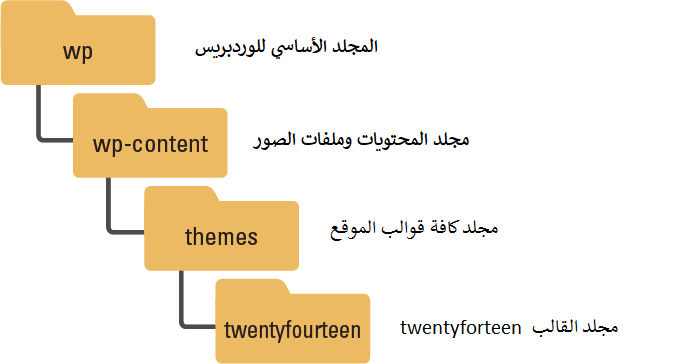
بدايةً عليك أن تفهم بشكل جيد التكوين الداخلي لقالب الووردبريس، والملفات الأساسية التي يجب عليك القيام بإنشائها لتأسيس قالب الووردبريس. يتكون قالب ووردبريس بشكل أساسي من مجموعة متنوعة من الملفات المنفصلة التي تعرف باسم ملفات القالب (قد تكون ملفات من نوع php أو ملفات stylesheet أو ملفات javascript) ، وتكون هذه الملفات مجمعة معاً في مجلد خاص بالقالب يحمل نفس اسم القالب. ويكون هذا المجلد مخزناً ضمن المسار التالي.
wp-content>Themes> Theme_name1 سنوضح لك في في هذا الجزء من المقالة أسماء أهم الملفات الأساسية التي يتكون منها قالب الووردبريس، وسنقوم بضبط إعداداتها في الجزء الثاني من المقالة عند القيام بالتطبيق العملي وتصميم تلك الملفات بشكل فعلي: index.php: هذا الملف هو الملف الأكثر أهمية في القالب وهو يمثل الصفحة الرئيسية لقالب الووردبريس، ويتم استخدامه غالبًا لتصميم الواجهة الأمامية للموقع. Header.php: يحتوي هذا الملف على الأكواد الخاصة بتصميم ترويسة الموقع أو الجزء العلوي منه Head الذي يحتوي عناصر مثل اللوجو وقوائم التنقل الرئيسية وغيرها.. كما يحتوي بيانات أخرى مثل نوع مستند موقعك، ومعلومات وصفية، وروابط إلى ملفات التنسيق CSS..
وغالبًا ما ينتهي هذا الملف بالوسم . Sidebar.php: هو أحد الملفات الهامة لتكوين قالب الووردبريس، وهو يحتوي على الأكواد الخاصة بالشريط الجانبي للموقع، والذي يمكن استخدامه لإضافة بعض عناصر ووردبريس مثل “الودجات” وغيرها من العناصر الأخرى. ويساعدك في تخصيص الشريط الجانبي للموقع من داخل لوحة تحكم الووردبريس بعد تنصيب القالب.
Footer.php: هذا الملف هو أحد الملفات الشهيرة في قوالب الووردبريس وهو مسؤول عن تصميم تذييل الموقع (Footer) بطريقة جميلة ومنسقة. Single.php: هو ملف برمجي يستخدم لتنسيق المنشورات الفردية على موقع الووردبريس. Page.php: هو ملف برمجي يستخدم لتنسيق الصفحات الثابتة على موقع الووردبريس.
functions.php: هو أحد الملفات البرمجية الهامة في قالب الووردبريس، والذي بدوره يقوم بتخزين أهم الدوال البرمجية المتعلقة بالأمور التقنية للموقع، وسنقوم بتوضيح أهمية الملف في الجزء الثاني من المقالة. ( تعرف أكثر على ملف Functions.php ) ملف comments.php: هو الملف المسؤول عن تنسيق التعليقات التي تتم داخل مقالات ومواضيع الموقع والتحكم بعرضها بشكل كامل. ملف Style.css: هذا الملف من الملفات الضرورية لعمل قالب ووردبريس، وهو يحتوي قسم ترويسة مطلوب لتحديد معلومات أساسية حول القالب، كما يحتوي على أكواد CSS خاصة بتنسيق وترتيب عناصر الموقع وتحديد الألوان والخطوط والخلفيات المستخدمة وغيرها من التنسيقات المتنوعة..
ملحوظة : هناك بعض ملفات القالب التي يمكن استخدامها في جميع الصفحات، مثل الملف header.php و footer.php وهناك بعض الملفات التي يتم استخدامها فقط في حالات معينة مثل single.php كذلك قد تحتوي بعض القوالب على ملفات أكثر من تلك التي ذكرناها لك في الأعلى، وهذا يعتمد على حجم الخيارات والوظائف التي يقوم بها القالب. إلا أن تلك الملفات التي أشرنا إليها هي الملفات الأساسية في إنشاء الهيكل الأساسي للقالب. دعنا نبدأ الآن بالتنفيذ العملي ونأتي لخطوة إنشاء الملفات الأساسية التي أشرنا إليها في الفقرة السابقة ووضحنا أهمية كل واحد منها.
في البداية قم بالدخول إلى مدير الملفات الخاص بموقعك من داخل لوحة التحكم Cpanel ثم قم بالدخول إلى المجلد WP-content الذي يمثل مسار تنصيب الووردبريس على الاستضافة> بعدها قم بالدخول إلى المجلد Themes الذي يحتوي على كافة القوالب المتواجدة في موقع ووردبريس الخاص بك: كما تلاحظ في الصورة السابقة، يحتوي المسار Themes بداخلة على المجلدات الفرعية لكافة القوالب التي توجد في موقعك (كل مجلد من هذه المجلدات يمثل قالب مستقل، ويحوي بداخله كافة الملفات اللازمة لعمل هذا القالب). لإنشاء مجلد فرعي لقالبك الجديد الذي ستقوم بإنشاءه داخل موقع ووردبريس، عليك القيام بالنقر على زر إنشاء مجلد جديد (+Folder) المشار إليه بالسهم الأحمر أعلى يسار الصورة السابقة. وبعد النقر على زر إضافة مجلد جديد، سيظهر لك مربع إدخال لتحديد اسم مجلد القالب الجديد الذي تريد إنشاءه (قم بتسميته على سبيل المثال باسم “Test” أو أي اسم آخر تختاره) بعد إنشاء مجلد القالب مباشرة، سيظهر هذا المجلد داخل المجلد Themes بهذا الشكل : بعد أن قمت بالخطوة الأولى وهي إنشاء المجلد الخاص بقالب الووردبريس الذي ستقوم بإنشاءه داخل موقعك، نأتي الآن للخطوة التالية وهي الدخول إلى هذا المجلد، والبدء في إنشاء الملفات الأساسية لقالب الووردبريس واحداً تلو الآخر (ابتداء من ملف index.php وحتى الملف Style.css) لإنشاء كل ملف من هذه الملفات، قم بالدخول إلى المجلد Test، ثم قم بالنقر على زر ملف جديد ( +File ) الموجود أعلى اليسار وحدد اسم وامتداد الملف المطلوب (مثلاً index.php )، ثم انقر على الزر Create new file .
كما هو مبين في الصورة المتحركة التالية، التي توضح لك بشكل عملي طريقة إنشاء الملف index.php داخل مجلد القالب الجديد Test بنفس الطريقة التي توضحها لك الصورة المتحركة السابقة، ستقوم بإنشاء باقي الملفات بالأسماء التي شرحناها لك سابقًا، واحرص على الحفاظ على أسماء الملفات كما أشرنا إليها (حيث أنّ تغيير الاسم لأحد تلك الملفات قد يسبب لك مشاكل في القالب، وربما لن يعمل قالبك نهائياً إذا قمت بتغييرها إلى أسماء أخرى) والآن بعد قيام بإنشاء كل الملفات بنفس الطريقة، يفترض أن يحتوي المسار Test على الملفات التسعة التالية: الآن إذا دخلت إلى لوحة تحكم الووردبريس المنصب على موقعك، ثم قمت بالدخول إلى المظهر < قوالب ، ستلاحظ عدم ظهور أي قالب جديد بالموقع. صحيح ؟! إظهار اسم القالب الجديد الخاص بك في الووردبريس لتقوم بإظهار قالبك الجديد في صفحة قوالب الموقع عليك القيام بتعديل ملف التنسيق style.css الذي قمت بإنشائه داخل مسار المجلد Test الخاص بالقالب الجديد، عليك القيام بإضافة كود بسيط للغاية في ترويسة هذا الملف ليتم إظهار اسم القالب داخل لوحة تحكم الووردبريس.
قم بالتوجه إلى الملف style.css الموجود داخل مجلد Test ، ثم انقر بالزر الأيمن للماوس عليه، لتظهر لك قائمة خيارات اختر منها الأمر تعديل أو Edit : ستفتح أمامك صفحة تحرير الملف style.css، كل ما عليك القيام به هو لصق الكود التالي داخل صفحة تحرير الملف: /* Theme Name: قالب جديد Theme URI: http://www.wpar.net Description: قالب ووردبريس جديد تم إنشاءه من الصفر بشكل كامل. Author: Admin Version: 1.0 Tags: new theme,create */ بعد لصق الكود قم بالنقر على زر Save changes لحفظ التغييرات كما هو موضح في الصورة التالية: وإليك فائدة هذا الكود: كما تلاحظ يتكون الكود من بعض العناصر التي سنوضحها لك بالترتيب: Theme name ومن خلاله يتم تحديد اسم القالب المراد إظهاره داخل لوحة تحكم الووردبريس، وفي هذه الحالة قمنا بتسمية القالب “ قالب جديد ” وهنا يمكنك استبدال الاسم بأي اسم آخر كيفما تشاء. Theme URI وفيه تقوم بوضع الرابط الخاص بالقالب، حيث يمكن لأي مستخدم يقوم بفتح الكود المصدري للقالب العثور على مزيد من المعلومات حول القالب من خلال هذا الرابط (هذه المعلومة اختيارية، والهدف منها توضيح بعض المعلومات عن القالب مثل اسمه والمطور الخاص به وما إلى ذلك.
لذا يمكنك تركه فارغاً أو وضع أي رابط تريده.) Description: هنا يمكنك كتابة وصف قصير عن القالب ليظهر في صفحة التعريف بالقالب في الووردبريس. Author: هنا يمكنك كتابة اسم مطور القالب، وهنا قمنا بكتابة Admin ويمكنك استبداله باسمك على سبيل المثال، وسيظهر اسم المطور هذا في صفحة التعريف بالقالب في الووردبريس. Version هنا تقوم بكتابة رقم الإصدار أو النسخة الحالية للقالب، وتكتب بالصيغة X.X أو X.X.X Tags وفيه تقوم بكتابة بعض الوسوم التعريفية بالقالب لأغراض البحث، وهذه الوسوم تظهر أيضاً في صفحة معلومات القالب بالووردبريس.
والآن بعد هذا التعديل البسيط الذي قمت به داخل ملف style.css ، قم بالدخول إلى لوحة تحكم الووردبريس< المظهر div id=”content” وبالرغم من أن هذا الكود لا يوجد في ملف index لكن من الضروري إضافته فهو يعمل على جلب أكواد الجزء Sidebar بصورة تلقائية ويعرضها داخل ملف الـfooter (وستعرف أهمية هذه الخطوة في الفقرات القليلة المقبلة).
الآن بعد نسخ الكود، قم بالتوجه مجددًا إلى مجلد القالب Test داخل مدير ملفات الموقع، ثم قم بالتوجه إلى الملف Footer.php وبنفس الطريقة قم بفتح صفحة التحرير الخاصة به: ثم قم بلصق الكود السابق داخل الملف footer واحفظ التغييرات التي قمت بها في الملف. وبذلك تكون قد انتهيت من إضافة الكود اللازم للجزء الخاص بتذييل القالب الجديد Footer. تابع طريقة إضافة باقي أكواد القالب لإكمال شكله ومظهره بالكامل.
ثالثًا: نسخ أكواد الجزء Sidebar من جديد قم بفتح ملف index بأحد برامج تحرير الأكواد، ثم قم بنسخ الكود التالي الخاص بجزء الشريط الجانبي للقالب Sidebar: نبذة عنا بسم الله الرحمن الرحين .
هذا تصميم نموذج سيتم تحويله الى قالب ووردبريس. كافة النصوص والروابط المتواجدة في هذا القالب هي بغرض التجربة فقط وخلال مرحلة التحويل من هذا التصميم العادي الى قالب الووردبريس سيتم حذف كل العناصر الثابتة والروابط كذلك وسيتم تحويلها الى عناصر توماتيكية يتم ادراجها بشكل تلقائي عند نشر مقالات في المنوقع الووردبريس او عند القيام بأي تعديل أخر ليكون كل شىء في الموقع يعمل بشكل تلقائي بدون اضافة عناصر ثابتة..
أخر المقالات
مرحبا بكم بعد نسخ الكود من الملف، توجه إلى المجلد Test الذي يتضمن ملفات القالب داخل مدير ملفات الموقع، وقم بفتح صفحة التحرير الخاصة بالملف Sidebar.php بنفس الطريقة المعتادة: ثم قم بلصق الكود الذي نسخته سابقًا داخل هذا الملف، و احفظ التغييرات التي قمت بها في الملف. وبهذا يكون الكود الخاص بإظهار الشريط الجانبي للقالب جاهزًا الآن..
رابعًا: نسخ أكواد ملف Style.css هل تتذكر عندما قمت بإنشاء ملف Style.css فارغ داخل مجلد القالب في مدير ملفات الموقع؟ الآن جاء وقت وضع الأكواد داخل هذا الملف، حيث تعتبر أكواد Style.css هي المسؤولة عن تنسيق شكل مظهر الموقع بالكامل، مثل ضبط مقاسات العرض والارتفاع، وتحديد الألوان والخلفيات وغيرها الكثير من التنسيقات التي تحدد المظهر العام والشكل النهائي للموقع. قم بفتح الملف style.css الموجود ضمن ملفات التصميم Testdesign التي قمت بتحميلها على جهاز حاسوبك الشخصي بأي محرر أكواد لديك: بعد فتح الملف قم بنسخ كافة الأكواد المتواجدة به ثم قم بلصقها داخل الملف style.css المتواجد في مجلد القالب Test داخل مدير ملفات الموقع: بعد لصق الكود الذي نسخته كاملاً داخل الملف لا تنس القيام بحفظ التغييرات على الملف بالنقر على زر Save changes.
خامسًا: ربط ملف header بملف Style.css الأن ناتي إلى هذه الخطوة المهمة للغاية والتي لن يعمل القالب بشكل سليم إلا عند القيام بها، وهذه الخطوة هي القيام بربط الملف header.php بملف style.css (هذان الملفان موجودان داخل مجلد القالب Test في مدير ملفات الموقع) وللقيام بعملية الربط بينهما، قم بالدخول إلى مجلد القالب Test في مدير الملفات، ثم قم بفتح صفحة تحرير الملف header.php بالطريقة المعتادة، بعدها ستفتح لك صفحة تحرير ملف header.php وستجد في بدايتها الكود التالي : قم باستبدال الكود السابق بالكود التالي: هذا الكود سيقوم بإضافة منطقة مخصصة للودجات باسم “ sidebar ” في موقع الووردبريس الخاص بك.
لرؤية هذه المنطقة انتقل إلى لوحة تحكم الووردبريس> المظهر> ستلاحظ ظهور التبويب الخاص بالودجات: كما تلاحظ في الصورة السابقة، فإن التبويب الخاص بالودجات أصبح متوفرًا في الشريط الجانبي لأدوات الووردبريس، لكن عند الدخول إليه فسوف تجد منطقة الودجات التي أضفتها فارغة تمامًا ولا تحتوي على أي ودجات. يمكنك تحديد هذه المنطقة وإضافة الودجت الذي تريده إليها. مثلاً قم بسحب ودجت “نص” وإضافته من داخل لوحة التحكم: كما تشاهد في الصورة السابقة، فقد قمنا بإنشاء ودجت من نوع “نص” وقمنا بكتابة عنوان ومحتوى في الودجت، وبعد ذلك قمنا بعمل “حفظ” للودجت.
الآن سنقوم بزيارة الصفحة الرئيسية للقالب للتأكد من ظهور هذا الودجت في الشريط الجانبي للموقع بدلاً من ظهور النص الثابت الذي كان يظهر سابقًا: توضح الصورة السابقة الشريط الجانبي للموقع، وبالفعل يظهر داخله الودجت من نوع “نص” الذي تمت إضافته من خلال لوحة تحكم الووردبريس في الخطوة السابقة. وبذلك يكون القالب قد أصبح جاهزًا لعرض الودجات، حيث يمكنك الدخول إلى تبويب الودجات في أي وقت وإضافة أي نوع من الودجات التي يوفرها لك الووردبريس مثل (ودجت الصور، والقوائم، والتصنيفات، والصفحات، والتعليقات) وغيرها من أنواع الودجات التي يمكنك الاختيار من بينها وإضافتها بكل سهولة حسب رغبتك، وستظهر هذه الودجات فوراً في الجزء الجانبي للموقع بشكل أتوماتيكي. وصولك إلى هذه المرحلة يعني أنك قد انتهيت من مهمة إنشاء قالب ووردبريس متكامل مع كافة الأدوات والعناصر التي يوفرها الووردبريس لكافة مستخدميه.
في هذه المقالة، قمنا بالاعتماد على تصميم جاهز تم إعداده باستخدام لغة HTML مع لغة CSS. وهو تصميم بسيط وفرناه لك ليساعدك في تطبيق الخطوات العملية، لكن يمكنك الاعتماد على أي تصميم آخر بدلاً منه سواء تصميم تقوم أنت بإنشائه بنفسك، أو تصميم جاهز منشور عبر الإنترنت والبدء في تحويله إلى قالب ووردبريس بنفس الطريقة التي شرحناها في هذه المقالة. ملحوظة : ننصحك دائمًا بأخذ نسخة احتياطية لموقع الووردبريس الخاص بك قبل تغيير أي شيء خاص بالقالب المستخدم في الموقع، أو يمكنك العمل على القالب على جهازك المحلي (أوفلاين) وبعد إنهاء التصميم بالكامل يمكنك القيام برفعه وتجريبه على موقعك المنشور عبر الإنترنت.
حاول تطبيق كافة الخطوات التي تعلمتها في هذه المقالة، ولا تتردد في وضع سؤالك أو استفسارك بخصوص أي شيء يواجهك خلال عملية إنشاء قالب ووردبريس الخاص بك. كيف تستفيد من تطوير قوالب ووردبريس؟
هل قمت بتطوير قالب ووردبريس مميز بنفسك، وترغب
في بيعه وضمان وصوله إلى أكبر عدد من المشترين والعملاء العرب؟ يوفر لك متجر بيكاليكا فرصة مميزة لذلك، فهو أكبر متجر عربي لبيع المنتجات الرقمية الجاهزة المتنوعة والمطورة بأيادٍ عربية مبدعة_ومن بينها قوالب ووردبريس وقوالب ووكوميرس_ وستساعدك شهرة الموقع في التسويق لقالبك وإنجاز صفقتك الأولى بسرعة. وكي تضمن استمرارية بيع قالبك مرات ومرات وجني الأموال بصورة مستدامة، احرص على تقديم أفضل ما لديك في تصميم القالب، واجعله سهل الاستخدام، و متوافق مع اللغة العربية بشكل كامل، ووثقه بطريقة واضحة واحترافية، وقدم لعملائك الدعم اللازم بعد البيع، وساعدهم قدر المستطاع لإعداد القالب بالشكل الأمثل، ولا تهمل بالطبع إضافة التحديثات والتطويرات المستمرة على قالبك.
الخبر الجيد أن بيكاليكا يمنح حوافز للبائعين الجدد ويقدم مكافآت بقيم متفاوتة للمنتجات الجديدة _حسب طبيعة المنتج_ شريطة إبقاء المنتج في بيكاليكا وعدم حذفه أو مخالفته لشروط الاستخدام.. كل ما عليك هو إضافة منتجك الجديد إلى موقع بيكاليكا وبعد قبوله ونشره يمكنك التواصل مع إدارة الموقع ليتم شحن حسابك في بيكاليكا بقيمة المكافأة. لا تفوت هذه الفرصة وابدأ ببيع منتجاتك الرقمية الإبداعية الآن!
متجر بيكاليكا للمنتجات الرقمية الجاهزة الخلاصة مع وصولك لنهاية هذا الدليل الشامل، ستكون قد تعلمت كيفية بناء قالب ووردبريس من الصفر باستخدام الأكواد البرمجية. كي تطبق هذه الطريقة بالشكل الأمثل ننصحك بإعادة قرائتها مرة أخرى ومحاولة فهم الأجزاء الأولى منها والتي تمهد لك للبدء في إنشاء قالب ووردبريس متكامل. ثم الانتقال إلى الجزء الثاني من المقالة لتعلم الخطوات العملية الأساسية التي ستقوم من خلالها بتطبيق عملية إنشاء قالب ووردبريس يمكن الاعتماد عليه وتنصيبه وتفعيله على موقعك، والتمتع بالكثير من الخيارات والأدوات التي يوفرها الووردبريس للقوالب المتوافقة معه.
قبل الانتقال إلى الجزء الثاني من المقالة، سنفترض أنك قد قمت بتحميل ملفات الأكواد البرمجية المرفقة مع المقالة والتي تحتوي على التصميم التجريبي الذي أنشأناه لك من أجل تحويله إلى قالب ووردبريس بدلاً من كونه مجرد تصميم ثابت. اقرأ أيضًا: سلسلة تطوير قوالب ووردبريس | دوة مجانية لتعلم تطوير قوالب ووردبريس من الصفر
دروب أيديا - DROPIDEA
نأمل أن تكون هذه المقالة قد أضافت لك قيمة حقيقية. في دروب أيديا نسعى دائمًا لتقديم محتوى عربي عالي الجودة يساعدك على النمو والتطور في المجال الرقمي. تابعنا للمزيد من المقالات والشروحات المفيدة.
الأدمن
DROPIDEA
أحدث المقالات

هل تصيّد ماسك إطلاق أداة «Dots» من OpenAI عبر نطاق dot.com؟

بيك إكس في ترفع سقف استثماراتها البذرية إلى 5 ملايين دولار

عشاء مرتقب بين رئيس أنثروبيك ودونالد ترامب وسط خلافات حول أمان الذكاء الاصطناعي

جوجل تختبر الشراء المباشر من فليبكارت عبر Gemini في الهند



