شرح ترجمة موقعك وجميع عناصره باستخدام Loco Translate
 بقلم الأدمن
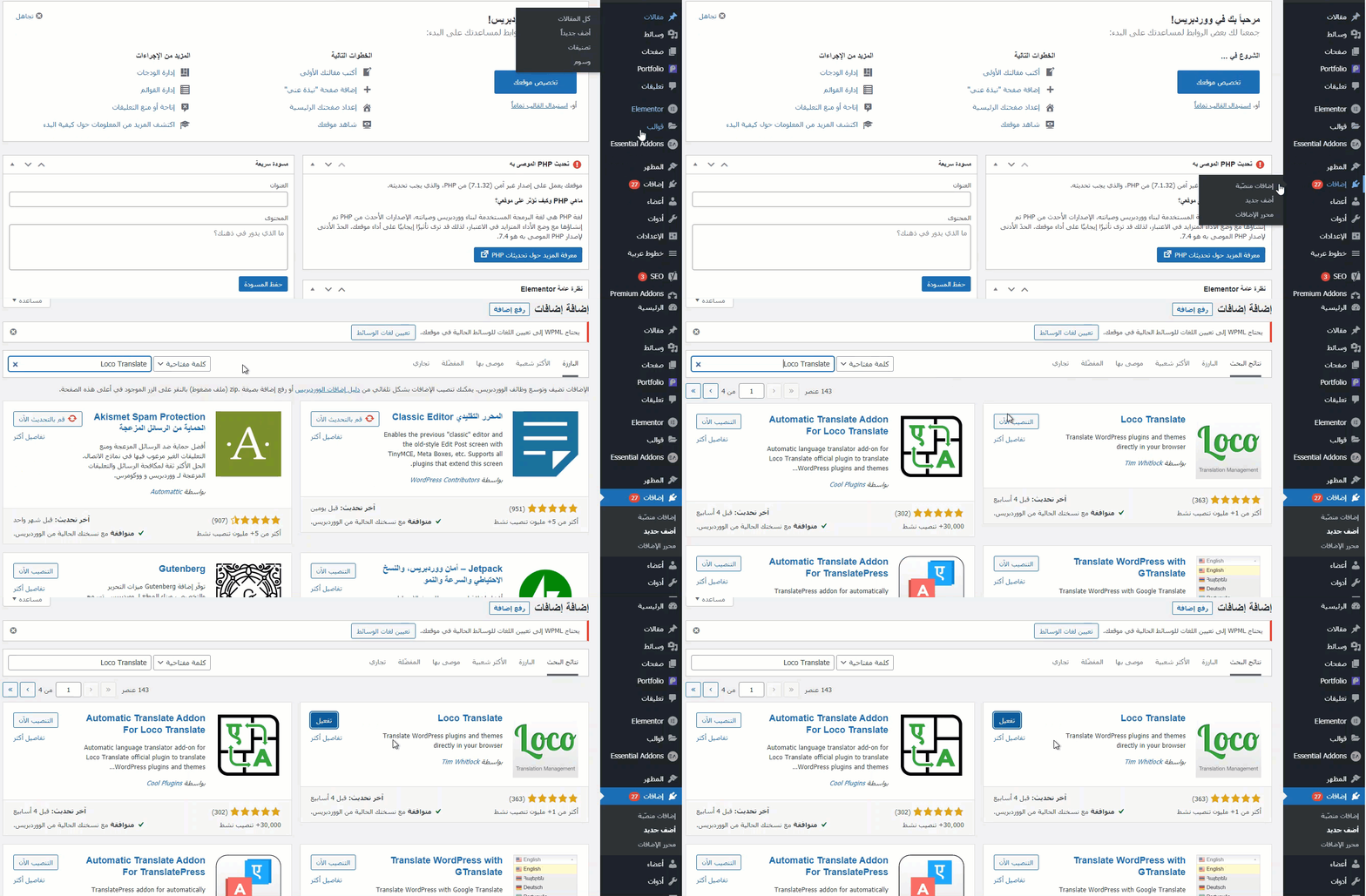
إذا كنت تريد ترجمة موقعك أو متجرك على الووردبريس إلى أي لغة آخرى، وتبحث عن إضافة سهلة الإستخدام، فإن إضافة Loco Translate تساعدك على ترجمة جميع النصوص والعبارات الغريبة في موقعك باستخدام واجهة سهلة وبسيطة. سنقدم في هذا المقال شرح كامل طريق ترجمة موقعك باستخدام إضافة Loco Translate، وكيفية تعريب كافة القوالب (Themes) والإضافات (Plugins) سواءًا للتي تظهر للمستخدم أو تظهر لمدير الموقع وحفظ تلك الإعدادات وتفعيله ليكون موقعك مترجمًا بشكلٍ جاهز لأي لغة تريدها.
استخدام Loco Translate لترجمة موقعك دعنا الآن نشرح لك الخطوات المطلوبة لاستخدام إضافة Loco Translate، لترجمة جميع عناصر موقعك من القوالب أو الإضافات أي لغة آخرى، وذلك باستخدام محرر مدمج مع لوحة تحكم الووردبرس يمكنك من اكتشاف العبارات الغريبة وترجمتها إلى اللغة المستهدفة ثم حفظ التغييرات.
سنقوم بإتمام هذا الشرح خطوة بخطوة على النحو التالي: تنصيب وتفعيل إضافة Loco Translate ترجمة قوالب الووردبريس اختيار اللغة اختيار مكان حفظ ملفات الترجمة البدء بعملية الترجمة حفظ الترجمة ترجمة إضافات الووردبريس تنشيط
واستخدام ملفات اللغة الجديدة
تنصيب وتفعيل إضافة Loco Translate يمكنك تنصيب الإضافة من خلال الذهاب إلى لوحة تحكم الووردبريس في موقعك ومن ثم إلى إضافات > Themes بعد ذلك ستفتح لنا صفحة تحتوي على كافة القوالب الموجودة في الموقع، حيث يمكنك اختيار القالب الذي تريد ترجمته بنفسك، ولا يشترط ترجمة كافة القوالب بالتأكيد.
مثلًا لنفترض أنك ستختار أحد القوالب المنصبة بالشكل التالي: الخطوة التالية، هي اختيار اللغة التي تريدها، بالضغط على New language النافذة التالية، يمكنك تحديد اللغة المطلوب من خلال تبويبة (Choose Language) وكذلك اختيار مكان حفظ ملفات اللغة الجديدة.
هناك 3 خيارات لتحديد مكان حفظ الملفات: Custom حيث يتم حفظ ملفات الترجمة التابعة للغة الجديدة في المسار التالي:(languages/loco/themes/infinite-photography-ar.po)، وهذا يعني إنه سيتم إنشاء مجلد خاص بالإضافة ضمن مجلد لغات الووردبريس، وسيتم تخزين ملف اللغة الجديد في مجلد فرعي ضمنه System حيث يتم حفظ ملفات الترجمة التابعة للغة الجديدة في المسار التالي: ( languages/themes/infinite-photography-ar.po)، وهذا يعني أنه سيتم حفظ الملفات، ضمن مجلد themes، الموجود ضمن مجلد لغات الووردبريس. Author حيث يتم حفظ ملفات اللغة الجديدة في المسار التالي: themes/infinite-photography/languages/ar.po وهذا يعني أنه سيتم حفظ الملفات، ضمن مجلد اللغات الخاص بالإضافة ذاتها، وليس ضمن مجلد اللغات الأساسي الخاص بالووردبريس.
بشكل عام ينصح بحفظ الملفات ضمن خيار Custom ، لضمان عدم ضياع الملفات عند تحديث الإضافات أو تحديث الووردبريس. ثم بعد تحديث اللغة وتحديد مكان حفظ الملفات، قم بالضغط على Start Translating ، لتبدأ بعملية الترجمة. بعد ذلك ستفتح لنا صفحة جديدة، سنقوم من خلالها بترجمة الكلمات والنصوص الموجودة في الموقع إلى اللغة التي اخترناها مسبقاً، وستجد أن محرر الترجمة يوفر لك عملية الترجمة من خلال 3 أجزاء مهمة بالمحرر على النحو التالي: نختار من هنا النص الذي نريد ترجمته النص المكتوب في المصدر أو الموقع الخاص بك
نكتب ترجمة النص إلى اللغة المطلوبة. على سبيل المثال: إذا كان لديك موقعًا باللغة العربية واستخدمت قالبًا مصممًا باللغة الإنجليزية، ثم بعد ترجمة القالب وجدت أن النصوص الموجودة في القالب الذي استخدمه ليست جميعها مترجمة للعربية، وتحتاج لبعض ترجمة منها بنفسك.
كما في الصورة التالية، ستجد أن كلمة ( LEAVE A COMMENT ) ، والتي تحتاج إلى ترجمتها إلى (اترك تعليقاً). سنقوم بالعودة إلى الصفحة السابقة، لنبحث عن هذه الكلمة المطلوبة (Leave a Comment) ونقوم بترجمتها كالتالي: نكتب النص المراد ترجمته في خانة البحث نكتب الترجمة في المكان المخصص لها نضغط على Save لحفظ الترجمة ستكون النتيجة كالتالي: مثال آخر، على ترجمة نص آخر، وبنفس الخطوات السابقة اقرأ أيضاً:
كيفية الحصول على قالب ووردبريس معرب؟
وتحديد الخيار الأفضل لك وبهذه الطريقة تستطيع ترجمة كافة القوالب وكافة النصوص التي تظهر بها في الحالات المختلفة، ولننتقل للخطوة التالية في ترجمة إضافات موقعك.
ترجمة إضافات الووردبريس يمكن ترجمة إضافات الووربريس، بنفس الطريقة المستخدمة في ترجمة قوالب الووردبريس، حيث ستقوم بالذهاب من خلال لوحة تحكم موقعك إلى: Loco Translate >> Plugins، ومن ثم اختيار الإضافة التي تريد ترجمتها إلى اللغة العربية أو أي لغة أخرى. مثلًا سنقوم بترجمة إضافة (Portfolio) بعد ذلك يمكنك إضافة لغة جديدة للعمل عليها New language
أو الإختيار من اللغات الموجودة بعد اختيار اللغة، يمكنك البدء وترجمة النصوص التي تريدها، مثل الطريقة السابقة ملاحظة : أثناء ترجمة النصوص، قد تشاهد بعض الأرقام أو الحروف الخاصة فعندما تترجم مثل هذه الكلمات يجب أن تبقي تلك الرموز كما هي، فمثلًا عند ترجمة كلمة (% Comments)، عليك أن تبقي على علامة (%) وتقوم بترجمة النص الذي يليها فقط لتترجم إلى (% التعليقات). حيث أن هذه العلامات أو الأرقام قد تدل على متغيرات معينة.
اقرأ أيضاً: شرح إضافات الووردبريس ووظائفها ومميزاتها | دليل شامل للمبتدئين اقرأ أيضاً: كيف تقوم بتنصيب إضافة ووردبريس
تنشيط واستخدام ملفات اللغة الجديدة
لتنشيط واستخدام ملفات اللغة الجديدة التي قمت بترجمتها، تحتاج إلى تغيير لغة الووردبريس لموقعك وفقًا للغة التي تريدها من خلال لوحة تحكم الووردبريس، وذلك بالذهاب إلى: الإعدادات
دروب أيديا - DROPIDEA
نأمل أن تكون هذه المقالة قد أضافت لك قيمة حقيقية. في دروب أيديا نسعى دائمًا لتقديم محتوى عربي عالي الجودة يساعدك على النمو والتطور في المجال الرقمي. تابعنا للمزيد من المقالات والشروحات المفيدة.
الأدمن
DROPIDEA
أحدث المقالات

بيك إكس في ترفع سقف استثماراتها البذرية إلى 5 ملايين دولار

عشاء مرتقب بين رئيس أنثروبيك ودونالد ترامب وسط خلافات حول أمان الذكاء الاصطناعي

جوجل تختبر الشراء المباشر من فليبكارت عبر Gemini في الهند

كروزو تلغي صفقة بـ1.25 مليار دولار لتوربينات مراكز البيانات