شرح تخصيص Sidebar لموقعك الووردبريس
 بقلم الأدمن
كلما تعرفت أكثر على خصائص وأدوات لوحة إدارة موقع الووردبريس والميّزات التي تضيفها إلى موقعك فإن فرصتك لتصميم موقع إلكتروني احترافي ومُلفت للزوار سوف تزداد، وسنتحدث اليوم عن شرح Sidebar بتوضيح كافة التحسينات التي تقوم بها كجزء من باقي أجزاء لوحة تحكم الووردبريس . سنتعرف على كيفية على تخصيص السايد بار sidebar الخاص بموقع الووردبريس وطريقة التعامل مع كل مكوناته بشكل احترافي، ونتعرف على كيفية إظهار أو إخفاء الشريط ال في بعض أنواع الشاشات، وغيرها من الأشياء التي تلعب دورًا كبيرًا في نقل موقعك إلى مستوى احترافي.
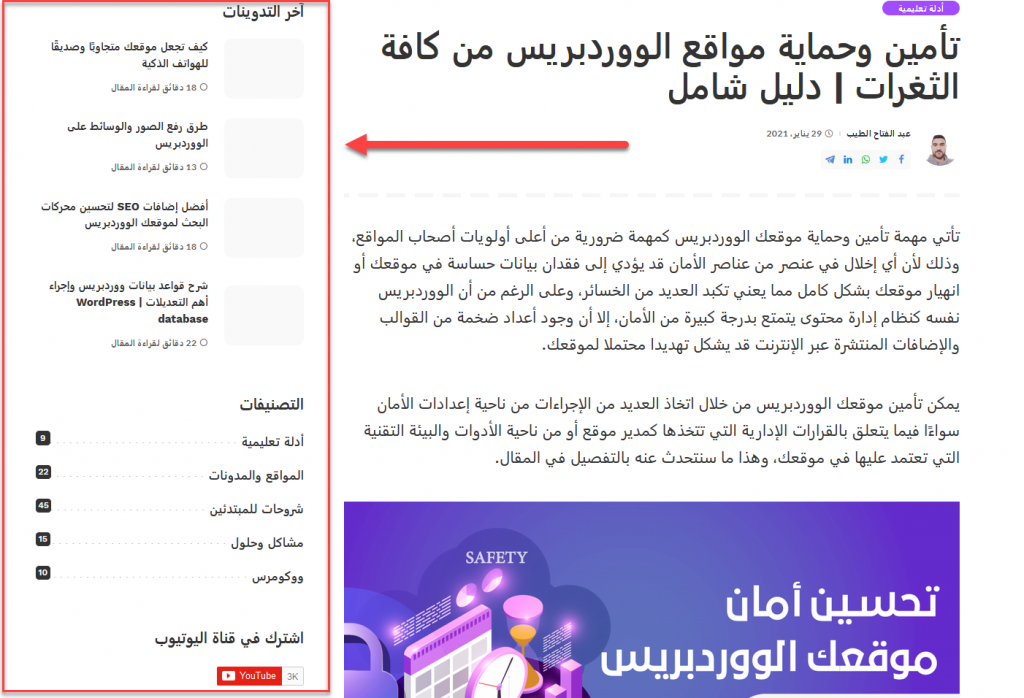
ما هو السايد بار sidebar وكيف يكون مفيد للموقع ؟ يقصد بالسيدبار الشريط الجانبي الذي يظهر في أغلب صفحات الموقع كما تلاحظ في أثناء تصفحك لإحدى مقالات موقع ووردبريس بالعربية من نسخة الحاسوب المكتبي، فسوف تلاحظ وجود مستطيل يحتوي على بعض العناصر من الموقع
في يسار المقالة، فهذا هو أحد تطبيقات السايد بار من أجل تخصيص وتهيئة محتوى الموقع وتسهيل تصفّحه بشكل يساعد على تحسين تجربة الزائر. لا جدال على الفائدة الكبيرة التي يضفيها السايد بار إلى موقعك ولكن هذا لا يعني أن تبالغ في استعراض Widgets التي ليس لها فائدة، فهذا سيؤدي إلى نتائج سلبية وسيربك متصفحي موقعك، في المقابل ستحتاج إلى إدراج سايد بار يحتوي على أهم العناصر التفاعلية التي تريد استعرضها في كافة صفحات الموقع بهدف زيادة تفاعل المستخدم. هذه الاستراتيجية تساعدك على تحسين تجربة الزائر، وأيضًا تساعد على زيادة فترة بقاء الزائر في موقعك، وهذا بدوره يقلل معدل الارتداد (Bounce Rate) ، وبالتالي يحظى موقعك بثقة كبير من قبل الزوار ومن قبل محركات البحث كذلك.
لذلك كان من الضروري استعراض أهم عناصر السايدبار لتقوم بتخصيصه بشكلٍ أفضل لموقعك. السايد بار والودجات تعدُّ الودجات المكون الرئيسي للسايد بار، لأن الهدف الأساسي لتطوير السايدبار هو إدراج الودجات بداخله للقيام بتهيئة شكل الموقع وتصميمه وترتيب عناصره بالشكل المطلوب. عند دخولك إلى لوحة تحكم الووردبريس ثم الذهاب إلى المظهر
الودجات . اختر الودجت التي تريد إضافته داخل السايد بار الخاص بموقعك، أو داخل أي جزء آخر. انقر على الودجت المُختار لتفتح لك قائمة منسدلة تحتوي على الأجزاء المخصصة داخل موقعك، والتي يمكن إدراج الويدجت بداخلها.
ستجد من ضمن تلك الخيارات ” السايد بار” كما تلاحظ بالصورة يمكننا اختيار الجزء المراد إدراجه الودجيت بداخله، هنا اخترنا “ الشريط الجانبي للمدونة “، وهو السايد بار الخاص بالموقع، بعد ذلك سنضغط على “ أضف الودجت ” ليتم إضافته في الجزء المخصص للشريط الجانبي للمدونة، ويمكننا من هناك تخصيص إعدادات الودجت: كما توضح الصورة فإنه بعد إضافة ودجيت “ أحدث التعليقات ” سيظهر مربع الخيارات الخاص بالويدجت والذي يمكننا من تخصيص الإعدادات الخاصة به، على سبيل المثال يمكنك إدخال العنوان الذي يظهر أعلى الودجيت بالموقع، كما يمكنك اختيار عدد التعليقات المراد إظهارها في هذا الويدجيت. أيضًا تستطيع إدراج السايد بار داخل الموقع، عبر سحب الودجت المراد إدراج والقيام بإفلاته داخل الجزء المخصص له، سواء إذا كان السايد بار أو أي جزء آخر في الموقع:
بنفس طريقة السحب والإفلات يمكنك الدخول إلى أي من الأجزاء التي تحتوي على ودجات وعمل إعادة ترتيب لها، مثل تحريك أحدها إلى الأسفل، وتحريك الآخر للأعلى: يمكنك كذلك حذف أي ودجت مضافة بالفعل إلى السايد بار أو أي جزء آخر لعرض الودجات، حيث يمكنك فتح العنصر الذي يحتوي على الودجات، ليظهر لك بيانات الودجيت. يمكنك أيضًا وبسهولة الضغط على خيار “حذف” ليتم حذف الويدجيت من داخل الجزء المخصص له، ولكنه يبقى موجودًا داخل نافذة الودجات في لوحة التحكم بحيث يمكنك إدراجه في أي وقت تريد لاحقًا:
تعيين السايد بار من خلال تخصيص القالب من داخل لوحة تحكم الووردبريس ، توجه إلى المظهر
دروب أيديا - DROPIDEA
نأمل أن تكون هذه المقالة قد أضافت لك قيمة حقيقية. في دروب أيديا نسعى دائمًا لتقديم محتوى عربي عالي الجودة يساعدك على النمو والتطور في المجال الرقمي. تابعنا للمزيد من المقالات والشروحات المفيدة.
الأدمن
DROPIDEA
أحدث المقالات

هل تصيّد ماسك إطلاق أداة «Dots» من OpenAI عبر نطاق dot.com؟

بيك إكس في ترفع سقف استثماراتها البذرية إلى 5 ملايين دولار

عشاء مرتقب بين رئيس أنثروبيك ودونالد ترامب وسط خلافات حول أمان الذكاء الاصطناعي

جوجل تختبر الشراء المباشر من فليبكارت عبر Gemini في الهند



