شرح صيغة WebP للصور واستخدامها لتحسين أداء موقعك الووردبريس
 بقلم الأدمن
تعد الصور من العناصر الأساسية التي تستخدمها جميع مواقع الويب، ولذلك فإن تحسينها من الأولويات لأصحاب المواقع لأجل تسريع الموقع الإلكتروني وجعل تجربة المستخدم أفضل، ذلك لأن الصورة المُحسَّنة تكون بنفس جودة الصورة الأصلية تقريبًا، لكن بحجم أصغر بكثير، وبالتالي لا يتطلب تحميلها وقتًا كما الوقت المطلوب لتحميل الصورة غير المحسنة. ومن الخطوات التي يجب أن تقوم بها لتحسين صور موقعك هي التعرف على التنسيقات التي تمكنك من فعل ذلك، ومعرفة كيفية استخدامها، ولهذا سنشرح لك هنا تنسيق الصور WebP الجديد نسبيًّا والذي تم إنشاؤه خصيصًا للمساعدة على تصغير حجم الصور مع الحفاظ على جودتها، كما سنخبرك متى يجب أن تعتمد على هذه الصيغة، وكيف تستخدمها في الووردبريس.
صيغة WebP للصور
WebP هو تنسيق للصور تم تطويره وإصداره بواسطة جوجل في عام 2010 من أجل السماح لأصحاب المواقع بتسريع صفحات مواقعهم عن طريق ضغط الصور مع الحفاظ على جودتها، إذ إن الصور تشكل حوالي 60%-65% من حجم صفحة الويب، وسيؤدي ضغطها إلى تقليل وقت تحميل الصفحة، وتوفير النطاق الترددي، والحفاظ على عمر البطارية، خاصة على الهواتف الذكية. تم تحسين صيغة WebP مع الوقت، وأصبحت حاليًّا قادرة على توفير صور بحجم أصغر بنحو 30% بالمتوسط مما توفره PNG و JPEG بنفس الجودة المرئية، أي إذا كان لديك صورة بتنسيق PNG بحجم 100 كيلوبايت، فإنك تستطيع تصغير حجمها إلى 70 كيلوبايت بالمتوسط -مع الحفاظ على جودتها عالية- من خلال تحويلها إلى تنسيق WebP. وبالرغم من أن هذا التنسيق ليس مدعومًا في جميع متصفحات الويب، إلا أن معظم المتصفحات الشهيرة أصبحت تدعمه، بما في ذلك Google Chrome و Firefox و Opera و Microsoft Edge، ما يعني أنه ليس عليك أن تقلق بشأن عدم ظهور صور موقعك للزوار إذا استخدمته، لأن الغالبية العظمى من الزيارات تأتي عن طريق هذه المتصفحات، كما أن WebP مدعوم في أندرويد أيضًا.
كيف يتم ضغط الصور؟ تشير عبارة ( ضغط الصور ) إلى تقليل حجمها، وهناك تقنيتان أساسيتان توفران إمكانية القيام بذلك، وهما الضغط مع فقدان البيانات ( Lossy compression ) والضغط بدون فقدان البيانات ( Lossless compression )، وتوجد العديد من الاختلافات بين هاتين الطريقتين للضغط يوضح أهمَّها الجدول التالي: جدول يوضح أهم الفروقات بين طريقتي الضغط لن نشرح هنا الآلية التي يتم استخدامها للضغط في أي من التقنيتين، كما لن شرح كيفية عمل صيغة WebP، لأن ذلك معقد وليس هناك حاجة لمعرفته، لكننا سنكتفي بالإشارة إلى أن WebP تدعم كلا نوعي الضغط، وتكون صور WebP المضغوطة بتقنية الضغط بدون فقدان البيانات أصغر بنحو 26% من صور PNG التي لها نفس الجودة، في حين تكون الصور المضغوطة بتقنية الضغط مع فقدان البيانات أصغر بنحو 34% من صور JPEG (النسب هنا وسطية).
ملحوظة: تستخدم صيغة PNG تقنية الضغط بدون فقدان البيانات، بينما تستخدم صيغة JPEG تقنية الضغط مع فقدان البيانات في العادة بالرغم من إمكانية ضغط الصور دون فقدان البيانات في JPEG.
مميزات وفوائد صيغة WebP بالإضافة إلى دعم تنسيق
WebP كلا نوعي الضغط المستخدمَين في PNG و JPEG، هو يتميز بالكثير من الميزات الأخرى التي تجعله قادرًا على تقديم العديد من الفوائد المهمة عند استخدامه في موقع الويب، فمثلًا يدعم هذا التنسيق أيضًا الشفافية متعددة المستويات (Different levels of Transparency) والتحريك (Animation)، وهاتان ميزتان لا تجدهما عادة في تنسيق الصور نفسه، إذ تدعم صيغة PNG الشفافية متعددة المستويات لكنها لا تدعم التحريك، وتدعم صيغة GIF التحريك لكنها لا تدعم الشفافية متعددة المستويات.
ملحوظة: تدعم صيغة GIF الشفافية والتحريك، لكنها لا تدعم الشفافية متعددة المستويات (Different levels of Transparency) ما يعني أنه لا يمكنك جعل حواف الأشكال شفافة بشكل تدريجي بحيث تقوم بتحديد مدى شفافية كل بكسل، أي باختصار يمكن أن يكون جزء من الصورة في صيغتي PNG و WebP شفافًا أو غير شفاف أو ما بينهما (نصف شفاف على سبيل المثال)، بينما يكون جزء الصورة في صيغة GIF إما شفافًا أو ملونًا، ولا يمكن أن يكون نصف شفاف. هذه الميزات والميزات الأخرى التي يتمتع بها تنسيق WebP جعلته قادرًا على توفير العديد من الفوائد عند استخدامه في موقع الويب، ومن أهمها: رفع أداء الموقع ، حيث سيقلل حجم صور WebP الصغير نسبيًّا من الوقت اللازم لتحميل صفحات الويب، ويرفع سرعة الموقع الإلكتروني بشكل عام.
توفير النطاق الترددي ، وهذه فائدة أخرى تأتي بفضل صغر حجم ملفات الصور ذات التنسيق WebP، وتكون ملحوظة في المواقع التي تتضمن الكثير من الصور. رفع ترتيب صفحات الموقع في نتائج البحث ، حيث ستجعل أوقات التحميل المنخفضة محركات البحث تفضل صفحاتك على صفحات المواقع البطيئة عند عرض نتائج البحث. يسمح بالاستغناء عن صيغ الصور الأخرى ، إذ يمكنك بواسطة WebP عرض صور متحركة بنفس قدرات GIF، وذات خلفيات شفافة مثل PNG، وبضغط أفضل من JPEG.
عيوب صيغة WebP بالرغم من أن تنسيق WebP قوي ومميزاته كثيرة وفوائده عديدة، إلا أنه يعاني من بعض العيوب، وأهمها: لا تدعم جميع متصفحات الويب تنسيق WebP، وبالتالي إذا قمت باستخدام هذه الصيغة فقد لا تظهر صور صفحات موقعك لدى بعض الزوار، خاصة أولئك الذين يستخدمون نسخًا قديمة من المتصفحات. يتطلب عرض صور WebP المتحركة قوة معالجة مركزية أكثر مما تتطلب صور GIF المتحركة، إذ يأخذ فك تشفير صورة WebP المضغوطة بتقنية الضغط مع فقدان البيانات حوالي 2.2 ضعف الوقت الذي يأخذه فك تشفير صورة GIF التي تحمل نفس المعلومات، ويأخذ فك تشفير صورة WebP المضغوطة بتقنية الضغط بدون فقدان البيانات حوالي 1.5 ضعف الوقت الذي يأخذه فك تشفير صورة GIF التي تحمل نفس المعلومات. لا تدعم الكثير من برامج تحرير الصور إجراء تعديلات على صورة WebP، في حين أن التنسيقات الأخرى الأقدم مثل PNG مدعومة جيدًا في جميع برامج تحرير الصور تقريبًا.
تجدر الإشارة إلى أنه كان هناك عيب مهم لـ WebP متعلق بالووردبريس، إذ لم يكن التنسيق مدعومًا في النظام بشكل كامل، لكن تم محو هذا العيب مؤخرًا عندما تم إصدار النسخة 5.8 من ووردبريس في يوليو من عام 2021، حيث أصبح هذا التنسيق مدعومًا في الووردبريس دون الحاجة إلى تنصيب مكونات إضافية أو إدراج تعليمات برمجية إضافية إلى النظام.
متى يجب أن أستخدم صور WebP في الووردبريس؟
بالنظر إلى مزايا تنسيق WebP وما تقدمه لأصحاب المواقع والزوار من فوائد، ومع الأخذ بعين الاعتبار العيوب التي تعاني منها، يمكننا أن نقول إنه يجب أن تعتمد هذا التنسق في الووردبريس بشكل افتراضي الآن بعد أصبح مدعومًا في النظام كما تنسيقات JPG وPNG إلا إذا كان هناك هناك سبب منطقي وقوي يمنعك من اعتماد التنسيق في موقعك. ويوجد سببان رئيسيان يمكن أن يمنعك أحدهما من استخدام صيغة WebP في موقعك الووردبريس، هما: يستخدم عدد كبير من زوار موقع الويب الخاص بك متصفحات لا تدعم هذا التنسيق. في هذه الحالة، عليك أن إما أن تمتنع عن استخدامه أو توفر نسخًا بتنسيق آخر من الصور تظهر لهؤلاء الزوار بدلًا من صور WebP، أي عليك أن تجعل نسخ صور WebP تظهر للزوار الذين يزورون موقعك من متصفحات تدعم التنسيق، ونسخ صور JPG أو PNG تظهر للزوار الذين يزورون موقعك من متصفحات لا تدعمه، وسنشرح كيفية فعل ذلك لاحقًا في هذه المقالة من خلال إضافة ShortPixel.
عدم دعم موقعك الإلكتروني للتنسيق، إذ في الواقع بالرغم من دعم ووردبريس لهذا التنسيق، إلا أن هناك أسبابًا متعلقة باستضافة الويب أو المكتبات المستخدمة في الخادم أو بعناصر أخرى في الموقع، يمكن أن تجعل تنسيق WebP غير مدعوم بشكل كلي أو جزئي (بعض المزايا تكون مدعومة وبعضها غير مدعوم). في حال لم يكن موقعك يدعم هذا التنسيق، فستظهر لك رسالة خطأ أثناء رفع الصورة عليه. الجدير بالذكر أنه يتوجب عليك أن تتواصل مع فريق خدمة العملاء في شركة الاستضافة التي تستضيف موقعك للتأكد من دعمه لتنسيق WebP أو من أجل تفعيل دعم التنسيق على الموقع.
كيفية تحويل تنسيق صورة إلى WebP أصبح بإمكانك اليوم تحويل الصور من الصيغ الأخرى إلى صيغة WebP بسهولة، إذ توجد العديد من الأدوات التي توفر إمكانية القيام بذلك على الإنترنت دون الحاجة إلى استخدام برامج، أو باستخدام برامج تعمل على أنظمة تشغيل الحاسوب، أو حتى باستخدام إضافة يتم تنصيبها على ووردبريس واستخدامها لضغط الصور وتحويلها إلى WebP، ونشرح فيما يلي بشكل عملي أهم الطرق التي تستطيع باتباعها تحويل الصور إلى تنسيق WebP. تطبيق الويب squoosh.app يوفر لك تطبيق الويب مفتوح المصدر squoosh.app إمكانية ضغط الصور مجانًا عن طريق تحويلها إلى العديد من التنسيقات التي تمتاز بجودة عالية وحجم منخفض، كما تستطيع إجراء بعض التعديلات على الصورة أثناء ضغطها باستخدامه. لاستخدام squoosh.app من خلال المتصفح لتحويل صورة إلى تنسيق WebP، توجه مباشرة إلى موقع التطبيق عبر النقر على هذا الرابط ( squoosh.app ).
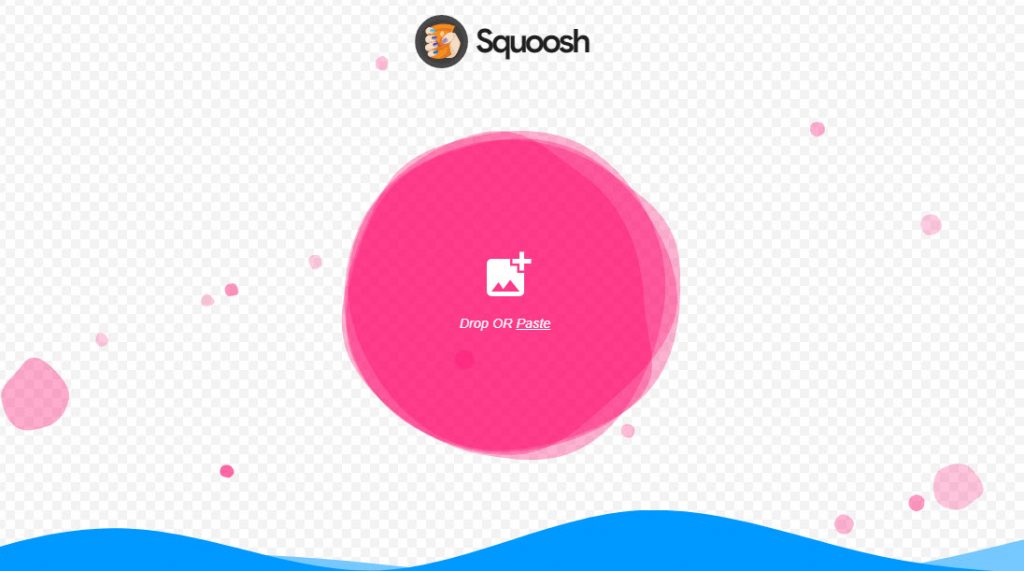
ستظهر لك صفحة تطبيق الويب التي يمكنك من خلالها رفع صورة مباشرة من أجل ضغطها. صورة تظهر صفحة squoosh.app الرئيسية التي يمكن رفع صورة من خلالها بعد الذهاب إلى الرابط، قم برفع الصورة إلى الموقع من خلال سحب أيقونتها الموجودة على جهاز الكمبيوتر لديك وإفلاتها ضمن صفحة الويب، أو عبر نسخها إلى الحافظة (كصورة وليس كملف) ولصقها في الصفحة بالنقر على زر (Paste) أو على مفتاحي (Ctrl + v) من لوحة المفاتيح.
كذلك يمكنك أن تقوم برفع صورة إلى الموقع عبر النقر على إشارة الزائد الموجودة أمام أيقونة الصورة واختيار ملف الصورة من خلال مربع اختيار الملف الذي يظهر لك. صورة تشرح طرق إدخال صورة في موقع squoosh.app من أجل ضغطها بعد سحب ملف الصورة وإفلاته في ضمن صفحة squoosh.app، أو بعد إدخال الصورة في الموقع بأي من الطرق الثلاث الموضحة سابقًا، سينقلك التطبيق مباشرة إلى صفحة تعديل الصورة وضغطها، وستكون الصفحة مكونة من قسمين، حيث سيعرض أحدهما الصورة الأصلية، وسيعرض الآخر الصورة بعد تطبيق الخصائص والتعديلات التي تحددها من القسم الموجود في أسفل يمين الشاشة عليها، كما سيكون بإمكانك سحب شريط تمرير للمقارنة بين نسختي الصورة الأصلية والمعدلة.
صورة توضح أقسام صفحة ضغط الصورة وتعديلها في squoosh.app يوفر squoosh.app إمكانية تحويل الصورة إلى تنسيق WebP بطريقة الضغط مع فقدان البيانات أو بطريقة الضغط بدون فقدان البيانات. ولتحويل الصورة إلى WebP، اختر التنسيق من القائمة المنسدلة التي توجد في قسم تحديد خصائص الصورة مباشرة تحت كلمة (Compress).
سيظهر لك الموقع خيارات جديدة متوافقة مع التنسيق الذي اخترته، إذ ستظهر لك عدة خيارات عند اختيار التنسيق WebP أهمها خياري: Lossless : يكون عبارة عن صندوق اختيار، حيث يوجد بجانب كلمة (Lossless) مربع يمكنك وضع إشارة صح فيه، وهذا الخيار مخصص لتحديد طريقة الضغط (مع فقدان بيانات أو بدون فقدان بيانات)، فإذا لم تضع إشارة صح في المربع، فإن طريقة الضغط ستكون مع فقدان بيانات، وإذا وضعت ستكون طريقة الضغط بدون فقدان بيانات. Quality : يكون على شكل شريط يمكن من خلاله تحديد رقم ما بين 0 و 100، ويظهر هذا الخيار فقط إذا لم تضع إشارة صح بجانب كلمة (Lossless)، أي إذا اخترت أن تضغط بطريقة الضغط مع فقدان البيانات، وهو يحدد جودة الصورة بعد التعديل، فإذا اخترت رقمًا قريبًا من 100 ستكون جودة الصورة قريبة جدًا من جودة الصورة الأصلية، وإذا اخترت رقمًا منخفضًا قريبًا من الصفر، فستكون جودة الصورة منخفضة جدًا بالمقارنة مع الصورة الأصلية.
الخيارات المهمة في قسم تحديد خيارات ضغط الصورة
بعد تحديد الخصائص التي تريدها من الخيارات المتوافرة، يمكنك النقر على زر التنزيل من أجل حفظ الصورة المعدلة (المضغوطة) على جهازك. ثم بعد أن يتم تنزيل الصورة على الجهاز، يمكنك ملاحظة أن حجمها أقل من الصورة الأصلية، ففي مثالنا هذا كان حجم الصورة الأصلية مساويًا لـ 893 كيلوبايت وكانت بصيغة PNG، في حين كان حجمها بعد ضغطها بطريقة الضغط مع فقدان البيانات مع تحديد الجودة (Quality) بـ 100 مساويًا لـ 271 كيلوبايت تقريبًا، وهذا يعني أن حجم الصورة قد نقص بمقدار 69% تقريبًا. صورة توضح مكان زر تنزيل الصورة بعد ضغطها وتحويلها إلى صيغة WebP
عندما قمنا بتحميل الصورة السابقة نفسها ذات الحجم 893 كيلوبايت إلى صيغة WebP بطريقة الضغط دون فقدان البيانات كان حجم الصورة المضغوطة مساويًا لـ 534 كيلوبايت، أي أن حجم الصورة صغر بنسبة 40% تقريبًا، ما يعني أنه يمكنك استخدام أي من الطريقتين لضغط الصورة عن طريق تحويلها إلى WebP، لكن طريقة الضغط مع فقدان البيانات تقوم بتصغير الحجم أكثر من الطريقة الأخرى، لذلك قد يكون من الأفضل أن تستخدمها هي للصور التي تريد وضعها على موقعك الإلكتروني. تجدر الإشارة إلى أن تطبيق squoosh.app يوفر إمكانية إجراء العديد من التعديلات على الصورة أثناء ضغطها، مثل تغيير حجمها وبعض الخصائص الأخرى الخاصة بها، لكن تصغير أحجام الصور يعد الوظيفة الرئيسية التي بُنِي لأجلها.
إضافات ووردبريس لتحويل الصور إلى WebP توجد العديد من الإضافات التي تسمح لمستخدمي نظام إدارة المحتوى ووردبريس بتحويل الصور إلى تنسيق WebP مباشرة عند رفعها إلى الموقع من خلال لوحة التحكم، كما توفر بعض الإضافات أيضًا مزايا أخرى متعلقة بالصور، مثل عرض الصورة بالتنسيق الأصلي للزائر وليس بتنسيق WebP في حال لم يكن متصفحه يدعم التنسيق. لن نقوم بشرح إضافات ووردبريس التي توفر إمكانية تحويل الصور إلى WebP مباشرة عند رفعها إلى الموقع بشكل عملي في هذه الفقرة، إنما سنشرح إحدى الإضافات التي يُنصح باستخدامها في الفقرة اللاحقة (كيفية استخدام صور WebP في موقع الووردبريس)، لكننا سنلقي الضوء على بعض تلك الإضافات هنا. ShortPixel : يمكن استخدام هذه الإَضافة من أجل تحسين صور موقع الووردبريس عن طريق تصغير حجمها وتغيير أبعادها، كما أنها تساعد على تحويل الصور إلى تنسيق WebP بشكل تلقائي.
إضافة ShortPixel مدفوعة، لكن توجد نسخة مجانية محدودة منها يمكن تنصيبها على الموقع من خلال صفحة تنصيب الإضافات في لوحة تحكم الووردبريس، أو عبر تحميل ملفها من الصفحة الخاصة بها في موقع ووردبريس الرسمي، ومن ثم تنصيبه على الموقع. Imagify : تسمح هذه الإضافة بتحسين الصور بطرق مشابهة لطرق الإضافة السابقة، وتتشابه معها بالكثير من المميزات، حيث تساعدك على ضغط الصور وتغيير أبعادها بشكل تلقائي، كما تسمح لك بتحويل الصور إلى WebP وعرضها للزوار عندما تدعم متصفحاتهم التنسيق.
يوجد نسخة مجانية ونسخ مدفوعة من هذه الإضافة أيضًا، ويمكن تنصيب النسخة المجانية منها عبر تحميل ملف الإضافة من صفحتها على موقع الووردبريس، ومن تنصيبه على موقعك، أو مباشرة من خلال صفحة تنصيب الإضافات في لوحة تحكم الووردبريس. Optimole : تقوم هذه الإضافة أيضًا بضغط الصور وتغيير أبعادها بشكل تلقائي، وتوفرها بتنسيق WebP للزائر إذا كان يستخدم متصفحًا يدعم هذا التنسيق، كما أنها تقدم الصورة بالحجم والدقة الأمثلين للزائر اعتمادًا على حجم شاشة الجهاز الذي يستخدمه.
تتوافر خطة مجانية من الإضافة تعمل على تحسين الصور لـ 5000 زائر شهريًا تقريبًا، وهناك خطط مدفوعة مناسبة للمواقع التي لديها عدد زوار مرتفع. يمكنك تنصيب الإضافة على موقع بنفس طرق تنصيب الإضافتين السابقتين، إما من خلال صفحة تنصيب الإضافات في الووردبريس مباشرة، أو عبر تحميل ملفها من الصفحة الخاصة بها ، ومن ثم رفعه وتنصيبه على الووردبريس. كذلك توجد العديد من الإضافات الأخرى التي تعمل على ووردبريس وتقوم بتحسين الصور عن طريق تحويلها إلى WebP، لكن الإضافات التي ذكرناها هنا هي الأفضل لأداء هذه المهمة.
كيفية استخدام صور WebP في موقع الووردبريس توجد حاليًا طريقتان أساسيتان يمكنك من خلالهما استخدام تنسيق WebP للصور في الووردبريس. تعتمد الطريقة الأولى على تحويل الصور إلى تنسيق WebP باستخدام موقع ويب أو برنامج خارجي يمكنه القيام بهذه المهمة، ومن ثم رفعها على الموقع من خلال لوحة تحكم الووردبريس، سواء من صفحة تحرير المقالة أو من مكتبة الوسائط، أي يمكنك أن تقوم بتحويل الصورة باستخدام تطبيق الويب squoosh.app الذي شرحنا طريقة استخدامه في الأعلى، ومن ثم تستخدم صورة WebP المحولة في موقعك مثلما تستخدم التنسيقات الأخرى. في حين أن الطريقة الأولى تبدو متعبة قليلًا وتأخذ وقتًا طويلًا في حال الحاجة إلى تحويل صور كثيرة، خاصة أن squoosh.app لا يدعم حاليًا تحويل أكثر من صورة في كل مرة، تعد الطريقة الثانية أسهل وأسرع وأفضل، ذلك لأنها
توفر العديد من الفوائد التي لا توفرها الطريقة الأولى، وهي تعتمد على استخدام إضافة تقوم بتحويل وضغط الصور التي ترفعها على موقعك تلقائيًا، وتقدم الصور بصيغة WebP عندما يدعم متصفح الزائر التنسيق، وبالصيغة الأصلية عندما يتم زيارة الصفحة من خلال متصفح لا يدعم WebP. تضمن الطريقة الثانية لاستخدام صور WebP في الووردبريس عرض صفحة الويب للزائر بأسرع طريقة ممكنة، بالإضافة إلى عدم تأثير استخدام هذا التنسيق على تجربة بعض المستخدمين، لأنها تعرض الصور لجميع الزوار، وليس فقط للزوار الذين تدعم متصفحاتهم WebP، وذلك بعكس الطريقة الأولى. يمكنك استخدام أي من الإضافات التي أوردنا ذكرها في فقرة (إضافات ووردبريس لتحويل الصور إلى WebP) لتحسين صور موقعك وتحويلها إلى WebP، لكننا لن نشرح هنا طرق استخدام كل تلك الإضافات، إنما سنشرح طريقة استخدام إضافة ShortPixel فقط.
لاستخدام تنسيق WebP للصور في موقعك الووردبريس بالاعتماد على إضافة ShortPixel، قم بتنصيب وتفعيل الإضافة على موقعك باتباع إحدى الطرق التي شرحناها في المقالة الشاملة التي تشرح الطرق الصحيحة لتنصيب إضافات ووردبريس على النظام ( كيفية تنصيب إضافات ووردبريس وتفعيلها على الموقع بالشكل الصحيح ). بعد تنصيب الإضافة وتفعيلها، سيظهر بند خاص بها باسم (ShortPixel) ضمن تبويب (الإعدادات) في القائمة الجانبية في لوحة تحكم ووردبريس، وستذهب عند النقر على هذا البند إلى صفحة إعدادات الإضافة، لكن في المرة الأولى التي تقوم فيها بتنصيب وتفعيل الإضافة على الموقع، ستظهر لك صفحة تطلب منك إدخال مفتاح API، وعليك إدخال مفتاح صحيح لتتمكن من بدء استخدام الإضافة مجانًا. تطلب إضافة ShortPixel إدخال مفتاح API لبدء استخدامها لتحويل الصور إلى WebP
إذا كان لديك مفتاح API من قبل، يمكنك إدخاله والنقر على زر (Validate) لبدء استخدام الإضافة، وفي حال لم يكن لديك مفتاح، فإنك ستحتاج للحصول على واحد من خلال تسجيل حساب مجاني في ShortPixel. للتسجيل والحصول على مفتاح، قم بإدخال الإيميل الخاص بك في الحقل الذي يوجد أعلى القسم الذي يطلب المفتاح بجانب (E-mail address)، ثم ضع إشارة صح في الصندوق الصغير الموجود تحت الحقل، ثم قم بالنقر على زر (Request Key) لطلب مفتاح API.
كيفية طلب مفتاح API لإعداد إضافة ShortPixel وبدء استخدامها
ستظهر لك صفحة استكمال عملية التسجيل، ولفعل ذلك عليك أن تضع إشارة صح في صندوق تأكيد قراءة والموافقة على شروط الخدمة وسياسة الخصوصية، ثم عليك أن تنقر على زر (SIGN UP) لتسجيل حساب مجاني والحصول على مفتاح API لإدخاله ضمن إعدادات الإضافة في الووردبريس الخاص بك. استكمال عملية التسجيل في ShortPixel
بعد النقر على زر
(SIGN UP)، ستظهر لك صفحة تعلمك بنجاح التسجيل، وستتضمن تلك الصفحة مفتاح API الخاص بك الذي يمكنك إدخاله في الموقع من أجل إعداد الإضافة وبدء استخدامها. صفحة تؤكد نجاح عملية التسجيل وتُظهر مفتاح الـ API قم بنسخ مفتاح API الخاص بحسابك من الصفحة التي تؤكد نجاح عملية التسجيل، ثم قم بلصقه في صفحة إعداد الإضافة (الصفحة التي تطلبه) في لوحة تحكم ووردبريس الخاصة بموقعك، ثم انقر على زر (Validate).
إدخال مفتاح API في الحقل المخصص من أجل إعداد الإضافة وتجهيزها للاستخدام ملحوظة مهمة : عند النقر على زر (Request Key)، إذا لم يتم نقلك من صفحة إعداد الإضافة إلى صفحة استكمال عملية التسجيل، ومن ثم إلى صفحة تأكيد عملية التسجيل التي تتضمن مفتاح API، فستجد المفتاح في رسالة بريد إلكتروني ضمن علبة الوارد الخاصة بالإيميل الذي أدخلته في الحقل الموجود بجانب (E-mail address). انسخ المفتاح من تلك الرسالة، ثم قم بلصقه في الحقل المخصص في صفحة الإعداد، ثم انقر على زر (Validate).
حالما تقوم بإدخال مفتاح API الصحيح، وتنقر على (Validate)، ستنتهي من عملية الإعداد، وستكون الإضافة جاهزة لاستخدامها لتحسين الصور وتحويلها إلى تنسيق WebP و تسريع الموقع ، إذ سيتم نقلك مباشرة إلى صفحة الإعدادات الخاصة بـ ShortPixel، وستتضمن الصفحة العديد من علامات التبويب التي تحتوي على الكثير من الخيارات التي تسمح لك بتحسين صور موقعك الإلكتروني. صفحة إعدادات إضافة ShortPixel يمكنك استكشاف جميع خيارات الإضافة وضبطها بالطريقة التي تراها مناسبة عبر التنقل بين التبويبات وإدخال المعلومات المطلوبة وما إلى ذلك، ويمكنك أن تستخدم مترجم جوجل لتعرف ما تقوم به الخيارات إذا لم تكن تتقن اللغة الإنجليزية.
لن نشرح هنا جميع خيارات الإضافة، لكننا سنشرح كيفية تفعيل التحويل التلقائي للصور إلى تنسيق WebP عند رفعها إلى الموقع، بحيث يتم تسليم الصورة بهذا التنسيق للمتصفحات التي تدعمه، وبالتنسيق الأصلي للمتصفحات التي لا تدعمه، وكذلك سنشرح كيفية تحويل الصور المرفوعة على موقعك قبل تنصيب الإضافة إلى تنسيق WebP. كيفية تفعيل التحسين والتحويل التلقائي للصور إلى WebP ستعمل ShortPixel على تحسين جميع الصور التي تقوم برفعها إلى الموقع بعد تنصيب الإضافة وتفعيلها عليه بشكل تلقائي، لكن عملية التحسين الافتراضية لا تتضمن تحويل الصورة إلى تنسيق WebP، وعليك فقط أن تقوم بتفعيل الخيارات التي تُضمِّن عملية تحويل الصور إلى صيغة WebP في عملية التحسين. لفعل ذلك، انتقل إلى تبويب (Advanced) في صفحة إعدادات الإضافة، ثم مرر قليلًا إلى الأسفل وجدْ خيارات قسم (Next Generation Images)، ثم ضع إشارة صح في الصندوق الموجود بجانب خيار تحويل الصور إلى WebP الذي يمثله النص الذي يبدأ بـ (Also create WebP versions of the images) أو ما يشبه ذلك.
بعد ذلك، ضع إشارة صح في الصندوق الموجود بجانب عبارة (Deliver the next generation versions…)، ثم اختر الخيار (Using the tag syntax) من الخيارَين اللذين يظهران، ثم الخيار (Only via WordPress hooks) من الخيارَين الآخرين اللذين يظهران، وذلك كما توضح الصورة التالية تمامًا. طريقة تضمين عملية تحويل الصور إلى صيغة WebP ضمن عملية التحسين بعد ذلك قم بالتمرير إلى أسفل الصفحة، واحفظ التغييرات التي قمت بإجرائها عبر النقر على زر (Save Changes)، أو على زر (Save and Go To Bulk Process) إذا أردت الذهاب إلى صفحة تحسين الصور الموجودة لديك في الموقع مسبقًا.
في كلتا الحالتين سيتم تطبيق التغييرات التي أجريتها على الصور الجديدة التي تقوم برفعها على موقعك، أي سيتم تحويلها إلى صيغة WebP، وتسليمها للزوار بهذه الصيغة عندما يكون متصفحه داعمًا لها. كيفية تحويل الصور الموجودة في الموقع إلى WebP توفر لك إضافة ShortPixel إمكانية تحسين وتحويل الصور المرفوعة على موقعك مسبقًا (قبل تنصيب إضافة ShortPixel عليه) إلى تنسيق WebP بسهولة من خلال صفحة (Bulk Image Optimization by ShortPixel) التي يذهب بك المتصفح إليها بعد النقر على زر (Save and Go To Bulk Process) الموجود في مختلف صفحات إعدادات الإضافة، والذي يقوم بحفظ التغييرات التي تقوم بإجرائها. كذلك يمكنك الذهاب إلى صفحة (Bulk Image Optimization by ShortPixel) عبر وضع مؤشر الفأرة على
(وسائط) الموجودة في القائمة الجانبية للووردبريس، ثم النقر على (Bulk ShortPixel) من القائمة المنسدلة التي تظهر. لتحويل الصور الموجودة في الموقع مسبقًا إلى WebP، نفذ الخطوات الموجودة في الفقرة السابقة (كيفية تفعيل التحسين والتحويل التلقائي للصور إلى WebP)، ثم انتقل إلى صفحة (Bulk Image Optimization by ShortPixel) بإحدى الطريقتين اللتين شرحناهما توًّا، ثم بعد ذلك تأكد من وضع إشارة صح في الصندوق الموجود بجانب (Also create WebP versions of the images) في الصفحة، ثم انقر على زر (Start Optimizing) لبدء عملية التحسين والتحويل إلى WebP.
كيفية بدء عملية تحسين وتحويل الصور التي تم
رفعها إلى الموقع قبل تنصيب ShortPixel بعد النقر على زر (Start Optimizing) ستبدأ عملية التحسين والتحويل إلى صيغة WebP، وستستغرق وقتًا يعتمد طوله على عدد الصور الموجودة في موقعك، وسيكون بإمكانك معرفة مدى تقدم العملية أثناء تنفيذها، كما ستستطيع أيضًا إيقاف العملية مؤقتًا أو بشكل تام من خلال زري (Pause) و (Stop) على الترتيب. عملية التحسين والتحويل إلى صيغة WebP قيد التنفيذ
ملحوظة : عليك أن تبقي الصفحة التي تتم فيها عملية تحسين الصور مفتوحة حتى انتهاء العملية، وفي حال قمت بإغلاقها ستتوقف العملية مؤقتًا، وتُستَأنف عندما تقوم بفتح صفحة (Bulk Image Optimization by ShortPixel) أو مكتبة الوسائط في الموقع مرة أخرى، لكن يمكنك أثناء تنفيذ العملية استخدام لوحة تحكم ووردبريس موقعك كما المعتاد في علامة تبويب أخرى. بعد انتهاء إضافة ShortPixel من تحسين الصور سيتم إعلامك بذلك، إذ ستلاحظ ظهور إشعار في صفحة (Bulk Image Optimization by ShortPixel) يهنئك بنجاح العملية. إشعار يعلمك بنجاح عملية تحسين الصور وتحويلها إلى WebP
وبهذا ننتهي من تعريفكم بشكل مفصل بصيغة WebP، ومتى يجب عليكم استخدامها، وكيفية استخدامها في مواقع الووردبريس بأفضل الطرق، ونود أن نلفت انتباهكم في الختام إلى أن عملية تحسين سرعة موقع الويب لا تقوم فقط على تحسين الصور من خلال تحويلها إلى WebP، بل توجد العديد من الطرق والخطوات الأخرى التي يجب تنفيذها بشكل صحيح من أجل تسريع الموقع وضمان عرض صفحاته بسرعة للزوار.
دروب أيديا - DROPIDEA
نأمل أن تكون هذه المقالة قد أضافت لك قيمة حقيقية. في دروب أيديا نسعى دائمًا لتقديم محتوى عربي عالي الجودة يساعدك على النمو والتطور في المجال الرقمي. تابعنا للمزيد من المقالات والشروحات المفيدة.
الأدمن
DROPIDEA
أحدث المقالات

هل تصيّد ماسك إطلاق أداة «Dots» من OpenAI عبر نطاق dot.com؟

بيك إكس في ترفع سقف استثماراتها البذرية إلى 5 ملايين دولار

عشاء مرتقب بين رئيس أنثروبيك ودونالد ترامب وسط خلافات حول أمان الذكاء الاصطناعي

جوجل تختبر الشراء المباشر من فليبكارت عبر Gemini في الهند



