شرح Scroll to id للانتقال إلى عنصر محدد في الصفحة عند النقر على زر معين
 بقلم الأدمن
إذا كنت تملك موقع ووردبريس (WordPress)، فإن تقديم تجربة تصفح سهلة وسريعة لمستخدمي موقعك أمر ضروري وكذلك ما تقديم أفضل الممارسات بما يزيد نسبة التحويل في موقعك، ومن هذه الإجراءات هي إجراء Scroll to id والذي يتيح للزائر الإنتقال إلى عنصر محدد عند الضغط على زر أو عنصر معين في بداية الصفحة، وهذه خطوة مفيدة خصوصًا بالصفحات الطويلة. بمعنى آخر لو أن صفحة الهبوط الخاصة بك، تحتوي على 8 أجزاء وفي الجزء الأول من الصفحة تطلب من الزائر التسجيل في نموذج معين في الجزء الأول من الصفحة ثم تطلب منه الضغط على كلمة ( شاهد المزيد) ليضغط عليها لينتقل للقسم الثاني من المحتوى والذي يحتوي على نموذج التسجيل حتى تضمن عدم تشتيته بين باقي أجزاء صفحة الهبوط.
سنشرح في هذه المقالة ثلاث طرق بسيطة لاضافة خاصية الانتقال من عنصر أول (زر أو كلمة أو صورة أو غيره) عندما يضغط عليها الزائر ينتقل بصورة ناعمة إلى عنصر ثاني (سواء كان عنوان، مقالة، صورة، أو جدول أسعار أو غيره) داخل نفس الصفحة وما يعرف بـ Scroll to ID. وسنشرح ذلك باستخدام 3 طرق: باستخدام إضافة (Page Scroll to ID) باستخدام (Html Anchor) باستخدام أدوات بناء المواقع ولنستعرض هذه الطرق بتحقيق نفس القيمة لكن بأساليب مختلفة بإعطاء المثال باستخدام موقع بيع عطور كما يلي: 1.
استخدام إضافة (Page Scroll to ID) تعد إضافة Page Scroll to ID والتي تسمح بتمرير الصفحة إلى المعرف (العنصر) مكونًا إضافيًا مميزًا بالكامل، بدلًا من سلوك “القفز” في المتصفح بحركة تمرير سلسة، عند النقر على الروابط المخصصة لذلك.
ويوفر جميع الأدوات الأساسية والوظائف المتقدمة لمواقع الويب ذات الصفحة الواحدة ، كالتنقل في الصفحة من أعلى إلى أسفل وما إلى ذلك من ميزات مثل: مدة حركة التمرير القابلة للتعديل والتخفيف (أكثر من 30 نوعًا من أنواع التخفيف) تمييز الارتباط والأهداف عبر فئات CSS الجاهزة للاستخدام التمرير الرأسي و / أو الأفقي التمرير من و إلى صفحات مختلفة (التمرير إلى معرف الهدف عند تحميل الصفحة) أدخل أزرار الارتباط والمعرف الهدف في محرر مرئي آخر وهي إضافة تحتوي على توفير هذه الميزة بشكل مجاني أو شراء الإضافة للحصول على خصائص أعلى. وقد تم تحميلها أكثر من 100 ألف مرة، وحصلت على تقييم
يقارب 5 نجوم
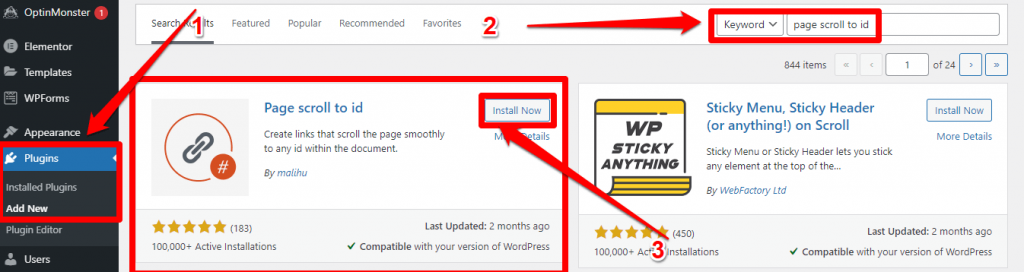
تنصيب الإضافة من الشريط الجانبي للوحة التحكم الخاصة بموقعك انقر على قسم الاضافات (Plugins) ثم أضف جديد (Add New)، ثم في مربع البحث اكتب الكلمة الدلالية (Page Scroll to ID). بعد ظهور الاضافة، انقر على تنصيب الآن ( Install Now )، ثم تفعيل ( Activate ) اعدادات الاضافة (Settings)
يوجد العديد من الإعدادات الخاصة بهذه الاضافة مثل زمن الانتقال، والسرعة والشكل. والتي هي مضبوطة بشكل جيد (الافضل ترك الإعدادات التلقائية). ولكن سنقوم بالتأكد من نقطتين فقط: تأكد من أن المحدد (Selector) مكتوب على الشكل التالي:
a[href*='#']:not([href='#']) ثم في الإعدادات المتقدمة (Advanced Options): حيث سنتأكد من وضع إشارة “الصح” على خيار “منع السكربتات الأخرى من معالجة روابط هذه الاضافة”، كما في الصورة.
بعدها سننقر على خيار “حفظ التغييرات” (Save Changes). تحديد الهدف (Creating Targeting ID) لفهم خطوات تحديد الهدف الذي نريد الوصول إليه من خلال الانتقال السريع، سنأخذ مثالًا بسيطًا وهو صفحة “من نحن About us”.
سندخل أولًا على خيار “الصفحات” (Pages)، في لوحة التحكم ثم صفحة “About Us” وبالطبع يمكنك أن تختار أي صفحة تريد الوصول وتخصيص أي عنصر منها واتباع نفس الخطوات التالية: في صفحة من نحن الخاصة بموقعك حدد العنصر الذي تريد ربطه بخاصية الانتقال السريع، ثم انقر على إضافة مكون، في مثالنا في الصورة اخترنا العنوان الأول “الهدف Mission” كما في الصورة. ستظهر لك صفحة خيارات على يسار الشاشة تتضمّن كل من خياري “blocks” و”Patterns”، سنختار من خيارات المكوّنات (Blocks) خيار الإضافة (Scroll to ID) كما في الصورة. بعد النقر على الاضافة ستظهر مساحة لكتابة الاسم، اختر اسم لهذا العنصر ( إذا كان الاسم بأكثر من كلمة، فلا تترك فراغات بين الكلمات وانما استعمل حركات الوصل مثل بعلامات الفصل”-” ) وبنفس الطريقة السابقة، حدد أي عنصر ثاني ضمن الصفحة وانقر أمامه، ثم أضف بلوك الإضافة، وبعد الانتهاء من تحديد العناصر، انقر على تحديث (Update) كما في الصورة.
اضافة العناصر المحددة إلى القائمة بعد تحديد العناصر التي تريد ربطها بميزة الانتقال السريع، سنعود الى لوحة التحكم في موقعك، ومن قسم المظهر (Appearance) سننقر على القوائم (Menu). ومن بين التبويبات التي ستظهر لنا سننقر على عنوان “الروابط المخصصة” (Custom Links) كما في الصورة.
في مربع “الرابط” (Link) سنكتب الرمز (#) + نفس التعريف أو العنوان الذي اخترته للعنصر، في مثالنا (mission#). وفي مربع اسم الرابط (Link Text) سنكتب الإسم الذي تود إظهارها في القائمة. بعدها اختر إظهار في القائمة الرئيسية (Primary Menu)، وأخيرًا انقر على أيقونة “أضف للقائمة” (Add to Menu) كما في الصور التالية.
بعد اضافة العناصر إلى القائمة، قم بترتيب موقعها (انقر – اسحب – اترك) ثم انقر على حفظ القوائم (Save Menu) بعد الانتهاء من كل الإعدادات السابقة، سنتأكد من عمل ميزة الانتقال السريع، سنفتح صفحة About Us، والتي أضفنا الميزة لها في مثالنا، بواسطة أي متصفح. ستلاحظ ظهور أيقونات في أعلى الصفحة للعناصر أو العناوين التي أضفنا ميزة الانتقال السريع لها، كما في الصورة. سننقر على العناوين “Mission” و “Vision” للتأكد من عمل خاصية الانتقال السريع داخل الصفحة بكل فعالية، يجب كذلك من أن عملية الانتقال من رأس القائمة إلى العنصر المحدد تكون بالسرعة والشكل المطلوب.
2. استخدام Html Anchor للانتقال لعنصر محدد إذا كنت تملك مدوّنة وتنشر فيها مقالات طويلة فاستغلال ميزة الانتقال السريع لعناوين المقال الرئيسية سيكون خطوة وإضافة رائعة لموقعك، وذلك ليتمكن القارئ من الوصول إلى الأقسام التي يريدها من المقال مباشرة بعد النقر على العنوان في أعلى الصفحة.
سنتحدث الآن عن بعض الإعدادات المسبقة ضمن محرر مقالات الووردبريس والتي تكون مهيّئة لتخصيص ميزة الإنتقال السريع في صفحات المواقع والمدونات المختصّة بنشر المقالات، لاسيّما المقالات الطويل وغزيرة المحتوى. هناك طريقتان أساسيتان لإضافة ميزة الانتقال السريع عبر محرر مقالات الووردبريس وهما: إضافة المعرف (Id) في هذه الطريقة سننتقل “قسم المقالات posts” ثم “كل المقالات all posts” وسننقر على خيار “تعديل المقالة Edit” كما في الصورة.
سنختار الآن على سبيل المثال إحدى العناوين الرئيسية في المقال، كما هو موضح في الصورة، ثم سنضغط على أيقونة الروابط (أضف رابط) ستظهر لنا نافذة تطلب إضافة رابط لذلك العنوان، ما علينا فعله الآن هو كتابة “المُعرّف” الخاص بالعنوان وهو عبارة عن العنوان نفسه مسبوقًا برمز (#) العنوان نفسه ولكن دون مسافات بين الكلمات بل نضع (-) بينها، كما في الصورة، ثم سنضغط على (Enter)، يجب أن نتأكد كذلك من أن خيار “open in new tab” غير مفعلة لأنها ستؤدي إلى فتح تبويب جديد في متصفح الزائر عند النقر على إحدى عناوين المقال، وهذا بالطبع غير مناسب للزوار. 2 .
anchor html تأتي الطريقة الثانية لإضافة خاصية التمرير لعنصر آخر بالإعتماد على محرر المكونات ، وذلك بالذهاب إلى محرر المقالات كما في الإضافة السابقة. الآن سنختار العنوان الرئيسي المُستهدف من ميزة الانتقال السريع، وهنا بدل اختيار رمز “الروابط” سننتقل إلى “الخيارات المتقدمة Advanced Options” التي ستجدها على يمين محرر المقالات، وسنكتب في مربع “HTML anchor” اسم العنوان الرئيسي بدون فواصل مع (-) ولكن بدون وضع رمز (#) ثم سننقر على (Update) كما في الصورة.
3 . التأكد من فعالية الخاصية بعد إعداد ميزة الانتقال السريع عبر محرر مقالات الووردبريس بإحدى الطريقتين السابقتين، سننتقل إلى مشاهدة المقال (Preview)، حيث ستظهر لنا معاينة لشكل المقال النهائي.
علينا الآن التأكد من أن الرابط الموجود على العنوان الرئيسي الذي عملنا عليها سينقلنا إلى فقرة ذلك العنوان. 3.
باستخدام أدوات بناء المواقع (Visual Builders)
هذه الطريقة مناسبة جدًا لأصحاب المواقع الذين يستخدمون إضافات بناء المواقع مسبقًا في مواقعهم، فيمكنك إنشاء خاصية الانتقال السريع عبرها بسهولة.
في هذا الشرح سنضيف ميزة الانتقال السريع للعنصر (Essential Collection) من القائمة الأساسية في أعلى الموقع (Main Menu). بعد الانتقال لصفحة التعديل باستخدام المنتور، اختر الجزء الذي تريد اضافة خاصية الانتقال السريع اليه، انقر على قسم التعديل (يرمز له بمجموعة النقاط).
اختر الاعدادات المتقدمة في قسم التبويب اكتب معرف (Css ID) لهذا الجزء من الصفحة (مثل: essential-collection، لا تضع فراغات بين الكلمات، ويمكنك استخدام – أو _) انقر على ( Update ) اضافة قائمة جديدة: سنعود الآن إلى لوحة التحكم في موقعك، ومن قسم المظهر (Appearance) سنختار “القوائم” (Menu)، ومن عناصر القائمة سنختار الروابط المخصصة (Custom Links).
في مربع الرابط (Link) اكتب رمز (#) مع نفس التعريف الذي اخترته في (Css ID)، مثلًا: (essential-collection#) في مربع “اسم الرابط” (Link Text) اكتب الاسم الذي تود إظهارها في القائمة. الآن كل ما عليك فعله هو اختيار “إظهار” في القائمة الرئيسية (Primary Menu)، ثم انقر على “أضف قائمة” (Add to Menu) كما في الصورة التالية.
بعد اضافة القائمة الجديدة، قم بترتيب موقعها ثم انقر على حفظ القوائم ( Save Menu ) بعد الانتهاء من كل الاعدادات، ادخل على الصفحة الرئيسية للموقع، والتي ستظهر للعميل، وانقر على القوائم التي أضفتها للتأكد من تفعيل خاصية الانتقال السريع داخل الصفحة، وهذا كل شيء. وبهذا نكون قد فصلّنا ثلاثًا من أبرز وأبسط الطرق المستخدمة من أجل تفعيل خاصية الانتقال السريع الى عنصر محدد (Scroll to ID) بخطوات بسيطة. جميع الطرق تؤدي إلى النتيجة ذاتها ويمكنك اختيار الطريقة المناسبة لك ولن تواجهك أية مشاكل.
دروب أيديا - DROPIDEA
نأمل أن تكون هذه المقالة قد أضافت لك قيمة حقيقية. في دروب أيديا نسعى دائمًا لتقديم محتوى عربي عالي الجودة يساعدك على النمو والتطور في المجال الرقمي. تابعنا للمزيد من المقالات والشروحات المفيدة.
الأدمن
DROPIDEA
أحدث المقالات

بيك إكس في ترفع سقف استثماراتها البذرية إلى 5 ملايين دولار

عشاء مرتقب بين رئيس أنثروبيك ودونالد ترامب وسط خلافات حول أمان الذكاء الاصطناعي

جوجل تختبر الشراء المباشر من فليبكارت عبر Gemini في الهند

كروزو تلغي صفقة بـ1.25 مليار دولار لتوربينات مراكز البيانات