كيفية تصوير لقطة شاشة قابلة للتمرير على نظام ويندوز 11
 بقلم الأدمن
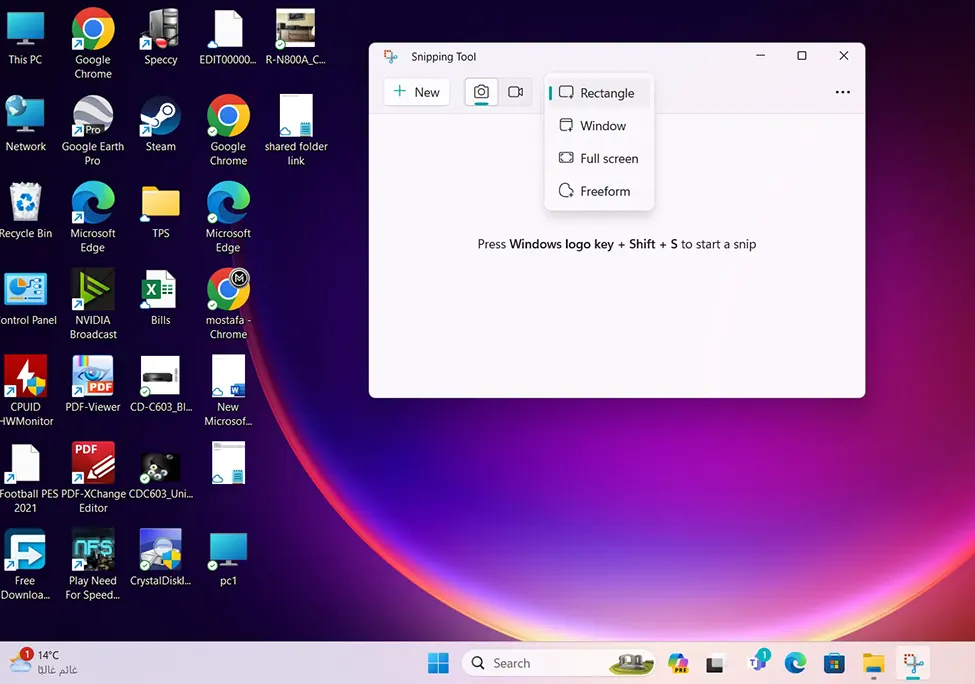
على الرغم من أن نظام ويندوز يأتي مزودًا بأداة مُضمنة تُساعد المستخدم على التقاط لقطات شاشة لأي شئ في الجهاز، فلن تحصل على خيارات أخرى، مثل تصوير لقطة شاشة قابلة للتمرير. لذلك، عليك الاعتماد على المتصفحات التي توفر خيارات تصوير لقطات الشاشة من ذلك النوع، والتي ستقتصر على صفحات الويب فقط. بالنسبة لنافذة معينة أو تطبيق ويندوز معين، ستحتاج إلى الاستعانة بتطبيقات خارجية يمكنها أداء المهمة بنجاح لك.
سنشرح في هذه المقالة الطرق المختلفة لـ تصوير لقطة شاشة قابلة للتمرير على جهاز الكمبيوتر الذي يعمل بنظام تشغيل ويندوز 11. سنتعرف أولاً على كيفية التقاط صور الشاشة في ويندوز ثم كيفية التقاط صور شاشة قابلة للتمرير “Scrolling Screenshot”. أولا: كيفية التقاط صور الشاشة في ويندوز 11 توفر اختصارات ويندوز
امكانية التقاط صورة لكامل الشاشة “Full Screen” بالضغط على زر Win + PrintScreen أو زر PrintScreen فقط في بعض الأجهزة وستلاحظ أن الشاشة تقوم بعمل وميض فلاش لتأكيد التقاط الصور. ويتم حفظ الصور في هذا المسار : (C:Users****PicturesScreenshots). يمتلك نظام ويندوز داخلياً أداة مخصصة لإلتقاط صور الشاشة بعدة طرق عبر أداة “ Snipping Tool “.
تمكنك التقاط صورة لجزء من الشاشة فقط. إذا ضغطت على Win + Shift + S، ستومض الشاشة وستظهر قائمة أداة القص الصغيرة في أعلى الشاشة، مما يتيح لك القيام بما يلي (من اليسار إلى اليمين): قص مستطيل Rectangular: ارسم مربعًا حول ما تريد التقاطه. قص حر Freeform: ارسم أي شكل حول ما تريد التقاطه.
قص نافذة Window: اختر نافذة لالتقاطها. قص كامل الشاشة Full-screen: التقط كامل الشاشة (نفس اختصار زر الكيبورد PrtScr). بمجرد التقاط الصورة، سيتم حفظها في مجلد PicturesScreenshots، ومع ذلك، إذا نقرت على معاينة أداة القص التي تظهر في أسفل الشاشة، ستجد خيارات لتحرير الصورة (قص، تدوير والمزيد) وحفظها على سطح المكتب.
الآن تعلمت كل شيئ عن تصوير شاشة الويندوز كاملة أو أجزاء منها. ولكن ينقصها التقاط صورة مطولة للكمبيوتر. اليك كل الطرق المتاحة لتصوير لقطة شاشة قابلة للتمرير Scrolling Screenshot في ويندوز .
ما هي فوائد تصوير لقطة شاشة قابلة للتمرير؟ قبل المضي قدمًا والبدء في التقاط لقطة شاشة قابلة للتمرير، أولاً، دعنا نفهم بعض فوائد تصوير لقطة شاشة قابلة للتمرير مقارنة بلقطات الشاشة العادية. إنها تُوفّر الوقت حيث لا يتعين عليك التقاط لقطات شاشة متعددة لصفحة واحدة.
تُتيح للمستخدم التقاط الصفحة بأكملها مرة واحدة. تُمكّن المستخدم من التقاط المحتوى الذي يتم توسيعه على طول النافذة أو الصفحة دفعة واحدة. جميع هذه السيناريوهات تواجهنا يوميًا تقريبًا.
لذا، فإن تصوير لقطة شاشة قابلة للتمرير يتيح لك توفير الوقت والجهد والتقاط المزيد من خلال بضع نقرات أو نقرة واحدة. كيفية تصوير لقطة شاشة قابلة للتمرير في المتصفحات لكل متصفح طريقة لتصوير الشاشة عبر أداة داخلية أو عبر اضافات المتصفح. لنتعرف على الطريقة في أشهر المتصفحات.
على متصفح مايكروسوفت إيدج افتح مايكروسوفت إيدج. انقر على أيقونة القائمة المكونة من 3 نقاط. حدد التقاط الويب أو Web Capture.
انقر على أيقونة التقاط الصفحة الكاملة في الأعلى. سيتم التقاط لقطة الشاشة القابلة للتمرير بواسطة المتصفح. ومع ذلك، لاحظ أنه سيتم التقاط علامة التبويب النشطة فقط.
يمكنك الاستفادة من أدوات التحرير المختلفة أو محرر لقطة الشاشة المدمج لتحرير لقطة الشاشة كيفما تريد. على متصفح جوجل كروم افتح جوجل كروم. انتقل إلى متجر جوجل كروم الإلكتروني.
اكتب GoFullPage في شريط البحث وانقر على Add to Chrome. انقر على شريط أدوات الإضافات الموجود أعلى متصفح كروم. حدد أيقونة ملحق GoFullPage.
سيتم التقاط لقطة شاشة قابلة للتمرير لصفحة الويب النشطة حاليًا تلقائيًا. على متصفح فايرفوكس قم بفتح متصفح موزيلا فايرفوكس. انقر على أيقونة 3 أسطر.
اختر المزيد من الأدوات. حدد تخصيص شريط الأدوات. حدد موقع أيقونة لقطة الشاشة واسحبها إلى شريط أدوات Firefox.
قم بزيارة صفحة الويب التي ترغب في التقاط لقطة شاشة لها. انقر على أيقونة لقطة الشاشة. حدد حفظ الصفحة كاملة.
اضافة المتصفح NimBuss – Google Search إضافة المتصفح NimBuss هي أداة مفيدة لالتقاط صور الشاشة وتسجيل الفيديو في ويندوز. يمكنك استخدامها لالتقاط صورة لجزء من الشاشة، أو كامل الشاشة، أو صفحة ويب كاملة قابلة للتمرير. كما يمكنك تحرير الصورة بعد التقاطها وإضافة النصوص والأشكال والتعليقات.
بالإضافة إلى ذلك، يمكنك تسجيل فيديو للشاشة أو نافذة محددة أو كاميرا الويب. يمكنك أيضاً حفظ الصور والفيديوهات على جهاز الكمبيوتر أو مشاركتها عبر الإنترنت. لالتقاط صورة مطولة لصفحة أو شاشة بإضافة المتصفح NimBuss، اتبع الخطوات التالية: افتح Chrome وانقر على رمز NimBuss في أعلى يمين الشاشة.
اختر خيار التقاط صورة كاملة للصفحة “Entire Page” أو “التقاط صورة كاملة للشاشة” من القائمة. انتظر حتى يتم التقاط الصورة ويظهر محرر الصور. قم بتحرير الصورة حسب رغبتك أو انقر على “حفظ” لحفظها.
اختر مكان الحفظ المفضل لديك من الخيارات المتاحة. يمكنك حفظ الصورة على جهاز الكمبيوتر أو الحافظة أو Google Drive أو Dropbox أو Slack أو البريد الإلكتروني.
كيفية تصوير لقطة شاشة قابلة للتمرير بالتطبيقات الخارجية
ShareX قم بتنزيل برنامج ShareX على جهاز الكمبيوتر الخاص بك. أنه مرحلة التثبيت بنجاح.
قم بإطلاق ShareX. انقر فوق “التقاط” في الجزء الأيسر. انقر على لقطة قابلة للتمرير.
انتقل إلى صفحة الويب أو تطبيق ويندوز 11 الذي ترغب في التقاط لقطة شاشة للتمرير منه. اضغط على زر بدء تصوير لقطة شاشة قابلة للتمرير. ShareX هو برنامج رائع متاح مجانًا ويتيح لك التقاط أنواع مختلفة من لقطات الشاشة، بما في ذلك لقطات الشاشة القابلة للتمرير.
وبصرف النظر عن لقطات الشاشة، يمكنك أيضًا تسجيل مقاطع الفيديو باستخدام ذلك البرنامج. PicPick قم بتنزيل برنامج PicPick . أنه مرحلة تثبيت البرنامج.
قم بتشغيل PicPick على جهاز الكمبيوتر الذي يعمل بنظام تشغيل ويندوز 11. انقر على خيار تصوير لقطة الشاشة القابلة للتمرير. انقر بزر الماوس الأيسر على المنطقة التي ترغب في التقاط لقطة شاشة لها.
سوف يقوم PicPick تلقائيًا بتصوير لقطة الشاشة القابلة للتمرير. لإيقاف تصوير لقطة الشاشة، كل ما عليك فعله هو النقر بزر الماوس الأيمن أو الأيسر على الشاشة. سيتم فتح لقطة الشاشة في المحرر لتتمكن من تحرير الصورة.
ختامًا من أجل تصوير لقطة شاشة قابلة للتمرير لتطبيقات وبرامج ويندوز، تحتاج إلى الاستفادة من جميع أدوات التقاط لقطة الشاشة المتنوعة الخارجية المذكورة أعلاه. يسرد دليلنا المخصص بعضًا من أفضل الخيارات في تلك الفئة التي يمكنك اختيارها. تتيح لك المتصفحات الشائعة مثل فايرفوكس ومايكروسوفت إيدج وما إلى ذلك التقاط لقطات شاشة قابلة للتمرير من خلال أدوات مُدمجة.
بالنسبة لأولئك الذين يستخدمون متصفح جوجل كروم، يمكنك بسهولة تنزيل الإضافة كما هو مُوضّح أعلاه وتصوير لقطات شاشة قابلة للتمرير. مقالات متعلقة: افضل 5 برامج تسجيل شاشة الكمبيوتر مجانًا للويندوز بجودة عالية HD كيفية تصوير شاشة الماك فيديو او صورة قابلة للتحرير بدون برامج كيفية تصوير لقطة شاشة طويلة للاندرويد كيفية تصوير شاشة الموبايل – 4 طرق لـ عمل Screenshot للاندرويد
دروب أيديا - DROPIDEA
نأمل أن تكون هذه المقالة قد أضافت لك قيمة حقيقية. في دروب أيديا نسعى دائمًا لتقديم محتوى عربي عالي الجودة يساعدك على النمو والتطور في المجال الرقمي. تابعنا للمزيد من المقالات والشروحات المفيدة.
الأدمن
DROPIDEA
أحدث المقالات

هل تصيّد ماسك إطلاق أداة «Dots» من OpenAI عبر نطاق dot.com؟

بيك إكس في ترفع سقف استثماراتها البذرية إلى 5 ملايين دولار

عشاء مرتقب بين رئيس أنثروبيك ودونالد ترامب وسط خلافات حول أمان الذكاء الاصطناعي

جوجل تختبر الشراء المباشر من فليبكارت عبر Gemini في الهند



