كيفية تخصيص الحد الأدنى من عدد كلمات المقالة في ووردبريس
 بقلم الأدمن
الكثير من أصحاب مواقع الووردبريس يوظفون العديد من الكُتاب لإضافة المحتوى، ولكن في بعض الأحيان هناك البعض يريد أن يكون محتوى الموقع الخاص بهم بطول معين ويتناسب مع الأهداف الموضوعة من قبلهم. وبالتأكيد الووردبريس لا يوفر ميزة تحديد عدد الكلمات للمحتوى. من خلال هذا المقال سنتعرف على كيفية تخصيص الحد الأدنى من عدد الكلمات في ووردبريس من خلال الإضافات وبشكل يدوي.
كيفية تخصيص الحد الأدنى من عدد الكلمات إن طول المحتوى يلعب دورًا كبيرًا في تحسين ظهور الموقع في محركات البحث، وبالإضافة لذلك المحتوى الطويل يكون غني بالمعلومات التي تُفيد الزائر وتتناول كافة جوانب الموضوع.
والجدير بالذكر أن هناك بعض إضافات السيو
التي تحدد الحد الأدنى للمقالات مثل إضافة يوست سيو . ولكن هذا بالتأكيد لن يكون متوافقًا مع ما تريده أنت بالفعل، وفي الأسطُر التالية سنتعرف على الطريقة التي من الممكن خلالها تحديد عدد الكلمات المناسب لمقالاتك:
وضع الحد الأدنى للكلمات على الووردبريس باستخدام الإضافات
هناك مجموعة من الإضافات التي تُمكّنك من القيام بهذا الأمر، وإضافة PublishPress Checklists هي إحداها. والتي تأتي بميزات متعددة فيما يتعلق بإدارة المحتوى على الموقع، فبالإضافة لتحديد عدد الكلمات المناسب نجدها تضع بعض المعايير مثل إضافة صورة للمقال أو الموافقة على المقال من قبل أحد المستخدمين قبل نشره او عدد الروابط الداخلية والخارجية وغيرها من المهام.
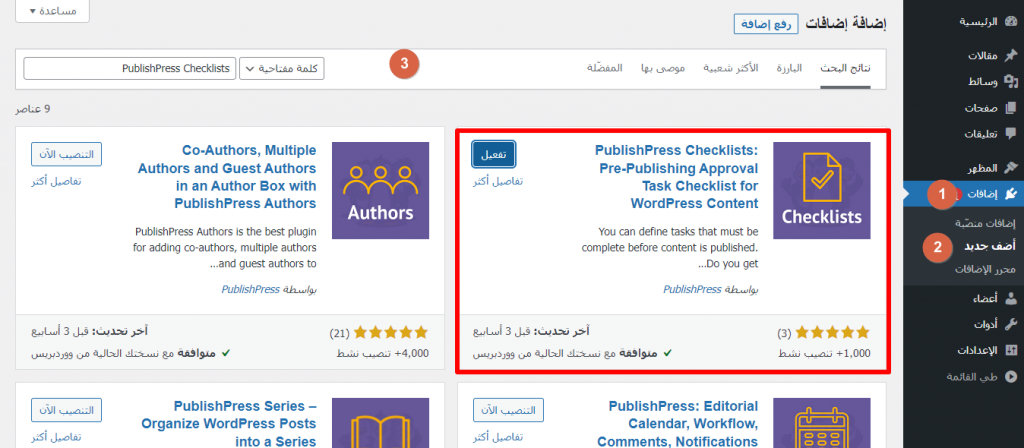
حتى تتمكن من استخدام إضافة PublishPress Checklists لتحديد عدد الكلمات المحتوى في الووردبريس، عليك أولًا بتثبيتها، وذلك بالتوجه إلى لوحة تحكم الووردبريس < الإضافات < أضف جديد. ثم ابحث عن الإضافة بادخال اسمها في حقل البحث العلوي. وحدد عليها وانقر على تثبيت ثم تفعيل.
بعد تفعيل الإضافة، بإمكانك الأن البدء في تخصيص الحد الأدنى من عدد الكلمات في ووردبريس، وستجد أنه أُضيفت أيقونة خاصة بالإضافة على القائمة اليمنى من لوحة التحكم باسم Checklists. ما عليك إلا النقر عليها للدخول إلى الإعدادات، ومن ثم مرر لأسفل. وضمن خيار Number of words in content.
حدد على حالة الأمر من بين ثلاث خيارات وهي required أيّ أن الأمر يكون إلزامي، أو recommended في حالة يكون الأمر موصى به فقط ما يعني أن للكتاب القدرة على نشر المقالات حتى إذا لم يستوفي المقال عدد الكلمات المحدد، وDisabled لإيقاف الأمر. كما من الممكن استبعاد بعض المستخدمين من هذه الأوامر وذلك من قسم Who can ignore the task. وفي قسم options، ضع عدد الكلمات الأدنى والأقصى الذي تريده.
ثم مرر لأسفل وانقر على Save Changes. والآن عند كتابة أي مقال على الموقع، ستجد ان هناك علامة تعجب ذات لون أحمر على زر النشر في الأعلى، وبالإضافة لتبيين الحد الأدنى للكلمات على الجانب الأيسر من الشاشة، والجدير بالذكر أنه لا يُمكّن نشر المقال إلا بعد الإيفاء بهذه المتطلبات. وإضافة PublishPress Checklists تقدم إصدار مدفوعًا، تتيح من خلاله ميزات إضافية من التحديثات وتخصيص الحد الأدنى لمحتوى المتاجر الإلكترونية.
وضبط حدود الصور وبالإضافة للدعم الفني وإزالة العلامة التجارية للإضافة والإعلانات. لكن من دون اختلافات كبيرة بين الإصدار المدفوع والمجاني، وبإمكانك الإطلاع عليها من هنا .
تخصيص الحد الأدنى من عدد الكلمات في ووردبريس
يدويًا إذا كُنت لا تريد استخدام الإضافات، فأيضًا هناك خيار يُمكن من تخصيص عدد الكلمات بشكل يدوي بإضافة بعض الأكواد إلى ملفات الموقع ولكن ضع في حسبانك أنه إذا لم يكُن لديك الخبرة الكافية فعليك عدم الشروع في ذلك؛ لأن أقل خطأ سيوقف الموقع الخاص بك عن العمل، وإليك طريقة فعل ذلك: أولًا، ستحتاج للتوجه إلى لوحة تحكم الووردبريس ومن ثم النقر على المظهر< محرر القوالب ومن قائمة الملفات الجانبية انقر على ملف functions.php أو خصائص القالب. أضف الكود التالي إلى نهاية الملف، وانقر على تحديث الملف.
function minWord($content) {
global $post;
$content = $post->post_content; if (str_word_count($content) < 100 ) //set this to the minimum number of words wp_die( __('Error: your post is below the minimum word count.
It needs to be longer than 100 words.') ); } add_action('publish_post', 'minWord'); وبذلك، تكون قد قمت بتخصيص الحد الأدنى من عدد الكلمات في ووردبريس، ليظهر لك تنبيه في الجزء العلوي يُبين فشل عملية النشر إذا كانت أقل من الحد المخصص.
واذا كُنت تريد تغيير عدد الكلمات فبإمكانك ذلك من خلال التعديل على العدد الموجود في الكود. وهاتين كانتا الطريقتين التي يمكن استخدامهما لتخصيص عدد الكلمات في الووردبريس، والجدير بالذكر ان عدد الكلمات ليس هو من الجوانب المؤثرة فيما يتعلق بكتابة المحتوى المتوافق مع محركات البحث ، ولكن الأهم من ذلك تقديم القيمة للقارئ وأن يأخذ الموضوع حقه في الكتابة. إذا كان المقال طويل ومن دون أي معلومات ثرية “حشو” فبالتأكيد ستجد أن معدل الزيارات في إنخفاض والعكس كذلك في حال يكون المحتوى قليل ويقدم فائدة للزائر.
دروب أيديا - DROPIDEA
نأمل أن تكون هذه المقالة قد أضافت لك قيمة حقيقية. في دروب أيديا نسعى دائمًا لتقديم محتوى عربي عالي الجودة يساعدك على النمو والتطور في المجال الرقمي. تابعنا للمزيد من المقالات والشروحات المفيدة.
الأدمن
DROPIDEA
أحدث المقالات

هل تصيّد ماسك إطلاق أداة «Dots» من OpenAI عبر نطاق dot.com؟

بيك إكس في ترفع سقف استثماراتها البذرية إلى 5 ملايين دولار

عشاء مرتقب بين رئيس أنثروبيك ودونالد ترامب وسط خلافات حول أمان الذكاء الاصطناعي

جوجل تختبر الشراء المباشر من فليبكارت عبر Gemini في الهند



