كيفية ربط جوجل شيت بالـ ووكومرس لتخزين وحفظ الطلبات تلقائيا
 بقلم الأدمن
في الوضع الطبيعي عند الرغبة في الحصول على بيانات الطلبات التي قام بها العملاء من داخل المتجر ستقوم بالدخول إلى لوحة تحكم الووردبريس: ووكومرس < الطلبات ، وذلك للحصول على البيانات الكاملة للطلبات داخل متجرك، وهو أمر ربما يستهلك منك الكثير من الوقت والمجهود لتنظيم تلك الطلبات في ملف منفصل. في هذه المقالة نعرض طريقة ربط لوحة استقبال الطلبات في ووكومرس بجوجل شيت، حيث يتم إرسال الطلبات تلقائيا إلى Google sheet دون تدخل منك، وكل ما عليك فقط هو الدخول إلى الشيت في كل مرة لتطلع على آخر الطلبات التي تم تسجيلها بالملف. 1.
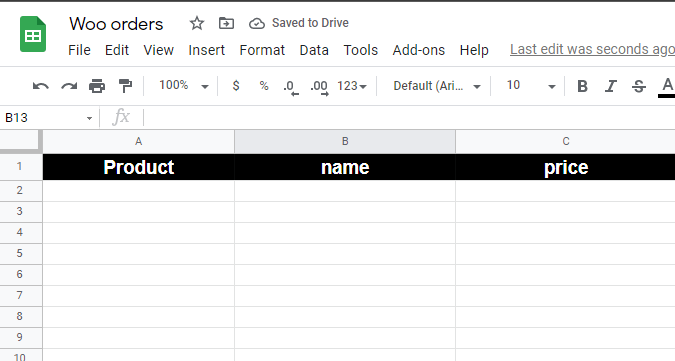
إنشاء ملف جوجل شيت لتخصيصه لاستقبال الطلبات تلقائيا الخطوة الأولى التي نقوم بها هي إنشاء ملف فارغ على جوجل شيت وإنشاء صف أول داخله يحتوي على عنوان معبرة عن البيانات التي نريد استقبالها. على سبيل المثال توضح الصورة التالية ملف جوجل شيت الذي قمنا بإنشاءه وقمنا بتخصيص الصف الأول يحتوي على ثلاثة أعمدة كالتالي: Product : سوف يتم إرسال اسم المنتج الخاص بالطلب في هذا العمود Name : سيتم إرسال اسم العميل صاحب الطلب داخله price : وسيتم استخدامه لإرسال سعر الطلب وتسجيله داخله بعد إنشاء الملف على جوجل شيت نحتاج إلى أداة تقوم بإنشاء اتصال تلقائي بين الـ ووكومرس وجوجل شيت بحيث أن أي طلب جديد داخل المتجر يتم تسجيله مباشرة داخل ملف جوجل شيت حيث يتم تسجيل اسم المنتج واسم العميل وسعر الطلب بصورة تلقائية وبدون تدخل منك.
2. الحصول على أداة تقوم بإجراء إرسال الطلبات تلقائيا إلى جوجل شيت توجد بعض الأدوات المتخصصة في الإجراءات التلقائية داخل الووردبريس، حيث تعمل تلك الأدوات على قراءة الإجراءات التي تتم داخل موقعك ومن ثم اتخاذ إجراء معين بناء عليها.
على سبيل المثال تقوم الأداة التي نعتمد عليها بقراءة الطلبات الجديدة وكذلك الطلبات المعدلة داخل ووكومرس، ومن ثم تقوم بتخزين تلك الطلبات في ملف جوجل شيت، وبالتأكيد كل ذلك يعتمد على الإجراءات التي نقوم بضبطها داخل تلك الأداة لتقوم بالمهمة التي نريد إنجازها. أحد أشهر تلك الأدوات المتخصصة في تنفيذ الإجراءات التلقائية هي
أداة Zapier
حيث توفر الكثير من الإجراءات التلقائية التي تعمل بذكاء اصطناعي لتقوم بالمهمة التي تحددها لها من داخل لوحة التحكم. على سبيل المثال يمكنك ربط الأداة بموقعك المشغل بالـ ووكومرس، وكذلك ربطها بملف جوجل شيت الذي ترغب في تخزين الطلبات داخله، وبعد إكمال عملية الربط بنجاح، تقوم الأداة تلقائيا دون تدخل منك بحفظ الطلبات الجديدة بصورة تلقائية داخل ملف جوجل شيت، ويمكنك فيما بعد الإطلاع على الملف للحصول على بيانات الطلبات الجديدة مباشرة دون الحاجة إلى الدخول للموقع وفتح لوحة تحكم ووكومرس للحصول على بيانات الطلب.
يمكنك إنشاء حساب جديد بالموقع
ويمكنك اختيار الخطة المجانية لتجربة الأداة، حيث توفر لك الحرية في استخدام كاملة خيارات الأداة لكن بإمكانيات محدودة ستفي بالغرض الذي نقوم به ويمكنك الترقية فيما بعد لخطط أعلى إذا احتجت ذلك. بعد إنشاء الحساب بنجاح على موقع الأداة، تجد الواجهة الأمامية الترحيبية للأدة والتي يظهر بها مربعين متجاورين: في الحقل الأول ستقوم بكتابة اسم التطبيق الذي تريد ربطه وفي هذه الحالة تختار تطبيق Woocommerce في الحقل الثاني تختار التطبيق الأخر وفي هذه الحالة تختار Google sheet بعد إدخال أسماء التطبيقات التي نريد ربطهما سويا، سيظهر لك مربع اختيار الإجراء المراد تنفيذه، وفي هذه الحالة سيكون الإجراء المراد قراءته هو عند وجود طلب ( Order )
يقوم بإنشاء صف جديد في جوجل شيت: سنقوم باختيار أسماء التطبيقات التي نريد ربطهما وهما woocommerce وكذلك Google Sheets، ثم بعد ذلك سنقوم بإختيار الإجراء Order من ناحية الـ ووكومرس أي عند وجود طلب جديد، وبعدها سنقوم بإختيار الإجراء Create spreadsheet row الذي يقوم بإنشاء صف جديد داخل ملف جوجل شيت ويقوم بتسجيل بيانات الطلب بداخله، كما بالصورة التالية: ثم بعد إدخال بيانات الربط بنجاح قم بالنقر على زر ( Try it ) المشار إليه بالسهم الأحمر في الصورة السابقة.
سيطلب منك القيام بربط الأداة بموقع الووردبريس المشتغل بواسطة ووكومرس: يمكنك النقر على زر connect a new account لتبدأ في ربط الأداة موقعك الووردبريس، حيث تظهر لك تلك النافذة التي تطلب منك رابط موقعك واسم المستخدمة وكلمة المرور للدخول، وبمجرد إدخال البيانات يمكنك النقر على
Yes continue
ملحوظة : حتى يكتمل الربط بشكل صحيح معك لابد من تنصيب اضافة Woocommerce Zapier وهي اضافة مدفوعة لابد من تنصيبها وتنشيطها داخل الموقع حتى يكتمل الربط بين الموقع و الاداة بنجاح. بعد إكمال عملية الربط بشكل سليم سيطلب منك الأن التعليمات التي بناء عليها سيتم تخزين بيانات طلبات المتجر داخل ملف جوجل شيت.
أولى البيانات التي يطلبها منك هي حالة الطلب التي تريد حفظ بيانات في جوجل شيت، حيث يمكنك اختيار حالة ( إنشاء طلب ) بحيث يتم تخزين بيانات الطلبات الجديدة التي يقوم العملاء بإنشائها داخل المتجر: بعد ذلك يطلب منك ربط حسابك في جوجل بالأداة، وذلك حتى تتمكن الاداة من الوصول إلى ملف جوجل شيت لاضافة الطلبات الجديدة داخله، وذلك بالنقر على زر connect a new account لربط حسابك في جوجل بالأداة والسماح لها بالتعديل على ملفات جوجل شيت داخل حسابك. بعد اكتمال الربط بين الأداة وبين حسابك في جوجل، سيظهر أمامك قائمة بملفات جوجل شيت في حسابك والتي تجد فيها الملف الذي قمت بإنشاءه لإستقبال الطلبات داخله والذي يمكنك اختياره لتخصيصه لاستقبال الطلبات داخله: بعد اختيار الملف على جوجل شيت، ستفتح أمامك نافذة تحتوي على عناوين الأعمدة التي قمت بإنشائها سابقا داخل ملف الشيت، وأسفل كل عنوان يوجد مربع نصي تختار منه البيانات التي ترغب في تسجيلها داخله، لتظهر أمامك أسماء الأعمدة التي أنشأتها مسبقا داخل الملف وهي ( product- name- price) سنقوم بملء بيانات الحقول حيث نقوم بوضع الماوس داخل المربع النصي أسفل كل حقل لتظهر لنا قائمة بالكثير من البيانات الجاهزة في ووكومرس حيث نختار منها البيانات المنافسة لأسماء الحول التي قمنا بإنشائها.
في الحقل product سنقوم باختيار القيمة Line Items Name وهو استعلام خاص بتخزين اسم المنتج الذي تم طلبه وفي الحقل name سنختار القيمة Billing first name وهو استعلام خاص بتخزين اسم العميل الذي قام بالطلب ثم في الحقل price سنختار الاستعلام Line Items Price الذي يقوم بتخزين سعر المنتج داخل الطلب، وبذلك يبدو شكل الحقول كالتالي بعد إكمال تلك البيانات والانتقال إلى الخطوة التالية، ستلاحظ ظهور مربع اختبار الأداة والذي يظهر لك بأنه سيقوم بإضافة صف جديدة داخل الملف كاختبار لعملية الربط بشكل سليم حيث يقوم بإضافة بيانات احد الطلبات التي تمت داخل المتجر في ملف جوجل شيت: يمكنك النقر على زر Send Test ليتم إدراج بيانات الطلب في ملف جوجل شيت لإختبار عمل الأداة بشكل ناجح. الآن انتقل إلى ملف جوجل شيت الخاص بك لتلاحظ أنه بالفعل تم اضافة بيانات الطلب داخل الملف بنجاح في حقل اسم المنتج واسم العميل السعر الإجمالي: وبذلك تكون عملية الربط وتسجيل الطلبات تلقائيا تمت بنجاح، وما عليك سوى الدخول إلى ملف جوجل شيت في كل مرة ترغب فيها بالاطلاع على بيانات الطلبات الجديدة داخل متجرك الإلكتروني بدون الحاجة إلى الدخول لوحة تحكم الووردبريس للإطلاع عليها.
بالنهاية، ربما تجد العديد من الطرق والإضافات الأخرى التي تساعدك على تنفيذ الإجراءات التلقائية المتعلقة بتسجيل طلبات ووكومرس داخل ملف جوجل شيت، وبإمكانك استخدام أي اضافة أو طريقة أخرى مناسبة تساعدك على إنجاز المهمة، بشرط التأكد من دقة الأداة في تسجيل البيانات.
دروب أيديا - DROPIDEA
نأمل أن تكون هذه المقالة قد أضافت لك قيمة حقيقية. في دروب أيديا نسعى دائمًا لتقديم محتوى عربي عالي الجودة يساعدك على النمو والتطور في المجال الرقمي. تابعنا للمزيد من المقالات والشروحات المفيدة.
الأدمن
DROPIDEA
أحدث المقالات

بيك إكس في ترفع سقف استثماراتها البذرية إلى 5 ملايين دولار

عشاء مرتقب بين رئيس أنثروبيك ودونالد ترامب وسط خلافات حول أمان الذكاء الاصطناعي

جوجل تختبر الشراء المباشر من فليبكارت عبر Gemini في الهند

كروزو تلغي صفقة بـ1.25 مليار دولار لتوربينات مراكز البيانات