كيفية نقل بيانات إضافة SEO إلى إضافة أخرى في الووردبريس
 بقلم الأدمن
نظرًا لكون نظام ووردبريس مفتوح المصدر، توجد عادة الكثير من المكونات الإضافية التي تقوم بنفس المهمة، خاصة إذا كانت تلك المهمة مطلوبة في جميع مواقع الويب مثل تحسين السيو، حيث توجد العديد من الإضافات التي يمكن استخدامها للمساعدة على تحسين السيو في الووردبريس، وهذا أمر جيد حيث يمكنك أن تستكشف الإضافات وتختار منها ما يناسبك. لكن إذا قررت استخدام إضافة SEO، وبعد فترة أردت الانتقال إلى استخدام إضافة SEO أخرى، فإنك قد تواجه بعض الصعوبات التي من أهمها فقدان بيانات السيو التي كنت قد أدخلتها في الإضافة التي كنت تستخدمها. لهذا سنشرح لك هنا كيفية نقل بيانات السيو بشكل آلي بين إضافات السيو المختلفة التي تعمل على ووردبريس لمساعدتك على منع فقدان البيانات والحفاظ عليها وتوفير الوقت والجهد، كما سنخبرك لماذا لا يجب أن تستخدم أكثر من إضافة واحدة للسيو في موقع الويب.
طريقة نقل بيانات إضافة SEO إلى إضافة أخرى تختلف الخطوات الدقيقة لطريقة نقل بيانات السيو من إضافة إلى أخرى اعتمادًا على إضافة السيو المستخدمة حاليًّا، والإضافة التي نود نقل البيانات إليها، إلا أن الخطوات الرئيسية تبقى نفسها في جميع الحالات (الإضافات) تقريبًا، حيث توفر جميع إضافات السيو المشهورة التي تعمل على ووردبريس إمكانية نقل البيانات من الإضافة القديمة إلى الإضافة الجديدة من خلال إعدادات الإضافة. ولأنه يصعب شرح جميع الحالات، ولا داعي لذلك كون الطرق متشابهة، سنشرح هنا طريقة نقل بيانات السيو من إضافة إلى إضافة أخرى وسنعتمد في الشرح على استخدام إضافة All In One SEO.
لنقل بيانات السيو من إضافة منصبة لديك مسبقًا كنت تستخدمها في الووردبريس إلى إضافة جديدة، قم بتنصيب وتفعيل الإضافة الجديدة أولًا مع إبقاء إضافة السيو القديمة منصبة. يمكنك تنصيب الإضافة من لوحة تحكم الووردبريس من قسم (أضف إضافة جديدة)، وإذا لم تكن تعرف كيف تقوم بتنصيب إضافات ووردبريس، يمكنك مراجعة مقالة ( كيف تقوم بتنصيب إضافة ووردبريس وتفعيلها على موقعك بالشكل الصحيح ). بعد تنصيب إضافة الـ SEO الجديدة وتفعيلها، قم بالانتقال إلى صفحة الاستيراد والتصدير (Import & Export) الخاصة بالإضافة.
عادة ما تجد الخيار الذي يسمح لك بالانتقال إلى هذه الصفحة في صفحة أدوات الإضافة، وهذا يشمل كل من إضافة All In One SEO و Rank Math و Yoast SEO . في قسم استيراد بيانات السيو من إضافة أخرى ستجد خيارًا يطلب منك اختيار الإضافة التي تريد استيراد البيانات منها، بالإضافة إلى بعض الخيارات التي يمكن خلالها تحديد أنواع البيانات التي سيتم استيرادها، وزرًا يقوم بعملية الاستيراد، وقد تختلف أشكال هذه الخيارات بين إضافة SEO وأخرى، كما يمكن أن تختلف طريقة تنظيمها في الصفحة.
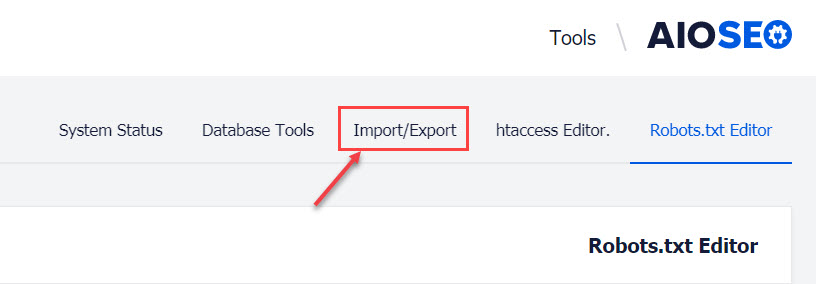
مثلًا، في إضافة All In One SEO، يمكنك الانتقال إلى صفحة الاستيراد والتصدير عبر النقر على خيار ( Tools ) الذي يظهر عند وضع مؤشر الفأرة على اسم الإضافة الموجود في القائمة الجانبية للوحة تحكم الووردبريس، ثم النقر على علامة تبويب Import/Export في الصفحة التي تظهر كما توضح الصورة التالية. الانتقال إلى إعدادات التصدير والاستيراد في إضافة All In One SEO
ستبدو صفحة الاستيراد والتصدير مختلفة في إضافة ما عن إضافة أخرى، لكنك ستجد في الغالب قسمًا يسمح لك بنقل بيانات السيو من الإضافة القديمة إلى الجديدة مثل القسم الموضح في الصورة التالية في صفحة الاستيراد والتصدير الخاصة بإضافة All In One SEO. قسم استيراد بيانات الـ SEO من إضافة قديمة إلى الإضافة الجديدة All In One SEO في إضافة All In One SEO ستجد قائمة منسدلة عليك اختيار الإضافة التي تريد استيراد بياناتها منها، ثم تحديد أنواع البيانات التي تود استيرادها، ثم عليك النقر على زر ( Import ) خطوات استيراد بيانات السيو من إضافة SEO قديمة إلى إضافة السيو الجديدة
بعد النقر على زر ( Import )، ستقوم الإضافة باستيراد بيانات السيو التي حددتها، وستأخذ العملية بعض الوقت اعتمادًا على حجم البيانات التي سيتم استيرادها، وبعد انتهاء الاستيراد يُفترض أن يظهر لك تأكيد يعلمك بنجاح العملية تأكيد نجاح عملية استيراد بيانات السيو من الإضافة القديمة بعد استيراد البيانات عليك أن تقوم بتعطيل إضافة الـ SEO القديمة، لأنه لا يجب استخدام مكونين إضافيين يقومان بنفس المهمة، فهذا فعل خاطئ، وقد يؤثر بشكل سلبي على موقعك الإلكتروني. سنذكر بعض الأسباب التي يجب أن تمنعنا من تنصيب أكثر من مكون إضافي واحد لتحسين السيو على الموقع في الفقرة التالية.
تجدر الإشارة إلى أن بعض إضافات الـ SEO تكتشف وجود إضافات SEO سابقة، وتقوم بسؤالك فيما إذا كنت تود استيراد بيانات السيو منها عندما تقوم بتنصيبها وتفعيلها على الموقع، وفي هذه الحالة ليس عليك أن تنتقل إلى إعدادات أو أدوات الإضافة لتنقل البيانات، إنما يكفي أن تتبع الإرشادات والتعليمات التي تظهرها الإضافة. لماذا لا يجب عليك أن تقوم بتنصيب أكثر من إضافة SEO؟ بشكل عام، لا يجب عليك أن تقوم بتنصيب إضافتين تساعدانك على القيام بنفس المهمة في موقعك الووردبريس، خاصة إذا كانت تلك المهمة هي المهمة الرئيسية التي بنيت الإضافتين للقيام بها أو المساعدة على تنفيذها، وهذا يشمل جميع إضافات السيو المجانية والمدفوعة، حيث يجب عليك إبقاء إضافة واحدة مفعلة للسيو في الووردبريس الخاص بك.
على سبيل المثال لا الحصر، تشمل مساوئ تنصيب وتفعيل أكثر من إضافة سيو: إبطاء الموقع ، إذ إن تنصيب أكثر من إضافة واحدة للسيو قد يرفع وقت تحميل الصفحة، لأن ذلك يمكن أن يؤثر على الـ TTFB (مقياس يقيس الوقت اللازم لوصول أول كمية من بيانات الصفحة إلى المتصفح بدءًا من لحظة تقديم طلب عرض الصفحة). تصعيب تحرير المقالات والصفحات ، حيث تضيف المكونات الإضافية الخاصة بالسيو العديد من الحقول إلى صفحة تحرير المقالة أو الصفحة، وهذا يجعل تجربة الكاتب في إضافة المحتوى سيئة للغاية سواء كان عليه أن يملأ جميع حقول المكونات الإضافية أم لا.
تكرار إضافة بيانات الميتا إلى كود الـ HTML
الخاص بصفحات الويب، حيث تضيف إضافات السيو عادة بيانات ميتا إلى الصفحة، وعند تنصيب أكثر من إضافة، فإن كل واحدة تضيف بياناتها الخاصة، وسواءً كانت البيانات التي تضيفها الإضافات نفسها أم مختلفة عن بعضها، فإن ذلك إما أن يؤدي إلى تكرار البيانات بدون داع أو إدخال بيانات متضاربة في الكود، وهذا يمكن أن يعود بالسوء على الموقع. وفي الختام، نود لفتح انتباهكم أيضًا إلى وجود العديد من الخيارات الأخرى التي يمكنكم إيجادها في صفحة الاستيراد والتصدير الخاصة بإضافات السيو، مثل إمكانية عمل نسخة احتياطية لبيانات السيو لاستعادتها عند الحاجة، وتصدير البيانات على شكل ملف لاستخدامها في موقع آخر، وغير ذلك من الخيارات التي يمكن أن يستفيد منها مدير الموقع الإلكتروني لتجنب فقدان بيانات موقعه أو اختصار ساعات من العمل اليدوي المُجهد.
دروب أيديا - DROPIDEA
نأمل أن تكون هذه المقالة قد أضافت لك قيمة حقيقية. في دروب أيديا نسعى دائمًا لتقديم محتوى عربي عالي الجودة يساعدك على النمو والتطور في المجال الرقمي. تابعنا للمزيد من المقالات والشروحات المفيدة.
الأدمن
DROPIDEA
أحدث المقالات

بيك إكس في ترفع سقف استثماراتها البذرية إلى 5 ملايين دولار

عشاء مرتقب بين رئيس أنثروبيك ودونالد ترامب وسط خلافات حول أمان الذكاء الاصطناعي

جوجل تختبر الشراء المباشر من فليبكارت عبر Gemini في الهند

كروزو تلغي صفقة بـ1.25 مليار دولار لتوربينات مراكز البيانات