كيفية نقل برامج الكمبيوتر على قرص آخر في ويندوز 10/11
 بقلم الأدمن
يصبح النضال من أجل إدارة مساحة التخزين الخاصة بأجهزة الكمبيوتر حقيقيًا للغاية مع توسع حياتنا الرقمية بشكل محلوظ باستمرار مع العديد من البرامج والتطبيقات التي نقوم بتثبيتها واستخدامها. افتراضيًا، يتم وضع كافة البرامج والتطبيقات الجديدة على محرك أقراص النظام على الجهاز الخاص بك، والذي يُعرف أحيانًا باسم محرك الأقراص C. سوف يمتلئ قرص الـ C بمرور الوقت ، وستحتاج إلى مساحة إضافية من أجل تثبيت البرامج المستقبلية، وهو ما سيدفعك بشكل تلقائي إلى نقل بعض البرامج المثبتة على قرص C إلى موقع آخر لتحرير مساحة على هارد الكمبيوتر الخاص بك، لذا سنتعمق في هذه المقالة في طريقة نقل البرامج إلى قرص آخر.
لحسن الحظ، يُقدّم نظام التشغيل ويندوز العديد من الحلول لهذه المعضلة. يمكن أن يؤدي نقل البرامج من محرك أقراص إلى آخر دون متاعب إعادة التثبيت من البداية إلى توفير الوقت والجهد، كما أنها مهارة أساسية للمستخدمين يجب عليهم اكتسابها بشكل عام من أجل أن يكونوا جاهزين عند امتلاء قرص C بشكل مفاجئ. في هذه المقالة، سنستكشف طرقًا فعالة حول كيفية نقل البرامج إلى قرص آخر بسلاسة.
متى نحتاج إلى نقل البرامج إلى قرص آخر في ويندوز 10/11؟ هناك العديد من السيناريوهات حيث يصبح نقل البرامج إلى محرك أقراص آخر ضروريًا. أحد المواقف الشائعة هو عندما ينفد مساحة محرك أقراص النظام (الذي يُسمى عادةً باسم C) بسبب تراكم البرامج والتطبيقات.
في مثل هذه الحالات، يمكن أن يساعد نقل برامج معينة إلى محرك أقراص مختلف (على سبيل المثال، D أو محرك أقراص خارجي) في تخفيف أزمة التخزين وتحسين أداء النظام والجهاز بشكل عام. علاوة على ذلك، فإن الترقية إلى محرك أقراص تخزين أكبر أو استبدال آخر معطل يستلزم نقل البرامج دون اللجوء إلى عملية إعادة التثبيت المرهقة.
طريقة نقل البرامج إلى قرص آخر على ويندوز 10/11؟
يعد نقل الموسيقى والصور والفيديوهات والأشياء الأخرى من قرص إلى آخر أمرًا سهلاً. يعد نقل بيانات البرنامج إلى قرص آخر أكثر صعوبة نظرًا لأن البرنامج يقوم بإنشاء مجلد في قرص C الخاص بنظام التشغيل ويندوز. لذا إذا قمت بنقل ملفات برنامج مثبت إلى قرص آخر، فقد يتوقف البرنامج عن العمل.
إذن، كيف يمكن نقل البرامج إلى قرص آخر؟ إليك جميع الطرق مشروحة أدناه.
الطريقة الأولى: نقل البرامج إلى قرص آخر عن
طريق إعدادات ويندوز تتمثل إحدى طرق نقل البرامج إلى قرص آخر في استخدام إعدادات التطبيقات في نظام التشغيل ويندوز 10 أو 11. كما تعلم، هناك الكثير من البرامج المُثبتّة على جهاز الكمبيوتر الخاص بك. بعضها يأتي مع النظام الخاص بك، وتقوم بتثبيت الخيارات الأخرى.
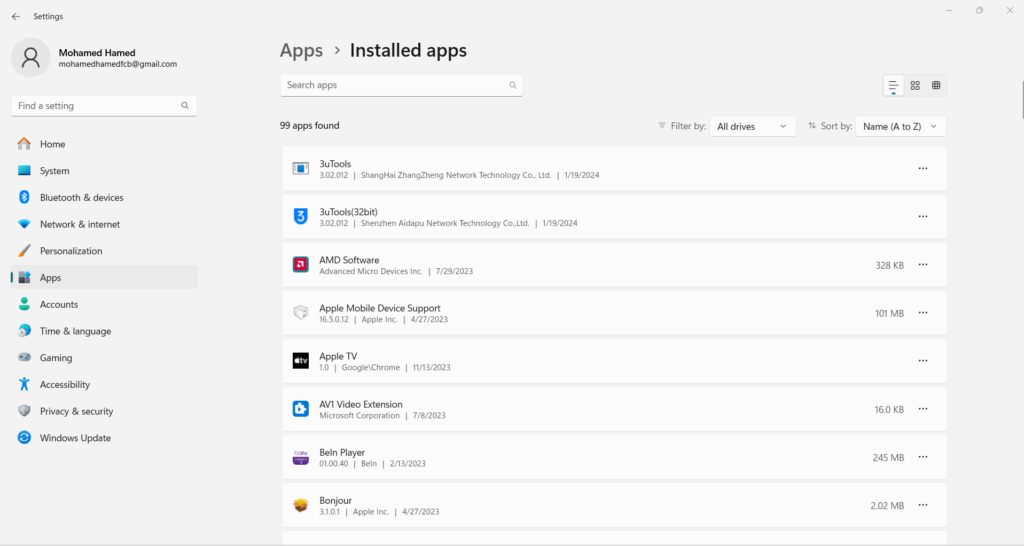
هذه الطريقة صالحة فقط للحالة الثانية. فيما يلي كيفية نقل البرامج المثبتة إلى محرك أقراص آخر: اضغط على زر الويندوز على لوحة المفاتيح لفتح قائمة ابدأ. ثم انقر فوق الإعدادات (رمز الترس) للوصول إلى إعدادات النظام.
في نافذة الإعدادات، حدد موقع خيار “التطبيقات” أو “التطبيقات والميزات” وانقر عليه. سينقلك إلى القسم الذي يمكنك من خلاله إدارة التطبيقات المثبتة. قم بالتمرير عبر قائمة التطبيقات المثبتة للعثور على التطبيق الذي تريد نقله إلى محرك أقراص آخر.
انقر على اسم التطبيق لتحديده. بمجرد تحديد التطبيق، سترى خيارًا يسمى “نقل” أسفل اسمه. انقر على هذا الخيار.
ستظهر نافذة جديدة، مما يسمح لك باختيار محرك الأقراص الوجهة للتطبيق. حدد محرك الأقراص الذي تريد نقل التطبيق إليه. بعد تحديد محرك الأقراص الوجهة، انقر فوق الزر “نقل” أو عبارة مشابهة لتأكيد النقل.
سيتابع نظام ويندوز الآن نقل التطبيق إلى محرك الأقراص المختار. يعتمد الوقت المستغرق لنقل التطبيق على حجمه وأداء نظامك. سيوفر النظام لك شريط التقدم أو مؤشر الحالة حتى تتمكن من مراقبة عملية النقل بنجاح.
على الرغم من أن هذه الطريقة ملائمة لبعض التطبيقات، إلا أنها قد تعمل فقط مع بعض البرامج وليس جميعها. الطريقة الثانية: نقل البرامج إلى قرص آخر باستخدام خاصية “السجل” بالنسبة للمستخدمين الذين لديهم خلفية تقنية، يعد نقل البرامج إلى قرص آخر يدويًا باستخدام سجل ويندوز أحد الخيارات.
يتضمن السجل المعلومات التي تستخدمها البرامج ونظام التشغيل ويندوز نفسه. وبالتالي، فهو يساعد النظام في إدارة جهاز الكمبيوتر الخاص بك وتغيير مسار تثبيت التطبيقات في السجل للإشارة إلى موقع محرك الأقراص الجديد. إليك خطوات إتمام عملية نقل البرامج إلى قرص آخر بنجاح: قم بإنشاء مجلد جديد “Program Files (86)” في محرك الأقراص C أو محرك أقراص آخر.
انسخ مجلدي “Program Files” و”Program Files (x86)” إلى المجلد الجديد. أدخل “CMD” في شريط البحث، ثم انقر بزر الماوس الأيمن عليه، ثم حدد “تشغيل كمسؤول”. أدخل الأوامر التالية واضغط على “أدخل”.
Robocopy” C: Program Files” ” X: Program Files” / mir Robocopy” C: Program Files(x86)” ” X: Program Files(x86)” / mir اضغط على Win + R لفتح مربع الحوار “تشغيل”. اكتب “regedit” ثم اضغط على Enter لفتح محرر السجل، ومن ثمّ انتقل إلى الوجهة التالية التي ستكتبها وهي: HKEY_LOCAL_MACHINESOFTWAREMicrosoftWindowsCurrentVersion. ابحث عن أي شئ يحمل اسم البرنامج الذي تريد نقله (على سبيل المثال، اسم البرنامج أو اسم المطور).
حدد موقع الإدخال الذي يحتوي على مسار التثبيت (غالبًا ما يسمى “InstallLocation”). انقر نقرًا مزدوجًا فوقه لتعديل القيمة. في مربع الحوار، استبدل المسار الحالي بالمسار الجديد على محرك الأقراص الوجهة حيث تريد نقل ملفات البرنامج.
انقر فوق “موافق” لحفظ التغييرات التي أجريتها على السجل. الآن، انقل ملفات البرنامج يدويًا من الملف القديم له على محرك الأقراص C: إلى الدليل الجديد على محرك الأقراص الذي تستهدف نقله إليه. بعد نقل الملفات، قم بتشغيل البرنامج للتأكد من أنه يعمل بشكل صحيح من الموقع الجديد.
كيفية تغيير مسار التثبيت الافتراضي للبرامج على نظامي التشغيل ويندوز 11 / 10 مقالات ذات صلة : كيفية استنساخ قرص صلب إلى آخر جديد بنظام التشغيل وكل الملفات إذا كنت لا تريد تثبيت البرامج والتطبيقات على قرص C مستقبلًا نظرًا لأن مساحته صغيرة أو لأي سببٍ كان، يمكنك ببساطة تغيير موقع التثبيت الافتراضي عبر تلك الخطوات أدناه والتي تصلح لكُلًا من نظامي التشغيل ويندوز 10/11: اضغط على مفتاح Windows + I لفتح الإعدادات. انقر فوق النظام > التخزين. في نظام التشغيل Windows 10، أسفل عنوان المزيد من إعدادات التخزين، انقر فوق تغيير مكان حفظ المحتوى الجديد.
في نظام التشغيل Windows 11، انقر فوق إعدادات التخزين المتقدمة > مكان حفظ المحتوى الجديد. لتغيير محرك الأقراص الافتراضي للتطبيقات الجديدة، استخدم القائمة المنسدلة سيتم حفظ التطبيقات الجديدة. ستلاحظ أن هذه الصفحة تسمح لك أيضًا بتغيير الموقع الافتراضي لتخزين ملفات أخرى مثل المستندات والموسيقى والصور.
ختامًا يعد الحفاظ على مساحة تخزين الجهاز ضمن الحد المسموح به جزءًا لا يتجزأ من عملية تحسين أداء الكمبيوتر الخاص بك والحفاظ على صحة قرص التخزين بشكل عام. عندما تتفاجئ بأن هناك مساحة محدودة على الهارد الخاص بك، تصبح المساعدة في نقل البرامج إلى قرص آخر أمرًا بالغ الأهمية. توفر الطرق التي تمت مناقشتها في هذه المقالة طرقًا متنوعة لتحقيق هذا الهدف، وتلبي احتياجات المستخدمين المبتدئين والمتقدمين، وهي سهلة وبسيطة وستقوم بإنجاز المهمة المطلوبة في دقائق معدودة.
اذا لم تفلح معك الطريقة الرسمية, فهناك برامج مخصصة تحدثنا عنها في مقال سابق ( طريقة تغيير مسار البرامج المثبتة ونقلها من C الى قرص آخر على ويندوز ) ننصحكم بالإطلاع عليه.
دروب أيديا - DROPIDEA
نأمل أن تكون هذه المقالة قد أضافت لك قيمة حقيقية. في دروب أيديا نسعى دائمًا لتقديم محتوى عربي عالي الجودة يساعدك على النمو والتطور في المجال الرقمي. تابعنا للمزيد من المقالات والشروحات المفيدة.
الأدمن
DROPIDEA
أحدث المقالات

هل تصيّد ماسك إطلاق أداة «Dots» من OpenAI عبر نطاق dot.com؟

بيك إكس في ترفع سقف استثماراتها البذرية إلى 5 ملايين دولار

عشاء مرتقب بين رئيس أنثروبيك ودونالد ترامب وسط خلافات حول أمان الذكاء الاصطناعي

جوجل تختبر الشراء المباشر من فليبكارت عبر Gemini في الهند



