كيفية حل مشكلة: فشلت عملية التحديث. الاستجابة لا تمثل رد JSON صحيح
 بقلم الأدمن
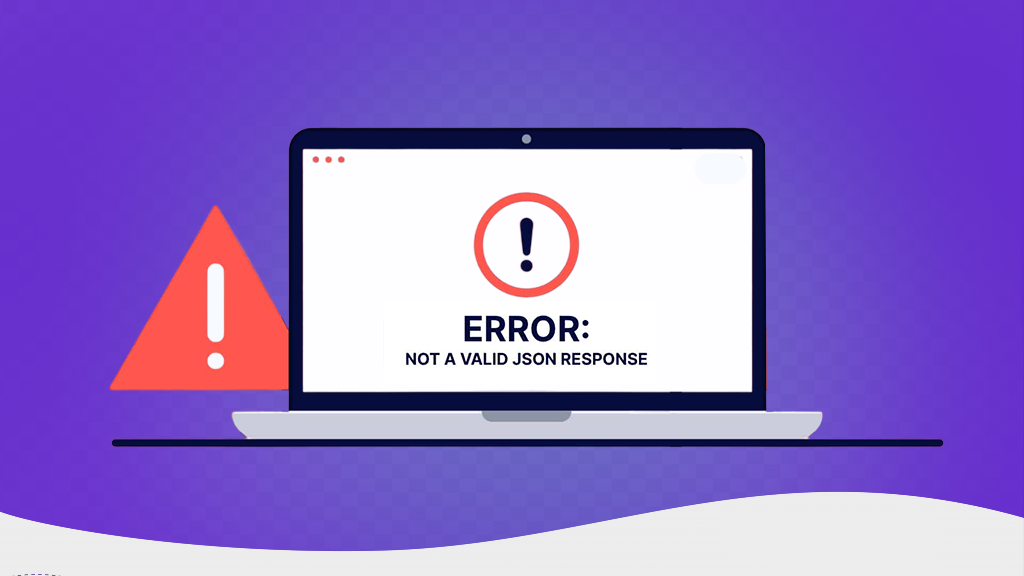
بدأت مشكلة “فشلت عملية التحديث. الاستجابة لا تمثل رد JSON صحيح” في الظهور للمستخدمين في الفترة الأخيرة بعد تحديث محرر صفحات ووردبريس التقليدي Classic Editor إلى Gutenberg WordPress. وذلك لأن آلية تحرير صفحات ووردبريس بواسطة محرر Gutenberg WordPress تعتمد على متصفح العميل، وبالتالي تحتاج إلى اتصال بواسطة خادم الويب من أجل تطبيق ونشر التعديلات.
لذلك خلال المقال سنناقش أسباب مشكلة رسالة “فشلت عملية التحديث. الاستجابة لا تمثل رد JSON صحيح”، وكافة الخيارات المتبعة خطوة بخطوة لحل تلك المشكلة بشكل جذري. سبب مشكلة “فشلت عملية التحديث.
الاستجابة لا تمثل رد JSON صحيح “ بدايةً تحتاج إلى فهم آلية عمل محرر Gutenberg WordPress حتى تستطيع إدراك سبب ظهور مشكلة “فشلت عملية التحديث. الاستجابة لا تمثل رد JSON صحيح”. يعمل محرر Gutenberg WordPress على متصفح العميل، وهذا يعني أنه لا يستطيع الاتصال بقواعد بيانات ووردبريس مباشرًا، على عكس محرر ووردبريس التقليدي، فإن محرر Gutenberg يعتمد على اتصال REST API للاتصال بقواعد بيانات ووردبريس، ويستقبل البيانات من ووردبريس على هيئة ملفات JSON “JavaScript Object Notation”.
لذلك عندما تقوم بتحرير أو نشر إحدى المقالات أو الصفحات على موقعك، يرسل محرر Gutenberg WordPress طلبًا لقواعد بيانات ووردبريس عبر اتصال REST API، وينتظر ردًا بتنسيق JSON. إذا لم يستقبل محرر Gutenberg WordPress الرد من قواعد بيانات ووردبريس بتنسيق JSON، أو إذا فشل بالاتصال بها بواسطة REST API، تظهر لك مشكلة فشلت عملية التحديث. الاستجابة لا تمثل رد JSON صحيح.
ويمكن أن تظهر تلك المشكلة في العديد من الصور كالآتي: فشل عملية النشر. الاستجابة لا تمثل رد JSON صحيح الاستجابة لا تمثل رد JSON صحيح Updating failed. The response is not a valid JSON response Publishing failed.
The response is not a valid JSON response ويمكن أن تظهر بصور أخرى مختلفة، ولكن المشترك بينهم دائمًا هو تنسيق JSON، وطريقة معالجة تلك المشكلة ثابتة في كافة الصور المختلفة. حل مشكلة “خطأ فشلت عملية التحديث. الاستجابة لا تمثل رد JSON صحيح “ يمكن أن تظهر مشكلة “فشلت عملية التحديث.
الاستجابة لا تمثل رد JSON صحيح” بسبب 6 مشاكل رئيسية، وسنوضح لكم حل تلك المشاكل تدريجيًا خطوة بخطوة. 1- تحقق من إعدادات عنوان URL الموقع إذا تم إعداد عنوان URL لموقع ووردبريس بشكل خاطئ، يؤدى ذلك إلى منع اتصال REST API، وبالتالي ظهور مشكلة “فشلت عملية التحديث.
الاستجابة لا تمثل رد JSON صحيح”، وقد تظهر تلك المشكلة عند نقل موقعك من خادم إلى أخر، أو استنساخ الموقع على خادم أخر، فلا يتم تحديث عنوان URL. فيمكنك معالجة تلك المشكلة عن طريق الخطوات التالية: الدخول إلى لوحة ووردبريس الرئيسية. اختيار الإعدادات >> عام.
مراجعة كتابة عنوان URL للموقع صحيحًا في كلاً من عنوان ووردبريس (URL)، عنوان الموقع (URL)، ويجب التطابق التام بينهم. 02- صلاحية عنوان URL للموقع ويجب مراجعة كتابة بروتوكول الأمان بشكل صحيح، حيث يُكتب HTTPS وليس HTTP، وذلك في حالة استخدام شهادة SSL صالحة، بعد ذلك تقوم بالضغط على حفظ التغييرات وتقوم بمراجعة ظهور المشكلة.
2- معالجة مشكلة الروابط الدائمة على ووردبريس تعد الروابط الدائمة من أبرز أسباب ظهور مشكلة “فشلت عملية التحديث. الاستجابة لا تمثل رد JSON صحيح”، وذلك بسبب عدم حصول محرر Gutenberg WordPress على استجابة JSON صحيحة، وقد ترافق تلك المشكلة ظهور مشكلة 404 Page Not Found
أيضًا، وتلك علامة لتحديد السبب الأساسي وراء كافة تلك المشاكل. ويمكنك معالجة تلك المشكلة عن طريق تحديث روابط ووردبريس الدائمة أو إنشاء ملف .htaccess
جديد، يمكنك بداية الأمر تجربة تحديث روابط ووردبريس الدائمة عن طريق الخطوات التالية: الدخول إلى لوحة ووردبريس الرئيسية. اختيار الإعدادات >> روابط دائمة. النزول إلى أسفل والضغط على حفظ التغييرات.
03 – تحديث روابط ووردبريس الدائمة من لوحة التحكم وبهذا الشكل تم تحديث الروابط الدائمة على موقعك، تقوم بالرجوع إلى محرر الصفحات وتراجع مدى معالجة المشكلة، إذا ما زالت المشكلة مستمرة، تحتاج إلى تجربة إنشاء ملف .htaccess جديد لحل تلك المشكلة جذريًا وذلك عن طريق الخطوات التالية: تقوم بالاتصال بخادم موقعك عن طريق اتصال FTP على سبيل المثال بالاعتماد على برنامج FileZilla.
انتقل إلى ملف public_html على الخادم. حدد ملف .htaccess ثم تقوم بالضغط بزر الماوس الأيمن على الملف وتختار Download لحفظ نسخة احتياطية من الملف على جهاز الكمبيوتر في حالة حدوث مشكلة أثناء إنشاء ملف .htaccess جديد. 04 – حفظ نسخة احتياطية من .htaccess على جهاز الكمبيوتر
بعد ذلك تقوم بإعادة تحديد ملف .htaccess ثم تقوم بالضغط بزر الماوس الأيمن على الملف وتختار Delete لحذف الملف من الخادم كما موضح في الصورة التالية: 05 – حذف ملف .htaccess من الخادم تقوم بالرجوع مرة أخرى إلى لوحة ووردبريس ثم الإعدادات >> روابط دائمة وتقوم بالضغط على حفظ التغييرات مرة أخرى كما فعلنا في الخطوة السابقة، وذلك من أجل إجبار ووردبريس على إنشاء ملف .htaccess جديد. وبهذا الشكل تم معالجة المشكلة بشكل جذري، فإذا ما زالت مستمرة يمكنك متابعة الحلول التالية.
3- مشكلة شهادة SSL “Fix mixed content warnings” يمكن أن تظهر مشكلة “فشلت عملية التحديث. الاستجابة لا تمثل رد JSON صحيح” بسبب مشاكل شهادة SSL، خصوصًا بسبب مشاكل المحتوى المختلط Fix mixed content warnings.
وتظهر تلك المشاكل عند تثبيت شهادة SSL جديدة على موقعك، فتجد بعض الموارد القديمة على الخادم يتم تحميلها بواسطة بروتوكول HTTP القديم، على سبيل المثال الملفات أو أكواد CSS أو JavaScript أو غير ذلك، مما يؤدي إلى ظهور مشكلة المحتوى المختلط، فيمنع اتصال REST API. ويمكنك معالجة تلك المشكلة عن طريق الخطوات التالية: الدخول إلى لوحة تحكم ووردبريس. اختيار الإضافات >> أضف جديد.
البحث عن إضافة Really Simple SSL ثم تثبيت الإضافة على موقعك. 06 – تثبيت إضافة Really Simple SSL على ووردبريس بعد الإنتهاء من تثبيت الإضافة تقوم بالضغط على تفعيل، ثم تقوم بالذهاب إلى إعدادات >> SSL & Security، بعد ذلك تقوم بالضغط على Activate SSL كما موضح في الصورة التالية: 07- تفعيل شهادة SSL على ووردبريس
أقرأ أيضًا : حل مشاكل SSL الأكثر شيوعًا وظهور رسالة (اتصالك بهذا الموقع غير آمن) 4- التعارض مع إحدى الإضافات أو القوالب تؤثر بعض الإضافات والقوالب على اتصال REST API مع الخادم خصوصًا في الإصدارات القديمة منها، لذلك يجب البحث عن وجود أي تعارض من القوالب أو الإضافات مع اتصال REST API أو استجابة JSON.
بداية الأمر تقوم بإلغاء تفعيل كافة الإضافات على موقعك عن طريق الخطوات الآتية: الدخول إلى لوحة تحكم ووردبريس. اختيار الإضافات >> إضافات منصبه. تحديد كافة الإضافات المفعلة على موقعك.
اختيار تعطيل من نافذة الأوامر ثم تطبيقها على كافة الإضافات. 08 – إلغاء تفعيل إضافات ووردبريس وتقوم بتجربة محرر الصفحات وتحدد إذا تم حل المشكلة أم لا ؟، فإذا تم حل المشكلة تقوم بإعادة تفعيل الإضافات تدريجيًا حتى تحدد الإضافة المسببة للمشكلة، وتقوم بتحديثها للإصدار الأحدث أو البحث عن الإصدار القديم لها على موقعك، أو البحث عن البديل الأمثل.
أما إذا لم تكن المشكلة في الإضافات، تقوم الآن بفصح تعارض القالب مع اتصال REST API، وذلك عن طريق الدخول إلى المظهر >> قوالب ثم تقوم بتفعيل قالب ووردبريس الافتراضي Twenty Twenty-three
5- تعطيل جدار الحماية الأمني
يمكن أن يتعارض جدار الحماية على موقعك مع اتصال Rest API، مما يؤدى إلى ظهور مشكلة “فشلت عملية التحديث. الاستجابة لا تمثل رد JSON صحيح”.
لذلك يجب فحص إضافات الحماية
التي تعتمد عليها، وتقوم بتعطيل جدار الحماية، وتفحص محرر الصفحات، فإذا تم حل المشكلة، فهذا يعني أن جدار الحماية يقاطع الاتصال بين الخادم والمتصفح. فتقوم بضبط خيارات جدار الحماية على موقعك وإضافة Gutenberg WordPress في الصفحة البيضاء وذلك إذا كان جدار الحماية على مستوى الخادم، أما إذا كان جدار الحماية سحابي، فيجب التواصل مع المضيف وطلب إعطاء تصريح لمحرر Gutenberg WordPress. وقد تظهر المشكلة أيضًا إذا كنت تعتمد على خدمات CDN
الخارجية على سبيل المثال Cloudflare أو غير ذلك، وتحتاج إلى إجراء نفس الخطوات معها، ويمكنك بسهولة فصح سجلات جدار الحماية لكل منهم والبحث عن تواجد أوامر مرتبطة بخدمات Rest API أو اتصال JSON للتأكد من مصدر المشكلة. 6- فحص وتصحيح الأخطاء الذاتي في ووردبريس يمكنك مراجعة فحص نظام ووردبريس الذاتي لأخطاء النظام بحثًا عن سبب مشكلة “الاستجابة لا تمثل رد JSON صحيح”، ويمكن أن يقوم الفحص بمعالجة تلك المشكلة تلقائيًا.
ويمكنك القيام بهذا الأمر عن طريق الدخول إلى لوحة ووردبريس ثم أدوات >> صفحة الموقع، ثم تقوم بمعاينة المشاكل الحرجة والتحسينات الموصى بها، وذلك بحثًا على مشاكل مرتبطة باتصال REST API، ثم تقوم بمعاينة التوصيات المطلوبة لحل تلك المشاكل. 10 – فحص مشاكل ووردبريس ذاتيًا وإذا لم تجد أخطاء مرتبطة باتصال REST API، يمكنك مراجعة نفس الأمر في سجل الأخطاء لووردبريس، ويمكنك الوصول إليه عن طريق الاتصال بخادم موقعك بواسطة FTP، ثم البحث عن ملف wp-config.php، ثم إضافة الكود التالي: define( 'WP_DEBUG', true );
define( 'WP_DEBUG_LOG', true ); 11 – إضافة كود توليد ملف سجل الأخطاء على ووردبريس ثم حفظ الملف، ستجد بعد ذلك أن نظام ووردبريس قام بتوليد ملف يحتوي على سجل كافة أخطاء ووردبريس باسم debug.log داخل مسار public_html >> wp-content، فتقوم بالبحث عن أخطاء داخل الملف مرتبطة باتصال REST API ومحاولة البحث عن حلول تلك المشاكل إن وجدت. بدائل أخرى لحل مشكلة فشلت عملية التحديث.
الاستجابة لا تمثل رد JSON صحيح إذا لم تستطيع تحديد السبب الأساسي وراء مشكلة “فشلت عملية التحديث. الاستجابة لا تمثل رد JSON صحيح”، يمكنك الاعتماد على الحلول البديلة للتخلص من تلك المشكلة تمامًا.
وأفضل الحلول البديلة هو الاعتماد على محرر Classic Editor مباشرًا بدلاً من محرر Gutenberg WordPress، وذلك لأن محرر Classic Editor يعتمد على الخادم مباشرًا، وبالتالي لا يحتاج إلى اتصال Rest API أو غير ذلك. ويمكنك تنصيب محرر Classic Editor عن طريق الخطوات التالية: الدخول إلى لوحة تحكم ووردبريس. اختيار الإضافات >> أضف جديد.
البحث عن إضافة Classic Editor وتثبيتها على موقعك. 12 – تنصيب محرر ووردبريس التقليدي Classic Editor على ووردبريس وبهذا الشكل تم حل مشكلة “فشلت عملية التحديث.
الاستجابة لا تمثل رد JSON صحيح” تمامًا في موقعك، ونكون قد وصلنا إلى خاتمة المقال، ويمكنك مشاركة تجربتك في حل تلك المشكلة أو الاستعانة بالخبرات على مجتمع عرب ووردبريس .
دروب أيديا - DROPIDEA
نأمل أن تكون هذه المقالة قد أضافت لك قيمة حقيقية. في دروب أيديا نسعى دائمًا لتقديم محتوى عربي عالي الجودة يساعدك على النمو والتطور في المجال الرقمي. تابعنا للمزيد من المقالات والشروحات المفيدة.
الأدمن
DROPIDEA
أحدث المقالات

جوجل تطلق Gemini 4 Argon نموذجها الأقوى المتخصّص في الأمن السيبراني

هل تصيّد ماسك إطلاق أداة «Dots» من OpenAI عبر نطاق dot.com؟

بيك إكس في ترفع سقف استثماراتها البذرية إلى 5 ملايين دولار

عشاء مرتقب بين رئيس أنثروبيك ودونالد ترامب وسط خلافات حول أمان الذكاء الاصطناعي



