كيفية حفظ الصور انستقرام بالحجم الأصلي للاندرويد والايفون
 بقلم الأدمن
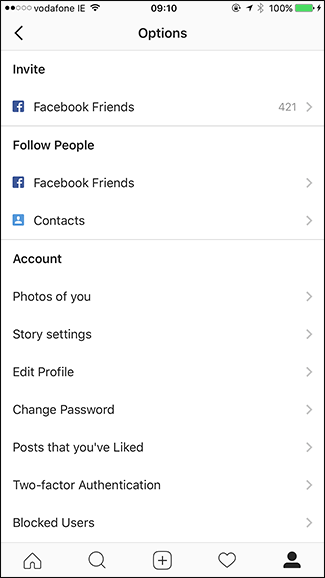
عند حفظ الصور انستقرام سواء على الاندرويد والايفون، يتم حفظها بدقة عرض 1080×1080 بكسل ولكن ما تلتقطه كاميرات الجوالات الذكية الآن أعلى من هذا بكثير وقد ترغب في حفظ صور انستقرام بالحجم الأصلي بعد التعديل وإضافة الفلاتر والمؤثرات وهو ما نستعرضه خلال هذا المقال عبر خاصية Save Original Photos. عادة، يقوم تطبيق انستقرام بحذف الصور المنشورة عبر انستجرام Story خلال 24 ساعة من مدة نشرها ولكن أيضاً يمكنك الغاء هذا الأمر وتبديله بخاصية جديدة تمكنك من حفظ صور منشورات انستقرام على الهاتف بالحجم الأصلي وبالتعديلات والمؤثرات التي أضافها المستخدم حتى يحصل على نسخة بدقة عالية على الهاتف يستخدمها عبر شبكات اجتماعية أخرى. حفظ الصور انستقرام حفظ صور انستقرام بالحجم الأصلي على جوالك يتطلب تفعيل خاصية Save Original Photos المتاحة على تطبيق انستجرام للاندرويد وايفون وبعد تفعيل هذه الخاصية، يقوم تطبيق انستجرام بحفظ نسخة من الصور الأصلية على جوالك لتتمكن من نشرها لاحقاً في شبكات اجتماعية أخرى، بأعلى دقة للصورة ومع تطبيق الفلاتر ومؤثرات انستقرام.
اذهب الى اعدادات انستقرام بالضغط على Options ثم اتبع الخطوات التالية: اذهب لأسفل الإعدادات Settings حتى تجد خيار “Save Originals Photos” وقم بتشغيل الخاصية عبر الضغط على زر ON. الآن، عندما تقوم بنشر صورة جديدة على انستجرام، سيتم حفظ نسخة أصلية من صور انستقرام بالحجم الكبير الأصلي للصورة على جوالك مصحوبة بالفلاتر والإضافات التي قمت بتطبيقها على الصورة.
اقرأ أيضا : طريقة اخفاء الصور في انستقرام بعد هذا التحديث المميز Instagram Archive كما يمكنك حفظ الصور المنشورة عبر حسابك في انستجرام Story من نفس صفحة الإعدادات من إعدادات Account ثم اضغط على “Story Settings” وقم بتشغيل خاصية “Save Shared Photos” بالضغط على On. وعند نشر قصة جديدة وصور عبر انستقرام، سيتم حفظ نسخة منها على هاتفك علماً بأن الصور كان يتم حذفها بعد 24 ساعة من نشر الصور على انستقرام ولذلك، هي خاصية مميزة لمنع حذف صور انستقرام من جاليري الهاتف.
هل تستخدم طريقة أخرى لتتمكن من حفظ الصور
انستقرام على الهاتف؟ شاركنا بها عبر التعليقات.
دروب أيديا - DROPIDEA
نأمل أن تكون هذه المقالة قد أضافت لك قيمة حقيقية. في دروب أيديا نسعى دائمًا لتقديم محتوى عربي عالي الجودة يساعدك على النمو والتطور في المجال الرقمي. تابعنا للمزيد من المقالات والشروحات المفيدة.
الأدمن
DROPIDEA
أحدث المقالات

هل تصيّد ماسك إطلاق أداة «Dots» من OpenAI عبر نطاق dot.com؟

بيك إكس في ترفع سقف استثماراتها البذرية إلى 5 ملايين دولار

عشاء مرتقب بين رئيس أنثروبيك ودونالد ترامب وسط خلافات حول أمان الذكاء الاصطناعي

جوجل تختبر الشراء المباشر من فليبكارت عبر Gemini في الهند



