كيفية فحص روابط الموقع الإلكتروني وإصلاحها بشكل آمن
 بقلم الأدمن
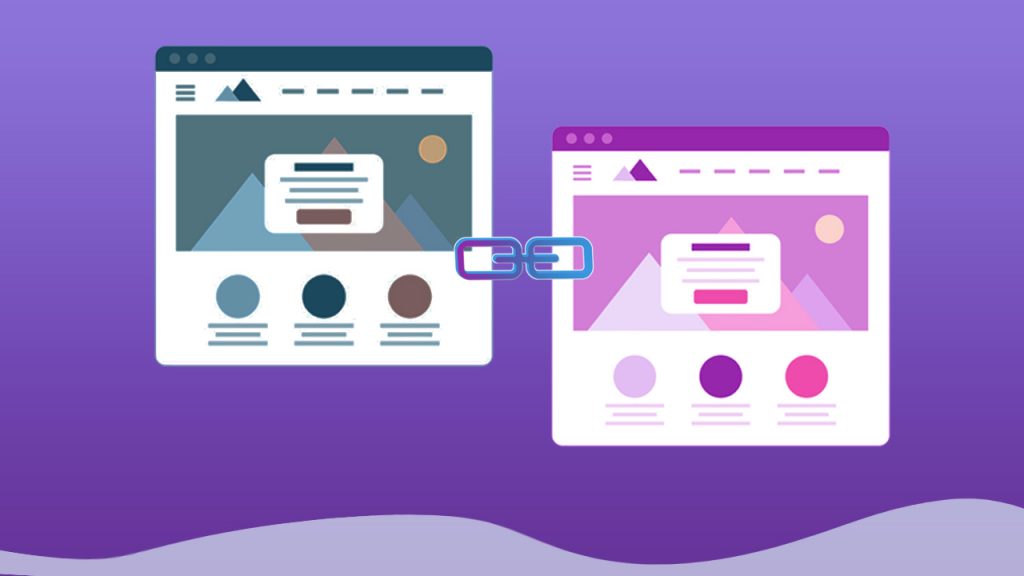
تعد الروابط في المواقع الإلكترونية التي تعمل ب نظام إدارة المحتوى ووردبريس أو غيره أحد أهم العناصر التي تكون صفحات الويب وأكثرها شيوعًا، إذ تتضمن جميع الصفحات في أي موقع ويب روابط تذهب بالمستخدم أو الزائر إلى مكان آخر عند النقر عليها، كما تعد الروابط أيضًا من أكثر العناصر التي يتفاعل معها الزوار أثناء قضاء الوقت في تصفح الموقع الإلكتروني.
وبالتالي فمن المهم إيلاء الروابط في الموقع اهتمامًا خاصًا والمحافظة عليها تعمل بشكل جيد إلى أقصى درجة ممكنة عن طريق فحصها بشكل دوري وإصلاحها، ولذلك فسنسلط الضوء في هذه المقالة على موضوع الروابط في مواقع الويب وأهميتها، ثم سنشرح كيفية فحصها وإصلاحها في مواقع الووردبريس. مفهوم الروابط في المواقع الإلكترونية يعرف الرابط أو الارتباط التشعبي (Link أو Hyperlink) في مواقع الويب بأنه عنصر يمكن للمستخدمين التفاعل معه عن طريق النقر عليه ليقوم بنقلهم إلى صفحة ويب أخرى أو إلى مكان آخر ضمن نفس الصفحة أو ليبدأ عملية تحميل ملف أو غير ذلك، ويمكن أن يمثله عبارة أو زر أو حتى صورة في واجهة الموقع الأمامية.
مفهوم الروابط في المواقع الإلكترونية
وبشكل أساسي يمكن القول إن الرابط يتكون من جزئين، أولهما هو ذلك الجزء الذي يظهر للزائر في الواجهة الأمامية للموقع، وثانيهما هو العنوان (URL) المتعلق بالصفحة أو المحتوى الذي يوجه الرابطُ المستخدمين إليه، والذي يمكن أن يظهر أسفل نافذة المتصفح عند وضع مؤشر الفأرة على الرابط. يظهر عنوان URL الخاص بالرابط أسفل المتصفح عند وضع مؤشر الفأرة على الرابط ويتم تمييز معظم الروابط في الواجهة الأمامية للموقع عن طريق إظهارها بلون مختلف عن لون النص العادي، وعادة ما يعبر ذلك اللون عن هوية الموقع البصرية، فإذا كان اللون الأساسي في الهوية البصرية للموقع بنفسجيًا يكون لون الرابط بنفسجيًا أيضًا.
أنواع الروابط في مواقع الويب هناك نوعان من الروابط يمكن أن يتضمنهما موقعك الإلكتروني، هما الروابط الداخلية والروابط الخارجية. لا يختلف هذان النوعان عن بعضهما من الناحية التقنية، حيث يوجه كلاهما المستخدم إلى مكان آخر، لكنهما يختلفان بالنطاق الذي ينتمي إليه عنوان URL الخاص بالصفحة التي يتم نقل الزائر إليها.
كذلك يوجد أيضًا نوع ثالث من الروابط يطلق عليه اسم الروابط الخلفية، لكن هذه الروابط لا توجد ضمن موقعك نفسه. توضح القائمة مفهوم الأنواع الثلاثة للروابط: الروابط الداخلية (Internal links): تنقل المستخدم إلى صفحة ويب تتبع لنفس الموقع الإلكتروني الذي يوجد فيه الرابط، ويكون اسم النطاق الذي يوجد في عنوان URL الخاص بالرابط هو نفسه اسم النطاق الموجود في عنوان URL الخاص بصفحة الويب التي يوجد الرابط فيها.
الروابط الخارجية (External links):
تذهب بالمستخدم إلى صفحة ويب تتبع لموقع إلكتروني آخر يختلف عن الموقع الذي يوجد فيه الرابط، ويكون اسم النطاق الموجود في عنوان URL الخاص بالرابط مختلفًا عن اسم النطاق الذي يوجد في عنوان URL الخاص بصفحة الويب التي يوجد الرابط فيها. الروابط الخلفية (Backlinks): هي الروابط التي تؤدي إلى إحدى صفحات موقعك من مواقع أخرى، أي أنها نفسها الروابط الخارجية، فمثلاً إذا تتضمن موقعك رابطًا خارجيًا لموقع آخر كان هذا الرابط الخارجي رابطًا خلفيًا لذلك الموقع.
وتعد جميع أنواع الروابط السابقة مهمة، ومن الضروري الاهتمام بها من أجل تحسين مختلف جوانب الموقع الإلكتروني، بما في ذلك تجربة المستخدم ، و مكان صفحات الموقع في نتائج البحث ، وغير ذلك. أهمية الروابط في الموقع الإلكتروني إن إدراج روابط داخلية وخارجية ذات جودة عالية بطريقة لائقة وملائمة في صفحات الموقع والحرص على إبقائها تعمل بشكل صحيح أمر مهم للغاية لأنه يوفر مزايا وفوائد عديدة ترفع من جودة الموقع، بما في ذلك على سبيل المثال لا الحصر: تسهم الروابط الداخلية في إبقاء المستخدمين لفترة أطول في موقعك، وتسهل زحف محركات البحث إلى صفحاته، الأمر الذي يؤدي إلى فهرسة محتوى موقعك وإظهاره في نتائج البحث. تجعل الروابط المضافة بشكل جيد تجربة المستخدم أفضل عن طريق تسهيل وصوله إلى هدفه وتسريع ذلك، فمثلًا إذا كنت تتحدث في مقالة عن أفضل طرق الربح من الإنترنت، سيود الزائر في كثير من الأحيان أن يطلع على شرح مفصل لإحدى الطرق التي تنال إعجابه، وبالتالي إذا كنت قد وضعت رابطًا لمقالة تشرح تلك الطريقة يمكنه أن ينقر عليه ليصل إلى ما يريده بسرعة وسهولة.
تساعد الروابط على جعل محتواك موثوقًا، فعندما تستشهد بدراسة لدعم فكرتك وتذكر مصدرها عن طريق إدراج رابطها في المقالة، فإن محتوى المقالة يصبح أعلى جودة، وترتفع ثقة الزوار فيه، الأمر الذي يسهم في جعل الزوار مخلصين، ويرفع عددهم بشكل غير مباشر. تعد الروابط الخلفية عاملًا مهمًا في ترتيب نتائج البحث ، إذ يرتفع ترتيب صفحات موقعك في صفحات النتائج كلما ازداد عدد الروابط الخلفية ذات الجودة العالية التي تؤدي إليها، كما أن الروابط الخلفية توجه زوار مواقع أخرى إلى موقعك، الأمر الذي يمنحك مزيدًا من الزوار . كما توجد الكثير من الفوائد الأخرى التي يمكن أن تقدمها مختلف أنواع الروابط للمواقع الإلكترونية، ومن أجل الحرص على الحصول على هذه الفوائد، وتجنب أن تتسبب الروابط بضرر لموقعك بدلًا من نفع، عليك أن تقوم بفحصها للتأكد من أنها تعمل بشكل صحيح، ولا تضر بتجربة المستخدم.
كيفية فحص الروابط في الووردبريس وإصلاحها في سبيل عدم ظهور رسائل الخطأ 404 وغيره للزوار والتأثير سلبًا على تجربتهم في الموقع الإلكتروني، ومن أجل المحافظة على تصنيف الموقع مرتفعًا في نتائج البحث، يتوجب عليك أن تقوم بشكل دوري (كل أسبوع أو شهر) بفحص وإصلاح الروابط الداخلية والخارجية الموجودة في موقعك، والروابط الخلفية الموجودة في المواقع الأخرى وترتبط بموقع الويب الخاص بك. توجد طرق وأدوات عديدة تمكنك من فحص روابط موقعك وإصلاحها بأمان تام، لكن أسهل طريقة لفحص الروابط في الووردبريس هي استخدام أحد المكونات الإضافية المجانية مثل أو Link Checker Professional
أو Broken Link Checker التي سنشرحها في الفقرة التالية. فحص روابط الموقع باستخدام Broken Link Checker تتميز إضافة Broken Link Checker بالكثير من المزايا المتعلقة بفحص روابط موقع الووردبريس، وتوفر خيارات كثيرة تمكنك من ضبط عمليات الفحص حسبما تريد تمامًا.
لكي تتمكن من فحص روابط موقعك باستخدام Broken Link Checker عليك أولًا أن تقوم بتنصيب وتفعيل الإضافة على موقعك من خلال اتباع إحدى الطرق التي شرحناها في مقالة ( كيف تقوم بتنصيب إضافة ووردبريس وتفعيلها على موقعك بالشكل الصحيح ). بمجرد تنصيب وتفعيل الإضافة سيظهر خياران جديدان في تبويبات القائمة الجانبية في لوحة التحكم بالووردبريس ، أحدهما هو ( الروابط المعطوبة )، وسيظهر ضمن خيارات تبويب ( أدوات )، والثاني هو ( فاحص الروابط )، وسيظهر ضمن خيارات تبويب ( الإعدادات ). الخيارات التي تضيفها إضافة Broken Link Checker إلى لوحة التحكم في الووردبريس
يمكنك من خلال صفحة الروابط المعطوبة أن تطلع على الروابط التي لا تعمل بشكل صحيح في موقعك وحالات كل منها، بينما توفر الصفحة التي يتم الانتقال إليها عند النقر على خيار ( فاحص الروابط ) إمكانية تعديل إعدادات فحص الروابط في الموقع، وهي تتضمن الكثير من الخيارات التي تستطيع عبرها ضبط عملية الفحص بشكل لا يؤثر على أداء الموقع. صفحة إعدادات فاحص الروابط المعطوبة بعد تنصيب وتفعيل الإضافة على موقعك ستقوم بشكل تلقائي بفحص جميع الروابط بناء على الإعدادات الافتراضية، ويمكنك متابعة تقدم عملية الفحص في تبويب ( عام ) ضمن صفحة ( إعدادات فاحص الروابط المعطوبة )، لكن عمليات الفحص اللاحقة ستتم بناء على الإعدادات التي تحددها إذا قمت بتغيير الإعدادات الافتراضية.
متابعة تقدم عملية الفحص وملخص عن النتائج في صفحة إعدادات فاحص الروابط المعطوبة وتتضمن صفحة إعدادات فاحص الروابط المعطوبة 5 تبويبات يحتوي كل واحد منها على مجموعة من الخيارات التي تتعلق بناحية معينة من عملية فحص الروابط، حيث: يحتوي تبويب ( عام ) على الإعدادات العامة الرئيسية، إذ يمكن من خلاله تحديد كل كم من الوقت سيتم فحص روابط الموقع، وتخصيص تنبيهات البريد الإلكتروني، وغير ذلك.
يمكن من خلال تبويب ( البحث عن الروابط في ) تحديد الأماكن التي سيتم فحص الروابط الموجودة فيها، فإذا لم ترد أن يتم فحص الروابط الموجودة في التعليقات على سبيل المثال، يمكنك تحديد ذلك من خلال هذا التبويب. تستطيع من خلال تبويب ( أيّ روابط يجب فحصها؟ ) تحديد أنواع الروابط التي سيتم فحصها، واستبعاد روابط من الفحص بناء على احتواء عنوانها على كلمة معينة تقوم بإدخالها.
يمكنك من خيارات تبويب ( البروتوكولات و الـ API ) تحديد الطرق التي سيتم اعتمادًا عليها فحص الروابط، ومن المفضل أن تتركها كما هي إذا لم تكن لديك خبرة جيدة بهذا الموضوع. يتضمن تبويب ( إعدادات متقدمة ) مجموعة من الخيارات المتقدمة، بما في ذلك خيارات تضبط عمل الأداة لمنعها من التأثير على أداء الموقع، مثل أطول مدة ستعمل خلالها الأداة، والنسبة التي يُسمح للأداء باستخدامها من موارد الخادم المتوفرة، وغيرها. ومن السهل الغاية معرفة ما يقوم به كل خيار من الإعدادات الموجودة في هذه التبويبات، إذ إن أسماء معظمها مذكورة باللغة العربية، كما تتوافر جمل تشرح وتوضح ما تقوم به الخيارات التي تتصف بالقليل من الغموض أسفل الخيار، وبالتالي لن تواجه صعوبة في ضبط الخيارات تبعًا لما تريد.
صفحة الروابط المعطوبة تظهر صفحة الروابط المعطوبة جميع الروابط المعطوبة التي تم رصدها بواسطة الإضافة، وتسمح بمعرفة الكثير من المعلومات عنها، بالإضافة إلى إمكانية بتنفيذ مجموعة من الإجراءات عليها لإصلاح الخلل أو تعديل تصنيف الرابط أو غير ذلك. صفحة الروابط المعطوبة التي تظهر معلومات عن الروابط المعطوبة في الموقع كما تلاحظ في الصورة السابقة، تظهر الروابط المعطوبة في الصفحة بنفس الطريقة التي تظهر فيها المقالات في صفحة (كل المقالات)، حيث يتم تخصيص كل صف من المعلومات في الصفحة لرابط معين، ويتضمن كل صف المعلومات التالية بالترتيب: العنوان:
وهو عنوان URL الخاص بالرابط، ويفترض أن يظهر لك خطأ عند زيارة هذا العنوان عن طريق إدخاله في المتصفح. الحالة: وتعبر عن حالة الخطأ ورقمه، حيث يمكن استخدام ذلك للحصول على المزيد من المعلومات حول الخطأ من خلال البحث في الإنترنت، كما يمكن معرفة تفاصيل الخطأ عن طريق النقر على كلمة ( تفاصيل ) التي تظهر عند تمرير مؤشر الفأرة على عبارة الحالة.
تفاصيل حالة الخطأ للرابط المعطوب المعني
نص الرابط: هو العبارة أو العنصر الخاص بالرابط والذي يظهر في الواجهة الأمامية للزائر. المصدر: هو عنوان المقالة أو الصفحة (أو غيرهما) التي يوجد فيها الرابط المعطوب، ويمكن الانتقال إلى صفحة التحرير الخاصة بها أو حذفها أو عرضها من خلال الخيارات التي تظهر أسفل العنوان. يمكن تنفيذ إجراء على الصفحة التي تتضمن الرابط المعطوب من خلال الخيارات التي تظهر أسفل عنوانها
الجدير بالذكر أن هذه الصفحة تظهر كلًا من الروابط الداخلية والخارجية المعطوبة في الموقع، لكنها لا تظهر الروابط الخلفية المعطوبة الموجودة في مواقع أخرى، لهذا يجب استخدام طريقة أخرى لفحص الروابط الخلفية، وسنلقي الضوء على ذلك في فقرة لاحقة. إصلاح الروابط المعطوبة الموجودة في الموقع على الرغم من أنه من الضروري للغاية إصلاح الروابط المعطوبة الداخلية والخارجية الموجودة في الموقع الإلكتروني، إلا أن فعل ذلك سهل للغاية ولا يتطلب معرفة تقنية عالية المستوى أو أي خبرة برمجية، كما توجد طرق عديدة لإصلاح روابط الموقع تكفي لتنفيذ إحداها نقرتين بزر الفأرة. خيارات الرابط المعطوب التي تظهر عند تمرير مؤشر الفأرة عليه
في صفحة الروابط المعطوبة التي تحدثنا عنها في الفقرة السابقة، ستجد مجموعة من الخيارات أسفل كل رابط من الروابط المعطوبة الموجودة في الصفحة عند تمرير مؤشر الفأرة على الرابط. يمكن من خلال هذه الخيارات إصلاح الرابط المعني بعدة طرق، لكن الترتيب الصحيح الأفضل لما يجب أن تفعله هو كالتالي: انسخ عنوان URL الخاص بالرابط المعطوب، ثم قم بزيارته من خلال نافذة تصفح خفي باستخدام المتصفح، فإذا عمل بشكل جيد، فهذا يعني أنه ليس معطوبًا فعليًا، وتم تصنيفه كذلك نتيجة خطأ في الأذونات أو ما إلى ذلك، لهذا يمكنك تركه كما هو مضافًا في صفحة الروابط المعطوبة، أو يمكنك النقر على ( غير معطوب ) لإزالته. إذا لم يعمل معك عنوان URL في نافذة التصفح الخفي، وكان الرابط معطوبًا بالفعل، احصل على عنوان URL الصحيح الذي يعمل، ثم انقر على ( تعديل العنوان ) وأدخل العنوان الجديد (الصحيح)، ثم انقر على زر ( تحديث )، ثم انقر على ( إعادة الفحص )، وتأكد أن الحالة قد تغيرت إلى ( 200 صالح ).
إذا لم يكن هناك رابط يعمل يمكن إدراجه بدلًا من الرابط المعطوب، انقر على ( إزالة الرابط ) ليتم إزالته وتحويل النص الخاص به إلى عبارة نصية عادية، لكن عليك أن تتأكد هنا قبل إزالة الرابط أن ذلك لا يضر بجودة المحتوى، أي يجب ألا يكون نص الرابط مثلًا (انقر هنا لتحميل اللعبة)، وفي حال كانت عملية إزالة الرابط ستضر بجودة المحتوى، فعليك إجراء تعديلات ملائمة على المحتوى لتحييد الأثر الضار لإزالة الرابط، وذلك من أجل المحافظة على تجربة المستخدمين مرضية في الموقع. يمكن تكرار نفس الخطوات السابقة لجميع الروابط المعطوبة الموجودة في الصفحة، كما يمكن تنفيذ إجراء معين (إزالة الرابط أو تعديل العنوان أو غير ذلك) على مجموعة من الروابط بذات الوقت عبر تحديدها، واختيار الإجراء من القائمة المنسدلة الموجودة في الأعلى، ثم النقر على زر ( تطبيق ).
طريقة إصلاح مجموعة من الروابط معا لتوفير الجهد
والوقت عن طريق تنفيذ إجراء عليها جميعًا بنفس الوقت فحص الروابط الخلفية الموجودة في مواقع أخرى وإصلاحها لا يمكن فحص الروابط الخلفية لموقعك باستخدام إضافة Broken Link Checker لأنها مخصصة لفحص الروابط الموجودة ضمن محتوى الموقع نفسه، والروابط الخلفية توجد في مواقع أخرى لا يمكنك الدخول إلى لوحة التحكم الخاصة بها. مع ذلك، توجد طريقة سهلة لفحص الروابط الخلفية لموقعك الإلكتروني، وهي تعتمد على حقيقة أنه عندما ينقر الزائر على الرابط الخلفي الخاص بموقعك في الموقع الذي يتضمن الرابط الخلفي، فإنه سيتم تحويله إلى موقعك، وإذا كان الرابط معطوبًا، فإنه سيولد خطأ 404 في موقعك.
يمكن الاعتماد على هذه الفكرة لفحص الروابط الخلفية، حيث يمكنك أن تقوم برصد الطلبات التي تقوم بتوليد أخطاء 404 من خلال استخدام إضافة Rank Math SEO (أو إضافة أخرى توفر إمكانية أداء هذه المهمة)، وذلك كما شرحنا في فقرة (كيفية اكتشاف مشكلة الخطأ 404) في مقالة ( حل مشكلة Error 404 not found في موقعك على ووردبريس ). وبعد معرفة عناوين URL الخاصة بالطلبات التي تقوم بتوليد أخطاء 404 عن طريق رصدها باستخدام إحدى الإضافات، تستطيع أن تقوم بمقارنتها مع عناوين الروابط المعطوبة الموجودة في الموقع، والتي يمكن معرفتها من صفحة الروابط المعطوبة كما شرحنا في الأعلى، وبناء على النتائج يمكنك أن تستخلص الروابط الخلفية المعطوبة لموقعك، حيث: عندما تجد عنوانًا قام بتوليد خطأ 404، لكنه ليس موجودًا في صفحة الروابط المعطوبة، فهذا يعني باحتمالية عالية أنه رابط خلفي معطوب.
أما عندما تجد عنوانا قام بتوليد خطأ 404، وهو موجود في صفحة الروابط المعطوبة، فهذا يعني باحتمالية عالية أنه رابط داخلي معطوب، وليس رابطًا خلفيًا. بعد معرفة الرابط الخلفي المعطوب، يمكنك أن تعثر على مصدره من خلال تقارير الروابط في أدوات مشرفي المواقع من جوجل ، ثم تقوم بالتواصل مع صاحب الموقع الذي يستضيف الرابط ليقوم بتعديله أو إزالته، أو يمكنك أن تقوم ب إعادة توجيه المستخدم إلى صفحة أخرى ملائمة.
تجدر الإشارة إلى وجود طرق أخرى أكثر احترافية ودقة توفر إمكانية كشف الروابط الخلفية المعطوبة، لكنها ليست مجانية، ومنها أداة Ahrefs Site Explorer التي توفر تقريرًا يتضمن جميع الروابط الخلفية المعطلة الخاصة بموقعك الإلكتروني. وإلى هنا عزيزي القارئ نكون قد انتهينا من شرح طريقة فحص روابط الموقع الإلكتروني في الووردبريس، وكيفية إصلاحها بسهولة، ونود لفت الانتباه مرة ثانية في الختام إلى أن فحص وإصلاح الروابط الموجودة في الموقع، والروابط الخلفية التي تؤدي إليه أمر مهم للغاية، لأنه يجعل تجربة المستخدم مرضية، ويرفع ترتيب الموقع في نتائج البحث.
دروب أيديا - DROPIDEA
نأمل أن تكون هذه المقالة قد أضافت لك قيمة حقيقية. في دروب أيديا نسعى دائمًا لتقديم محتوى عربي عالي الجودة يساعدك على النمو والتطور في المجال الرقمي. تابعنا للمزيد من المقالات والشروحات المفيدة.
الأدمن
DROPIDEA
أحدث المقالات

هل تصيّد ماسك إطلاق أداة «Dots» من OpenAI عبر نطاق dot.com؟

بيك إكس في ترفع سقف استثماراتها البذرية إلى 5 ملايين دولار

عشاء مرتقب بين رئيس أنثروبيك ودونالد ترامب وسط خلافات حول أمان الذكاء الاصطناعي

جوجل تختبر الشراء المباشر من فليبكارت عبر Gemini في الهند



