كيفية استعادة المحرر التقليدي (Classic editor) في ووردبريس
 بقلم الأدمن
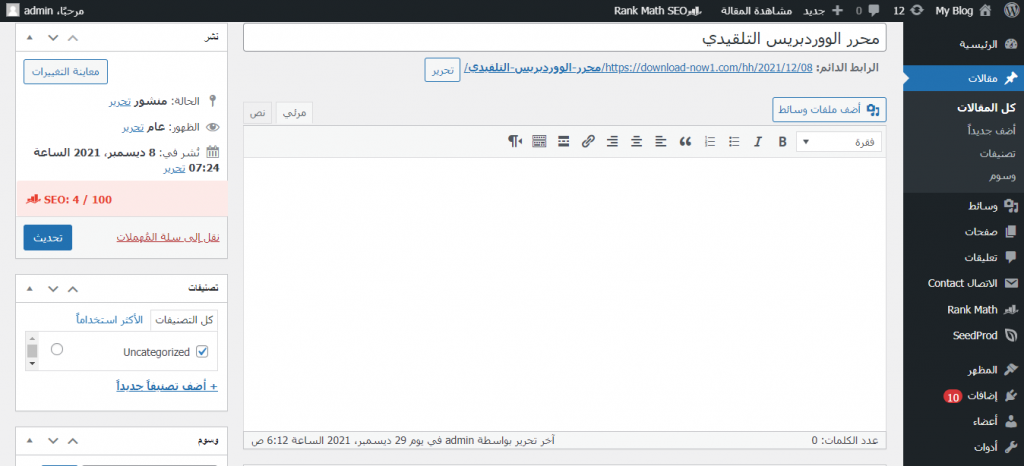
عند الترقية إلى WordPress 5.0 أو إصدار أحدث ستجد أنه أُضيف محرر جديد إلى الووردبريس، محتويًا على واجهة وعناصر جديدة، تقدم العديد من الميزات. ولكن في بعض الأحيان قد يكون هذا المحرر الجديد (محرر المكونات Gutenberg ). وإذا لم تحب هذا المحرر الجديد فتوجد طريقة لإعادة المحرر التقليدي من ووردبريس “Classic editor” وفي الأسطُر القادمة سنتعرف إليها.
الفرق بين المحرر التقليدي ومحرر المكونات نعم، أعلم بأنك تريد استرجاع المحرر التقليدي إلى الووردبريس في أسرع وقت مُمكّنة، ولكن دعنا نتمهل قليلًا ونتعرف إلى الفرق بينه وبين محرر المكونات الجديد، فربما تجد ميزات كُنت لا تعرفها من قبل.
فتغير قرارك بالرجوع إلى المحرر التقليدي، وإليك هذه الفروقات: ما هو المحرر التقليدي “Classic editor”؟ من أسمه يشير إلى أنه المحرر الأساسي للوردبريس عندما أُطلق لأول مرة، ولقد كان مُستخدم من قبل أن يتم إطلاق محرر المكونات.
وهو نصي بالكامل شبيه ببرامج معالجة النصوص. ويبدو كالآتي:
ما هو محرر المكونات “Gutenberg”؟
كما أشرت أعلاه أن محرر المكونات لقد تم إطلاقه من قبل فريق الووردبريس في تحديث WordPress 5.0 في عام 2018، أيّ بعد المحرر التقليدي؛ ما يعني أنه تحديث له. وسُمي بمحرر المكونات لأنه يتيح إضافة المحتوى وتحريره من خلال السحب والإفلات. مع أكثر من 40 مكون مختلف.
وواجهته تبدو كالآتي: قد يفيدك:
شرح محرر المكونات Gutenburg لإضافة المقالات والصفحات
الفرق بين محرر المكونات والمحرر التقليدي من حيث سهولة الاستخدام بالنسبة لسهولة الاستخدام فإن محرر المكونات يتيح لك المزيد من المرونة في إضافة المحتوى وتعديل الكتل.إذ، أنه يعمل على تقسيم المقال إلى كتل صغيرة تُمكّنك من تحريرها أو تحريكها أو حذفها داخل الصفحة أو المقال. مع إمكانية إضافة العديد من المكونات فقط بضغطة زر. أما المحرر التقليدي لا توجد به هذه الميزات وستكون الكتل غير مرئية من دون القدرة على تحريكها أو تعديلها بالسحب والإفلات، بأختصار محرر المكونات يعد أسهل من المحرر التقليدي وخاصة للأشخاص الذي يبحثون عن ميزات متقدمة تمكنهم من إضافة الأيقونات والفواصل وغيرها.
لكن في النهاية يظل الأمر تفضيل شخصي وأنت تحدد ما هو الأنسب لك بتجريب كلا المحررين. التحديثات قد تكون هذه من أحد نقاط الضعف في المحرر التقليدي.
إذ، أعلن الووردبريس بأن دعم التحديثات له سيتوقف بحلول 31 ديسمبر 2021 وفي الجانب الآخر محرر المكونات يحصل على التحديثات بشكل مستمر.
الأداء
أنا شخصيًا كُنت أعاني من بعض المشكلات المتعلقة بأداء محرر المكونات، ففي بعض الأحيان يكون الأداء بطيئًا ويتسبب في تأخيري عند إنشاء أو تحرير المحتوى. لذلك، كُنت أعمل على إعادة المحرر التقليدي في الووردبريس؛ فهو بالنسبة لي كان يعمل بشكل سلس كما لو أنني استخدم برنامج مايكروسوفت وورد من دون تلك الأيقونات الكثير والمزعجة التي تظهر من حين لآخر.
أيهما أفضل: المحرر التقليدي أم محرر الووردبريس؟
للإجابة على هذا السؤال ليس هناك أبلغ من التجربة، فعليك تجربة كلا المحررين لمعرفة الأنسب لك، سواء من حيث الميزات أو سهولة الاستخدام والبساطة. لكن عليك الوضع في حسبانك أن محرر المكونات هو المحرر الافتراضي للوردبريس الآن. وإذا كان هدفك هو إنشاء محتوى متنوع مليء بالوسائط ففي هذه الحالة سيكون محرر Gutenberg هو الأنسب لك، ولكن إذا كان محتواك نصي فقط فسيكون المحرر التقليدي هو الخيار الأمثل.
والجدير بالذكر أننا سنتعرف إلى طريقة إعادة المحرر التقليدي في الووردبريس “Classic editor” في الأسطُر القادمة. كيفية استعادة المحرر التقليدي في الووردبريس إذا عقدت العزّم على إعادة المحرر التقليدي “Classic editor”، فأحب أن أبشرك بأن الموضوع سهل جدًا، ولا يحتاج لأي خطوات معقدة لديها علاقة بالأكواد أو البرمجة وسنستخدم
إضافة Classic Editor الخاصة بالمحرر التقليدي. توجه إلى لوحة تحكم الووردبريس < الإضافات < أضف جديد .
ومن ثم ابحث عن الإضافة بإدخال اسمها “Classic Editor” في حقل البحث العلوي. وحدد عليها وانقر على تثبيت ثم تفعيل. وبعد تفعيل الإضافة مباشرة سيتم إضافة المحرر التلقيدي إلى موقع الووردبريس الخاص بك، وستتمكن من استخدامه لإضافة وتحرير المحتوى.
التبديل بين المحرر التقليدي ومحرر المكونات أيضًا يوجد خيار يتيح لك التبديل بين المحرر التقليدي ومحرر المكونات؛ للاستفادة من ميزات كلاهما، وحتى تتمكن من ذلك عليك الذهاب إلى لوحة تحكم الووردبريس وعلى القائمة اليُمنى انقر على الإعدادات < ثم كتابة . وفي النافذة التي تظهر لك مرر لأسفل حتى تصل إلى خيار السماح للمستخدمين للتبديل بين المُحررين
وحدد على “ نعم “. مرر لأسفل وانقر على حفظ التغييرات. بعد ذلك، عند الدخول إلى قسم المقالات أو الصفحات ستجد خياران الأول لمحرر المكونات والثاني للمحرر التقليدي.
كما أنه في أثناء كتابة المقال أو تحريره بإمكانك التبديل بين المحررين بكل سهولة، وذلك من خلال عنصر المحرر الذي تجده على القائمة اليُسرى. استعادة المحرر التقليدي للكاتب كافة الخطوات التي ذكرتها بالأعلى هي مُخصصة لأصحاب المواقع أو لمن يكون له عضوية مدير “admin” ولكن إذ كُنت كاتب وتم منحك عضوية author ففي هذه الحالة لن تتمكن من استعادة المحرر التقليدي. إلا إذا أتاح مدير الموقع إمكانية التبديل بين المحررين، لذلك، يتمثل دورك فقط في اخبار مدير الموقع بإعادة المحرر التقليدي إلى الووردبريس ومن ثم تفعيل التبديل بينه وبين محرر المكونات لتكون لديك الصلاحية التامة لاستخدام المحرر الذي تفضله.
بالنهاية، فإن محرر المكونات هو تحديث جديد لمحرر الووردبريس، حيث يحتوي على ميزات جديدة لا توجد في المحرر التقليدي، تتيح إضافة كافة المكونات إلى محتوى الموقع بكل سهولة. وفي الجانب الآخر المحرر التقليدي الذي يتسم بالكلاسيكية والبساطة وسهولة الاستخدام، وبالتالي اختر الأنسب لك.
دروب أيديا - DROPIDEA
نأمل أن تكون هذه المقالة قد أضافت لك قيمة حقيقية. في دروب أيديا نسعى دائمًا لتقديم محتوى عربي عالي الجودة يساعدك على النمو والتطور في المجال الرقمي. تابعنا للمزيد من المقالات والشروحات المفيدة.
الأدمن
DROPIDEA
أحدث المقالات

هل تصيّد ماسك إطلاق أداة «Dots» من OpenAI عبر نطاق dot.com؟

بيك إكس في ترفع سقف استثماراتها البذرية إلى 5 ملايين دولار

عشاء مرتقب بين رئيس أنثروبيك ودونالد ترامب وسط خلافات حول أمان الذكاء الاصطناعي

جوجل تختبر الشراء المباشر من فليبكارت عبر Gemini في الهند



