كيفية إنشاء قائمة التفضيلات (المنتجات المفضلة) لعملائك في متجر ووكومرس
 بقلم الأدمن
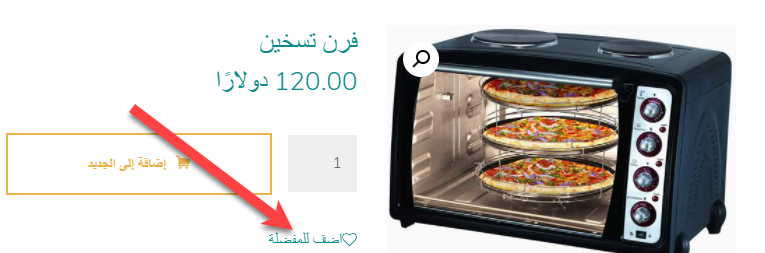
تعتبر إنشاء قائمة التفضيلات داخل المتجر الإلكتروني واحدة من الإجراءات التي تساهم في زيادة عمليات الشراء داخل المتجر حيث يدخل الكثير من الزوار إلى المتاجر الإلكترونية للبحث عن المنتجات المفضلة لديهم أو التي يخططون لشرائها عند توافر المال في توقيت ما، أو عند الوصول إلى كوبونات تخفيض للمنتجات أو غيرها من الأسباب التي تدفع الزائر إلى إضافة أحد المنتجات إلى قائمة المفضلة للرجوع إليها في وقت آخر. يختلف مظهر وطريقة عرض قائمة التفضيلات من متجر إلى آخر، وتوجد الكثير من اضافات الووردبريس التي يمكنك الاستفادة منها بإظهار زر ( أضف إلى المفضلة ) على منتجات المتجر الخاص بك، وكل اضافة لديها المميزات والسمات الخاصة بها. داخل هذه المقالة تجد مجموعة إضافات ووردبريس التي تقوم بإظهار قائمة التفضيلات على منتجات المتجر، وتخصيص شكلها ومظهرها بسهولة.
محتويات المقالة أشهر إضافات لإظهار زر (أضف إلى المفضلة) 1.
إضافة WishSuite 2. إضافة YITH Wishlist 3.
إضافة
WPC Smart Wishlist 4. إضافة TI Wishlist 5.
إضافة Wishlist and Waitlist أشهر إضافات
لإظهار زر (أضف إلى المفضلة)
تقوم الاضافات التالية بوظيفة واحدة وهي إظهار قائمة التفضيلات داخل منتجات ووكومرس، لكن كل اضافة لديها السمات والمميزات الخاصة بها دونا عن باقي الاضافات الأخرى، لذلك اختر ما يناسبك منها على حسب المميزات التي تجدها مناسبة لشكل ومظهر متجرك الإلكتروني. 1.
إضافة WishSuite تأتي
إضافة WishSuite كواحدة من الإضافات التي تساعدك على اظهار زر أضف إلى المفضلة داخل المتجر بسهولة، حيث يمكنك التحكم في شكل ومظهر زر الاضافة الى المفضلة من خلال لوحة تحكم سهلة خاصة بالإضافة ويمكنك التحكم في كافة الخيارات الخاصة بها بسهولة، كما يمكنك اختيار أن يتم عرض زر أضف إلى المفضلة داخل صفحات المنتجات أو داخل صفحة المتجر الرئيسية، وتوضح الصورة مظهر زر اضف للمفضلة بعد تنصيب وتفعيل الإضافة مباشرة فعند الدخول إلى تبويب صفحة الإعدادات الخاصة بالإضافة بعد تنصيبها مباشرة تجد كافة الاختيارات التي يمكنك التحكم بها في طريقة ظهور زر قائمة التفضيلات، حيث تجد الخيارات التالية التي يمكنك منها تفعيل ظهور زر التفضيلات داخل صفحات المنتجات المنفردة، أو داخل صفحة المتجر الرئيسية التي تعرض قائمة المنتجات:
كما تتيح لك الاعدادات التالية التحكم في مكان وموضع ظهور زر التفضيلات داخل المتجر، حيث يمكنك اختيار أن يتم عرض الزر بعد زر (أضف إلى السلة) أو قبلة أو حتى أعلى أو أسفل صورة المنتج داخل المتجر، بالإضافة إلى إمكانية تغيير النص الذي يظهر على زر التفضيلات، حيث يمكنك كتابة ( أضف إلى المفضلة ) أو أي نص آخر ترى أنها مناسب أكثر لزوار متجرك كما يمكنك تفعيل زر المشاركة بحيث يستطيع الزوار مشاركة قائمة التفضيلات لديهم لأصدقائهم، وهو ما يساعد في زيادة نشر منتجاتك على المزيد من العملاء. تجد خيار تفعيل المشاركة الاجتماعية لقائمة التفضيلات داخل اعدادات الاضافة بعد انتهائك من تخصيص كافة الإعدادات الخاصة بزر ققائمة التفاضيلات بالمتجر، يمكنك الآن إظهار صفحة التفضيلات داخل القائمة الرئيسية للمتجر لكي يسهل على الزوار الدخول إلى قائمة التفضيلات في أي وقت والقيام بعمليات الشراء من داخلها.
يمكنك إنشاء صفحة جديدة من داخل لوحة التحكم وقم بإعطائه العنوان المناسب وليكن ( المنتجات المفضلة )، ثم الصق الكود المختصر [wishsuite_table] داخل الصفحة وقم بنشر الصفحة: عند الدخول إلى تلك الصفحة التي قمت بلصق الكود المختصر الخاص بإظهار قائمة التفضيلات والذي يتم توليدها باستخدام الإضافة، تجد أنها تحتوي على كافة المنتجات التي قمت بإضافتها إلى قائمة التفضيلات لديك لعلك لاحظت كذلك ظهور ايقونات المشاركة الاجتماعية اسفل صفحة المنتجات المفضلة، وذلك لأننا قمنا بتفعيل خيار المشاركة من داخل صفحة الإعدادات الخاصة بالإضافة مسبقا. 2.
إضافة YITH Wishlist كذلك تأتي إضافة YITH Wishlist من الإضافات التي تتميز بسهولة الاستخدام وتتوفر باللغة العربية كذلك حيث تجد الإعدادات الخاصة بها تظهر كاملة باللغة العربية إذا كانت هي اللغة الأساسية داخل موقعك ولذلك لن تجد صعوبة في التعامل مع الخيارات الخاصة بها داخل لوحة التحكم.
بمجرد تنصيب الإضافة مباشرة، يظهر زر أضف إلى المفضلة اسفل زر اضف إلى السلة في صفحات المنتجات بالمتجر، وعند النقر على زر أضف للمفضلة تظهر مباشرة رسالة تخبر العميل بانه تم إضافة المنتج إلى قائمة التفضيلات، وبجوارها يظهر زر التوجه إلى صفحة الرغبات أو التفضيلات حيث يمكن للعميل تصفح قائمة التفضيلات لديه والتحكم فيها سواء بالإضافة أو الحذف عند التوجه إلى صفحة الرغبات تلاحظ ظهور ازرار مشاركة قائمة التفاضيات على مختلف منصات التواصل الإجتماعي، ويمكنك اخفاء هذه الخيارات أو اظهارها من داخل صفحة الاعدادات الخاصة بالإضافة في المقابل تستطيع إظهار زر ( حذف من التفضيلات ) بعد قيام الزائر بالنقر على إضافة إلى المفضلة لأي منتج؟ بالتأكيد يمكنك التحكم في شكل ومظهر وخصائص زر الإضافة إلى المفضلة بعد النقر عليها حيث يمكنك اختيار أن يتم اظهار رابط لصفحة المنتجات المفضلة أو حتى رابط لحذف المنتج من التفضيلات كما يمكنك تفعيل زر اضافة إلى المفضلة داخل صفحة المتجر الرئيسية التي تقوم بعرض كافة المنتجات داخل متجرك بالشكل التالي ولتفعيل هذا الخيار داخل صفحة المتجر اسفل كافة المنتجات التي يتم عرضها، يمكن الدخول إلى صفحة اعدادات الاضافة وتفعيل هذا الخيار، كما يمكنك
تحديد مكان ظهور الزر سواء قبل زر الاضافة إلى السلة أو بعده كما توفر الإضافة كود مختصر يمكنك لصقه داخل أي صفحة جديد تقوم بإنشائها أو حتى صفحة حالية ليتم عرض قائمة التفضيلات داخلها مباشرة بعد لصق الكود المختصر داخلها، ويمكنك الحصول على الكود المختصر الخاص بصفحة قائمة التفضيلات من داخل صفحة اعدادات الإضافة بسهولة أيضا تجد داخل صفحة الإعدادات العديد من الخيارات التي يمكنك التحكم من خلالها في مظهر وشكل صفحة قائمة الرغبات حيث يمكنك اختيار العناصر التي يتم عرضها داخل الصفحة أمام المستخدمين والزبائن قائمة الإعدادات الخاصة بهذه الاضافة طويلة، ويمكنك الدخول وتصفح كافة العدادات الخاصة بها وستجد عشرات الخيارات التي تساعدكم على تخصيص شكل ومظهر زر وصفحة قائمة التفضيلات والتحكم بها بالشكل المطلوب. 3.
إضافة
WPC Smart Wishlist في نفس القائمة، نرشح لك إضافة WPC Smart Wishlist فهي الأخرى تقوم بإظهار زر أضف إلى قائمة التفضيلات أو الرغبات داخل المتجر الإلكتروني، لكنها تحتوي على لوحة تحكم مميزة وتوفر العديد من الخيارات التي ربما لا تجدها في باقي الإضافات الأخرى، حيث يمكنك التحكم من خلالها في إظهار أو اخفاء زر الاضافة للتفضيلات للزوار الغير مسجلين بالموقع، وكذلك يمكنك إعداد حذف المنتجات من قائمة التفضيلات بعد مرور وقت معين عليها داخل القائمة دون الرجوع إليها.
توضح الصورة من داخل صفحة اعدادات الاضافة الخيارات التي من خلالها يمكنك التحكم في إخفاء أو إظهار القائمة للزوار غير المسجلين، وكذلك إمكانية التحكم في حذف المنتجات من التفضيلات بعد مرور وقت عليها: أيضا داخل صفحة الإعدادات تجد الكود المختصر لصفحة الرغبات أو التفضيلات والذي يمكنك نسخه ولصقه داخل أي صفحة جديدة تقوم بإنشائها ومن ثم تقوم بتعيينها على أنها صفحة التفضيلات أو المنتجات المفضلة لزوار موقعك ويمكنك إظهارها داخل القائمة الرئيسية للمتجر لسهولة الوصول إليها. كذلك يمكنك تفعيل أو تعطيل ازرار المشاركة على منصات التواصل الإجتماعي لقائمة التفضيلات بالمتجر: وأيضًا خيارات الإضافة تجد فيها إمكانية التحكم في النصوص التي يتم عرضها سواءا صفحة التفضيلات أو على زر أضف إلى المفضلة، حيث يمكنك كتابة النصوص التي تناسب زوار متجرك الإلكتروني ونوعية المنتجات لديك: 4.
إضافة TI Wishlist
تقوم إضافة TI Wishlist بإظهار برنامج تنصيب مساعد للقيام بإعداد الاضافة وخياراتها كاملة، حيث يمكنك أن تتابع التعليمات الخاصة أو تجاهلها والدخول إلى إعداداتها من داخل لوحة التحكم فيما بعد:
إذا اخترت أن تكمل تنصيب الإضافة وتخصيص اعداداتها باستخدام برنامج معالج الإعداد الخاص بها، ستظهر أمامك العديد من التبويبات التي تقوم باختيار الاعدادات الأنسب لمتجرك من خلالها ليتم يتم تصميم زر الاضافة إلى التفضيلات بالطريقة والشكل الذي تريده ثم بعد اكمال الاعدادات التي تفضلها لإظهار زر الإضافة إلى القائمة، الأن من داخل صفحة المتجر و صفحة المنتجات يمكن للزائر النقر على زر أضف إلى قائمة التفضيلات، وبعدها مباشرة يظهر له نافذة منبثقة تعرض له خيار التوجه إلى سلة المشتريات أو الإغلاق وإكمال التصفح يمكنك التوجه إلى صفحة اعدادات الاضافة في أي وقت للقيام بتخصيص شكل ومظهر قائمة التفضيلات لزوار المتجر 5.
إضافة Wishlist and Waitlist
يمكنك أيضًا الإعتماد على إضافة Wishlist and Waitlist فبها ميزة ليست متوفرة في أغلب اضافات قائمة التفضيلات الأخرى، وهي أنها تساعدك على إنشاء ( قائمة الانتظار ) لعملاء المتجر، فإذا نفذ منتج ما من المخزون الخاص به داخل المتجر يمكن للزوار القيام بإضافة المنتج هذا داخل قائمة الانتظار، حيث سيتم إرسال إشعار لهم عبر البريد الإلكتروني عندما يكون المنتج متوفر مرة أخرى.
بعد تنصيب وتفعيل الإضافة يمكنك الدخول إلى صفحة الاعدادات العامة للاضافة لاختيار صفحة الرغبات وكذلك صفحة الانتظار بعد اكمال تلك الإعدادات، الآن عند دخول الزائر إلى المتجر ستظهر لك أيقونة الإضافة إلى قائمة التفضيلات أو الرغبات اسفل كافة المنتجات التي يتم عرضها بالمتجر وعند وجود منتج قد نفذ من المخزون، سيتم اظهار ايقونة أخرى أسفله خاصة بالإضافة إلى قائمة الانتظار حيث عندما يقوم العميل بإضافة المنتج إلى قائمة الانتظار سيتم إعلامه تلقائيات برسالة عبر البريد عندما يعود المنتج متوفر مرة أخرى بالمخزون وبالتالي عندما يصبح أحد منتجات المنتج غير متوفر في المخزون، سيكون الزائر قادرا على التعرف على موعد إتاحة المنتج مرة أخرى بعد إضافته في قائمة الإنتظار، وهو ما يساعد في النهاية في زيادة عمليات البيع داخل متجرك الالكتروني بسبب متابعة العملاء للمنتجات المفضلة لديهم والإطلاع على آخر المستجدات عندما تكون متوفرة مرة أخرى بالمتجر. خاتمة بهذا نكون قد تعرفنا على أن إتاحة زر الاضافة إلى قائمة التفضيلات يعتبر اجراء سهل وغير معقد ويمكن استخدام احدى الاضافات المتخصصة للقيام بهذا الأمر في وقت قصير للغاية. عرض زر الاضافة إلى قائمة الامنيات أو التفضيلات يعتبر من الأمور الهامة التي يجب اتاحتها داخل المتجر حيث تقوم بتشجيع العميل على اضافة المنتجات المفضلة لديه لشرائها في الوقت المناسب.
دروب أيديا - DROPIDEA
نأمل أن تكون هذه المقالة قد أضافت لك قيمة حقيقية. في دروب أيديا نسعى دائمًا لتقديم محتوى عربي عالي الجودة يساعدك على النمو والتطور في المجال الرقمي. تابعنا للمزيد من المقالات والشروحات المفيدة.
الأدمن
DROPIDEA
أحدث المقالات

هل تصيّد ماسك إطلاق أداة «Dots» من OpenAI عبر نطاق dot.com؟

بيك إكس في ترفع سقف استثماراتها البذرية إلى 5 ملايين دولار

عشاء مرتقب بين رئيس أنثروبيك ودونالد ترامب وسط خلافات حول أمان الذكاء الاصطناعي

جوجل تختبر الشراء المباشر من فليبكارت عبر Gemini في الهند



