إذا لم تنشر مقطع فيديو مباشرًا على انستقرام حتى الآن، فأنت محظوظ. في هذه المقالة، سوف نتعمق في كيفية عمل بث مباشر على انستقرام في خمس خطوات سهلة – بالإضافة إلى ذلك، سنتحدث حول نظرة على النصائح المفضلة من أجل استغلال البث المباشر والترويج جيدًا لمنتجك أو علامتك التجارية وأن تُصبح من المؤثرين المعروفين. من المهم ملاحظة أنه لن تعمل هذه التعليمات إلا إذا كنت تفتح تطبيق انستقرام
على الهاتف المحمول. ومع ذلك، إذا كنت تفضل إنشاء فيديو مباشر على Instagram من سطح المكتب، فستحتاج إلى استخدام تطبيق خارجي مثل Loola TV.
كيفية عمل بث مباشر على انستقرام افتح تطبيق
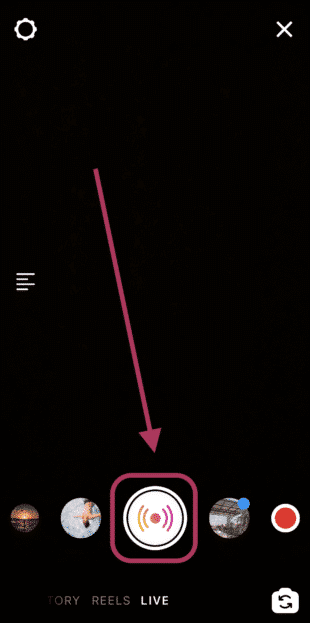
Instagram الخاص بك،وانقر فوق رمز الكاميرا في الزاوية اليسرى العليا. قم بالتمرير إلى “Live”،ثم انقر فوق زر الدائرة البيضاء. في شريط التنقل السفلي، مرر طوال الطريق إلى اليسار حتى ترى “مباشر”.
ثم انقر فوق الدائرة البيضاء الكبيرة لبدء التسجيل. ( ملاحظة : ستعرف أنك على الهواء مباشرة عندما ترى زر “مباشر” الوردي أعلى الشاشة، بالإضافة إلى النص “سنخبر متابعيك أنك بدأت مقطع فيديو مباشرًا” في الأسفل.) تصفية الفيديو المباشر الخاص بك. إذا كنت ترغب في تصفية الفيديو المباشر الخاص بك، فانقر على أيقونة وجه مبتسم في الزاوية العلوية اليمنى من الشاشة.
ثم قم بالتمرير عبر الخيارات التي تظهر في الأسفل. قم بدعوة الآخرين للانضمام إلى الحدث المباشر الخاص بك. لزيادة التفاعل مع الفيديو المباشر الخاص بك، انقر فوق ملفك الشخصي (أعلى يسار الشاشة)، ثم “دعوة الآخرين للانضمام” لدعوة زملائك وأصدقائك وعملائك وزملائك من أصحاب النفوذ، وما إلى ذلك.
استخدم ميزة “سؤال وجواب”للتفاعل مع المشاهدين والإجابة على الأسئلة. عندما يبدأ المتابعون في الانضمام، ستحتاج إلى تتبع أي أسئلة يطرحونها. للقيام بذلك، انقر فوق رمز علامة الاستفهام في الزاوية اليمنى السفلية من شاشتك.
هذا هو المكان الذي ستتمكن فيه من رؤية أسئلة متابعيك والرد عليها. المشاركة في استضافة حدث مباشر مع علامات تجارية أو مؤثرين آخرين على انستقرام. لتوسيع مدى وصولك، ضع في اعتبارك المشاركة في استضافة حدث مباشر مع علامات تجارية أو مؤثرين آخرين في غرفة Instagram Live Room.
لبدء البث المباشر في غرفة، انقر فوق رمز مشغل الفيديو، ثم “قم بدعوة” مستخدمين آخرين للذهاب معك مباشرة، أو ابحث عن مقاطع الفيديو المباشرة لشخص آخر في شريط البحث. قم بإنهاء الفيديو عندما تكون جاهزًا. لإنهاء الفيديو، انقر على “X” في الزاوية العلوية اليمنى من شاشتك، وحدد الزر الوردي “إنهاء الآن”.
كيفية مشاركة أو حفظ فيديو البث المباشر الخاص بك قد ترغب في مشاركة الفيديو المباشر الخاص بك على IGTV، بحيث لا يزال بإمكان المتابعين مشاهدة الفيديو على حساب انستقرام الخاص بك بعد وقوعها. لحفظ فيديو انستقرام لايف الخاص بك ومشاركته على IGTV، ما عليك سوى اتباع هذه الخطوات. عند النقر فوق “إنهاء الفيديو” في الفيديو المباشر الخاص بك، سيوفر لك انستقرام ثلاث خيارات منبثقة: “مشاركة على IGTV” أو “تنزيل الفيديو” أو “حذف الفيديو”.
لمشاركة الفيديو على IGTV، انقر فوق “Share to IGTV”، ثم الزر “التالي” الأزرق في أعلى يمين الشاشة. بعد ذلك، قم بتحرير صورة الغلاف والعنوان والوصف. عندما تكون راضيًا عن ذلك، انقر على “نشر” في الجزء العلوي الأيسر.
إذا اخترت مشاركة الفيديو المباشر الخاص بك على IGTV، فيمكن لمتابعيك متابعة المشاهدة وإعادة المشاهدة متى كانوا متاحين. إذا كنت تنشئ حدثًا مباشرًا حصريًا في نفس الوقت فقط، فقد ترغب في تخطي هذه الخطوة، ولكن بخلاف ذلك، من الجيد الاحتفاظ بالمحتوى الذي أنشأته من أجل أن يصل إلى المتابعين الذين لم يتمكنوا من الانضمام إلى البث المباشر. اقرأ أيضاً: كيفية مشاركة ستوري الانستقرام – اعادة نشر قصص انستجرام الي تعجبك ميزات البث المباشر على انستقرام بمجرد تشغيل
Instagram Live ، سترى ثلاثة رموز في الجزء السفلي من الشاشة – علامة زائد في رمز مسجل فيديو، فقاعة علامة استفهام، وطائرة ورقية. تتيح لك علامة الجمع في أيقونة مسجل الفيديو الانضمام إلى Instagram Live Room. تعد Live Roomفرصة جيدة للمشاركة في استضافة فيديو مباشر مع ما يصل إلى ثلاثة ضيوف – مما يتيح لك توسيع نطاق وصولك بسرعة.
على سبيل المثال، ربما تشارك مع عدد قليل من المؤثرين في مجال عملك لإنشاء مناقشة مائدة مستديرة، مع نفسك كمضيف. سيقوم متابعو هؤلاء المؤثرين بشكل مثالي بفحص الفيديو المباشر ومعرفة المزيد عن علامتك التجارية نتيجة لذلك. يتيح لك رمز علامة الاستفهام الفقاعية مشاركة الأسئلة مع المشاهدين.
(من المهم ملاحظة أنه لن تتمكن من مشاركة الأسئلة إلا إذا أرسل شخص ما سؤالاً أثناء الفيديو المباشر الخاص بك.) يتيح لك رمز الطائرة الورقية إرسال رسالة مباشرة إلى شخص ما حول فيديو انستقرام فيديو الخاص بك، وهو ما قد ترغب في القيام به إذا كنت تأمل في دعوة شخص لم ينضم بعد إلى الفيديو المباشر لمشاهدته. مقالات متعلقة: شرح ارسال رسالة تختفي بعد رؤيتها في انستجرام – وضع Vanish Mode شرح خاصية انستجرام Reels نسخة تيك توك المقلدة وهل فيديوهات ريلز أفضل ؟
دروب أيديا - DROPIDEA
نأمل أن تكون هذه المقالة قد أضافت لك قيمة حقيقية. في دروب أيديا نسعى دائمًا لتقديم محتوى عربي عالي الجودة يساعدك على النمو والتطور في المجال الرقمي. تابعنا للمزيد من المقالات والشروحات المفيدة.

الأدمن
DROPIDEA
أحدث المقالات

هل تصيّد ماسك إطلاق أداة «Dots» من OpenAI عبر نطاق dot.com؟

بيك إكس في ترفع سقف استثماراتها البذرية إلى 5 ملايين دولار

عشاء مرتقب بين رئيس أنثروبيك ودونالد ترامب وسط خلافات حول أمان الذكاء الاصطناعي

جوجل تختبر الشراء المباشر من فليبكارت عبر Gemini في الهند



