كيفية عمل استنساخ لموقعك الووردبريس (Clone site) بهدف التجريب
 بقلم الأدمن
خلال مسيرة عملك في تطوير عملك عبر الإنترنت ستحتاج في مرحلة ما إلى إنشاء نسخة طبق الأصل من موقعك الخاص، أو لأحد العملاء الذين تنجز لهم مشروعاً خاصاً بهم بهدف إجراء التجريبات على هذا الموقع المستنسخ بدلًا من إجراء التجريبات على الموقع المنشور. في هذه المقالة ستتعلم كل شيء حول طريقة عمل استنساخ (Clone)
لموقع ووردبريس بالكامل حيث يمكنك من خلال هذه الطريقة نسخ كامل المحتوى والمكونات الداخلية الخاصة بالموقع بطريقة للغاية وغير مكلفة، وكذلك ستتعلم طريقة عمل استنساخ لمقال أو صفحة محددة في الموقع، أو عمل استنساخ لقالب موقعك أو إحدى القوائم الموجودة في الموقع.
متى تحتاج إلى عمل استنساخ لموقعك؟
هدفنا في هذه المقالة هو أن نشرح هذه الآلية لمستخدم ومدير موقع ووردبريس الذي يرغب في عمل نسخة لأحد المواقع الخاصة به، ورفع هذه النسخة على استضافة أخرى أو خادم آخر بغرض إنشاء نسخة طبق الأصل من موقعه الأصلي وذلك بهدف إجراء بعض الأمور الهامة والتي قد يكون منها ما يلي: قد تحتاج إلى عمل استنساخ من موقعك الحالي إلى استضافة أخرى أو مجلد آخر داخل الاستضافة الخاصة بك، بحيث تجعل تلك النسخة الجديدة عبارة عن نسخة تجريبية لتقوم بتجربة أي شيء تريد تغييره في الموقع عليها قبل أن تقوم بالتغيير فعلياً على النسخة الأصلية للموقع. يمكن استخدام طريقة الاستنساخ تلك لعمل نسخة احتياطية (Backup) من موقعك وحفظها في مكان آمن وذلك تحسباً لأي ظرف طارئ قد يتسبب في فقدان البيانات داخل موقعك الأصلي في حال نقل موقع الووردبريس الخاص بك إلى مزود خدمة آخر، ففي تلك الحالة يمكنك عمل استنساخ للموقع لنقله بالكامل إلى المكان الجديد. بعد أن تعرفنا على أشهر الحالات التي تحتاج فيها إلى القيام بعمل استنساخ لموقع الووردبريس الخاص بك أو بأحد عملائك.
سنقوم في الفقرات التالية بشرح مبسط لمعظم الحالات الخاصة بعملية الاستنساخ والتي تساعدك على إنشاء نسخة طبق الأصل سواء من الموقع بأكمله، أو حتى لبعض الأجزاء الهامة داخل الموقع دوناً عن غيرها. ملحوظة : ننوه إلى إخلاء مسؤوليتنا من أي استخدام غير أخلاقي لهذه العملية من قِبَل المستخدم، فلا يجب أن تقوم باستنساخ موقع منشور بالفعل عبر الإنترنت، ثم تقوم بنشر النسخة الجديدة على أنها موقع حصري تابع لك، فهذا من شأنه أن يلحق الضرر بك وبموقعك المنسوخ من موقع آخر. عمل استنساخ لموقع الووردبريس بالكامل (المحتوى + قواعد البيانات)
في هذه الحالة سنشرح لك كيفية القيام بعمل نسخة طبق الأصل من موقع ووردبريس، ثم الإنتقال إلى المكان المراد نقل النسخة تلك إليه وتشغيلها بدون أية مشاكل، وهذه الحالة تكون مفيدة كذلك إذا كنت ترغب في عمل نسخة احتياطية لموقعك بالكامل وتخزينها في أي مكان آخر. اقرأ أيضًا:
شرح عمل نسخة احتياطية لموقعك لتأمينه من أي ضرر
لكي تقوم بعمل استنساخ لموقع ووردبريس فيمكنك استخدام إحدى إضافات الووردبريس التي تقوم بالأمر بطريقة سهلة ، حيث يوجد الكثير من إضافات الووردبريس المتخصصة في عمل استنساخ (Clone) لموقع الووردبريس، ولكننا سنختار من بينها إضافة ( Duplicator ) حيث أنها توفر نسخة مجانية يمكنك الاعتماد عليها للقيام بعملية الاستنساخ كاملة دون أية مشاكل.
يمكنك الإطلاع على دليل
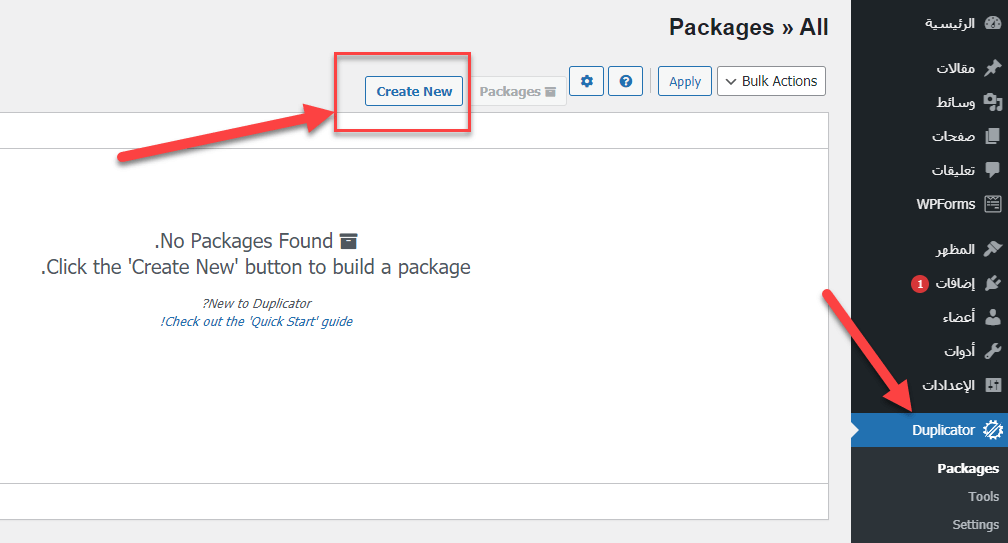
طريقة تنصيب إضافات الووردبريس للقيام بتنصيب الإضافة على الموقع المراد عمل استنساخ له. ثم بعد قيامك بتنصيب الإضافة على موقعك مباشرة، ستلاحظ ظهور تبويب خاص بهذه الإضافة داخل شريط التبويبات الخاص بلوحة تحكم الووردبريس ويظهر بإسم Duplicator كما هو موضح في الصورة التالية: عند الدخول إلى التبويب الخاص بالإضافة، ستفتح لك صفحة الإعدادات التي يمكنك من داخلها البدء في إنشاء نسخة أو عمل استنساخ لموقعك بالكامل بدون أي مشاكل.
قم بالضغط على الزر “ Create new ” كما هو مبين في الصورة للبدء في إنشاء نسخة طبقة الأصل من الموقع الحالي. ثم بعد الضغط على Create new ستفتح لك صفحة جديدة تحتوي على الإعدادات العامة للنسخة التي سيتم إنشاؤها من الموقع في خطوتين كالتالي: حقل Name : والذي يتم فيه كتابة اسما افتراضيا للنسخة الكاملة التي سيتم إنشاؤها للموقع.
ويمكنك تغيير هذا الاسم أو تركه كما هو فلن يتغير شيء بتغيير الاسم. قم بالضغط على Next ثم بعد الضغط على Next ستظهر أمامك صفحة الإعدادات النهائية التي تحتوي على كافة البيانات حول النسخة التي سيتم إنشاؤها من الموقع الحالي: بعد ذلك تقوم بالضغط على زر” Build ” لكي تقوم الإضافة بعد ذلك مباشرة بالعمل على إنشاء نسخة طبق الأصل من موقعك.
قد يلزم بعض الوقت لإتمام عملية الاستنساخ. ففي حال كان لديك موقع مليء بالبيانات ويحتوي على كمية ضخمة من هذه البيانات فقد يستغرق الأمر الكثير من الوقت، لذلك يتوجب عليك الصبر حتى انتهاء عملية الاستنساخ بالكامل لموقعك، وبعد الانتهاء ستظهر رسالة تخبرك بانتهاء عملية الاستنساخ ويظهر لك ملفان تستطيع تحميلهم كالتالي: Archive : وهو ملف مضغوط يمكنك النقر عليه لتنزيله على حاسوبك. حيث أن هذا الملف يحتوي على كافة البيانات والمعلومات في موقع الووردبريس الأصلي.
installer وهو ملف php يمثل سكربت التنزيل، يمكنك تنزيله على حاسوبك أيضاً لكي تستخدمه لاحقاً في تنصيب وتشغيل تلك النسخة على المكان أو الاستضافة الجديدة التي ستقوم بإطلاق النسخة الجديدة عليها. في الفقرات السابقة قمنا بإنشاء نسخة طبق الأصل من موقع الووردبريس الخاص بك.
حيث من المفترض أنك الآن قد حصلت على ملفين هما Archive وكذلك Installer . ثم لنأتي الآن لشرح طريقة رفع وتشغيل تلك النسخة على استضافة أخرى أو في مجلد آخر ضمن موقعنا.
لتشغيل تلك النسخة على استضافة أخرى، سنقوم بفتح مدير الملفات للاستضافة الجديدة المراد نقل النسخة عليها، وذلك من داخل لوحة تحكم الاستضافة Cpanel وسنقوم من داخل مدير ملفات الاستضافة بإنشاء مجلد جديد New Folder : سنقوم بتسمية المجلد الجديد Clonsite على سبيل المثال، أو أي اسم آخر.
وبعدها سنقوم بالدخول إلى المجلد الجديد والقيام بعمل رفع Upload للملفين اللذين حصلنا عليهما في الفقرة السابقة عندما قمنا بعمل استنساخ للموقع القديم: توضح الصورة السابقة الملفين بعد إتمام عملية الرفع. حيث نرى أن الملفين موجودان الآن داخل المجلد الجديد Clonsite.
بعد رفع الملفات بنجاح يمكنك الآن القيام بالدخول إلى رابط الملف الجديد Clonsite الذي قمت برفع الملفات بداخله، وليكن على سبيل المثال www.site.com/clonsite وستلاحظ ظهور شاشة تخبرك بما إذا كنت تريد تنصيب الووردبريس على هذا المسار، اتبع الخطوات وسيتم تشغيل النسخة على موقعك بالكامل وكأنها النسخة الأصلية تماماً بدون أي فارق.
وكذلك تستطيع ربط هذه النسخة بدومين آخر
يختلف تمامًا عن الدومين الأصلي، أو تفعيلها على نطاق فرعي بحيث تتعامل مع استضافة مختلفة وقواعد بيانات مختلفة وكذلك نطاق مختلف لعمل التجارب بالكامل بأريحية. ثم بعد استيراد كل شيء وإتمام عملية نقل النسخة وتشغيلها على الاستضافة الجديدة بنجاح، يمكنك الآن الرجوع إلى الموقع الأصلي والدخول إلى التبويب الخاص بإضافة الاستنساخ، ثم تقوم بالدخول على التبويب Tools الخاص بها، ومن ثم تقوم بالضغط على زر Remove installation files ليتم حذف ملفات التنصيب حتى لا تشكل عبئاً على الاستضافة الخاصة بالموقع:
وبذلك تكون قد نجحت في عمل استنساخ لموقع ووردبريس بالكامل بدون أي مشاكل. وكذلك قمت بنقل هذه النسخة إلى مكان جديد أو استضافة أخرى وتشغيلها عليه كذلك. عمل استنساخ لمقالة أو لصفحة فقط داخل الووردبريس.
في الحالة السابقة قمنا بشرح طريقة عمل استنساخ لموقع ووردبريس بالكامل سواء الملفات الخاصة ببيانات الموقع أو قواعد البيانات كاملة. الآن دعنا نفترض بأنك تريد استنساخ مقالة أو صفحة محددة في موقعك،لتضمن نسخ الإعدادات الخاصة بالمقالة (مثل الصورة البارزة، والتصنيف، والوسوم، وكذلك إعدادات السيو SEO الخاصة بهذه المقالة)، وكذلك لتقوم بعملية النسخ بشكل آلي. لهذا سنوضح لك كيف تقوم بعمل استنساخ مقالة أو صفحة داخل موقع الووردبريس الخاص بك، بحيث يتم نسخ المقالة مع كامل الإعدادات الخاصة بها سواء الصورة البارزة أو الوسوم والتصنيفات أو أي إعدادات أخرى قمت بتعيينها للمقالة في وقت سابق.
تستطيع عمل استنساخ لمقالة أو صفحة ما بالموقع باستخدام إحدى الإضافات المتخصصة في هذا الأمر، وأشهر هذه الإضافات هي إضافة Yoast Duplicate Post ، حيث أنها مجانية، ويمكنك الاعتماد عليها للقيام بعمل نسخة طبق الأصل من مقالات أو صفحات موقعك بكل سهولة. فبعد قيامك بتنصيب الإضافة على موقعك، يمكنك الدخول إلى صفحة الإعدادات الخاصة بهذه الإضافة في لوحة تحكم الووردبريس باختيار “استنساخ المقالة” وستفتح أمامك صفحة الإعدادات الخاصة بعملية الاستنساخ كالتالي: كما تلاحظ في الصورة السابقة فإن صفحة الإعدادات الخاصة بالإضافة تمكنك من تحديد العناصر المسموح باستنساخها مع المقالة أو الصفحة المراد نسخها، حيث يمكنك تحديد الكثير من العناصر مثل (تاريخ نشر المقالة، أو العنوان، أو الاسم اللطيف، أو الصورة البارزة..) وغيرها من الخيارات التي يمكنك الاختيار من بينها ليتم استنساخها أثناء عملية استنساخ المقالة أو الصفحة.
والآن بعد انتهائك من ضبط الإعدادات الخاصة بعملية استنساخ المقالات والصفحات، يمكنك التوجه إلى مقالات أو صفحات موقعك، وستجد خيار “استنساخ” يظهر أسفل كل مقالة، بمجرد الضغط عليه سيتم عمل استنساخ للمقالة وإنشاء مقالة طبق الأصل عنها في هيئة مسودة حيث يمكنك فتحها والتعديل عليها ونشرها، وإليك صورة توضيحية للأمر: اقرأ أيضًا: شرح Yoast SEO لتحسين سيو موقعك (دليل شامل)
شرح استنساخ إحدى القوائم الرئيسية في الووردبريس في بعض الأحيان التي يكون لديك فيها عدد من القوائم Menus داخل موقع الووردبريس الخاص بك، قد تظهر لك مشكلة في إحدى القوائم، وقد يتطلب الأمر منك القيام بإجراء وتطبيق الكثير من التعديلات على القائمة لحل المشكلة أو التعديل عليها بطريقة ما. في هذه الحالة سيكون من الجيد لك أن تقوم بعملية استنساخ لتلك القائمة، وتقوم بالتغييرات التي تريدها على النسخة الجديدة من القائمة بدون أن تتأثر النسخة الأصلية منها.
لعمل استنساخ لإحدى القوائم في موقعك يمكنك الاعتماد على إحدى الإضافات الشهيرة المتخصصة في هذا الأمر، ولعل أشهرها إضافة Duplicate Menu ، حيث توفر تلك الإضافة خيار استنساخ قائمة عناصر في الووردبريس. بعد قيامك بتنصيب الإضافة على موقعك الووردبريس ، يمكنك الآن الدخول إلى صفحة الإعدادات الخاصة بها لتقوم بعمل استنساخ لإحدى القوائم في موقعك باختيار التبويب “ المظهر ” من شريط تبويبات لوحة التحكم، وستجد هنا خياراً جديداً بإسم Duplicate Menu ، ليظهر أمامك مكونان رئيسيان كما يلي:
قائمة منسدلة تسمح لك باختيار اسم القائمة الموجودة في موقعك والتي تريد عمل استنساخ لها. حقل نصي تكتب فيه اسماً أو عنواناً للقائمة الجديدة المستنسخة من القائمة الأصلية. بعد إكمال البيانات، يمكنك الضغط على زر Duplicate Menu ليتم عمل استنساخ للقائمة التي قمت باختيارها وتسميتها بالاسم الجديد الذي قمت بكتابته، ثم عند دخولك إلى تبويب “ قوائم ” في موقعك ستلاحظ وجود القائمة الجديدة التي تم استنساخها: بالنهاية فإن استنساخ مواقع الووردبريس بهدف التجربة أو تطبيق التغييرات على الموقع يعتبر من الأمور الهامة التي يحتاج إليها عدد كبير من مستخدمي ومديري مواقع الووردبريس
دروب أيديا - DROPIDEA
نأمل أن تكون هذه المقالة قد أضافت لك قيمة حقيقية. في دروب أيديا نسعى دائمًا لتقديم محتوى عربي عالي الجودة يساعدك على النمو والتطور في المجال الرقمي. تابعنا للمزيد من المقالات والشروحات المفيدة.
الأدمن
DROPIDEA
أحدث المقالات

هل تصيّد ماسك إطلاق أداة «Dots» من OpenAI عبر نطاق dot.com؟

بيك إكس في ترفع سقف استثماراتها البذرية إلى 5 ملايين دولار

عشاء مرتقب بين رئيس أنثروبيك ودونالد ترامب وسط خلافات حول أمان الذكاء الاصطناعي

جوجل تختبر الشراء المباشر من فليبكارت عبر Gemini في الهند



