كل الطرق لحل مشكلة “بانتظار الاتصال بالشبكة” في تطبيق فيسبوك ماسنجر
 بقلم الأدمن
تطبيق ماسنجر له شعبية كبيرة في جميع أرجاء العالم… كيف لا وهو وسيلة الدردشة الخاصة بـ أكبر موقع تواصل اجتماعي على الكوكب!. ولكن هناك بعض المشكلات المزعجة فيه أيضًا مثل عرض رسالة “بانتظار الاتصال بالشبكة” عند فتح التطبيق حتى عند تفعيل الإنترنت، فكيف يمكن إصلاح المشكلة ؟ لحسن الحظ، تبين أن هناك 5 طرق احترافية للتغلب على هذه المشكلة سوف نتعرف عليها فى هذا المقال.
فى الماضي، كان موقع فيسبوك يشتمل على تطبيق الدردشة الخاص به ومدمج معه سواء على الكمبيوتر او فى تطبيق الجوّالات الذكية. لكن حاليًا الأمور اختلفت، حيث أصبحت خدمة الدردشة منفصلة عن الموقع وباتت عبارة تطبيق مستقل هو Facebook Messenger. وبصرف النظر عن إمكانية تبادل الرسائل من خلاله مع الأصدقاء والمعارف، فهو يتضمن ميزات قوية مثل إجراء المكالمات الصوتية وإجراء مكالمات فيديو جماعية وإنشاء مجموعة محادثة بين عدة أفراد، وتبادل صور متحركة GIF ونشر القصص (ميزة تشبه “الحالة” في واتساب) والمزيد.
لكن في بعض الأحيان عندما ترسل رسالة إلى صديقك عبر الماسنجر، فتكتشف أنها لم ترسل له بعد، حيث لم تظهر أيقونة علامة ✔ صغيرة بجوار الرسائل المرسلة للطرف الآخر. غالبًا ما تلاحظ أيضًا ظهور بانر أصفر فى الجزء العلوي يحتوي على رسالة “بانتظار الاتصال بالشبكة”. هذه مشكلة شائعة، حيث أنها وردت كثيرًا في
مجتمع المساعدة فى فيسبوك . لكن لا تقلق، سوف نخبرك هنا بكيفية إصلاح هذه المشكلة على أجهزة أندرويد. لنبدأ.
ملحوظة ع السريع: قبل أن تجرّب أي طريقة، قم بإعادة تشغيل هاتفك اولًا. في بعض الأحيان، يتعطل التطبيق بسبب ضعف اتصال الشبكة أو وجود خطأ برمجي.
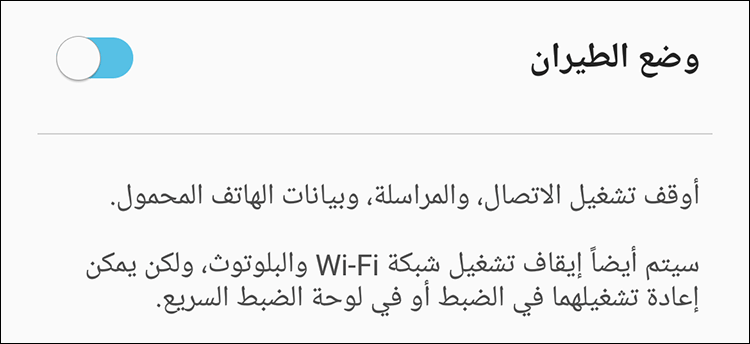
يجب أن يتم إصلاحه بعد محاولة إعادة تشغيل الهاتف. 5 طرق مختلفة لحل مشكلة بانتظار الاتصال بالشبكة الحل الاول: تفعيل وضع الطيران كما يعلم معظمكم، يقوم وضع الطيران – Airplane Mode بإيقاف تشغيل جميع انواع خدمات الاتصال في الهاتف، بما في ذلك بيانات الهاتف الخلوية وشبكة الواي فاي وأيضًا البلوتوث. قد يساعدك تفعيل هذا الوضع لبعض الوقت أيضًا في حل المشكلة وجعل تطبيق # فيسبوك_ماسنجر
يعمل بصورة طبيعية دون مشاكل. كل ما عليك القيام به هو الإنتقال إلى الضبط ثم إلى إعدادات الإتصال، ثم تفعيل خيار وضع الطيران. بدلًا من ذلك، يمكنك تفعيله من خلال لوحة الإعدادات السريعة في لوحة الإشعارات.
بعد مرور بعض الوقت القصير، قم بإلغاء تفعيله وقم بتفعيل الإتصال بالإنترنت ثم جرّب تشغيل التطبيق لاكتشاف ماذا إذا كان يعمل أم لا. الحل الثاني: حذف الكاش ميموري أو البيانات حذف الكاش ميموري هي واحدة من الطرق الشائعة للتغلب على المشاكل التى يواجهها البعض مع تطبيقات أندرويد، وهي فعالة كذلك لحل مشكلة “بانتظار الاتصال بالشبكة” المتعلقة بتطبيق فيسبوك ماسنجر. لاحظ أن حذف الكاش ميموري لن يؤدي إلى
حذف رسائل الفيسبوك الخاصة بك، بل حذف بعض الملفات المؤقتة التى تجعل تطبيق ماسنجر يعمل بشكل أسرع عند تشغيله، وعند حذفها وإعادة تشغيل التطبيق، سيتم إعادة تخزينها من جديد مرة أخرى. إذًا، لمسح الكاش ميموري لتطبيق ماسنجر كل ما عليك فعله هو الانتقال إلى الضبط Settings ثم إلى قسم التطبيقات Apps ثم البحث عن تطبيق Messenger والنقر عليه لفتح شاشة التحكم.
هنا سوف تضغط على قسم التخزين Storage ثم النقر على خيار Clear Cache لمسح ذاكرة التخزين المؤقت. إن لم تفلح، جرّب النقر على زر Clear Data والذي بدوره يقوم بحذف بياناتك من التطبيق؛ أي تسجيل خروجك من فيسبوك ماسنجر. لذا، عند فتح التطبيق سوف تقوم بكتابة البريد الإلكتروني وكلمة السر وتسجيل الدخول لإكتشاف ما إذا تم حل المشكلة أم لا.
الحل الثالث: تفعيل أو تعطيل البيانات الخلفية إذا كانت باقة الإنترنت لديك محدودة للغاية، فيمكنك دائمًا خفض استهلاك الإنترنت في جوّالك للحفاظ عليها، أفضل طريقة لتحقيق ذلك هو منع التطبيقات من الاستمرار فى العمل في الخلفية. ومع ذلك، في بعض الأحيان، قد يؤدي ذلك إلى إعاقة الأداء السلس لتطبيق فيسبوك ماسنجر. لذا، تحقق من أن هذا التطبيق تحديدًا يعمل فى الخلفية إن لم يكن لا يعمل.
للتحقق من ذلك، اذهب إلى الضبط Settings ثم إلى قسم التطبيقات Apps ثم إلى تطبيق Messenger ثم النقر على قسم Mobile data وتفعيل خيار Allow background data usage. إذا كان إفتراضيًا نشيطة، قم بتعطيلها وجرّب تشغيل فيسبوك ماسنجر على جوّالك لمعرفة النتيجة. إقرأ ايضًا: حل مشكلة مساحة التخزين منخفضة للاندرويد – 7 حلول فعالة لرسالة Low Internal Storage الحل الرابع: تغيير الـ DNS للشبكة فى حالة إذا كنت متصلًا بالإنترنت عبر بيانات الجوّال الخلوية وتواجه مشكلة “بانتظار الاتصال بالشبكة” على تطبيق فيسبوك ماسنجر، فحاول أن تتصل عبر الشبكة اللاسلكية Wi-Fi.
إذا ظلت المشكلة على نفس الحال، فالأفضل هنا هو أن تجرب تغيير الـ DNS الخاص بهذه الشبكة على جهازك فقط، ولاحظ أن هذه الطريقة تفيد أيضًا في حجب المواقع الغير مرغوب فيها.
عمومًا، لفعل ذلك اذهب إلى الضبط ثم إلى قسم الشبكة اللاسلكية واي فاي واضغط مطولًا على اسم الشبكة المتصل بها. بعد ذلك اضغط على الخيار الثاني في القائمة Manage network settings ثم ضع علامة ✔ بجوار خيار Show advanced options ثم اضغط على قائمة IP settings وحدد منها Static لتظهر لك قائمة تحتوي على المزيد من الخيارات فتقوم بالتمرير إلى الأسفل وتكتب فى حقل DNS 1 العنوان 8.8.8.8 ثم في حقل DNS 2 تكتب العنوان 8.8.4.4 ومن ثم تضغط على زر Save وحاول تشغيل تطبيق فيسبوك ماسنجر مجددًا. الحل الخامس: تعطيل وضع حفظ الطاقة (البطارية) في معظم الأحيان، يكون وضع توفير الطاقة أو البطارية في جهازك هو الذي يسبب ظهور رسالة “بانتظار الاتصال بالشبكة” عند محاولة تشغيل تطبيق فيسبوك ماسنجر.
يجب عليك تعطيل وضع توفير البطارية لجعل فيسبوك ماسنجر يعمل مرة اخرى على نحو سلس. يمكنك القيام بذلك بكل سهولة عن طريق سحب شريط الاشعارات للأسفل وإيقاف تنشيط خيار Power Saving Mode او الإنتقال إلى الضبط ثم إلى قسم Battery ثم النقر على خيار Battery Saver وتعطيله. إذا استمرت المشكلة على نفس الحال، هنا ليس عليك سوى الانتقال إلى إصدار Lite من الفيسبوك ماسنجر والذي يُعتبر واحدًا من
افضل خمس تطبيقات خفيفة للاندرويد . حيث أنه تطبيق صغير الحجم ولا يستهلك الكثير من بيانات الإنترنت أو موارد الجهاز مقارنة بالتطبيق الأساسي. ولكنه يفتقر من بعض المميزات، حيث ما يجعله خفيف هكذا هو تركيزه على الخواص الأساسية للمُستخدمين، لذا امنحه تجربتك واختبره بعض الوقت.
دروب أيديا - DROPIDEA
نأمل أن تكون هذه المقالة قد أضافت لك قيمة حقيقية. في دروب أيديا نسعى دائمًا لتقديم محتوى عربي عالي الجودة يساعدك على النمو والتطور في المجال الرقمي. تابعنا للمزيد من المقالات والشروحات المفيدة.
الأدمن
DROPIDEA
أحدث المقالات

هل تصيّد ماسك إطلاق أداة «Dots» من OpenAI عبر نطاق dot.com؟

بيك إكس في ترفع سقف استثماراتها البذرية إلى 5 ملايين دولار

عشاء مرتقب بين رئيس أنثروبيك ودونالد ترامب وسط خلافات حول أمان الذكاء الاصطناعي

جوجل تختبر الشراء المباشر من فليبكارت عبر Gemini في الهند



