حل مشكلة Optimize images لزيادة سرعة تحميل الموقع – ووردبريس
 بقلم الأدمن
يوماً بعد يوم تزداد تعقيدات تخصيص المواقع ونظيمها من حيث سرعة أداء الموقع وأيضاً سرعة تحميل الصور وغيرها من الأمور التي يجب مراعاتها مع كل تحديث جديد لخوارزميات محركات البحث، وكثرة التعقيدات على SEO التي تزداد يوماً بعد يوم. الكثر وعند محاولتهم فحص سرعة تحميل موقعهم على أداة فحص المواقع
PageSpeed Insights
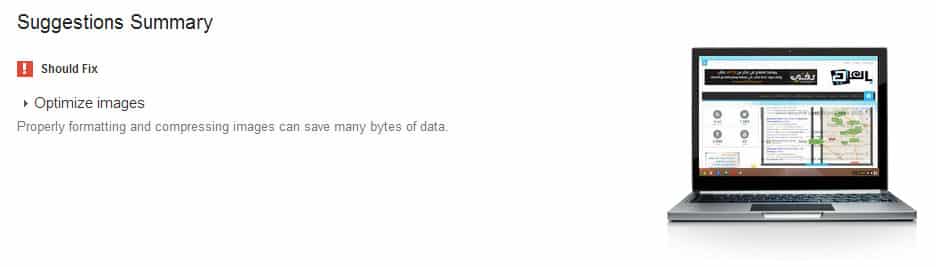
من جوجل، يجدون العديد من المشكلات التي تعوق موقعهم من التحميل بشكل سريع وأحد هذه المشكلات التي سنقوم بحلها اليوم هي مشكلة حجم الصور في مواقعنا والتي نراها في أداة الفحص تحت أسم Optimize Images وتعرض علينا جوجل عدة خيارات للقيام بتصغير حجم الصور وحل هذه المشكلة.
طريقة الحل التي سنعتمد عليها اليوم في شرحنا هي للمواقع العاملة على مدونات ووردبريس فقط والشرح لا يشمل أي منصة عمل أخرى، وأتمنى أن نكون قادرين في المستقبل على دعم منصات أخرى ضمن الشروح المقدمة. بداية سنوضح شكل الخطأ الذي سيظهر في فحص سرعة أداء الموقع من جوجل : عندو وجود هذا الخطأ في مواقعنا هذا يعني أنه علينا القيام والبدء بالعمل على تصغير حجم الصور لتتناسب مع سياسات أصحاب المواقع في جوجل، وأي محرك بحث آخر. في ووردبريس نجد الكثير من الاضافات التي تتعامل مع هذا النوع من الأخطاء واليوم سنرتكز في شرحنا على اضافة تحمل الاسم :
EWWW Image Optimizer هذا الاضافة ستقوم بعمل تخصيص لجميع الصور في الموقع وستقوم أيضاً بتوفير الكثير من المساحة الأمر الذي سؤمن لنا توافق مع SEO وأيضاً توافق مع ارشادات اصحاب المواقع.
لتثبيت هذه الاضافة كأي اضافة أخرى، ويتم ذلك عن طريق : لوحة التحكم > الإضافات > إضافة جديدة > ومن ثم نقوم بالبحث باستخدام اسم الاضافة كاملاً ونقوم بالضغط على تثبيت الاضافة وبعدها نضغط على تفعيل ليتم تفعيل الإضافة والخطوة الثانية ستكون عبارة عن ضبط اعدادات إضافة EWWW. وتأكد من جعل مجلد wp-content قابل للكتابة عبر منحه التصريح 777 .
للتوجه للصفحة الرئيسية لإعدادات الإضافة نتبع التسلسل التالي : لوحة التحكم > إعدادات > EWWW Image Optimizer > وعندها ستفتح لنا صفحة الاعدادات العامة وسنقوم بمعاينتهم بشكل سريع لشرح وظيفة كل خيارة من بين تلك الخيارات المقدمة.
القسم الأول : التأكد من أن السيرفر لديك
مجهز ليعمل مع الاضافة السيرفر لدينا يجب أن يكون مجهز بالإضافات التالية : jpegtran, optipng, pngout وأيضاً gifsicle ، وهي إضافات ليونكس المسؤلة عن التحكم بالوصور وتصغيرها وضغط حجمها وكما نلاحظ في الصورة الماضية وجود كلمة OK باللون الأخضر تعني أن هذا السيرفر متوافق مع متطلبات الإضافة ولا داعي للقيام بأي خطوات اضافية من قبلنا.
ملاحظة:
في حال وجود أي مشكلة في ضبط اعدادات السيرفر أو أن بعض الإضافات غير موجودة، علينا الاتصال بالاستضافة وطلب تثبيت الحزمة المفقودة والتأكد بعدها من عملها بشكل صحيح. القسم الثاني : رفع واستضافة صور الموقع سحابياً في هذا القسم سيمكننا اختيار رفع الصور إلى استضافة خارجية Cloud Host، وهي خدمة مدفوعة وتستخدم في حال ازدياد التحميل أو الباندوث على الموقع. ويمكن استخدامها على الاستضافات المشاركة لتخفيف الاستهلاك الشهري للبيانات على الموقع.
سيتم تجاوز شرح هذه النقطة نظراً لعملنا على سيرفر خاص تتوفر به مساحة كافية لمعالجة هذه الكمية من البيانات. القسم الثالث : الإعدادات العامة لإضافة EWWW في هذا القسم نجد مجموعة من الإعدادات يجب أن تكون على نفس الهيئة التي تظهر لنا في الصورة أعلاه، لتفعيل خيار optipng علينا إزالة علامة التحديد الموضوع على هذا الخيار وبعد الضغط على حفظ سيظهر لنا بالأعلى تثبيت هذه الإضافة على السيرفر، سنقوم باختيار تثبيت optipng على السيرفر وهي حزمة مساعدة تمكن من تحجيم صور ذات اللاحقة PNG .
ونبقي على جميع الخيارات كما هي دون عمل أي تغيير، وفي حال أردنا أن نقوم بإخبار الإضافة أن تعمل بشكل تلقائي بعد الإنتهاء من الإعدادات، سيكون ذلك عن طريق تحديد الخيار Scheduled optimization وبعدها نقوم بوضع رابط مجلد الصور في الصندوق الذي يلي هذا الخيار وستتولى هذه الإضافة عملية إعادة تحجيم الصور بالطريقة التي نريدها والتي سنحددها فيما بعد. القسم الرابع : الإعدادا الخاصة بضبط حجم الصورة في هذا القسم سيمكننا ضبط الإعدادات المناسبة لضبط حجم الصورة، وهذه الإعدادات واختيارها سيعتمد على الموارد المتوفرة في السيرفر، فلو كنت تعمل على سيرفر خاص أو تعمل على استضافة مشتركة سيكون لديك خيارات مختلفة لضبطها وسنقوم بتوضيحها هنا : السيرفر الخاص: في حال امتلاكك لسيرفر خاص يمكنك تعيين ضبط الخيارات كما هو موضح في الصورة أعلاه دون الحاجة لعمل أي تغييرات اضافية. السيرفر المشترك: يجب ضبط خيار pngout optimization level إلى الرقم 2 وإذا استمرت مشكلة أن الإضافة غير قادرة على اتمام العمل على الصورة حاول تخفيض للرقم 1، ورفع هذا الخيار سيؤدي بالإضافة لمواجهة مشكلة Time out،
القسم الخامس : التحويل بين لواحق الصور في هذا القسم يمكن اختيار التحويل بين لواحق الصور PNG to JPG أو العكس، يفضل ترك هذه الخيارات على حالها وعدم القيام بتغيير أي منها. هذه الخطوات وهذه الإضافة من شأنها حل مشكلة Optimize images ولكن بقيت لدينا خطوات أخيرة للقيام بها لتفعيل عمل الإضافة، بعد الضغط على حفظ سيكون لدينا خيارين للعمل عليكم الأول هو تخصيص صور القالب المستخدم والثاني هو تخصيص الصور المرفوعة على الموقع في مكتبة الوسائط.
تخصيص صور القالب :
للقيام بهذه الخطوة تابع الصورة التالية : بعد الذهاب إلى لوحة التحكم > المظهر > Optimize > نقوم بالضغط على خيار Run bulk optimize ليتم عندها البدء بتصغير حجم جميع صور القالب، في حال لم تكتشف الاضافة ملفات القالب الخاص بك كل ماعليك فعله هو العودة للقسم الثالث من الإعدادات وتحديد مكان مجلد الصور الخاص بالقالب وستقوم الاضافة تلقائياً بعمل تصغير حجم الصور.
تخصيص صور مكتبة الوسائط :
هذه الخطوة مشابهة تماماً لسابقتها لذلك ليس من الضروري وضع صورة توضيحية فبعد الدخول إلى لوحة التحكم ومن ثم التوجه إلى وسائط نقوم باختيار bulk optimize ، ونتابع بتخصيص جميع الصور الموجودة، قد نواجه مشكلة توقف الإضافة عدة مرات ولكن لا تقلق فالصور التي تم تخصيصها لن يتم العمل عليها مرة أخرى. وتستطيع إعادة البدء من حيث توقفت. إلى هنا أتمنى أن يكون الموضوع قد قدم الفائدة المرجوة منه وعالج مشكلة Optimize images، والموضوع مفتوح لأي استفسار أو سؤال.
#PageSpeedInsights #زيادةسرعةتحميلالموقع #شرحEWWWImageOptimizer #مشكلةOptimizeimages
دروب أيديا - DROPIDEA
نأمل أن تكون هذه المقالة قد أضافت لك قيمة حقيقية. في دروب أيديا نسعى دائمًا لتقديم محتوى عربي عالي الجودة يساعدك على النمو والتطور في المجال الرقمي. تابعنا للمزيد من المقالات والشروحات المفيدة.
الأدمن
DROPIDEA
أحدث المقالات

بيك إكس في ترفع سقف استثماراتها البذرية إلى 5 ملايين دولار

عشاء مرتقب بين رئيس أنثروبيك ودونالد ترامب وسط خلافات حول أمان الذكاء الاصطناعي

جوجل تختبر الشراء المباشر من فليبكارت عبر Gemini في الهند

كروزو تلغي صفقة بـ1.25 مليار دولار لتوربينات مراكز البيانات