حل مشكلة متجر ويندوز 10 لا يعمل ورسائل الخطأ في تطبيقات ويندوز 10
 بقلم الأدمن
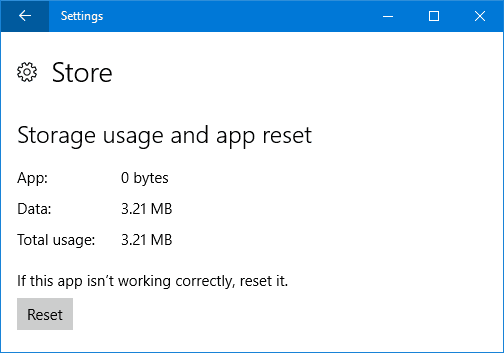
يواجه العديد مشكلة شائعة وأصبح متجر ويندوز 10 لا يعمل لديهم الآن ويواجهون صعوبة ورسالة خطأ عند تحميل تطبيقات ويندوز 10 وهناك عدة حلول يُمكننا القيام بها لاصلاح متجر ويندوز 10 وعمل تحديث كامل للمتجر وتطبيقاته. هناك العديد من الأخطاء التي قد تتسبب في عطل ويندوز 10 وعليك أن تعلم انه ليس هناك حل مُباشر لهذه المشكلة وسنستعرض معكم عدة حلول يُمكنكم الإعتماد عليها لإعادة تصليح متجر تطبيقات ويندوز 10 . 1- عمل Reset وإعادة تعيين التطبيقات ربما بسبب أحد التحديثات، تعطّل تطبيق متجر ويندوز 10 “Store App” ويمكننا إعادة تشغيله بعمل إعادة تعيين للتطبيق عبر أمر “Reset” كما يُمكن تجربة هذا الحل مع أي تطبيق آخر في ويندوز 10.
اقرأ أيضا : شرح اداة Chkdsk لـ اصلاح مشاكل الهارد بدون فورمات في ويندوز 10 و7/8 سنفتح اعدادات الضبط Setting من قائمة إبدأ أو بالضغط على زر Windows+I ثم اضغط على System ثم Apps & features ثم اضغط على التطبيق الذي لا يعمل وفي حالتنا هو “Store App” ثم اضغط على Advanced Options. الآن سنضغط على Reset وسيظهر لك تحذير يُخطرك بانه سيتم حذف بيانات التطبيق ومن ضمنهم معلومات تسجيل الدخول اضغط موافقة Ok ثم اضغط Reset مرة أخرى. الآن قم بفتح التطبيق مرة أخرى والتأكد من أنه أصبح يعمل بشكل طبيعي بدون رسائل خطأ.
2- اصلاح مشكلة متجر ويندوز 10 لا يعمل أي مشكلة تواجهها في نظام ويندوز 10 يُمكنك إستخدام خاصية Troubleshooter لحل مشاكل التطبيقات والأدوات وهي اداة تفحص المشاكل وتحلّها بشكل تلقائي. اقرأ أيضا : كيفية ايقاف تحديثات ويندوز 10 مؤقتا وإعادة تشغيلها لاحقاً بملف جاهز! ابحث عن troubleshooting في قائمة ابدأ ثم قم بعرض القائمة كاملة في يسار الشاشة من زر View All ثم قم بإختيار المشكلة المُتعلقة واضغط على
Windows Store Apps. الآن سنضغط على Advanced ثم نضع علامة صحيحة أمام خيار Apply repairs automatically واضغط Next لحل المشاكل تلقائياً وفي نهاية البحث ستعرف المشاكل التي عثرت عليها الآداة والحل الذي تم اتباعه. 3- تعديل التاريخ والوقت في ويندوز 10 يتسبب خطأ التاريخ والوقت في عدم تشغيل عدة تطبيقات وخدمات بشكل مُلائم مع نظام ويندوز 10 والأنظمة الأخرى، وننصحك دائماً بالتأكّد من ضبط تاريخ وتوقيت الويندوز بشكل صحيح.
سنضغط بيمين الفأرة على الوقت في شريط المهام اسفل الشاشة ثم Adjust date/time واضبط الوقت أو، قم بتحديد خيار Set time automatically وخيار Set time zone automatically ليتم ضبط الوقت تلقائياً حسب بلدك. 4- اعادة تثبيت تطبيقات ويندوز 10 الآن سنقم بعمل اعادة تثبيت تطبيقات ويندوز 10 جميعها لحسابك وعليك ان تعلم أنه سيتم حذف كافة التطبيقات واعادة تثبيتها حتى التطبيقات التي كنت حذفتها في وقت سابق وتابع الخطوات التالية.
قم بالبحث عن powershell في قائمة إبدأ ثم اضغط بيمين الفأرة على ايقونة الاداة ثم Run As Administrator ثم اضغط Yes وإنقل الأمر القادم داخل باور-شل بالضغط على Ctrl+V لعمل Paste واضغط Enter. Get-AppXPackage -AllUsers | Foreach {Add-AppxPackage -DisableDevelopmentMode -Register “$($_.InstallLocation)AppXManifest.xml”} من المتوقع ان يتم حل مشكلة تعطل تطبيقات ويندوز 10 بعد هذه الخطوة خاصة انه تم اعادة تثبيتها بشكل مُلائم للنسخة الأخيرة للنظام. 5- حذف كاش تطبيقات ويندوز 10 تنظيف الكاش لتطبيقات ويندوز 10
قد يُساعد في اصلاح مشاكلها بسبب تراكم البيانات ويمكننا القيام بهذه الخطوة بسهولة عبر فتح اداة wsreset.exe من قائمة ابدأ ثم اضغط Ok، وستظهر لك واجهة جديدة ستعمل وتُغلق تلقائياً بعد تنظيف الكاش دون تدخّل منك. اقرأ أيضا: خمس نصائح لـ تحرير مساحة القرص C في ويندوز 10 الآن قد حاولنا حل مشكلة متجر ويندوز 10 عندما لا يعمل أو حدوث مشاكل في تطبيقات الويندوز وتعطلها عن العمل وظهور رسائل خطأ مُزعجة ولكن، اذا ظهرت لك رسائل أخرى غير الواردة بالمقال شاركنا بها عبر التعليقات لمساعدتك. شاركونا بارائكم واستفساراتكم عبر التعليقات اسفل المقال..
دروب أيديا - DROPIDEA
نأمل أن تكون هذه المقالة قد أضافت لك قيمة حقيقية. في دروب أيديا نسعى دائمًا لتقديم محتوى عربي عالي الجودة يساعدك على النمو والتطور في المجال الرقمي. تابعنا للمزيد من المقالات والشروحات المفيدة.
الأدمن
DROPIDEA
أحدث المقالات

هل تصيّد ماسك إطلاق أداة «Dots» من OpenAI عبر نطاق dot.com؟

بيك إكس في ترفع سقف استثماراتها البذرية إلى 5 ملايين دولار

عشاء مرتقب بين رئيس أنثروبيك ودونالد ترامب وسط خلافات حول أمان الذكاء الاصطناعي

جوجل تختبر الشراء المباشر من فليبكارت عبر Gemini في الهند



