حل مشكلة عدم ظهور المنتجات في ووكومرس
 بقلم الأدمن
أحيانًا بعدما تقوم بإطلاق متجر ووكومرس تتفاجأ بعدم ظهور المنتجات في واجهة المتجر أو التصنيفات المخصصة التي تتوقع ظهور المنتجات بها، ولا تعرف ما سبب هذه المشكلة؟ غالبًا ما تكون مشكلة عدم ظهور المنتجات في ووكومرس، إما بسبب عمل إعدادات خاطئة في صفحة المنتج أو سبب إحدى الأدوات المستخدم في الموقع.
لذلك سنتعرف في هذه المقالة على أسباب عدم ظهور المنتجات وكيفية حل المشاكل التي تتسبب في ذلك. أسباب عدم ظهور المنتجات في صفحة متجر ووكومرس هناك مجموعة كبيرة من الأسباب التي تؤدي إلى اختفاء المنتجات من واجهة متجر ووكومرس أو من صفحات المتجر، فقد يكون ذلك بسبب خطأ في إعداد المتجر، أو بسبب مشكلة في التوافق مع الإضافات المستخدمة أو القالب المفعّل أو مشكلة في الروابط الثابتة وغير ذلك، لذلك سنذكر كل الأسباب التي قد تؤدي إلى هذه المشكلة وكيفية حلها.
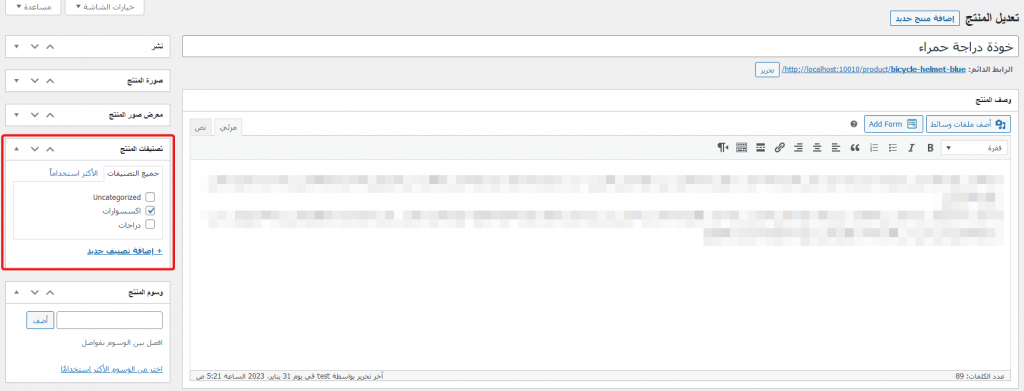
1- المنتج غير مصنف يحصل هذا الخطأ عادة عندما يكون هناك الكثير من المنتجات، لذلك يجب التأكد من تعيين تصنيف لجميع المنتجات، لأنه إذا لم يتم تعيين تصنيف للمنتج فسيكون تصنيف المنتج “غير منصف” بشكل افتراضي ولن يظهر على الموقع (سيبقى المنتج ظاهراً في صفحة المتجر ولكن لن يظهر في صفحات الموقع لأنها تعرض عادة المنتجات ذات التصنيف المحدد) يمكنك تعيين تصنيف المنتج عن طريق تحرير المنتج واختيار التصنيف المناسبة من قسم تصنيفات المنتج 2- صفحة متجر مخصصة إذا قمت ببناء صفحة متجرك عن طريق إحدى الإضافات مثل إضافات إنشاء الصفحات Elementor أو Divi، فقد لا تظهر جميع المنتجات في المتجر أو قد لا يتم تحديث صفحة المتجر عند إضافة منتجات جديدة، لذلك عندما تقوم بعمل تخصيص لصفحة المتجر، فستحتاج إلى تحديث المنتجات، أو إلى تحديث صفحة المتجر المخصصة من إعدادات الإضافة التي استخدمتها لإنشاء صفحة المتجر.
اقرأ أيضا: كيفية تخصيص صفحة المنتج في ووكومرس لزيادة مبيعاتك 3.
ذاكرة التخزين المؤقت
إذا لم تقم بمسح ذاكرة التخزين المؤقت من موقعك، فربما ترى نسخة قديمة من الموقع، لذلك يجب عليك مسح ذاكرة التخزين المؤقت بانتظام، ولأن هناك أكثر من ذاكرة للتخزين المؤقت سواء من جانب المتصفح، أو من جانب الخادم أو من جانب إضافات ووردبريس، فإليك كيفية مسح ذاكرة التخزين المؤقت في كل مكان: ذاكرة التخزين المؤقت من جانب المتصفح يمكن مسح ذاكرة التخزين المؤقت من جانب المتصفح بطريقتين: الطريقة اليدوية: يتم تخزين ذاكرة التخزين المؤقت هذه في ملفات المتصفح، لذلك تختلف طريقة مسحها حسب كل متصفح، لكن بشكل عام يمكن الوصول إلى حذف بيانات المتصفح عن طريق الذهاب إلى إعدادات المتصفح ثم إلى قسم “الخصوصية والحماية” ثم إيجاد زر “حذف البيانات” الطريقة المؤتمتة: أن تقوم أنت بمسح ذاكرة التخزين المؤقت على أجهزة العملاء بشكل دوري، ويمكنك الاستعانة بإضافة Lite Speed Cache التي تمنحك القدرة على فعل ذلك من خلال الذهاب إلى LiteSpeed Cache في لوحة تحكم ووردبريس واختيار Cache ثم الضغط على تبويب Browser، وفي حقل Browser Cache TTL يمكنك تحديد المدة الزمنية بالثواني والتي تنتهي فيها صلاحية كاش المتصفح. ذاكرة التخزين المؤقت من جانب الخادم لمسح ذاكرة التخزين المؤقت من جانب السيرفر، ستحتاج إلى الذهاب إلى حساب الاستضافة الخاص بك، معظم شركات الاستضافة توفر إضافة يتم تثبيتها عند تثبيت ووردبريس عن طريق لوحة تحكم الاستضافة، وتمكنك هذه الإضافة من مسح ذاكرة تخزين السيرفر من خلال لوحة تحكم ووردبريس نفسها.
ذاكرة التخزين المؤقت من جانب الإضافات يمكنك باستخدام بعض الإضافات مثل LiteSpeed Cache أو Jetpack أو WP Super Cache مسح ذاكرة التخزين المؤقت للإضافات، فمثلاً إذا كنت تستخدم إضافة LiteSpeed Cache يمكنك مسح الكاش من خلال المرور فوق أيقونة الإضافة في شريط المستخدم في لوحة تحكم ووردبريس واختيار “Purge All”. اقرأ أيضاً: مسح ذاكرة التخزين المؤقت لموقعك الووردبريس 4.
مشكلة في الروابط الثابتة يجب عليك التحقق فيما إذا كنت تستخدم صفحة المتجر الصحيحة في الموقع الخاص بك، من لوحة تحكم ووردبريس انتقل إلى قسم ووكومرس ثم إلى الإعدادات ثم إلى تبويب المنتجات، وتأكد من اختيار صفحة المتجر الصحيحة من القائمة المنسدلة في حقل “ صفحة المتجر “ وبالمثل يجب تحديد بقية الصفحات مثل صفحة سلة المشتريات وصفحة إتمام الطلب وصفحة لوحة حسابي وصفحة الشروط والأحكام التي تستخدمها في الموقع، وللقيام بذلك اذهب إلى تبويب “خيارات متقدمة” في إعدادات ووكومرس، فتجد الحقول الأربعة التي تحدثنا عنها: إذا كان المنتج ظاهراً في صفحة المنتج ولا يظهر في صفحة المتجر، فقد تكون هناك مشكلة في الروابط الدائمة في موقعك، ويمكنك حل هذه المشكلة من خلال تحديد بنية الروابط الدائمة في موقعك، وللقيام بذلك انتقل إلى قسم الإعدادات في لوحة تحكم ووردبريس ثم “ روابط الدائمة “، حدد تركيبة الرابط الدائم الذي تريد استخدامه، ولا تنسى الضغط على زر حفظ التغييرات في الأسفل. 5.
عدم التوافق مع الإضافات في بعض الأحيان قد تظهر صفحة متجر ووكومرس فارغة بسبب عدم التوافق مع الإضافات المستخدمة في موقعك، يمكنك التأكد أن الإضافات هي المشكلة عن طريق إلغاء تتعيل جميع الإضافات باستثناء إضافة ووكومرس، ثم تأكد من صفحة المتجر مرة أخرى، فإذا ظهرت المنتجات فيها بعد إلغاء تفعيل الإضافات، فمن الواضح أن هي سبب المشكلة. لتعطيل عدة إضافات دفعة واحدة انتقل إلى قسم الإضافات من لوحة تحكم ووردبريس، ثم اختر “ إضافات منصبة “ ثم اضغط على مربع الاختيار الرئيسي في الأعلى لتحديد جميع الإضافات، واستثني إضافة ووكومرس من التحديد، ثم اختر “ تعطيل ” من القائمة المنسدلة، ثم اضغط على “ تطبيق “ ستكون خطوتنا التالية هي العثور على الإضافة التي تسبب المشكلة، ولعمل ذلك قم بتفعيل الإضافات واحدة تلو الأخرى وتأكد بعد تفعيل كل إضافة فيما إذا كانت المنتجات لا تزال ظاهرة في صفحة المتجر، حيث أنك عندما تصل إلى الإضافة التي تسبب المشكلة فإن المنتجات لن تظهر، وبمجرد أن تكون قد حددت الإضافة التي تسبب المشكلة يجب أن تحذفها وإضافة بديلة تقوم بعملها وتكون متوافقة مع ووكومرس.
لكن إذا كانت الإضافة التي تسبب المشكلة متوافقة أساساً مع ووكومرس، فقد تصبح غير متوافقة في حال كان هناك تحديث جديد لووكومرس وتأخر مطوري هذه الإضافة بتحديثها، فتحصل مشكلة عدم التوافق، وهنا يمكنك التواصل مع مطورين الإضافة لمعرفة متى سيكون هناك تحديث جديد، قبل أن تحذف هذه الإضافة وتستخدم إضافة بديلة (لأن هذا الأمر ليس سهلاً دائماً) لذلك إذا كنت تعتمد على إضافات مكملة لإضافة ووكومرس، فمن الأفضل الانتظار حتى يكون هناك تحديث لجميع هذه الإضافات قبل أن تحدث ووكومرس. 6.
إعدادات عرض المنتج غير صحيحة
تعد إعدادات العرض غير الصحيحة للمنتجات هي السبب الأكثر احتمالاً لعد ظهور المنتج في صفحة المتجر، لذلك يجب التأكد من خيارات العرض، حيث أنه في بعض الأحيان قد يكون قد تم تعيين المنتج على أنه “ مخفي ” أو “ نتائج البحث فقط ” وفي الحالتين لن يظهر المنتج في صفحة المتجر، لذلك يجب تعديل خيارات العرض إلى “ المتجر ونتائج البحث ” ثم اضغط على “ تحديث “ سبب آخر لعدم ظهور المنتج هو أنه لا يزال مسودة، لذلك يجب نشر المنتج حتى يظهر في صفحة المتجر. خاتمة وبهذا نكون قد ناقشنا في هذه المقالة أهم الأسباب التي قد تؤدي إلى عدم ظهور المنتجات في ووكومرس سواء في صفحة المتجر أو في الموقع، وفي معظم الحالات ستحل المشكلة باتباع الخطوات التي ذكرناها لكن يمكن أن تكون المشكلة في بعض الأحيان أكبر من الحلول التي ناقشناها، فمثلاً يمكن أن تكون هناك مشكلة بسبب استضافة الموقع وهنا يجب أن تتواصل مع شركة الاستضافة لتعرف فيما إذا كانت المشكلة من جانبهم، أو ربما تكون هناك مشكلة في كود الموقع أو ربما يكون هناك خطأ ما في الموقع، وهنا يجب عليك الاستعانة بخبير ووردبريس، ويمكنك طلب المساعدة المجانية في أي مشكلة تواجهك عن طريق منتديات عرب ووردبريس
أو في حال كنت تبحث عن مساعدة مدفوعة ليقوم بها أحد الخبراء بدلًا منك فيمكنك البحث في خدمات ووردبريس على موقع خمسات .
دروب أيديا - DROPIDEA
نأمل أن تكون هذه المقالة قد أضافت لك قيمة حقيقية. في دروب أيديا نسعى دائمًا لتقديم محتوى عربي عالي الجودة يساعدك على النمو والتطور في المجال الرقمي. تابعنا للمزيد من المقالات والشروحات المفيدة.
الأدمن
DROPIDEA
أحدث المقالات

هل تصيّد ماسك إطلاق أداة «Dots» من OpenAI عبر نطاق dot.com؟

بيك إكس في ترفع سقف استثماراتها البذرية إلى 5 ملايين دولار

عشاء مرتقب بين رئيس أنثروبيك ودونالد ترامب وسط خلافات حول أمان الذكاء الاصطناعي

جوجل تختبر الشراء المباشر من فليبكارت عبر Gemini في الهند



