أفضل 3 إضافات تساعدك على إنشاء حقول مخصصة في صفحة المنتج
 بقلم الأدمن
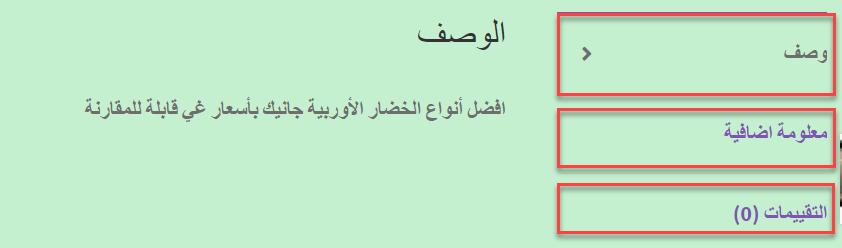
إذا كنت تعتمد على نظام ووكومرس لمتجرك الخاص، ستواجه الكثير من الخصائص التي دائما ما تحتاج إلى إضافتها لتحسين تجربة المتسوقين داخل متجرك. في داخل صفحة المنتج يقوم ووكومرس بإظهار 3 حقول افتراضية وهي ( الوصف – معلومات إضافية – التقييمات) : يتم اظهار هذه الحقول بشكل افتراضي دون تدخل منك، وهو ما لا يكون مناسب لكل أنواع وتخصصات المتاجر، حيث يحتاج الكثير من أصحاب المتاجر إلى القيام بتعديل تلك الحقول الجاهزة، وكذلك اضافة حقول جديدة داخل صفحة المنتج في المتجر.
في هذه المقالة سنضع بين يديك أفضل الإضافات التي يمكنك الاعتماد عليها بشكل مفيد لتعديل الحقول المخصصة داخل المتجر، وكذلك اضافة حقول أخرى دونا عن الحقول الافتراضية في ووكومرس. 1.
إضافة
WPC Product Tabs لتعديل حقول المنتج الافتراضية واحدة من اسهل وافضل الاضافات المجانية التي من خلالها يمكنك انشاء حقول مخصصة للمنتجات داخل متجرك بكل سهولة، بالإضافة إلى امكانية التعديل على الحقول الافتراضية في ووكومرس سواء التعديل على ترتيبها في الظهور أو حتى يمكنك حذفها أو تعديل عناوينها كيفما تشاء.
بعد تنصيب الإضافة وتفعيلها على ووردبريس ، تلاحظ ظهور تبويب الإعدادات الخاص بالإضافة داخل لوحة تحكم الووردبريس، والتي عند الدخول إليها تعرض لك الحقول الافتراضية ووكومرس الذي تظهر بصورة افتراضية في صفحات المنتجات على المتجر: كما لاحظت فإنه يمكنك وضع الماوس على أي حق لمن الحقول الافتراضية وتغيير عنوانه أو ترتيبه كيفما تشاء بكل سهولة. كذلك يمكنك إنشاء وتصميم حقل مخصص جديد داخل صفحات المنتجات، وذلك من خلال النقر على زر إضافة الحقل Add new tab، وتأكد من اختيار النوع (Custom): سيظهر لك مربع نصي جديد لكتابة محتوى الحقل الذي ترغب في تصميمه، حيث تقوم بكتابة عنوان مناسب للحقل، وكذلك في مربع نصوص تقوم بكتابة محتوى الحقل الجديد ويمكنك في محتوى الحقل إضافة النصوص والروابط والقوائم والصور وكافة العناصر الأخرى التي ترغب في إضافتها داخل الحقل: بعد الإنتهاء من كتابة محتوى الحقل الذي تريده لا تنسى النقر على زر الحفظ ( Save )، ثم توجه إلى المتجر وقم بفتح صفحة أحد المنتجات تلاحظ ظهور الحقل المخصص الجديد الذي قمت باضافته: كما يمكنك شراء النسخة المدفوعة من الإضافة والتي توفر لك المزيد من خيارات إنشاء الحقول المخصصة كأن تقوم بإنشاء حقول مخصصة لاحد أو بعض المنتجات بعينها بدلا من إنشاء الحقول على كافة المنتجات المتواجدة داخل المتجر وهو الخيار المتوفر أمامك في نسختها المجانية.
2. إضافة
Product Tabs for WooCommerce
تمكنك الإضافة السابقة من إنشاء حقل مخصص يتم تطبيقه على كافة صفحات المنتجات بالمتجر، وكذلك تمكنك تصميم عددًا كبيرًا من الحقول المخصصة كيفما نشاء، لكن المشكلة كانت في أن الحقول المخصصة يتم عرضها بشكل افتراضي داخل كافة المنتجات، ولابد من شراء النسخة المدفوعة لتخصيص تلك الحقل داخل صفحات بعينها فقط. أما في إضافة
Product Tabs for WooCommerce
يمكنك إنشاء حقل مخصص يتم عرضه داخل صفحة منتج معين دونا عن غيره من باقي المنتجات المتواجدة بالمتجر. بعد تنصيب وتفعيل الاضافة على متجرك، ستجد أنه بإمكانك التوجه تبويب إعدادات ووكومرس من داخل لوحة تحكم الووردبريس، لتجد التبويب الخاص بالإضافة وتحته خيار لتفعيل ظهوره أو إلغاء ظهوره، تأكد من النقر على تفعيل المكون حتى يظهر داخل صفحة المنتجات عندما نقوم بإنشاء حقل مخصص هناك: الأن يمكنك إضافة حقول مخصصة داخل صفحات المنتجات في متجرك بسهولة، حيث يمكنك الدخول إلى صفحة تحرير أي منتج في المتجر، تلاحظ ظهور مربع إضافة حقل مخصص جديد اسفل صفحة تحرير المنتج بهذا الشكل: كما لاحظت يمكنك اضافة عنوان الحقل في المربع المخصص له، وكذلك محتوى الحقل والذي فيه يمكنك اضافة النصوص والروابط والقوائم والصور وغيرها من العناصر التي يمكنك إدراجها باستخدام محرر النصوص الخاص بالحقل الجديد الذي تعمل على إنشائه. بعد الانتهاء من كتابة عنوان ومحتوى الحقل الجديد، قم بحفظ المنتج وتوجه إلى الواجهة الامامية لزيارته، وستلاحظ ظهور الحقل الجديد تماما مثلما قمت بإنشاءه وتصميمه مسبقا: كما لاحظت فإن هذه الاضافة مميزة تماما في قدرتها على اضافة الحقول المخصصة لأي منتج تريده بدلا من اظهار الحقول على كافة صفحات المنتجات الأخرى، لكن النسخة المجانية للاضافة توفر لك إنشاء حقل مخصص واحد فقط لكل منتج، أما إذا رغبت في اضافة المزيد من الحقول المخصصة لنفس المنتج يمكنك شراء النسخة المدفوعة لها.
3. إضافة Custom Product Tabs for WooCommerce هذه الاضافة كذلك تعتبر واحدة من أفضل إضافات انشاء وتصميم الحقول المخصصة داخل صفحات منتجاتي ووكومرس، حيث يمكنك إنشاء الحقول المخصصة التي تحتوي على بيانات أو معلومات إضافية عن المنتجات بكل سهولة، بالإضافة إلى تعيين الحقول داخل المتجر بالكامل أو يمكن تعيين الحقول داخل صفحات منتجات معينة فقط.
بعد تنصيب وتفعيل الاضافة على المتجر، ستلاحظ ظهور تبويب الإعدادات الخاص بالإضافة داخل تبويبات لوحة تحكم الووردبريس، والذي يمكنك الدخول إليه للبدء في إنشاء حقل مخصص جديد عن طريقة النقر على زر الاضافة Add tab:
سوف تفتح لك صفحة إضافة الحقل الجديد والذي يمكنك فيها كتابة عنوان الحقل، وكذلك محتوى الحقل من الداخل والذي يمكنك إضافة النصوص والصور والوسائط بداخله من خلال شريط تحرير النصوص داخل مربع إضافة الحقل: بعد كتابة عنوان ومحتوى الحقل، يمكنك إضافته داخل أي منتج في المتجر الخاص بك بسهولة، وذلك من خلال الدخول إلى صفحة تحرير المنتج الذي ترغب في إضافته داخله، ستجد تبويب جديد اسفل صفحة تحرير المنتج خاص بإضافة الحقول المخصصة: داخل هذا التبويب تجد الخيار Add a tab والذي بالنقر عليه يمكنك تصميم حقل جديد تماما حيث تضع له عنوان ومحتوى. كذلك يمكنك النقر على الخيار Add a saved tab والذي من خلاله يمكنك إدراج حقل مخصص قمت بانشاءه مسبقا من داخل لوحة تحكم الإضافة حيث تظهر لك قائمة تحتوي على الحقول التي تم تصميمها من قبل، اختر منها الحقل الذي تريده بالنقر على علامة الإضافة ( + ): بعد اختيار الحقل المراد إضافته داخل صفحة المنتج سيظهر لك بالصورة التالية حيث يمكنك إدراجه كما هو أو التعديل على محتواه : كما لاحظت بالصورة يوجد لديك زر حفظ الحقل بعد التعديل عليه (Save tabs) وكذلك زر حذف الحقل ( remove tab ) والذي يساعدك على حذف الحقل وإلغاء ظهور داخل صفحة المنتج في المتجر.
الآن توجه إلى زيارة المنتج لتجد ظهور الحقل الجديد في قائمة الحقول المخصصة للمنتج داخل متجرك: خاتمة بالنهاية فإن تصميم الحقول المخصصة داخل صفحات المنتجات في المتجر الاليكتروني من الخيارات الهامة التي يفضل أن تكون موجودة في خيارات التحكم في المتجر، لكن احرص دائما على استخدامها بحكمة شديدة، حيث أنها قد تستخدم لتوفير بيانات اضافية مهمة لاتخاذ العميل قررا الشراء مثل أن تضع فيها صور ارسلها العملاء لك بعد استخدام المنتج أو أي تفاصيل اضافية أخرى قد تشجع الزبائن على اتخاذ قرار الشراء بصورة أسرع. لا تبالغ في استخدام الحقول المخصصة داخل صفحة المنتج حتى لا تسبب التشتيت للعميل أو الزائر بحيث يستطيع الاطلاع على ما يكفيه من التفاصيل حول المنتج بدون تشتت.
دروب أيديا - DROPIDEA
نأمل أن تكون هذه المقالة قد أضافت لك قيمة حقيقية. في دروب أيديا نسعى دائمًا لتقديم محتوى عربي عالي الجودة يساعدك على النمو والتطور في المجال الرقمي. تابعنا للمزيد من المقالات والشروحات المفيدة.
الأدمن
DROPIDEA
أحدث المقالات

هل تصيّد ماسك إطلاق أداة «Dots» من OpenAI عبر نطاق dot.com؟

بيك إكس في ترفع سقف استثماراتها البذرية إلى 5 ملايين دولار

عشاء مرتقب بين رئيس أنثروبيك ودونالد ترامب وسط خلافات حول أمان الذكاء الاصطناعي

جوجل تختبر الشراء المباشر من فليبكارت عبر Gemini في الهند



