5 حلول لمشكلة مساحة التخزين ممتلئة في الهاتف
 بقلم الأدمن
بالرغم من تطور احجام مساحات التخزين، الا ان مشكلة مساحة التخزين ممتلئة في الهاتف مازالت تلاحق العديد من المستخدمين، وهذه المشكلة قد تأتي بسبب تخزين ملفات غير مهمة من المستخدم وايضا سوء استهلاك من بعض التطبيقات لموارد جهازك، هناك من بدأ بالفعل في الإعتماد على خدمات تخزين سحابي مثل تطبيق Google One لحفظ الملفات المهمة ولكن سنحاول في هذه المقال تقديم لك بعض الحلول المهمة لتفادي مشكلة ورسالة مساحة التخزين الممتلئة باستمرار وإعطاء متنفس لك ولهاتفك.
توفير مساحة تخزين في الواتساب نعم بكل تأكيد سنبدأ حديثنا عن تطبيق الواتس اب صاحب الشعبية الواسعة والاستخدام الكبير بشكل شخصي او في ادارة الاعمال، استخدامك لتطبيق واتس اب يتيح له تخزين جميع البيانات المهمه والغير مهمه على هاتفك، لذلك ستأخذ من وقتك القليل في محاولة لتنظيف احد اكبر المتسببين عادة في مشاكل مساحة التخزين منخفضة لديك وهو الواتس اب وملفاته. تنظيف الواتس اب من تطبيق ادارة الملفات Files Manager جميع الهواتف تأتي مع “مدير للملفات”
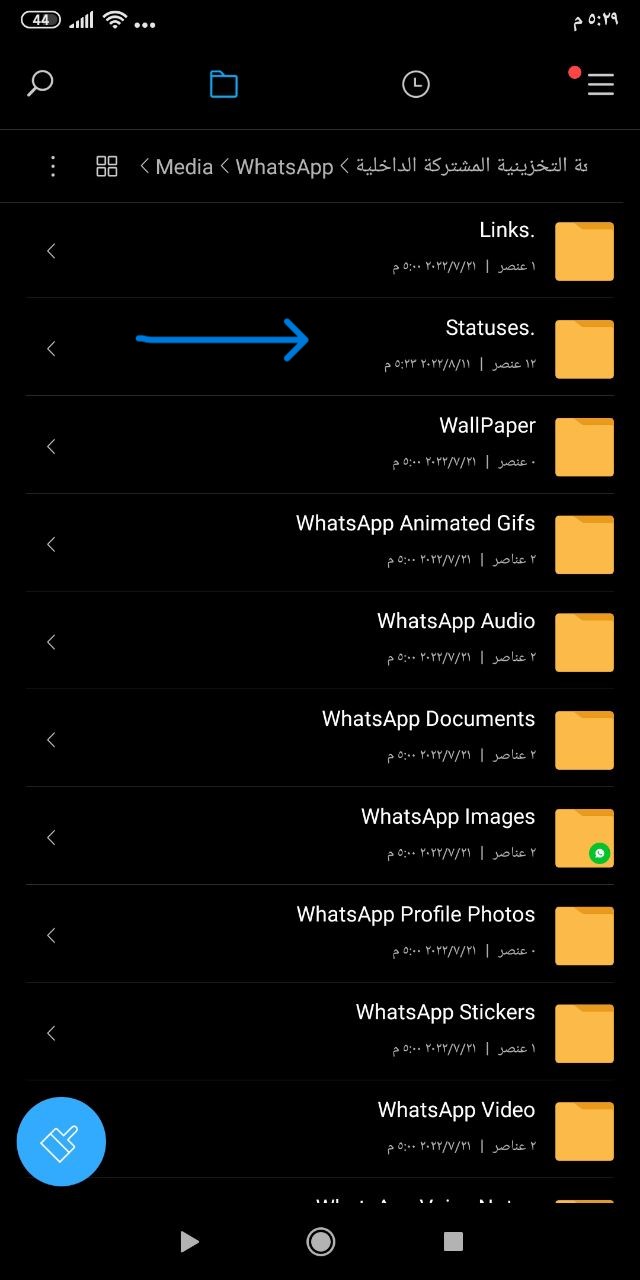
وهو تطبيق يقدم لك جميع ملفات هاتفك وتفاصيلها بالكامل، وستجده بهذا الاسم او باسماء مشابهه. تنظيف حالات الواتس اب المخزنة بالذهاب الي “مدير الملفات” ثم الذهاب الي “مجلد الـ WhatsApp” ، ثم “مجلد الـ Media”
ستجد مجلد باسم “الحالات او الـ Statuses” ، والتي تشاهدها علي الواتس اب بشكل يومي محفوظة علي هاتفك بجودتها الكاملة سواء صور او فيديوهات، لذلك تحتاج التخلص من جميع هذه الحالات المحفوظة الغير مهمه، وتكرار هذه العملية كل فتره لا تتجاوز الاسبوع بسبب استمرار الاشخاص بنشر حالاتهم علي الواتساب ومشاهدتك لها فقط يجعلها تتفاقم داخل مساحة هاتفك الشخصية. مسح الصور المرسله ننتقل الي النقطة الثانية عن طريق الذهاب الي “مجلد الواتساب” ثم الي “مجلد الـ Media” ، ثم الي
“صور الواتساب او WhatsApp Images” ، سنجد بداخله مجلد باسم “Sent او المرسله” ، وهو عباره عن مجلد يحتوى علي جميع الصور التي قمت بارسالها الي اشخاص مختلفه علي تطبيق الواتساب، هذه الصور بنسبه كبيره تكون غير مهمه لانها تهم المرسل اليه وليس الراسل وهو انت! لذلك قم بالتخلص منها وبنسبة كبيرة ستجد 99% من هذه الصور انت لست بحاجه لها وستقوم بتوفير مساحة تخزين لا بأس بها. سنقوم بتكرار نفس العملية مع فيديوهات الواتساب، والتي ستجد لها مجلد منفصل بهذا الاسم، وبداخله ستجد مجلد للفيديوهات المرسلة، فيمكنك مراجعتها والتخلص منها ايضا.
يمكنك تكرار هذه العملية مع جميع انواع الملفات، فستجد مجلد خاص بالرسائل الصوتية وستجد بداخله الرسائل الصوتية الخاصة بك، ايضا مجلد خاص بالملفات وستجد بداخله مجلد خاص بملفاتك المرسله. توفير مساحة تخزين من داخل تطبيق الواتساب الان ننتقل الي تطبيق الواتساب نفسه، والذي يتيح لك ايضا بعض من الاختيارات لادارة مساحة جهازك الشخصية. بالضغط علي الثلاثة نقاط بالاعلي في تطبيق الـ WhatsApp، ثم الذهاب الي “الاعدادات” ، سنختار “التخزين والبيانات “.
ومن هنا يمكننا تحديد جودة الصور المحمله من دردشات الواتس اب، يمكنك اختيارها بأفضل جودة مما يترتب عليه صور باحجام كبيرة، او اختيار توفير البيانات مما يترتب عليه توفير مساحه اكبر من احجام الصور بالاضافة الي تقليل جودتها قليلا ان لم تكن مزعجه لك.
ايضا في نفس قسم التخزين والبيانات ، ستجد ا ختيار التنزيل التلقائي للوسائط ، وعن طريقه يمكنك اختيار عدم تحميل اي وسائط من تطبيق الواتساب بشكل تلقائي، او يمكنك تحديد نوع محدد من هذه الوسائط مثل تحميل الملفات الصوتية والمستندات فقط وعدم تحميل الصور والفيديوهات، وبكل تأكيد هذا يوفر عليك الكثير من مساحة التخزين بهاتفك، خاصة ان كنت متواجد في مجموعات متعدده في الواتس اب ويتم ارسال الفيديوهات والصور الكثيرة بشكل يومي من العديد من اعضاء المجموعة، مما يترتب عليه امتلاء مساحة التخزين الخاصة بك بشكل سريع. مقالات ذات صلة نقل التطبيقات الى ذاكرة SD نقل رسائل الواتساب من هاتفك الاندرويد الي الايفون تشغيل الواتساب علي جهازين بنفس الرقم تنظيف تطبيق التيليجرام اذا كنت من مستخدمين تطبيق التيليجرام، فتنطبق نفس الخطوات السابقة في تطبيق الواتس اب هنا ايضا، فيمكنك تنظيف بعض الملفات المخزنة من مدير الملفات ، ثم الذهاب الي تطبيق التيليجرام والانتقال الي “ الاعدادات” ثم “ البيانات والتخزين “ ، وستجد تيليجرام يتيح لك العديد من الاختيارات المميزة بشكل افضل من واتساب، ويمكنك اتباع نفس الخطوات السابقة لتخصيص وضبط التيليجرام كما فعلنا في الـ WhatsApp بالاعلى.
التخلص من ملفات الكاش الـ Cache ملفات الكاش او البيانات المؤقته للتطبيقات، هي عباره عن ملفات يتم تجديدها باستمرار فور استخدامك للتطبيقات، تعتمد ملفات الكاش علي تسهيل وتسريع عملية الوصول لبعض الوظائف داخل التطبيقات، ولكن هذه البيانات يتم تخزينها باستمرار لتصبح بحجم ضخم في مساحة التخزين لهاتفك، ويمكنك التخلص منها بسهولة خاصة للتطبيقات التي تستخدمها نادرا او لم تقم باستخدامها. يمكنك الذهاب الي “ الاعدادات”
الخاصة بالهاتف ثم الي “قسم مدير التطبيقات”
او ستجدها باسم مشابه، ثم الذهاب الي التطبيقات التي تريد التخلص من البيانات المؤقته لديها ومسحها، هذه العملية لن تؤثر علي التطبيقات او الملفات المحفوظة او المحملة بداخلها. يوجد طرق اسهل للتخلص من الملفات المؤقته بشكل كامل، مثل بعض التطبيقات التي يمكنك تحميلها من المتجر لتقوم بنفس الوظيفة بشكل اسرع، مثل Phone Cleaner او CCleaner .
ايضا اغلب شركات الهواتف الان توفر لك تطبيق باسم “المنظف او Cleaner” او اسماء مشابهه يأتي مع الهاتف بشكل مسبق، ويعطي نفس الوظيفة لتنظيم ومسح البيانات المخزنة ومساحة التخزين الداخلية لهاتفك بشكل اسرع. التخلص من ملفات الـ Others – الاخرى نأتي الي اكبر العوائق لدى جميع المستخدمين الذين يعانوا من مساحة تخزين منخفضة، وهي الـ Others او بمسميات متشابهه، وهي الملفات التي لا يمكن وضعها تحت اقسام مثل الصور او التطبيقات او بياناتهم، وهذا ما يصعب عليك الوصول لها وحذفها.
وهنا سنتجه الي استخدام تطبيق خارجي باسم مستكشف الملفات CX او CX Files Explorer . يعمل هذا التطبيق علي توفير لك كافة المعلومات لكافة الملفات في هاتفك واظهارها لك، فيمكنك عن طريق تطبيق CX الوصول الي جميع الملفات الكبيرة ومعرفة مكانها وحذفها ان كانت غير مهمه. يمكنك تحميله من : هنا بعد فتح البرنامج ستجد القسم الاول بالاعلي وهو ” التخزين الرئيسي “ ، اضغط علي كلمة “اكثر”
اسفل هذا القسم ليظهر لك كافة الملفات بشكل مفصل. ستظهر لك الملفات باحجامها بترتيب تنازلي من الاكبر الي الاصغر، وكل ملف يظهر لك حجمه واسمه، ويمكنك التخلص من الملفات الغير مهمه الكبيرة، وستجد فارق كبير في مساحة التخزين ممتلئة خاصة في قسم الـ Others. ايضا يتيح لك التطبيق امكانية التخلص من الذاكرة المؤقته – Cache، والتي تحدثنا عنها بالاعلي، فيمكنك استخدامه في ذلك ايضا توفيرا في الوقت.
مقال متعلق: افضل بدائل جوجل فوتو – 8 خدمات لتخزين الصور اونلاين توفر مساحة هائلة مساحة التخزين ممتلئة بسبب تطبيقات النظام – Bloatware تأتي هواتف الاندرويد محمله بالعديد من التطبيقات الخاصة بالنظام والشركة، ايضا يوجد شراكه بين بعض شركات الهواتف وشركات اخرى مثل سامسونج ومايكروسوفت، لذلك تجد هواتف سامسونج تأتي محمل عليها العديد من تطبيقات مايكروسوفت، وهكذا مع شركات اخرى، بعض هذه التطبيقات يمكن التخلص منها. لذلك حاول ان تجد التطبيقات الخاصة بالنظام الغير مستخدمه وقم بمسحها ان كان هذا ممكن، فعلى سبيل المثال تأتي هواتف شاومي محمله بتطبيقات عديده خاصة بشاومي ولكن يمكنك بكل سهولة التخلص من بعضها، مثل تطبيق Mi Remote و تطبيق الـ Cleaner، ويمكنك تطبيق ذلك علي هاتفك مهما كانت شركته والبحث في تطبيقات النظام وحذف التطبيقات الغير مستخدمه ان امكن.
دروب أيديا - DROPIDEA
نأمل أن تكون هذه المقالة قد أضافت لك قيمة حقيقية. في دروب أيديا نسعى دائمًا لتقديم محتوى عربي عالي الجودة يساعدك على النمو والتطور في المجال الرقمي. تابعنا للمزيد من المقالات والشروحات المفيدة.
الأدمن
DROPIDEA
أحدث المقالات

هل تصيّد ماسك إطلاق أداة «Dots» من OpenAI عبر نطاق dot.com؟

بيك إكس في ترفع سقف استثماراتها البذرية إلى 5 ملايين دولار

عشاء مرتقب بين رئيس أنثروبيك ودونالد ترامب وسط خلافات حول أمان الذكاء الاصطناعي

جوجل تختبر الشراء المباشر من فليبكارت عبر Gemini في الهند



