14 إضافة ووكومرس مجانية تجعلك تدير متجرك كالمحترفين
 بقلم الأدمن
بفضل كون نظام إدارة المحتوى ووردبريس والمكون الإضافي للتجارة الإلكترونية ووكومرس مفتوحي المصدر ومجانيين بشكل أساسي، وشائعي الاستخدام لإدارة مواقع التجارة الإلكترونية، فإنه يوجد عددًا كبيرًا من الإضافات المجانية التي يمكن أن تساعد على تسهيل العمل عليهما وتطوير المتجر الإلكتروني. سنعرّفك في هذه المقالة على 14 إضافة تساعدك على إدارة متجرك الإلكتروني المُدار بواسطة ووكومرس، وتسهل على العملاء المحتملين الذين يزورن المتجر الوصولَ إلى ما يريدون عن طريق إضافة العديد من المزايا الإضافية المساعِدة. 1.
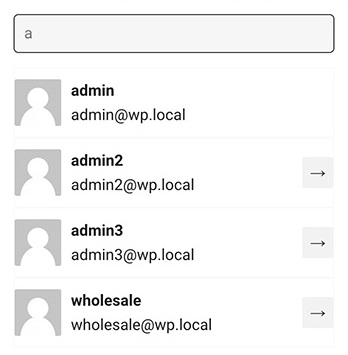
إضافة تبديل طريقة عرض المتجر من مدير إلى عميل من الجيد أن يتأكد مدير المتجر الإلكتروني أن متجره يعمل بشكل جيد مع العملاء عن طريق اختبار نظام الطلب وتجربة التسوق، ومختلف جوانب المتجر الأخرى كل فترة، وخاصة بعد إجراء تعديلات أو تنصيب إضافات على ووكومرس، حيث يمكن أن يؤدي ذلك إلى تعطيل أو إحداث مشكلة في المتجر، وبالتالي التأثير على معدل التحويل وخفض طلبات الشراء والأرباح. نافذة إضافة WPC Shop as a Customer للتبديل بين أدوار المستخدمين
يمكن أن يكون التبديل بين دور المدير ودور العميل في المتجر متعبًا قليلًا، إذ ستحتاج إلى تسجيل الخروج وإعادة تسجيل الدخول عددًا من المرات للانتقال إلى دور العميل وتجربة المتجر، ومن ثم العودة إلى دور المدير، ولتسهيل هذه المهمة تم إنشاء إضافة WPC Shop as a Customer التي توفر لك إمكانية التبديل بين أدوار المستخدمين بسهولة من خلال النقر بضع نقرات في الواجهة الأمامية. 2.
إضافة إنشاء وتصميم جزء الأسئلة الشائعة بطريقة احترافية يفيد وضع الأسئلة الشائعة في الموقع أو المتجر الإلكتروني العملاء وأصحاب المواقع أو المتاجر على حد سواء، ذلك لأنها توفر على العملاء العناء والوقت اللازم للاتصال بك للحصول على إجابات على الأسئلة الشائعة التي تراودهم، وتوفر عليك كصاحب متجر العناء والوقت اللازم للإجابة على أسئلتهم، وهذا بدوره يعود بالنفع على المتجر الإلكتروني. نافذة إضافة الأسئلة الشائعة في إضافة WPC Product FAQs كذلك وضع أسئلة شائعة حول المنتجات في صفحاتها يمنحك فرصة لتحسين محركات البحث، لأنها تمنحك طريقة فعالة لاستخدام الكلمات الرئيسية في مكانها المناسب، خاصة تلك الكلمات الرئيسية المحددة الطويلة التي يُطلق عليها (الكلمات الرئيسية طويلة الذيل)، كما تساعد الأسئلة الشائعة أيضًا على بناء ثقة الجمهور المستهدف بك.
إذا كنت تبحث عن مكوّن إضافي مجاني وقوي يسمح لك بإضافة الأسئلة الشائعة في متجرك الإلكتروني الذي تُديره بواسطة ووكومرس، فإن مكون WPC Product FAQs كفيل بإنهاء بحثك، ذلك لأنه يتميز بالعديد من الميزات المفيدة التي تسهل إلى حد كبير إدراج الأسئلة الشائعة في المتجر مع مجموعة من الخيارات المتنوعة لتخصيص عرض مختلف جوانب الأسئلة، حيث تشمل أهم مزايا هذا المكون: وجود خيارات تسمح لك بإظهار السؤال في مجموعة محددة من صفحات المنتجات، مثل المنتجات التي تحمل وسمًا معينًا، أو في صفحة منتج واحد فقط، حسبما تريد. سهل الاستخدام، إذ لا يتوجب عليك أن تقوم بكتابة أكواد برمجية صعبة لإضافة الأسئلة والأجوبة وإظهارها في صفحات المنتجات في موقعك.
يمكنك أن تعيد ترتيب الأسئلة تبعًا لما تريده من خلال السحب والإفلات بسهولة. لا يوجد حد لعدد الأسئلة والأجوبة التي يمكن أن تضيفها، حيث يمكنك أن تضيف ما تريد. اقرأ أيضًا: 4 طرق لإضافة سكيما الأسئلة الشائعة (FAQ Schema)
3. إضافة إدراج شريط يعلم المشتري متى سيصل إلى حد الطلب الذي يخوله للحصول على شحن مجاني يمكن أن تتسبب رسوم الشحن، حتى تلك المنخفضة منها، في بعض الأحيان بإلغاء المشتري الطلب بعد إضافة المنتجات إلى السلة مما يسهم في خفض المبيعات، وإذا كان الهدف من إنشائك متجرك الربح من خلال بيع المنتجات، فإنه يتوجب عليك أن تسارع إلى اتخاذ إجراءات لحل المشكلة. للمساعدة على منع المشترين من إلغاء طلبات الشراء بسبب رسوم الشحن، يمكنك أن تقوم بإضافة شريط يعلم المشتري بالمبلغ الذي يُطلَب إضافة منتجات إلى السلة بقيمته حتى يصل إلى الحد الذي يخوله للحصول على شحن مجاني بناء على عدد المنتجات الموجودة حاليًّا، ويمكنك فعل ذلك بسهولة من خلال المكون الإضافي WPC Free Shipping Bar
الذي يعمل على ووكومرس، ويتميز بالكثير من المزايا التي من أهمها: إمكانية عرض الشريط في المكان الذي تريده من خلال كود مختصر . إمكانية اختيار عرض الشريط بالشكل الذي تريده (يوجد شكلين يمكنك الاختيار منهما). التوافق مع الإضافات المتعلقة بعربة التسوق في ووردبريس، مثل WPC Fly Cart و WPC Added to Cart Notification.
إمكانية تخصيص ألوان الشريط لتتسق مع ألوان متجرك الإلكتروني. صورة توضح الشريط الذي يعلم الزبون بالمبلغ الذي يلزم إضافة منتجات بقيمته إلى السلة للحصول على شحن مجاني اقرأ أيضًا: استخدام الشحن المجاني لزيادة المبيعات في متجرك
4. إضافة مشاركة سلة المشتريات بما تحتويه من منتجات صورة تظهر زر مشاركة سلة المشتريات الذي يمكن إضافته بواسطة إضافة WPC Share Cart يمكن أن يحتاج زبائن متجرك الإلكتروني إلى مشاركة سلة المشتريات الخاصة بهم بما تحتويه من منتجات مع أشخاص آخرين، أو مع أجهزة أخرى يملكونها لمتابعة عملية الشراء من جهاز آخر.
إذا كنت تود تقديم هذه الميزة إلى الزبائن في متجرك الووكومرس، يمكنك فعل ذلك من خلال إضافة WPC Share Cart ، حيث تفعل هذه الإضافة إمكانية مشاركة سلة المشتريات واستعراض محتوياتها عبر رابط مخصص بها بسهولة كبيرة. 5.
إضافة فلترة المنتجات بناء على سعرها قسم فلترة
المنتجات بناء على أسعارها الذي يمكن إضافته بواسطة إضافة WPC Smart Price Filter يحتاج زوار المتجر الإلكتروني في كثير من الأحيان إلى عرض وتصفح المنتجات الواقعة ضمن نطاق ميزانياتهم فقط، ولهذا فإن وجود أداة تقوم بفلترة المنتجات بناء على أسعارها أمر مهم ومفيد في نفس الوقت، فعدم وجود أداة فلترة يصعب على المستخدم الوصول إلى ما يريد، وهذا قد يؤثر سلبًا على معدل التحويل والأرباح.
توفر إضافة WPC Smart Price Filter
التي تعمل على ووكومرس لأصحاب المتاجر الإلكترونية القدرة على إضافة قسم يسمح للزوار بفلترة المنتجات بناء على أسعارها بسهولة في أي مكان في المتجر الإلكتروني عبر إدراج رمز قصير خاص بأداة الفلترة. وتتميز هذه الإضافة بالعديد من المزايا المتعلقة بمجال عملها، بما في ذلك: تخصيص نطاقات الأسعار كما تريد. إمكانية عرضها في أي مكان في الموقع.
القدرة على إخفاء عدد المنتجات في كل نطاق سعري أو إظهاره. اقرأ أيضًا: إنشاء فلتر منتجات في ووكومرس لتسهيل وصول العميل إلى المنتج المطلوب 6.
إضافة تنسيق وترتيب ملاحظات الطلبات في المتجر صفحة ملاحظات الطلبات في إضافة WPC Order Notes التي تعرض جميع الملاحظات في مكان واحد لا تسهل إضافة WPC Order Notes على الزبائن شراء المنتجات أو العثور على يريدون في متجرك الإلكتروني، لكنها إحدى الإضافات الفعالة في المساعدة على الإدارة في الواجهة الخلفية للووردبريس، حيث تسهل عليك كصاحب متجر استعراض الملاحظات على الطلبات عبر نوافذة منبثقة يمكن إظهارها من مكان واحد، وهذا سيسهل عليك متابعتها كثيرًا.
7. إضاقة تسمح للعميل باقتراح السعر الذي يريده يمكن أن يحتاج بعض أصحاب المواقع أو المتاجر الإلكترونية في حالات خاصة إلى السماح للعميل بوضع أو اقتراح سعرًا حسبما يعتقد أنه مناسب، مثل المتاجر التي تقدم بعض الخدمات مجانًا وتطلب من المستفيد التبرع لمتابعة تحديث الخدمة، أو مواقع جمع التبرعات ، أو متاجر بيع المنتجات النادرة التي ليس لها سعر محدد، ففي هذه الحالات سيكون من المناسب ترك المشتري المحتمل يقترح السعر الذي يريده.
يمكنك تفعيل ميزة السماح للعميل باقتراح أو تحديد السعر في الووكومرس عبر استخدام إضافة WPC Name Your Price التي توفر لك القدرة على وضع حقل مخصص أو قائمة منسدلة مخصصة لاقتراح السعر للمشتري في صفحة المنتج بطريقة بسيطة وسهلة بالإضافة إلى العديد من المزايا الأخرى، مثل: القدرة على تحديد حد أدنى وحد أعلى للسعر المُقترح، حيث لا يكون بإمكان المشتري المحتمل اقتراح سعر خارج إطار المجال المحدد بواسطة هذين الحدين. إمكانية اقتراح أسعار عشرية (أرقام بفواصل)، مثل 2.95 أو 30.05 أو 2.99، وتعد هذه الميزة من أهم ميزات هذه الإضافة التي يندر إيجادها في إضافات أخرى.
8. إضافة تمكين المشتري من طلب أكثر من قطعة واحدة عند الإضافة إلى السلة من المفيد أن تسمح جميع المتاجر الإلكترونية لعملائها بطلب أكثر من قطعة واحدة من المنتج في نفس عملية الطلب من أجل تسهيل عملية الشراء على المشترين الذين يودون شراء قطع عدة من نفس المنتج، ورفع احتمالية طلب المشتري أكثر من قطعة من المنتج لرفع الأرباح. إذا كنت تستخدم ووكومرس لإدارة متجرك الإلكتروني، فإنه يمكنك استخدام إضافة WPC Product Quantity
لتفعيل هذه الميزة في متجرك مع إمكانية تخصيص الكثير من الخيارات المتعلقة بها حسبما تريد، مثل تحديد حد أدنى وحد أعلى للكمية التي يمكن إضافتها إلى السلة، وتفعيل تحديد كميات عشرية (أرقام بفواصل)، بالإضافة إلى الكثير من المزايا الأخرى. 9. إنشاء منتجات مجمعة من منتجات فردية ذات أصناف مختلفة منتج مجمع منشأ في الووكومرس بواسطة إضافة WPC Grouped Product
تعد المنتجات المجمعة طريقة رائعة لاقتراح مجموعة من المنتجات الفردية للعميل ليشتريها مع بعضها ورفع المبيعات والأرباح، حيث على سبيل المثال يمكن إنشاء منتج مجمع من الأصناف المختلفة للملابس الرجالية مثل الأحذية والقمصان والبناطيل والقبعات مع تمكين السماح للزائر حذفَ منتجات فردية من المنتج المجمع وتحديد كمية كل منتج منها. وتعتبر إضافة WPC Grouped Product التي تعمل على ووكومرس من أفضل الإضافات التي تسمح لأصحاب المتاجر الإلكترونية بإنشاء منتجات مجمعة في المتجر، ذلك لأنها تتميز بالكثير من المزايا المفيدة للغاية بما في ذلك على سبيل المثال لا الحصر: من السهل البحث عن المنتجات الفردية وإضافتها إلى المنتج المجمع.
القدرة على إعادة ترتيب العناصر في المنتج المجمع من خلال السحب والإفلات. تمكين أو تعطيل ارتباط الذهاب إلى المنتج الفردي. إمكانية إظهار أو إخفاء صورة المنتج المصغرة وتفاصيله حسبما تريد.
السماح بتحديد صورة مخصصة للمنتج المجمع مختلفة عن صور المنتجات الفردية. 10. تفعيل إضافة المنتج إلى السلة دون الحاجة إلى إعادة تحميل الصفحة تعد تجربة المستخدم
من أهم ما يجب أن يستمر أصحاب المواقع والمتاجر بتحسينه لإبقاء مواقعهم ومتاجرهم على طريق النجاح عبر زيادة الزيارات والمبيعات والأرباح، وقد يشعر العميل بشيء من الانزعاج عندما يقوم بإضافة منتج إلى السلة بسبب إعادة تحميل الصفحة عندما تتم عملية الإضافة، خاصة في حال أراد إضافة مجموعة من المنتجات الظاهرة بجوار بعضها، حيث ستصعب عليه عملية إعادة تحميل الصفحة هذه المهمة. تدعم بعض قوالب ووردبريس إمكانية إضافة منتجات إلى السلة دون الحاجة لإعادة تحميلها، وبعضها الآخر لا يدعم ذلك، لكنك لن تحتاج إلى تغيير قالب متجرك لتفعيل هذه الميزة إذا كان غير داعم لها، إنما يمكنك فعل ذلك عبر استخدام إضافة WPC AJAX Add to Cart التي تقوم تلقائيًّا بتفعيل إضافة المنتج إلى سلة المشتريات دون الحاجة لإعادة التحميل الصفحة مباشرة بعد تنصيبها وتفعيلها في الموقع.
11. تفعيل العروض والخصومات ضمن فترات زمنية محددة صفحة الإدارة في إضافة WPC Product Timer يمكن أن يحتاج أصحاب المتاجر الإلكترونية إلى تنفيذ بعض المهام المتعلقة بالمنتجات في أوقات معينة أو بدءًا من تواريخ معينة، مثل إخفاء بعض المنتجات بعد تاريخ معين، أو إظهار بعض المنتجات بدءًا من تاريخ معين، أو تعيين سعر محدد للمنتج ضمن فترة زمنية معينة مختلف عن سعره الأساسي، أو غير ذلك من الإجراءات.
لكن ليس على صاحب المتجر أن يقيد نفسه بالموقع في الوقت الذي يريد تنفيذ مهمة ما على المنتجات فيه إذا كان يستخدم ووكومرس لإدارة متجره، إذ توجد العديد من الإضافات التي يمكن استخدامها لجدولة مثل هذه المهام ليتم تنفيذها تلقائيًّا عندما يحين الوقت اللازم الذي يحدده مدير المتجر مسبقًا، ومن أهمها إضافة WPC Product Timer التي تتميز بمميزات كثيرة من أهمها: سهلة الاستخدام، إذ يمكن لأي شخص لديه خبرة بالووردبريس والووكومرس أن يستخدمها لجدولة تنفيذ مهام على المنتجات. توجد خيارات تنفيذ متعلقة بالوقت ذات أنماط مختلفة، مثل إمكانية التنفيذ كل فترة معينة، أو عندما يأتي تاريخ محدد، أو غير ذلك.
تتيح إمكانية كتابة الوقت والتاريخ أو اختيارهما من خلال التقويم المرئي الذي يختصر الجهد والوقت في إدخال التاريخ والوقت المطلوبين. وتتضمن المهام التي تسمح إضافة WPC Product Timer بجدولة تنفيذها: إظهار أو إخفاء المنتجات. جعل المنتجات مميزة أو غير مميزة.
ضبط حالة وجود المنتجات في المخزون (موجودة أم غير موجودة). تحديد المنتج كمتوفر للشراء أو غير متوفر للشراء. تعيين سعر بيع المنتجات ضمن نطاق زمني محدد، وسعرها الأساسي.
الجدير بالذكر أن هذه الإضافة مناسبة جدًا للاستخدام في فترات العروض التي تتضمن خصومات على المنتجات، حيث يمكنك تحديد سعر منخفض للمنتج خلال فترة العرض، حيث يتم بشكل تلقائي تعديل السعر إلى السعر المنخفض عندما يبدأ العرض، ثم يتم إعادته إلى السعر النظامي عندما ينتهي. 12.
إضافة إنشاء قائمة منتجات عادة يتم شراؤها معًا
واقتراحها على الزائر قائمة منتجات يتم شراؤها مع المنتج الحالي عادة تم إنشاؤها بواسطة إضافة WPC Frequently Bought Together يمكنك باستخدام إضافة WPC Frequently Bought Together التي تعمل على ووكومرس أن تنشئ قائمة بالمنتجات التي يتوقع أن يشتريها الزوار معًا ليتم عرضها أسفل صفحة المنتج الفردي، حيث يكون بإمكان المشتري توفير بعض المال في حال شراء قائمة المنتجات المقترحة تلك مع المنتج الفردي الذي يقوم بشرائه أو تصفحه حاليًّا.
توجد الكثير من الخيارات في الإضافة تمكنك من تخصيص قائمة المنتجات التي تريد أن تقترحها والمعلومات التي ستُعرَض ضمنها، مثل خيار تخصيص النص الذي يُكتب قبل القائمة أو بعدها، وخيار تحديد سعر المنتج عند شرائه كجزء من مجموعة منتجات القائمة كنسبة مئوية أو كمبلغ محدد عن طريق إدخاله في الحقل المناسب، بالإضافة إلى العديد من خيارات التخصيص المفيدة الأخرى. 13. وضع أيقونة سلة مشتريات عائمة تظهر للزائر طوال فترة تصفح المنتجات صورة تظهر أيقونة سلة المشتريات العائمة وسلة المشتريات التي تظهر عند النقر على الأيقونة
قد يكون من الأنسب لمعظم المتاجر الإلكترونية أن تمكن الزائر أو العميل من إظهار سلة المشتريات في الوقت الذي يريده بمجرد النقر على أيقونة أو زر عائم دون الحاجة للتمرير إلى أعلى الصفحة أو أسفلها للنقر على الزر ومراجعة المنتجات الموجودة في السلة، إذ إن ذلك يجعل تجربة المستخدم أفضل، لأنه يسهل عليه الوصول إلى ما يريده. تعد إضافة WPC Fly Cart مناسبة لإظهار أيقونة سلة مشتريات عائمة في متاجر الووكومرس نظرًا لتميزها بالعديد من المزايا المفيدة المتعلقة بالزر العائم، بما في ذلك: إظهار محتويات سلة المشتريات في نافذة تظهر فوق محتوى الصفحة عند النقر على أيقونة السلة الصغيرة العائمة، ويمكن إغلاق النافذة بسهولة بعد الانتهاء من إدارة محتويات السلة من خلالها.
تخصيص العديد من خصائص أيقونة السلة العائمة، وكذلك يمكن تخصيص التحكم بالكثير من خصائص نافذة سلة المشتريات التي تظهر عند النقر على أيقونة السلة. عرض نافذة سلة المشتريات التي تظهر عند النقر على الأيقونة العائمة الكثير من التفاصيل المتعلقة بالمحتويات، بما في ذلك السعر الإجمالي للمنتجات المُضافة إلى السلة، وصور المنتجات وأسمائها، وسعر كل واحد منها. توجد العديد من أنماط الفقاعات التي يمكنك اختيار أحدها لتظهر به أيقونة السلة العائمة في متجرك، وكذلك توجد أنماط عدة للنافذة التي تعرض المنتجات الموجودة في السلة.
14. تمكين الزوار من مقارنة منتجات المتجر الإلكتروني بسهولة يتخذ عقل الإنسان القرارات بمختلف أشكالها وعلى اختلاف مستوياتها وأهميتها من خلال عمل المقارنات الملائمة التي تمكنه من تحديد فيما إذا كان هذا الخيار جيدًا أم لا، ولذلك سيكون من الجيد لمتجرك أن تضيف ميزة تسمح للزبائن بمقارنة المنتجات مع بعضها لتسهيل اتخاذ قرار بشراء المنتج عليهم. أداة مقارنة المنتجات التي يتم إنشاؤها في متجر الووكومرس باستخدم إضافة WPC Smart Compare
تمكنك إضافة WPC Smart Compare التي تعمل على ووكومرس من إتاحة وظيفة المقارنة لزوار المتجر بسهولة ويسر بفضل الميزات القوية جدًا التي تتمتع بها، والتي توفر للزوار إجراء مقارنة بين أكثر من منتجين بنفس الوقت، وذلك مع دعم إمكانية تخصيص الكثير من الخصائص المتعلقة بالألوان وموضع زر بدء المقارنة وأوجه المقارنة وغير ذلك الكثير. في حال أردت تعلم كيفية تنصيب هذه الإضافات وغيرها على متجرك الإلكتروني، يمكنك مراجعة مقالتنا الشاملة ( كيف تقوم بتنصيب إضافة ووردبريس وتفعيلها على موقعك بالشكل الصحيح ) التي شرحنا كيفية تنصيب إضافات ووردبريس بأكثر من طريقة.
وإلى هناك عزيزي القارئ ننتهي من تعريفك بأهم إضافات ووردبريس التي تعمل مع المتاجر الإلكترونية التي تُدار بواسطة ووكومرس، والتي ستساعدك بكل تأكيد على إدارة متجرك باحترافية، وتحسن من تجربة المستخدم عليه، وننوه في الختام إلى أنه ليس من الضروري أن تقوم بتنصيب جميع الإضافات التي أشرنا لها أعلاه، إنما فقط الإضافات التي تحتاج إلى المزايا التي توفرها لتطوير متجرك والحفاظ عليه على طريق النجاح.
دروب أيديا - DROPIDEA
نأمل أن تكون هذه المقالة قد أضافت لك قيمة حقيقية. في دروب أيديا نسعى دائمًا لتقديم محتوى عربي عالي الجودة يساعدك على النمو والتطور في المجال الرقمي. تابعنا للمزيد من المقالات والشروحات المفيدة.
الأدمن
DROPIDEA
أحدث المقالات

هل تصيّد ماسك إطلاق أداة «Dots» من OpenAI عبر نطاق dot.com؟

بيك إكس في ترفع سقف استثماراتها البذرية إلى 5 ملايين دولار

عشاء مرتقب بين رئيس أنثروبيك ودونالد ترامب وسط خلافات حول أمان الذكاء الاصطناعي

جوجل تختبر الشراء المباشر من فليبكارت عبر Gemini في الهند



