10 ميزات في META QUEST ستغير طريقة استخدامك لسماعات الرأس
 بقلم الأدمن
هل تعتقد أنك تعرف كل شيء عن سماعة رأس Meta Quest الخاصة بك؟ هل تستغل كل إمكاناتها؟ ربما حان الوقت لإعادة التفكير في ذلك.
فخلف واجهة المستخدم البسيطة والتصميم الأنيق، تختبئ مجموعة من ميزات Meta Quest الخفية التي من شأنها أن تغير تمامًا الطريقة التي تتفاعل بها مع الواقع الافتراضي. تعد Meta Quest واحدة من أبرز سماعات الرأس في سوق الواقع الافتراضي، وذلك بفضل تجربتها الغامرة وتطبيقاتها المتنوعة. ولكن ما يجعل هذه السماعة حقًا استثنائية هو مجموعة الأدوات والخصائص المخفية التي لا يعرفها الكثير من المستخدمين.
هذه الميزات، التي تمتد من إعدادات التخصيص المتقدمة إلى الاختصارات السرية، تتيح لك تكييف تجربة الواقع الافتراضي لتناسب احتياجاتك وتفضيلاتك بشكل كامل. في هذا المقال، سنقوم برحلة استكشافية داخل عالم Meta Quest، حيث سنكشف النقاب عن أبرز هذه الميزات المخفية. سنستعرض مجموعة واسعة من الخيارات والتقنيات التي تتيح لك تخصيص كل شيء بدءًا من مظهر الواجهة وحتى طريقة التحكم في الألعاب.
كما سنناقش كيف يمكن لهذه الميزات أن تعزز تجربتك في الواقع الافتراضي، سواء كنت من محبي الألعاب أو من المهتمين بالاستكشاف الإبداعي أو حتى من الذين يبحثون عن وسيلة للتواصل الاجتماعي في عالم افتراضي. فإذا كنت مستعدًا لاكتشاف جانب جديد تمامًا من سماعة رأس Meta Quest الخاصة بك، فإن هذا المقال هو لك. استعد للدهشة واكتشف كيف يمكن لهذه الميزات الخفية أن تجعل تجربتك في الواقع الافتراضي أكثر متعة وإثارة من أي وقت مضى.
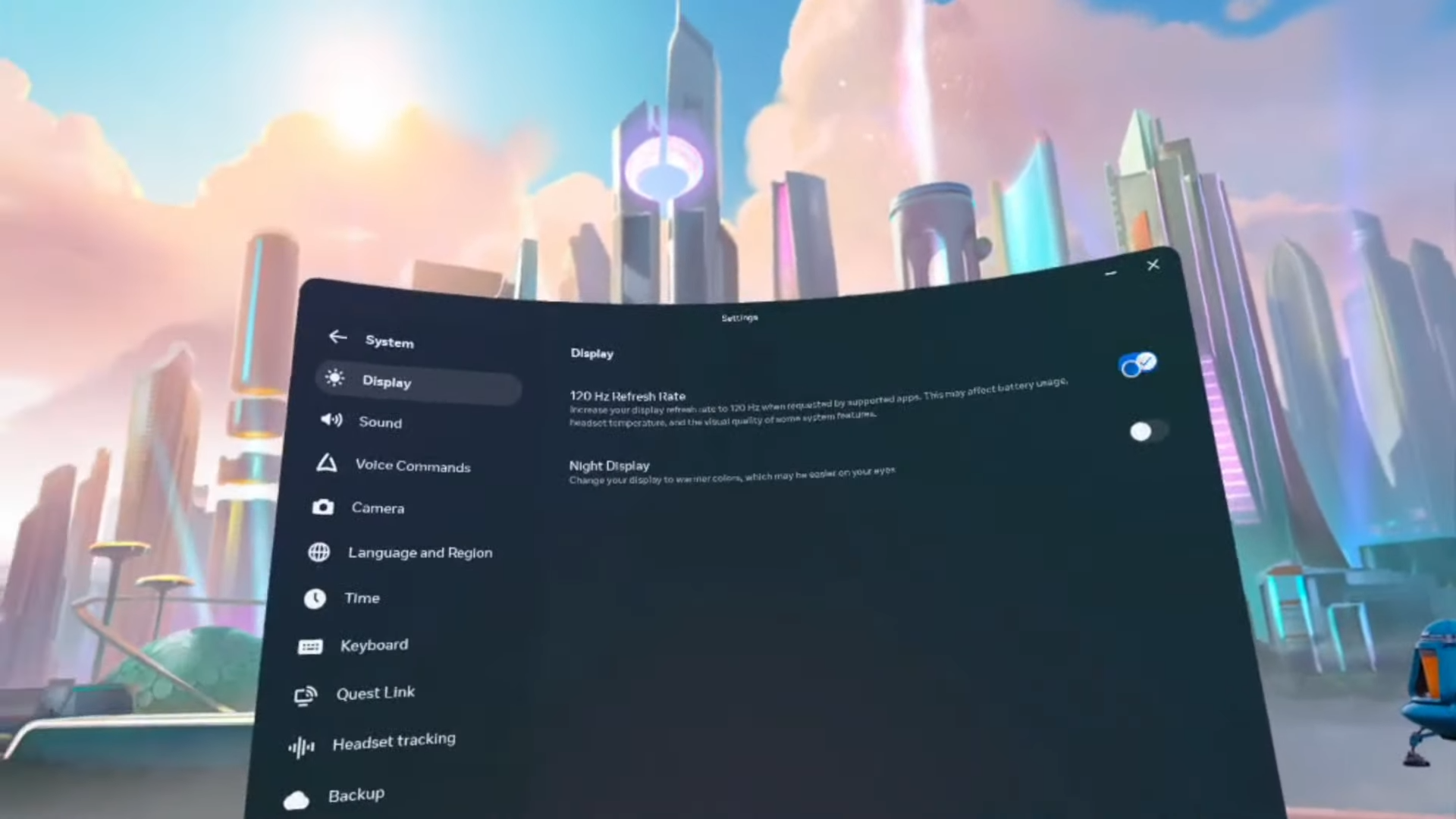
أفضل ميزات Meta Quest المخفية Meta Quest هي منصة واقع افتراضي تقدم تجربة غامرة للمستخدمين. في حين أن العديد من الميزات معروفة للمستخدمين، هناك بعض الميزات المخفية أو المميزات التي قد لا يعرفها الجميع. إليك أفضل ميزات Meta Quest المخفية: رفع معدل التحديث إلى 120 هرتز يعد معدل التحديث المرتفع أمرًا ضروريًا على جميع الهواتف الذكية هذه الأيام، ولكنه أكثر أهمية في سماعة الواقع الافتراضي وأحد أهم ميزات Meta Quest.
فأنت تريد أن يكون معدل الإطارات هو الأكثر سلاسة وأعلى حتى تشعر بالتجربة غامرة وواقعية قدر الإمكان. وهناك فائدة إضافية أيضًا تتمثل في التخلص من دوار الحركة الذي قد تعاني منه، حيث وجدت دراسة نُشرت مؤخرًا أن معدل التحديث المرتفع (120 هرتز على الأقل) يقطعان شوطًا طويلاً في منعك من الشعور بالدوار أثناء تجربة سماعات الواقع الافتراضي.
تدعم كُلًا من سماعتي Meta Quest 2 و3 معدل تحديث 120 هرتز، لذا إليك كيفية تمكينه: قم بتحميل تطبيق Oculus على جهاز الكمبيوتر الخاص بك انتقل إلى الأجهزة اختر سماعة الرأس النشطة ومن ثمّ الشاشة اضبط معدل التحديث على 120 هرتز فقط ضع في اعتبارك أن معدل التحديث المتزايد سيستنزف البطارية ويؤدي إلى تدهور الأداء. كما يجب أن تدرك أنه إذا كنت تلعب لعبة من جهاز الكمبيوتر الخاص بك عبر Steam Link ، فيجب أن يكون جهاز الكمبيوتر الخاص بك قادرًا على دعم 120 إطارًا في الثانية حتى يكون معدل التحديث المرتفع مفيدًا.
لذا إما أن تُخفّض إعدادات الرسومات المسبقة من جهاز الكمبيوتر الخاص بك، أو تستخدم ضبط الترقية إلى وضع الأداء للحصول على بضعة إطارات إضافية. شارك رابطًا لسماعة الرأس الخاصة بك يعمل تطبيق Meta Quest على هاتفك كثيرًا على سد الفجوة بين أجهزتك المادية وعالم الواقع الافتراضي. ولكن ماذا لو كنت تريد، على سبيل المثال، الحصول على رابط من أحد الأجهزة وإحضاره إلى مساحة عمل الواقع الافتراضي الخاصة بك؟
نظرًا لمدى سوء الكتابة على هذه السماعات، فمن غير المعقول كتابة هذا الخليط من الحروف والأرقام على لوحة مفاتيح افتراضية. ربما يمكن استخدام ملحق متصفح أو تطبيق تابع لجهة خارجية لتحقيق ذلك، ولكن قد يثبت أنه طريقة معقدة للحصول على رابط بسيط. بدلاً من ذلك، يمكنك مشاركته مباشرة.
على هاتفك، ابحث عن رابط تريد مشاركته وانقر على زر المشاركة. من قائمة المشاركة، انقر على تطبيق Meta Quest. سيُعرض عليك خياران: إما فتحه مباشرة في سماعة الرأس الآن، أو حفظه لوقت لاحق.
سيتم الاحتفاظ بالروابط المحفوظة في تطبيق Explore. هذا رائع إذا كنت في الخارج وتريد إلقاء نظرة على شيء ما في الواقع الافتراضي لاحقًا عندما يكون ذلك أكثر ملاءمة. ميزات Meta Quest: اكتب بشكل أسهل وأسرع باستخدام ميزة الكتابة بالتمرير الكتابة هي واحدة من تلك الأشياء التي قد يفترض المرء أنها أسهل بكثير في الواقع الافتراضي ومن أحد أهم ميزات Meta Quest، ولكن هذا ليس الواقع لسوء الحظ.
فأنت مجبر على البحث عن المفاتيح باستخدام أصابع السبابة فقط – وهو أمر جيد على الأرجح، لأنه إذا كان لديك إمكانية الوصول إلى جميع أصابعك، فستكتب هراءًا محضًا. والمؤشر الوحيد الذي لديك على المسافة بين أصابعك ولوحة المفاتيح هو الظل الذي يظهر فوق واجهة المستخدم. لا يوجد شعور باللمس، ولا حركة مفاتيح، وبدون مسند للذراع أو مسند للرسغ، يصبح الأمر مرهقًا عند محاولة الكتابة بيديك.
لا يوجد سوى تصحيح تلقائي للتعويض عن الأخطاء العديدة التي سترتكبها. ومثل الكتابة بالتمرير الشائعة على الهواتف الذكية، فإن الكتابة بالتمرير على Quest يجب أن تجعلها أسهل قليلاً.
يمكنك العثور على الخيار
الذي يُعد أحد أهم ميزات Meta Quest في الإعدادات > النظام > لوحة المفاتيح > الكتابة بالتمرير السريع — أو في تجريبي (Experimental) > الكتابة بالتمرير السريع. الخطوات هي نفسها تمامًا على هاتفك الذكي: اضغط مع الاستمرار، ثم اسحب إصبعك من مفتاح إلى آخر. إنه ليس مثاليًا، ولكنه تحسن بسيط.
ومع ذلك، إذا كنت تريد حقًا التخفيف من إحباطاتك مع الكتابة في الواقع الافتراضي، فمن الأسهل بكثير إقران لوحة مفاتيح بلوتوث مدعومة. توثيق تجربة لعبك وتسجيلها هل تريد تسجيل تجربة لعبتك لمشاركتها لاحقًا عبر الإنترنت أو مع الأصدقاء والاستفادة من أحد أهم ميزات Meta Quest؟ تدعم سماعات Quest هذه الميزة، ولكن لبدء وإنهاء التسجيل، عليك فتح تطبيق الكاميرا واختيار تسجيل الفيديو.
إنه أمر سهل بما فيه الكفاية، لكنه يمثل مشكلة إذا كنت بحاجة إلى طريقة سريعة لبدء تسجيل شيء ما حيث لا توجد طريقة أسرع وأسهل سوى من خلال الضغط ببساطة على زر Meta في وحدة التحكم اليمنى ومن ثمّ السحب حتى يبدأ تسجيل الفيديو. بالنسبة للصور الثابتة، يمكنك الضغط على زر Meta والسحب مرة واحدة. يعد تنزيل الصور ومقاطع الفيديو أمرًا سهلاً بمجرد مزامنتها مع تطبيق Meta.
يمكنك تعديل جودة ضغط الفيديو ومعدل الإطارات وتثبيت الصورة بشكل أكبر في الإعدادات السريعة للكاميرا إذا كنت تريد صورة أكثر تفصيلاً، أو صورة بحجم ملف أصغر. يُجدر بالذكر أن هذه الصور قد تظهر “تلقائيًا” في معرض الصور الخاص بك على فيسبوك وانستجرام. يمكنك تعطيل هذا الإعداد في مركز حسابات Meta > التجارب المتصلة > ألبومات Meta Cloud وتغيير مفاتيح التبديل الخاصة بإمكانية الوصول إلى الوسائط في ملف التعريف Meta Horizon الخاص بك.
ميزات Meta Quest: استخدم راحة يدك وزر المعصم لمزيد من التحكم بدا وجود خيارات للتحكم بالإيماءات والإشارة في سماعات Apple Vision Pro بمثابة معجزة تقنية للعديد من المستخدمين عند الكشف عنها، لكن العديد من الأشخاص لم يدركوا أن سماعات Quest تتمتع بالعديد من أزرار التحكم بالإشارة كذلك، وهناك المزيد إذا كنت تريد تحكمًا إضافيًا أيضًا. قم بتنفيذ وضعية Palm Pinch، حيث تنظر إلى راحة يدك وتضغط على السبابة والإبهام؛ يؤدي الضغط السريع إلى إظهار القائمة الشاملة، ويؤدي تقريب أصابعك معًا إلى إعادة تركيز منظورك بناءً على الاتجاه الذي تنظر إليه.
وتأخذ ميزة Direct Touch الأمور خطوة أبعد من خلال قائمة Quick Actions؛ اضغط على أصابعك واضغط عليها، ثم حرك يدك لتحديد الخيارات التي تظهر. في الآونة الأخيرة، قدمت ميتا خاصية أزرار المعصم. وهي ميزة تجريبية ستحتاج إلى تمكينها من خلال الخيارات ومن ثمّ اختيار المزايا التجريبية.
أمسك معصمك، وسيظهر زر يمكنك الضغط عليه أو الاستمرار فيه لمزيد من التحكم. والنتيجة هنا هي تجنب أي أخطاء مع ميزة Palm Pinch، على الرغم من أنها تتطلب كلتا يديك. بث الألعاب عبر خدمة Xbox Game Pass تُعد خدمة Xbox Game Pass طريقة رائعة لتشغيل مجموعة ضخمة من الألعاب دون دفع ثمنها بالكامل.
تتيح لك سماعات Meta Quest إنشاء شاشات افتراضية ضخمة للغاية لتجربة مسرح منزلي رقمي. لماذا لا تجمع بين هذين الأمرين وتلعب ألعاب إكس بوكس على شاشة مثيرة للإعجاب؟
أولاً، ستحتاج إلى اشتراك Xbox Game Pass Ultimate المتميز.
للأسف، يبدو أن الخيارات الأرخص مثل Xbox Game Pass Core غير مدعومة. ستحتاج أيضًا إلى ذراع تحكم؛ ربما لن يكون من الملائم اللعب بالماوس ولوحة المفاتيح في الواقع الافتراضي على أي حال. احصل على Xbox Cloud Gaming (Beta) من متجر Meta ثم اتبع تعليمات الإعداد لإقران وحدة التحكم الخاصة بك وضبط حجم الشاشة وتسجيل الدخول باستخدام حساب مايكروسوفت الخاص بك.
ثم العب. يدعم التطبيق دقة 1080 بكسل فقط بمعدل 60 إطارًا في الثانية، مع اختيار أربعة أحجام مختلفة للشاشة. سيكون هناك بعض التأخير بسبب بث اللعبة وذراع التحكم الخاص بك.
ومع ذلك، ستشعر حقًا وكأنك تسترخي على الأريكة للعب بشكل طبيعي بفضل ميزات السوفت وير الرهيبة التي تُسهّل من تجربة اللعب والبث بشكل ملحوظ. التحكم في سماعتك باستخدام الأوامر الصوتية قد تعتقد أن سماعات الواقع الافتراضي تُوفّر خيارات تحكم أسهل، ولكن يبدو إن العكس هو الصحيح.
حتى بعد أن تعتاد عليه، يضيف الواقع الافتراضي طبقة من الصعوبة حتى لأبسط المساعي. إن مهمة مثل الضغط على الشاشة وتحريكها على Meta Quest تكون دائمًا سهلة بشكل مخادع. النقطة هي أن استخدام يديك قد لا يكون دائمًا الخيار الأفضل (على عكس البديهة).
لذا يُمكنك تجربة الأوامر الصوتية بدلاً من ذلك. بجانب ميزات Meta Quest، يُعد هذا الإعداد موجودًا في النظام > الأوامر الصوتية، لكن صفحة الدعم الرسمية الخاصة بميتا تسرده كعنصر منفصل في الإعدادات > الأوامر الصوتية > اختصار وحدة التحكم. قم بتنشيط الميزة في الإعدادات السريعة باستخدام خيار الأوامر الصوتية.
بدلاً من ذلك، انتقل إلى الإعدادات > تجريبي وقم بتمكين كلمة الاستيقاظ. ثم يمكنك قول “مرحبًا فيسبوك ” على سبيل المثال واستخدام سماعة الرأس الخاصة بك كما تفعل مع المساعد الافتراضي مثل Google Assistant أو Siri. على الرغم من أنه لا يمكنك القيام بكل شيء، فإن الأوامر الصوتية تفعل الكثير.
يمكنك إخبار سماعتك بتشغيلها أو إيقاف تشغيلها، والتحكم في إعدادات مستوى الصوت، وطلب معرفة عمر البطارية، وفتح تطبيق أو لعبة معينة، وإغلاقها، وما إلى ذلك، وعادةً ما تكون أسرع من البدائل القائمة على الحركة. هناك عيبان فقط جديران بالملاحظة هنا: أولاً، هذه الميزة مدعومة باللغة الإنجليزية فقط؛ وثانيًا، تعالج ميتا بيانات صوتك وأي شيء آخر يلتقطه الميكروفون. ميزات Meta Quest: خاصية Passthrough الثورية من ميزات Meta Quest التي تخص الأمان (والراحة) الإضافية وضع المرور Passthrough في سماعات ميتا كويست.
حيث يمكن للمستخدمين الذهاب لشرب مشروب من الماء أو إجراء محادثة وجهاً لوجه مع شخص ما دون خلع سماعة الرأس. وعادةً ما يكون هذا الأمر مرهقًا بعض الشيء نظرًا لأنه يتعين عليك فتح الإعدادات السريعة وتمكينها أو تعطيلها يدويًا. وبدلاً من ذلك، قم بإعداد النقر المزدوج لتمكين هذه الميزة.
افتح الإعدادات السريعة من القائمة العامة، ثم تطبيق الإعدادات. انتقل إلى المساحة المادية > Passthrough > النقر المزدوج للمرور. لتنشيطها، انقر بسرعة مرتين على أحد جانبي سماعة الرأس.
هذه الميزة بطيئة بعض الشيء ولكنها تعمل بشكل جيد، وهو أمر ضروري إذا كنت بحاجة إلى إلقاء نظرة سريعة على محيطك لأي سبب من الأسباب. يُمكنكم التعرف على مزيد من المعلومات بخصوص هذه الميزة عبر موقع ميتا الرسمي هنا . ميزات Meta Quest الصحية: حساب سعراتك الحرارية أحد أكبر الدوافع لصالح تجربة الواقع الافتراضي هو أنه يتيح لك لعب ألعاب الفيديو أثناء الحركة بعيدًا عن الأريكة.
تحتوي سماعات ميتا على صفحة كاملة مخصصة لتجارب “اللياقة البدنية”. الآن، ربما لن تصل إلى أهداف إنقاص الوزن الخاصة بك من خلال التلويح بذراعيك باستخدام زوج من وحدات التحكم خفيفة الوزن، ولكنك ستحرق سعرات حرارية قليلة على الأقل. ومع ذلك، فإن الأمر يستحق المتابعة وهناك طريقة سهلة للقيام بذلك تلقائيًا.
الميزة هي Meta Quest Move. ستجد تطبيق Move في مكتبة التطبيقات الافتراضية لديك. للبدء، سيطلب منك المعلومات النموذجية التي تتوقعها من تطبيق اللياقة البدنية – العمر والجنس والوزن وما إلى ذلك – على الرغم من أنك حر في عدم تقديم أي معلومات على الإطلاق.
تساعد هذه التفاصيل في وضع تقديرات دقيقة لمعدل الأيض الأساسي (BMR) أو حرق السعرات الحرارية. إذا قدمت هذه المعلومات، فتأكد من تخزينها محليًا على الجهاز ولن تتم مشاركتها مع شركة ميتا بأي شكل من الأشكال. بعد إعداده والاستفادة من أحد أهم ميزات Meta Quest، ما عليك سوى اللعب وسيتتبع نشاطك عبر التطبيقات والألعاب، بغض النظر عما إذا كانت موجهة نحو اللياقة البدنية أم لا.
إذا كنت تريد الذهاب إلى أبعد من ذلك، فيمكنك تحديد الأهداف وتتبع تقدمك. تتعقب نافذة عائمة السعرات الحرارية والوقت الذي تقضيه في اللعب أثناء تجميعها. لاحقًا، يمكنك مشاركة إحصائيات النشاط هذه مع أي تطبيقات صحة على الهاتف المحمول الخاص بك.
ميزات Meta Quest التفاعلية: بث تجربة لعبك على شاشة خارجية هل تريد بث ما تقوم به على شاشة خارجية لذا يمكن لجميع أصدقائك وعائلتك مشاهدة الشاشة لمعرفة ما تراه؟ للقيام بذلك، تتطلب Meta تنزيل تطبيق Meta Quest للجوال أولاً. اتصل بنفس شبكة واي فاي على سماعة الرأس والجهاز الخارجي، ثم قم بتسجيل الدخول إلى حساب ميتا على سماعة الرأس الخاصة بك.
بعد ذلك، يمكنك إما بدء الإرسال من داخل سماعة الرأس، أو من هاتفك/حاسوبك. من سماعة الرأس، افتح القائمة العامة، ثم انتقل إلى الكاميرا > الإرسال واختر جهازًا؛ أو انتقل إلى القائمة > الإرسال من هاتفك واختر سماعة الرأس الخاصة بك واضغط على بدء. إذا كنت تريد القيام بذلك من جهاز كمبيوتر، فانتقل إلى oculus.com/casting وقم بتسجيل الدخول باستخدام نفس حساب ميتا.
من سماعة الرأس الخاصة بك، استخدم نفس الخطوات المذكورة أعلاه للعثور على الجهاز الخارجي الخاص بك. كلمة أخيرة بعد تفصيل ميزات Meta Quest في خضم الثورة التكنولوجية التي نشهدها، تبرز سماعة رأس Meta Quest كأحد أبرز الأدوات التي تشكل مستقبل التفاعل مع العالم الرقمي. من خلال استكشاف الميزات المخفية التي تكمن بداخلها، نكون قد فتحنا نافذة على عالم جديد من الإمكانيات التي لا حدود لها.
ميزات Meta Quest هذه، التي تمتد من تخصيص الواجهة إلى تحسين الأداء، تجعل منها أكثر من مجرد سماعة رأس؛ إنها بوابة إلى تجربة غامرة وشخصية لا مثيل لها. فبفضل هذه الميزات، يمكننا أن نتحول من مجرد مستخدمين إلى مصممين لعوالمنا الافتراضية الخاصة بنا، حيث يمكننا أن نستكشف، نتعلم، ونلعب بطرق لم نكن نتخيلها من قبل. مقالات ذات صلة بـ ميزات Meta Quest: أفضل نظارات الواقع الافتراضي لعام 2024: دليلك لاختيار النظارة المثالية
دروب أيديا - DROPIDEA
نأمل أن تكون هذه المقالة قد أضافت لك قيمة حقيقية. في دروب أيديا نسعى دائمًا لتقديم محتوى عربي عالي الجودة يساعدك على النمو والتطور في المجال الرقمي. تابعنا للمزيد من المقالات والشروحات المفيدة.
الأدمن
DROPIDEA
أحدث المقالات

هل تصيّد ماسك إطلاق أداة «Dots» من OpenAI عبر نطاق dot.com؟

بيك إكس في ترفع سقف استثماراتها البذرية إلى 5 ملايين دولار

عشاء مرتقب بين رئيس أنثروبيك ودونالد ترامب وسط خلافات حول أمان الذكاء الاصطناعي

جوجل تختبر الشراء المباشر من فليبكارت عبر Gemini في الهند



