تسميات ملفات القالب المفردة single.php وكيفية تطويرها
 بقلم الأدمن
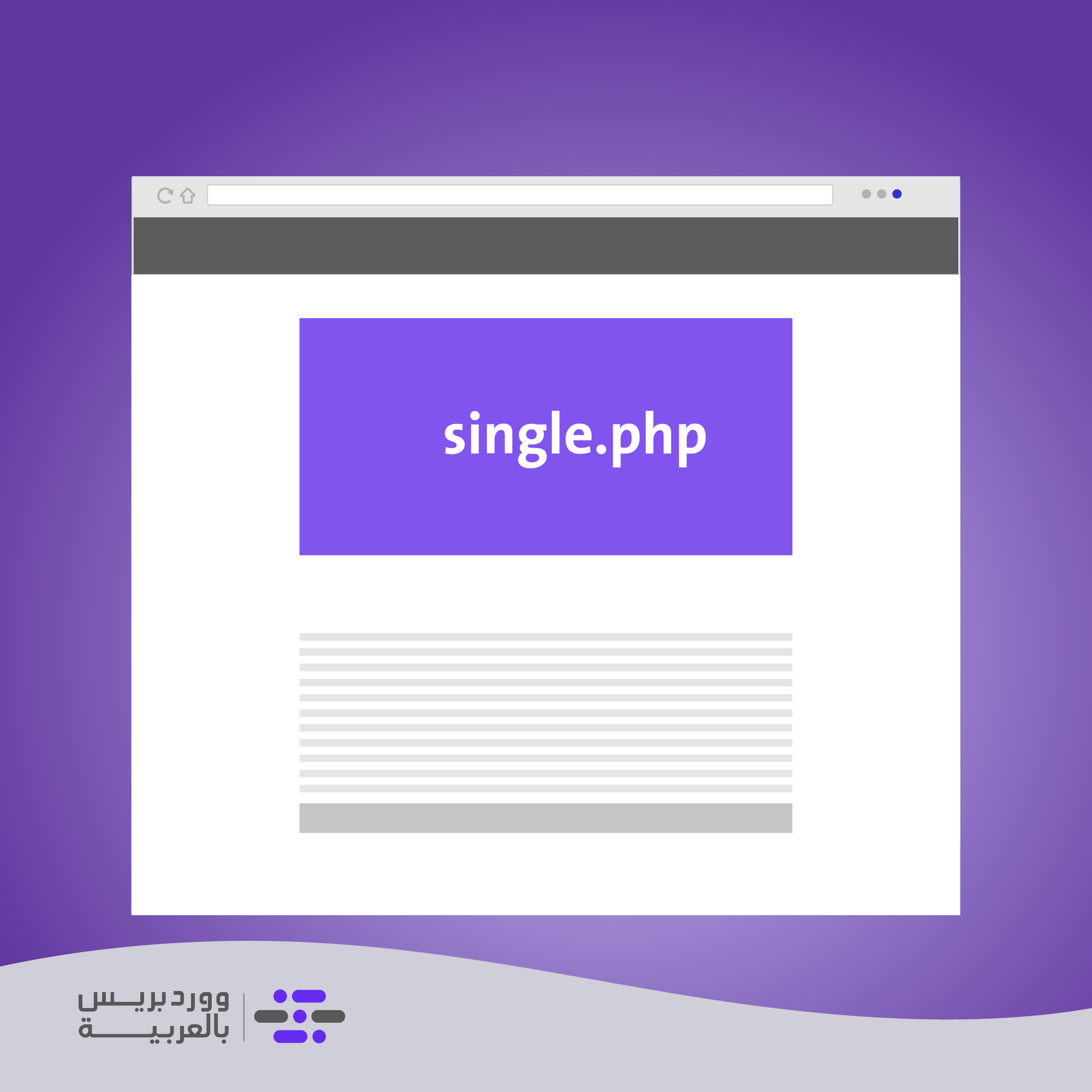
في مقال اليوم سنعمل على إنشاء ملف نموذج هام في قالب ووردبريس الخاص بنا وهو الملف single.php الذي يستخدم بشكل أساسي لعرض وتنسيق جميع المنشورات أو المقالات الفردية المنشورة على موقع ووردبريس الخاص بك. يمكنك من خلال هذا الملف العام تخصيص صفحة أي منشور بشكل مرن، كما يمكنك إنشاء ملفات أكثر تخصيصًا للحصول على المزيد من التحكم في طريقة عرض منشورات بعينها في موقعك. على سبيل المثال يمكنك تخصيص طريقة عرض المقالات التي تنتمي إلى تصنيف معين أو التي تمت كتابتها من قبل مؤلفين معينين بشكل مختلف عن باقي المقالات، أو عرض أنواع المنشورات المخصصة (CustomPosts) بشكل مختلف وغيرها الكثير من الخيارات..
تابع فقرات هذا المقال وتعرف بالخطوات المفصلة على كيفية تخصيص هذا التمبلت، والمرونة الكبيرة التي يوفرها لك لتخصيص عرض مقالات موقع الويب الخاص بك. محتويات المقالة كيفية إنشاء قوالب منشورات فردية مخصصة في ووردبريس. إنشاء ملف single.php وإضافة بيانات المقال له.
إضافة أيقونات المشاركة على وسائل التواصل الاجتماعي أسفل المقال إنشاء ملف style.css لتنسيق المقال الخلاصة كيفية إنشاء قوالب منشورات فردية مخصصة في ووردبريس. كنا قد شرحنا في الدروس السابقة من سلسلة تطوير قوالب ووردبريس بأن أي ثيم ووردبريس يحتاج بشكل أساسي لملف النموذج الرئيسي index.php لعرض صفحات الموقع، وملف style.css الذي يتحكم في مظهر هذه الصفحات. وبينا أن يمكن لمطور القالب إضافة العديد من ملفات النماذج بشكل اختياري للمزيد من التخصيص.
حيث أن ملفات نماذج القالب تتبع تسلسل هرمي محدد يتم من خلاله التأكد من أن أي مقال أو صفحة نقوم باستعراضها في موقعك لها ملف تمبلت مخصص مناسب لها ضمن هذا التسلسل ويتم استخدامه قبل غيره من ملفات التمبلت الأخرى التي يوفرها قالبك. إذا لم يوجد ملف مخصص بدقة لعرض الصفحة المطلوبة، يتم الانتقال للملف الموجود في مستوى أعلى في الهرمية (ملف أكثر عمومية) وهكذا حتى نصل في النهاية لملف التمبلت الأساسي للقالب index.php. في مقال اليوم سوف نكمل القالب الذي بدأنا تطويره في الدرسين الماضيين ( تطبيق عملي1 لبناء قالب ووردبريس و تطبيق عملي2 لبناء قالب ووردبريس ) ونعمل على إنشاء ملف تمبلت جديد في قالبنا هو ملف نموذج المنشور المفرد single.php كي يهتم بعرض مقالات الموقع وفق التصميم المطلوب.
توضيح: كلمة المنشورات أو البوستات (posts) في ووردبريس تشمل عدة أنواع منها أنواع المنشورات الافتراضية ( Default Post Types ) في وودربريس، أو أنواع المنشورات المخصصة وبالنسبة لملف single.php فهو يختص كما ذكرنا بعرض الصفحات المفردة لجميع أنواع المنشورات الافتراضية أو المخصصة باستثناء الصفحات الستاتيكية (page) فهذه الأخيرة يختص بها ملف نموذج مخصص يعرف باسم page.html والذي سنعمل على إنشائه وتخصيصه في دروس لاحقة من السلسلة. اقرأ المزيد: الفرق بين الصفحات (Pages) والمقالات (Posts) في الووردبريس بالنسبة لدرس اليوم سنهتم بإنشاء الملف single.php فقط من أجل تخصيص كافة مقالات موقعنا الفردية، ويمكنك بالطبع إنشاء ما تريد من ملفات نماذج أكثر تحديدًا لمقالات أو منشورات موقعك في حال كنت بحاجة لمزيد من التخصيص في أسلوب عرض هذه المنشورات كما هو مبين في الصورة التالية. التسلسل الهرمي لاستدعاء ملفات نموذج المنشور المفرد كما هو موضحة في الصورة أعلاه يستخدم الملف المسمى single- {post-type} .php لتخصيص عرض منشور له نوع معين، على سبيل المثال ففي حال كان لديك منشور من نوع مقال مدونة (post) فسوف يبحث ووردبريس عن الملف single-post.php لعرض المقال، وإذا كان لديك منشور مخصص من نوع منتج (product) فسوف يبحث ووردبريس عن ملف مخصص باسم single-product.php لعرضه وهكذا..
إذا لم يجد ووردبريس ملف مخصص لنوع المنشور المحدد ضمن مجلد القالب، سيبحث عندها عن وجود ملف باسم single.php لعرض المنشورات أيًا كان نوعها، وفي حال لم يجده يبحث عن وجود الملف الاحتياطي singular.php ويستخدمه، وفي حال لم يجده كذلك سوف يعود كما ذكرنا للملف الأساسي index.php في نهاية المطاف ويعتمد عليه بعرض المنشور. يعتمد معظم مطوري القوالب عند تطوير قوالبهم المخصصة على إنشاء ملف التمبلت single.php فقط في قوالبهم لتبسيطها قدر الإمكان، فهذا الملف محدد بدرجة كافية لعرض المنشورات المفردة ولا داعي لإنشاء ملفات أكثر تخصيصًا. في الفقرات التالية سنبدأ بإنشاء الملف single.php مجلد القالب، وسنعتمد عليه لتنسيق جميع المنشورات أو المقالات الفردية على موقعنا.
حيث نريد عند النقر فوق عنوان أي مقال على الصفحة الرئيسية أو أحد صفحات الموقع الأخرى والانتقال لصفحة هذا المقال أن تظهر لنا صحفة تتضمن عناصر المقال وفق المخطط الهيكلي التالي: الإطار الشبكي لصفحة المقال المفرد للموقع إنشاء ملف single.php وإضافة بيانات المقال له. علينا أن ننشئ في البداية ملف جديد باسم single.php في مجلد القالب الخاص بنا (الموجود في الدليل في الدليل wp-content < themes ضمن المجلد الجذر لموقعنا) ونضيف الكود اللازم لعرض البيانات المطلوبة في صفحة المقال المفرد. بداية نستدعي في ملف التمبلت كل من هيدر وفوتر الموقع اللذان أنشأناهما في الدرس السابق من خلال الدالتين get_header() و get_footer() وبينها نكتب وسم
لعرض محتوى الصفحة ضمنه لاحقًا ليكون الكود كما يلي: بعدها وضمن الوسم نحتاج لكتابة حلقة ووردبريس WordPress Loop تستخرج في البداية كما هو موضح في تصميم الإطار الشبكي المقترح عنوان المقال، ثم بعض البيانات الوصفية للمقال (مثل تصنيفات المقال الذي يتم عرضه، واسم الكاتب، وتاريخ النشر).
بعدها نعرض الصورة المميزة (Featured Image) لكل مقال، وهنا كذلك سنستخدم صورة افتراضية في حال لم يقم الكاتب بتحميل صورة مميزة لهذا المقال. وأخيرًا نعرض المحتوى الفعلي للمقال من خلال استدعاء الدالة the_content() ، هذه الدالة تجلب كل كود HTML الذي ينتج عن تحرير المقال سواء من خلال المحرر الافتراضي جوتنبرج أو غيره من أدوات بناء الصفحات الأخرى (فهي تجلب لك كافة النصوص والصور ومقاطع الفديو والعناصر الأخرى التي أضفتها للمقال من خلال المحرر، وتضعها في الموضع المطلوب في ملف التمبلت).
الآن سيكون الكود ضمن وسم الفتح
ووسم الإغلاق الذي يعرض كافة بيانات المقال المطلوبة بالشكل التالي:
دروب أيديا - DROPIDEA
نأمل أن تكون هذه المقالة قد أضافت لك قيمة حقيقية. في دروب أيديا نسعى دائمًا لتقديم محتوى عربي عالي الجودة يساعدك على النمو والتطور في المجال الرقمي. تابعنا للمزيد من المقالات والشروحات المفيدة.
الأدمن
DROPIDEA
أحدث المقالات

هل تصيّد ماسك إطلاق أداة «Dots» من OpenAI عبر نطاق dot.com؟

بيك إكس في ترفع سقف استثماراتها البذرية إلى 5 ملايين دولار

عشاء مرتقب بين رئيس أنثروبيك ودونالد ترامب وسط خلافات حول أمان الذكاء الاصطناعي

جوجل تختبر الشراء المباشر من فليبكارت عبر Gemini في الهند



