خطوات تعريب قالب ووردبريس (الدليل الكامل مع التطبيق العملي)
 بقلم الأدمن
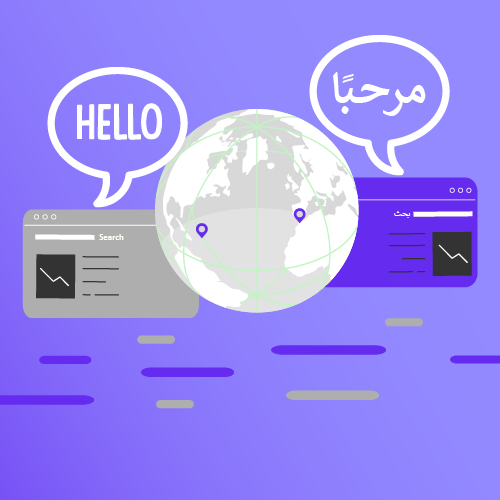
من المعروف أن نظام ووردبريس يعتبر من أنظمة إدارة المحتوى الأكثر استخدامًا وشعبيًة حول العالم. وقد قام فريق تطوير ووردبريس الرسمي بترجمة نظام ووردبريس الأساسي من اللغة الإنجليزية إلى 169 لغة مختلفة.
من بينها 55 لغة تخضع للتحديثات الدورية وأحد هذه اللغات هي اللغة العربية بالطبع وذلك كي تسمح لمستخدمي وورد بريس بإدارة وإنشاء المواقع بلغاتهم المحلية.
لكن هذا الأمر لا ينطبق على
القوالب والإضافات في ووردبريس، حيث أن مهمة ترجمتها تكون عادةً مسؤولية المطورين الذي أنشؤوا هذه القوالب والإضافات، لكن يمكنك أنت أيضًا القيام بهذا الأمر بنفسك إذا امتلكت بعض المهارات الأساسية كما سنوضح لك في سياق هذا المقال الشامل. فكي تتمكن من إنشاء موقع ووردبريس باللغة العربية تحتاج بالطبع لأن تستخدم قالب ووردبريس عربي مناسب لموقعك. يمكنك العثور على الكثير من القوالب العربية الجاهزة واستخدامها مباشرة على موقعك، أو يمكنك كخيار بديل تعريب قالب ووردبريس موجود بنفسك كما سنشرح لك في فقراتنا التالية بالخطوات التفصيلية.
تعريب قالب ووردبريس محتويات المقالة
متى تحتاج لتعريب قالب ووردبريس؟
قبل أن تبدأ بتعريب القالب الخطوة1: ترجمة عبارات القالب للغة العربية ما هو القالب الجاهز للترجمة؟ كيف أعرف مدى جاهزية قالب ووردبريس للترجمة؟ 1.
قراءة مواصفات القالب 2. التأكد من وجود ملف نموذج الترجمة 3.
فحص كود الملف functions.php طرق ترجمة قالب ووردبريس 1. ترجمة القالب باستخدام برنامج POEdit 2. ترجمة القالب باستخدام إضافة Loco Translate 3.
ترجمة القالب من داخل الملفات المصدرية للقالب نصائح لترجمة القالب بالشكل الأمثل الخطوة 2: دعم الاتجاه من اليمين لليسار كيف أتحقق من كون قالب ووردبريس يدعم RTL؟
كيف أجعل قالب ووردبريس يدعم RTL بشكل صحيح؟
1. إنشاء ملف ستايل CSS يدعم اتجاه RTL لقالب ووردبريس سيناريو1: التحويل الآلي لملف تنسيقات القالب (style-rtl.css) سيناريو2: التعديل اليدوي لملف تنسيقات القالب (rtl.css) سيناريو3: قد لا تحتاج للقيام بأي تعديل على الملف (style.css) 2- جعل قالبك يرى ملف التنسيقات الجديد الذي يدعم اتجاه RTL 3- اختبار ملف التنسيقات RTL ما أهمية تعريب القالب ضمن قالب ابن؟ تطبيق عملي: تعريب قالب eLearning Education 1.
ترجمة عبارات القالب 2. تعديل تنسيق RTL خاتمة
متى تحتاج لتعريب قالب ووردبريس؟
بداية يجب أن ننوه أن هناك العديد من قوالب ووردبريس تكون معربة بالكامل أي أنها تكون مترجمة للعربية وتدعم الاتجاه من اليمين لليسار بشكل تلقائي. ولا يتوجب عليك اتخاذ أي إجراء قبل استخدامها. كل ما عليك هو البحث عن ( قوالب ووردبريس مجانية معربة ، أو قوالب ووردبريس احترافية معربة) من المواقع المعتمدة المخصصة لقوالب ووردبريس -مثل موقع وودربريس الرسمي أو موقع ThemeForest أو Themify أو غيرهاـ وتفعيلها على موقعك ليعمل بشكل صحيح دون أي مشاكل.
ونؤكد هنا على ضرورة الاعتماد على مصدر موثوق لتحميل القالب ورفعه على حاسوبك، وتجنب ا لقوالب المقرصنة والقوالب مجهولة المصدر بشكل عام. لكن قد تجد كصاحب موقع ووردبريس قالب ووردبريس مجاني أو قالب مدفوع يعجبك ويلائم متطلبات موقعك، إلا أنه لا يحتوي على دعم للغة العربية!
في هذه الحالة يمكنك أن تعمل على تعريب هذا القالب ليعمل بشكل صحيح على موقعك. من جهة أخرى قد تحتاج كمطور قوالب ووردبريس إلى تصميم قالب ووردبريس يعمل بكفاءة على المواقع العربية أو المواقع متعددة اللغات ، فهذا من شأنه أن يزيد من نسبة مبيعات القالب بكل تأكيد، لأن للغات التي تتجه من اليمين لليسار ومن ضمنها اللغة العربية تستخدم من قبل أكثر من مليار شخص حول العالم وهؤلاء يحتاجون لقوالب تدعم هذه اللغات.
فسواء كنت مستخدم ووردبريس أو مطور ووردبريس فهذا المقال سيوفر لك دليلاً شاملاً لتتعلم كيف تقوم بتقديم خدمة تعريب قوالب ووردبريس بسهولة وبالخطوات المفصلة. وسنختم المقال بتطبيق عملي نعمل من خلاله على تعريب قالب ووردبريس مجاني من قوالب ووردبريس الرسمية .
اقرأ أيضًا: كيفية الحصول على قالب ووردبريس معرب؟
وتحديد الخيار الأفضل لك
أفضل طريقة للحصول على قالب ووردبريس: تعيين مطور أم شراء قالب جاهز أم تعريب قالب؟ قبل أن تبدأ بتعريب القالب هناك مجموعة من النقاط التي يجب أن تأخذها بعين الاعتبار قبل أن تأخذ خطوة تعريب قالب ووردبريس وهي كالتالي:
1- بعض خطوات التعريب تتطلب تغييرات في أكواد القالب وتحتاج لامتلاكك معرفة أساسية بلغات تصميم الويب مثل HTML وCSS . لذا في حال لم تكن تملك المهارة الكافية لذلك فالأفضل لك في هذه الحالة أن تطلب تعريب القالب من قبل مطور قوالب متخصص، ستجد في مواقع العمل الحر مثل خمسات
و مستقل الكثير من المطورين والمبرمجين الذين يقدمون لك خدمة تعريب قالب ووردبريس معين بأرخص سعر. اقرأ أيضًا: كيف تقوم بتوظيف مستقل محترف يساعدك في تطوير موقعك الووردبريس؟
2- يمكنك كذلك الحصول على قالب معرب وجاهز دون المرور بكل الخطوات التي سنشرحها في الفقرات التالية، ودون المخاطرة بتعديل الكود البرمجي بطريقة خاطئة قد تتسبب في تعطل موقعك، لا سيما إذا كنت لا تملك المهارة التقنية اللازمة التي تمكنك من القيام بهذه المهمة بسلاسة ومرونة. وأود أن أشير هنا لمتجر بيكاليكا الذي يوفر أفضل المنتجات الرقمية العربية.
ابحث في الموقع عن قالب ووردبريس مناسب لعملك ويدعم اللغة العربية بشكل كامل.كما يمكنك من خلال الموقع التواصل المباشر مع مطور القالب للحصول على الدعم الفني وإجراء أي تعديلات مخصصة تريدها على القالب بأسعار مناسبة تمامًا. متجر بيكاليكا 3- تحتاج عملية تعريب قالب ووردبريس بشكل عام إلى خطوتين رئيسيتين: الأولى
ترجمة عبارات القالب إلى اللغة العربية وهو ما يعرف باسم (Localization) أو (Translation)، والثانية هي تغيير اتجاهات عناصر الموقع بحيث تتجه من اليمين إلى اليسار لتتناسب مع اتجاه قراءة اللغة العربية وهو ما يعرف باسم (RTL-Support) للقالب. 4- إن إنجاز مهمة تعريب القوالب تتفاوت في الصعوبة من قالب لآخر فبعض القوالب يكون جاهزًا للترجمة (Translation-ready) وبعضها يكون داعمًا لتغيير الاتجاه من اليمين لليسار (RTL Supported) بشكل مباشر، وبعضها
لا يكون كذلك . لذا عليك التحقق من مدى جاهزية القالب للتعريب وفحصه جيدًا قبل البدء بتنفيذ الخطوات لتحدد مدى قدرتك على تنفيذ المهمة بنجاح!
الخطوة1: ترجمة عبارات القالب للغة العربية المقصود بترجمة القالب ترجمة العبارات الثابتة التي يعرضها القالب سواء بشكل سلاسل نصية في الواجهة الأمامية مثل (بحث، لم يتم العثور على شيء، التالي، السابق، إقرأ المزيد، اترك تعليقًا، التعليقات) أو بشكل نصوص وعبارات في الواجهة الخلفية مثل (شارك أول منشوراتك، عدد المشاركات) هذه الخطوة ستكون بسيطة ويمكنك تنفيذها من خلال أدوات وإضافات جاهزة في حال كان القالب جاهز للترجمة.
كل ما عليك هو ترجمة عبارات القالب من اللغة الانجليزية إلى اللغة العربية باستخدام هذه الأدوات كما سنشرح لك في فقرة لاحقة. لكن يجب أن تتنبه إلى أن مطوري القوالب لا ينشؤون دائمًا قوالبهم لتكون جاهزة للترجمة، لذلك عند الحصول على قالب مجاني أو مدفوع يجب أن تتأكد من أن القالب جاهز للترجمة، لأن هذه إعداد القالب للترجمة أمر مربك لك إذا كنت مبتدئ ويتطلب عادة مطور قوالب..
ترجمة عبارات القالب إلى اللغة العربية ملاحظة: بالنسبة لترجمة محتويات الموقع (المقالات والصفحات و المنشورات المخصصة ) فهي تترجم بطريقة أخرى حيث أنها لا تخزن في ملفات ترجمة بل يتم تخزينها في جداول ضمن قاعدة البيانات.
ما هو القالب الجاهز للترجمة؟ تقنيًا القالب القابل للترجمة هو القالب الذي يعمل فيه مطور القالب على تغليف السلاسل النصية المستخدمة في القالب (ضمن ملفات الكود المصدري للقالب) داخل دوال برمجية مخصصة تسمى دوال الترجمة
مثل __() أو __e () أو _n() esc_html __() وغيرها.. على سبيل المثال بدلاً من استخدام سلسلة نصية عادية بشكل مباشر ضمن الكود، تستخدم السلسلة ضمن دالة ترجمة بالشكل التالي: هناك عدد كبير من دوال الترجمة التي يستخدمها المطورون في أكواد القالب، وهي تختلف
في آلية عملها بشكل طفيف، لكنها تعمل بشكل أساسي على إرجاع ترجمة السلاسل النصية الممررة لها إلى اللغة الحالية لموقعك في حال توفرها. وإذا لم تكن الترجمة متوفرة عندها يتم إرجاع السلسلة النصية نفسها.
كيف أعرف مدى جاهزية قالب ووردبريس للترجمة؟
كي تعرف مدى جاهزية قالب ووردبريس معين للترجمة إلى أي لغة محلية عليك فحص عدة أمور في هذا القالب: 1.
قراءة مواصفات القالب
قبل أن تبدأ بترجمة نصوص قالب ما للغة العربية (أو أي لغة أخرى) يجب أن تتأكد من أن نصوص هذا القالب قابلة للترجمة أو جاهزة للترجمة بالأساس.عليك بداية قراءة مواصفات القالب والبحث عن كونه قابل للترجمة حيث تكون هذه المعلومة موضحة عادة ضمن مواصفات قالب ووردبريس. كما يمكنك البحث عن القوالب الجاهزة للترجمة في
قوالب ووردبريس الرسمية من خلال تحديد خيار جاهز للترجمة (Translation Ready) أثناء البحث عن قالب مناسب لموقعك.
2. التأكد من وجود ملف نموذج الترجمة يجب عليك كذلك فحص ملفات ومجلدات القالب بعد تحميله، والبحث عن وجود مجلد باسم languages أو lang داخله.
إذا كان هذا المجلد موجودًا، فيجب أن تجد بداخله ملف بالامتداد .pot وهو اختصار لـ Portable Object Template.
هذا الملف يحتوي على السلاسل النصية الأصلية للقالب المتاحة للترجمة للغات الأخرى ويسمى عادة باسم القالب. الهدف من هذا الملف تسهيل عملية الترجمة لاحقًا، فبغض النظرعن اللغة المستخدمة لتطوير القالب يمكن لأي شخص يستخدم هذا القالب فيما بعد ترجمته بسهولة إلى أي لغة يحتاجها دون الحاجة لأي تعديل في أكواد القالب. وبالتالي كي تترجم قالبك للغة لأي لغة محلية عليك أن تترجم هذا الملف إلى اللغة التي تريدها وينتج عن عملية الترجمة الملفان التاليان:
ملف بالامتداد .po وهو اختصار لـ Portable Object هذا الملف النصي يخزن السلاسل الأصلية والمترجمة للقالب جنبًا إلى جنب. تتم تسمية هذا الملف بما يناسب رمز اللغة والدولة التي تترجم النصوص إليها مثلاً ar_SA للترجمة للغة العربية_المملكة العربية السعودية.
كما يمكنك تسميته برمز اللغة من دون اضافة اسم الدولة ar.po فقط.
ملف بالامتداد .mo وهو اختصار لـ Machine Object وهو ملف ينتج عن تحويل ملف الترجمة po إلى تنسيق أصغر حجمًا وقابل للقراءة آليًا كي يسمح بالوصول بسرعة إلى النصوص المترجمة آليًا عند تفعيل القالب على موقع ووردبريس عربي . إذًا تذكر: يجب أن يتضمن المجلد languages للقالب المترجم للعربية الملفات الثلاث التالية:
Themename.pot الذي ينتج عن تحليل الأكواد البرمجية للقالب واستخراج السلاسل النصية القابلة للترجمة وحفظها في ملف نصي بالامتداد POT، وبالتالي يحتوي هذا الملف كل النصوص المتاحة للترجمة وكل ما عليك كمستخدم للقالب هو ترجمة هذه النصوص. ar.po الذي يحوي السلاسل النصية الأصلية وترجماتها للغة العربية. وهو ينتج عندما تقوم بترجمة نصوص القالب المحفوظة في الملف POT للغة العربية وتحفظ نتيجة ترجمتك.
ar.mo.الذي يحوي ملفات الترجمة المصرفة، وهو يولد بشكل تلقائي بعد تحويل ملف PO إلى ملف ثنائي لقرائته آليًا. وبالتالي أول خطوة كي تترجم القالب هي ترجمة نصوص القالب للغة العربية والتأكد من توفير ملفات الترجمة الثلاثة السابقة ضمن ملفات القالب (يفضل ان تحفظها في ملف مخصص باللغات في حال لم تكن كذلك لسهولة التنظيم). 3.
فحص كود الملف functions.php يوجد الملف functions.php
في كل قالب من قوالب ووردبريس، ويعرف باسم ملف وظائف القالب وهو يستخدم لإضافة وظائف جديدة للقالب أو تعديل طريقة عمل وظائف القالب الافتراضية. يجب أن تفحص الكود المصدري لهذا الملف وتتأكد من أنه يستدعي الدالة
load_theme_textdomain من داخل دالة إعداد القالب setup() كي يتمكن من تحميل مجال النص textdomain وفهم ملفات الترجمة والتعرف عليها وترجمة القالب بنجاح.
وفي حال عدم وجود هذا الكود عليك إضافته بنفسك للملف. load_theme_textdomain( 'yourthemename', get_template_directory() . '/languages' ); ملاحظة: إذا كان القالب الذي تقوم بترجمته قالب ابن من قالب أب يجب أن يكون الكود بالشكل التالي: load_child_theme_textdomain( 'yourthemename', get_template_directory() .
'/languages' ); حيث أن ‘yourthemename’ هو اسم مجلد القالب الخاص بك و languages هو اسم المجلد الذي يحوي ملفات الترجمة.
تنبيه: قبل تعديل أي كود في الملف functions.php، احتفظ بنسخة احتياطية
من القالب أو لموقعك بالكامل لإمكانية استعادته في حال وقوع أي خطأ في تعديل الكود. طرق ترجمة قالب ووردبريس هناك عدة طرق وأدوات يمكنك من خلالها إنشاء ملفات الترجمة ولكن النتيجة النهائية هي نفسها دائمًا.
سوف ينتج لديك كما شرحنا ملفان للترجمة هما الملف po والملف mo وإليك أشهر الطرق المتبعة للترجمة مع بيان مميزاتها وسلبياتها: 1. ترجمة القالب باستخدام برنامج POEdit
برنامج Poedit هو أداة مجانية تملك واجهة رسومية سهلة الاستخدام تمكنك من إضافة وتعديل ملفات الترجمة بكل سهولة من داخل نظام التشغيل. لكن يستلزم تعريب القالب بهذه الطريقة أن يكون ملف نموذج الترجمة POT موجودًا في القالب.
بعدها كل ما عليك هو فتح هذا الملف في تطبيق POEdit والنقر على زر +أنشئ ترجمة جديدة كما هو مبين في الصورة التالية. ستظهر لك قائمة منسدلة لتحديد اللغة التي تريد ترجمة الملف إليها، اختر اللغة العربية ليتم إنشاء ملف ترجمة باسم ar.po وملف ترجمة مصرف ar.mo
بعدها عليك القيام بالترجمة بأن تحدد كل سلسلة من النص المصدر وتضيف ترجمتها في قسم الترجمة، ويفضل الحفاظ على الرموز الخاصة في السلسلة الأصلية على سبيل المثال نترجم Page %s صفحة %s وبعد الانتهاء من ترجمة كافة النصوص احفظ الملف المترجم في نفس مسار ملف نموذج الترجمة
pot. ملاحظة: احتفظ بنسخة من ملفات الترجمة (ar.po وar.mo) خارج ملفات القالب في جهازك المحلي في مكان آمن، لأنك ستحتاج إلى إعادة استخدامها في حال تم تحديث القالب تلقائيًأ. حيث يمكنك حينها برنامج Poedit من تحديث الترجمات بسهولة في حال تحديث القالب عن طريق فتح ملف الترجمة، واختيار الأمر تحديث من ملف الترجمة من القائمة الترجمة، وتحديد ملف Pot للقالب المحدَّث.
عندها سيتم عرض السلاسل الجديدة المتغيرة فقط لإضافة ترجمتها. 2. ترجمة القالب باستخدام إضافة Loco Translate
هذه الإضافة توفر لك مترجمًا مدمجًا يمكنك من خلاله ترجمة قوالب أوإضافات ووردبريس بسهولة كبيرة من خلال تحرير ملفات الترجمة من داخل لوحة تحكم موقع ووردبريس. ما يميز هذه الإضافة هو أنها تمكنك من ترجمة
نصوص القالب حتى في حالة عدم توفر ملف نموذج الترجمة pot للقالب، حيث تعمل الإضافة على إنشاء الملف لك وتضمنه بنصوص القالب القابلة للترجمة لتضيف ترجمتها بعد ذلك بأي لغة تريدها. بالطبع لن يكون هذا الملف بنفس جودة الملف الذي ينشؤه مطور القالب لكنه يساعدك بشكل كبير في ترجمة عبارات القالب. في قسم التطبيق العملي لتعريب قالب ووردبريس سوف نعتمد على هذه الإضافة في ترجمة عبارات قالبنا ونشرح استخدامها بالخطوات المفصلة.
اقرأ أيضًا المقال التالي حول طريقة ترجمة موقعك وجميع عناصره باستخدام Loco Translate 3.
ترجمة القالب من داخل الملفات المصدرية للقالب قد يلجأ البعض لطريقة أخرى لترجمة القالب من خلال البحث عن السلاسل النصية داخل الملفات المصدرية للقالب php مباشرة من هناك بدلاً من إنشاء ملفات ترجمة منفصلة كما هو مبين في الصورة التالية. لكن لا ينصح باعتماد هذه الطريقة، لأنها سوف تجعلك تخسر كل الترجمات التي أضفتها في حال قمت بتحديث القالب.
كما أنها لن تسمح لك باستخدام القالب على موقع ثنائي اللغة أو متعدد اللغات وستظهر عبارات القالب في الموقع في هذه الحالة باللغة العربية فقط. نصائح لترجمة القالب بالشكل الأمثل إليك بعض النصائح التي يجب أن تأخذها بعين الاعتبار عندما تترجم نصوص قالب ووردبريس أو أي نص آخر من نصوص موقعك من الإنجليزية إلى العربية:
لا تترجم الكلمات بشكل حرفي أو آلي، بل ترجمها بشكل معبر ومناسب لقواعد وأسس اللغة العربية. استخدم لغة عربية بسيطة وبيضاء بحيث يفهمها أي شخص عادي يستخدم هذا القالب. لا تستخدم مصطلحات عامية أو مصطلحات شعبية وحافظ على مستوى موحد من
الرسمية في ترجمة العبارات والجمل. اقرأ ترجمات البرامج الأخرى بلغتك، إذا واجهتك مشكلة في ترجمة عبارات أو كلمات معينة فحاول الاطلاع على طريقة ترجمتها في قوالب أخرى معربة لانتقاء الترجمة الأنسب. بوصولك لهذه المرحلة ستكون الخطوة الأولى من تعريب القالب قد انتهت.
وكل ما عليك هو تبديل لغة موقع ووردبريس من خلال الانتقال إلى لوحة التحكم< الإعدادات < عام <
لغة الموقع < اللغة العربية ثم قم بحفظ التغييرات.
بعدها تصفح موقعك وتأكد من أن كافة عبارات القالب تظهر مترجمة بالشكل الذي حددته. أنت جاهز الآن للانتقال للخطوة الثانية وهي جعل موقعك يدعم تغيير اتجاه عناصر الموقع من اليمين لليسار RTL كي يتناسب مع اتجاه قراءة وكتابة اللغة العربية. الخطوة 2: دعم الاتجاه من اليمين لليسار
RTL Support في هذا القسم سنشرح بالتفصيل طريقة جعل قالب ووردبريس يغير الاتجاه من اليمين لليسار RTL فهذه الخطوة تعتبر ضرورية في مواقع اللغة العربية.
كما ذكرنا في بداية المقال قد يكون القالب يدعم مسبقًا ميزة RTL حيث تشتمل معظم قوالب ووردبريس المتوفرة على دعم المحاذاة RTL بالفعل، ولا داعي لأن تقوم بأي تعديل لجعلها تحقق ذلك. لكن في حال كان قالبك لا يدعم RTL وأردت جعله كذلك فعليك إجراء بعض التغييرات لإضافة دعم تغيير الاتجاه من اليمين لليسار إلى قالب ووردبريس.
فتابع الفقرات التالية وطبقها بدقة. كيف أتحقق من كون قالب ووردبريس يدعم RTL؟ بشكل مبدأي كي تتأكد فيما إذا كان قالب ووردبريس يدعم تغيير الاتجاه من اليمين لليسار تلقائيًا عند تحويل لغة الموقع إلى اللغة العربية عليك قراءة مواصفات القالب والبحث عن هذه وجود هذه الميزة في توثيق القالب، حيث أن معظم قوالب ووردبريس تشير إلى كونها تدعم RTL عند عرض ميزات القالب.
في الواقع هذه الخطوة لا تكفي وحدها بل عليك بعدها تفحص ملفات القالب والبحث عن وجود ملف باسم rtl.css أو style-rtl.css إذا كانت لديك ملفات كهذه عندها قالبك في الغالب يدعم RTL.
لماذا في الغالب؟ لأنك لا تزال بحاجة للتحقق من الكود المكتوب في هذه الملفات. قم بفتح الملفات السابقة في أي محرر نصوص وتأكد من أن مطور القالب لم ينشئ ملفات css فارغة لأن هذا وارد في بعض القوالب، وسوف تحتاج في هذه الحالة لكتابة الكود في الملفات بنفسك.
أخيرًأ عليك اختبار أداء القالب بنفسك عن طريق تفعيل القالب على موقعك بعد تحويل لغة الموقع هي العربية والتحقق من أن كافة عناصر الموقع تغير اتجاهاتها من اليمين لليسار بالشكل الصحيح. يمكنك بدلاً من تغيير لغة الموقع للعربية استخدام الإضافة RTL Tester في موقعك.
فبعد تثبيت وتفعيل الإضافة في موقعك سترى زر جديد باسمها على الشريط العلوي للوحة تحكم الموقع. يؤدي النقر فوقه إلى تبديل عناصر الموقع من اليمين إلى اليسار (RTL) مما يسمح لك باستعراض الموقع واختبار أداء قالبك. سيكون رابط موقعك عند تمكين RTL بالشكل التالي.
http://yourdomain/?d=rtl كيف أجعل قالب ووردبريس يدعم RTL بشكل صحيح؟ الآن في حال قمت باختبار القالب على موقعك ورأيت أنه لا يدعم تغيير الاتجاهات RTL (من اليمين إلى اليسار) بشكل صحيح في كامل عناصر ومكونات الموقع فيمكنك اتباع
الخطوات التالية: 1 . إنشاء ملف ستايل CSS يدعم اتجاه RTL لقالب ووردبريس هناك عدة سيناريوهات يمكن اتباعها لتعديل تنسيقات القالب لتدعم الاتجاه RTL:
سيناريو1: التحويل الآلي لملف تنسيقات القالب (style-rtl.css) في هذا السيناريو يتم استخدام أدوات لتعديل ملف style.css وإنشاء إنشاء نسخة جديدة منه style-rtl.css يتم في هذه النسخة عكس أو تبديل جميع اتجاهات العناصر الأفقية بجعل اليسار يمين واليمين يسار في كامل الملف يؤدي هذا بشكل فعال إلى إنشاء نسخة معكوسة من موقع الويب الخاص بك.
هناك عدة أدوات تساعدك على القيام بذلك تعرف باسم (CSS RTL generator) وأبرزها: أداة CSSJanus : هذه الأداة بسيطة للغاية، يمكنك كتابة كود ملف تنسيقات القالب style.css لقالبك الذي يدعم الاتجاه (LTR) في اللوحة اليمنى input من الأداة والنقر فوق الزر إرسال ، لتحصل على كود CSS معدل في القسم output يدعم (RTL).
كل ما عليك هو نسخ كود التنسيق الناتج ولصقه في ملف جديد باسم style-rtl.css وحفظه بجانب ملف تنسيق القالب الأساسي style.css.
CSSJanus أ داة RTLCSS: تعمل هذه الأداة بشكل مشابه للأداة السابقة وتقوم بتحويل كود التنسيقات ليدعم الاتجاه (RTL).
لكن ما يميز هذه الأداة عن سابقتها هي أنها توفر إمكانية توضيح التغييرات التي التي تم إجراؤها على الكود بألوان مميزة من خلال النقر على زر Compre في الأعلى. RTLCSS سيناريو2: التعديل اليدوي لملف تنسيقات القالب (rtl.css)
هذه الطريقة أصعب قليلاً وتستغرق وقتًا أطول وتحتاج لمعرفة أساسية بلغة CSS لكنها أكثر فاعلية وتحقق كود أنظف وأخف لقالبك بدلاً من التحويل الآلي لكامل ملف التنسيق style.css. في هذه الطريقة يجب عليك إنشاء ملف تنسيق rtl.css مهمته تجاوز ملف التنسيق الأساسي style.css جزئيًا عند الضرورة، وعرض عناصر الموقع من اليمين إلى اليسار وإليك أبرز أمور تساعدك في تكوين هذا الملف بأفضل صورة. 1-يتم إنشاء هذا الملف بشكل ملف منفصل باسم rtl.css
وحفظه في نفس دليل style.css، وقد يساعدك إضافة الكود التالي في بدايته على حل الكثير من مشاكل التنسيق من اليمين لليسار في القالب. body { direction: rtl;
unicode-bidi: embed; } يقوم أول سطر من هذا الكود بجعل اتجاه العناصر ضمن جسم الصفحة من اليمين لليسار. أما السطر الثاني فهو يساعد المتصفح على تحديد الاتجاه الذي ستوجه وفقه النصوص تلقائيًا بحسب لغة المتصفح والخاصية lang للعناصر والخطوط المستخدمة كي يعرضها بالشكل المناسب لها وفق LTR أو RTL.
2-بعدها عليك خلال فحص كل سطر من أسطر الملف style.css، ونسخ كل سطر يحوي خاصية اتجاه أفقي فيه (مثل الخاصية float و position و text-align) ولصقها في الملف rtl.css وتغيير قيمة الخاصية للعكس (اليمين يصبح يسار واليسار يصبح يمين) ويجب كذلك الانتباه لقيم margin و padding وتعديلها بالشكل المناسب للغة العربية ويمكنك تجاهل كافة الخصائص الأخرى كالألوان والعرض والارتفاع وغيرها.. 3-قد تحتاج أيضًا لتغيير بعض المحددات الأخرى من خلال استعراض الموقع وتعديل تصميمه بما يتناسب مع اتجاه اللغة العربية.
فإذا وجدت عنصر ما لا يناسب الاتجاه RTL يمكنك فحص كود موقعك باستخدام أداة فحص عناصر الصفحة في المتصفح (Inspect Element) لمعرفة محدد CSS الذي يؤثر على كل عنصر من عناصر الصفحة وتعديل التنسيق لهذا العنصر بالشكل المناسب عند اللزوم. 4-عليك أيضًأ الانتباه لوجود أي صور في الموقع تشير إلى اتجاه معين
كصور الأسهم التي تشير لليمين أو اليسار لتعبر عن التالي والسابق لأنك ستحتاج إلى توفير نسخة مقلوبة من هذه الصور وتحديث الرابط الذي تشير له في ملف rtl.css. 5-أخيرًا بالنسبة للخطوط قد تحتاج إلى اختيار خطوط مخصصة لتنسيق RTL فاللغات التي تتجه من اليمين لليسار قد لا تحتوي على نفس الخطوط.
لذا قد تحتاج لاستخدام خطوط بديلة ملائمة للغة العربية. لأنك إن لم تقم بذلك فسيحاول المتصفح استخدام خط افتراضي قد لا يناسب تصميم موقعك لذا يمكنك تحديد الخطوط البديلة التي تريدها بنفسك.
سينتج عن هذه الخطوات بالطبع ملف أصغر حجمًا بكثير من ملف التنسيقات الأساسي style.css ولكنه يتطلب في النهاية الكثير من الجهد والوقت للحصول على نتيجة مرضية خاصةً عندما تستمر في إجراء تحديثات وتغييرات جديدة على قالبك. سيناريو3: قد لا تحتاج للقيام بأي تعديل على الملف (style.css) قد تجرب القالب على الموقع وتلاحظ أنه يغير كافة الاتجاهات من اليمين لليسار عند جعل لغة الموقع العربية، ويعيدها من اليسار لليمين عند إرجاع لغة الموقع إلى الإنجليزية رغم أن ملفات القالب لا تحوي أي ملف تنسيق مخصص للغة العربية لا rtl.css ولا style-rtl.css فكيف حصل هذا؟
الجواب هو أن المطور في هذه الحالة قد بنى ملف التنسيق الأساسي للقالب style.css بالاعتماد على الخصائص المنطقية (Logical properties) والقيم المنطقية (Logical values) الموجودة في لغة CSS. فإذا كنت تقوم بإنشاء موقع ويب بلغات متعددة، فإن الخصائص والقيم المنطقية ستفيدك جدًا لتحديد الاتجاهات المختلفة للمحتوى بشكل سياقي بدل تحديدها بشكل فيزيائي أو مادي. إن الخصائص المنطقية في CSS تعتمد المسافات والتخطيط بناء على وضع الكتابة والاتجاه.
على سبيل المثال بدل أن نستخدم اليسار أو اليمين مثلاً (margin-left, margin-right) نستخدم البداية (margin-inline-start) وهو المكان الذي ستبدأ منه القراءة وهو يتغير حسب اللغة المستخدمة (يمثل اليسار في اللغة الانجليزية واليمين في اللغة العربية). وبالتالي القالب الذي يعتمد على الخصائص المنطقية سيتغير حسب السياق ويؤمن لك تغيير اتجاهات القالب وفقًا للغة الموقع بالاعتماد على ملف التنسيق الأساسي style.css فقط. أليس هذا رائعًا!
يمكنك الاطلاع على الرابط التالي للمزيد حول الخصائص المنطقية والفيزيائية في CSS لكن تجدر الإشارة هنا لأن بعض المطورين لا زالوا يفضلون استخدام الخصائص الفيزيائية بدلاً من نظيرتها المنطقية رغم مرونتها في المواقع متعددة اللغات بسبب عدم دعمها في بعض أنواع المتصفحات حتى الآن.
2- جعل قالبك يرى ملف التنسيقات الجديد الذي يدعم اتجاه RTL في حال كنت تستخدم التحويل الآلي لملف التنسيقات (style-rtl.css) عليك جعل ووردبريس يتمكن من تحميل القالب بشكل صحيح من خلال إضافة الكود التالي إلى ملف وظائف القالب functions.php. function enqueue_theme_files() { wp_enqueue_style( ‘themeslug-style’, get_stylesheet_uri() ); wp_style_add_data( ‘themeslug-style’, ‘rtl’, ‘replace’ ); } add_action( ‘wp_enqueue_scripts’, ‘enqueue_theme_files’ ); لكن إذا كنت تستخدم الطريقة اليدوية لتجاوز تنسيقات القالب (rtl.css) فلن تحتاج إلى الكود السابق حيث أن ووردبريس سيعمل على تحميل ملف rtl.css تلقائيًا في المواقع العربية بعد تحميل ملف styles.css الأساسي، ويعدل اتجاهات عناصر الموقع وفقه.
3- اختبار ملف التنسيقات RTL كل ما عليك الآن هو تصفح موقع الويب الخاص بك بعد تغيير لغة الموقع إلى اللغة العربية أو استعمال إضافة RTL Tester للتحقق من كون
تنسيقات RTL تعمل بشكل صحيح على موقعك. كي تطبق هذه الخطوة بشكل صحيح يجب أن تختبر القالب على موقع بمحتوى فعلي كامل، أو تستورد البيانات التجريبية للقالب (Theme Demo Content) عند توفرها مع القالب للتأكد من أنك تطبق كل التغييرات في التنسيق بالشكل الصحيح.
ما أهمية تعريب القالب ضمن قالب ابن؟ يمكنك أن تقوم بإنشاء قالب ابن childe-theme
من القالب الأساسي المطلوب تعريبه. هذا القالب الابن سيحصل على خصائص القالب الأب ويضيف لها ميزة التعريب ودعم التنسيق RTL كما شرحنا في الخطوات السابقة. أهم فائدة لهذه الخطوة هي أنك عندما تقوم بتحديث القالب الأب لن تفقد أي تعديلات أضفتها خلال عملية التعريب دون الحاجة لأي إجراء بعد تحديث القالب.
اقرأ المزيد: كيف تقوم بإنشاء قالب ابن (Child theme) في الووردبريس للتمتع بفوائده إلى هنا نكون قد انتهينا من كافة الخطوات اللازمة لتعريب قالب ووردبريس بأفضل طريقة. لكن قبل أن ننتقل للتطبيق العملي دعونا نراجع أهم الخطوات أوردناها في الفقرات السابقة في المخطط الشامل التالي الذي ننصحكم بحفظه وطباعته للاسترشاد به بشكل سريع عند تعريب أي قالب ووردبريس.
مخطط تعريب القوالب تطبيق عملي: تعريب قالب eLearning Education سنشرح لك في هذه الفقرة تطبيق خطوات تعريب قالب eLearning Education
الموجود في موقع ووردبريس الرسمي بشكل عملي. بداية إذا قرأنا خصائص ومواصفات القالب سنلاحظ أنه يدعم الترجمة للعربية ويدعم اتجاه RTL. للتحقق من ذلك نقوم بتحميل القالب على استضافة موقعنا وتفحص ملفاته، نلاحظ أن مطور القالب لم يتضمن بداخله ملف نموذج الترجمة elearning-education.pot الذي سيساعدنا على ترجمة عبارات القالب.
لذا سنعتمد على إضافة Loco Translat في الرتجمة لكونها تساعدنا على إنشاء هذا الملف كما شرحنا سابقًا. كما نلاحظ أن القالب يتضمن ملف تنسيقات style.css وملف rtl.css مما يعني أنه يدعم تحويل الاتجاه من اليمين لليسار. للتأكد من آلية عمل الملف rtl.css سنقوم الآن بتفعيل القالب على موقع ووردبريس فعلي ونرى أن الموقع سيظهر بالشكل التالية في حال كانت لغة الموقع هي اللغة الانجليزية :
وعند تغيير لغة الموقع إلى اللغة العربية يظهر الموقع كما هو مبين في الصورة التالية حيث تم عكس اتجاه القائمة الرئيسية ولوغو الموقع ومربع البحث بشكل صحيح، لكن القالب لا زال بحاجة لدعم RTL بشكل أفضل مثل تغيير المحاذاة للعناوين والفقرات من اليمين لليسار فضلاَ عن ترجمة نصوصه وعباراته إلى اللغة العربية.
1. ترجمة عبارات القالب بما أن ملف نموذج الترجمة elearning-education.pot غير متوفر سنعتمد على إضافة Loco Translate
لإنشاء ملفات الترجمة المطلوبة. نقوم بتثبيت وتفعيل الإضافة على الموقع ثم ننقر فوق التبويب الذي ظهر باسم الإضافة في لوحة التحكم ونختار Themes كما هو مبين في الصورة التالية:
بعدها نحدد اسم القالب الذي نريد ترجمته وهو eLearning Education . ستظهر لنا رسالة تفيد أن القالب eLearning Education لا يحتوي على ترجمات بأي لغة.
لنتمكن من إضافة الترجمة نحتاج إلى أن ننقر بداية فوق Create template لإنشاء ملف نموذج الترجمة pot هذا الأمر سيجعل الإضافة تفحص ملفات القالب المصدرية، وتنشئ ملف نموذج الترجمة لنا من خلال استخراج كافة السلاسل القابلة للترجمة من هذه الملفات (تم استخراج 161 سلسلة في قالبنا الحالي) وحفظ النموذج في مجلد القالب مباشرة. بعدها يمكن البدء بالترجمة من خلال النقر على New language
وتحديد اللغة العربية Arabic من القائمة المنسدلة WordPress language ، وتحديد مكان حفظ ملفات الترجمة (سنختار Author ) سيتم حفظ الترجمة في ملف باسم ar.po في نفس مسار القالب أيضا ويتم إنشاء ملف ar.mo
تلقائيًا. الخطوة الأخيرة هي كتابة الترجمات العربية لكافة السلاسل المستخرجة (أو على الأقل لسلاسل الواجهة الأمامية) وحفظ الترجمات في ملفات الترجمة. ملحوظة
نظرًا لأن ملفات الترجمة حفظت في مجلد القالب مباشرة، سننشئ يدويًا مجلد باسم languages ضمن مجلد القالب وننقلها إليه لسهولة التنظيم ولحفظها بشكل منفصل عن أكواد القالب المصدرية. الأن إذا استعرضنا الموقع نلاحظ أن الترجمات لم تطبق بعد على العبارات مما يعني أن القالب لم يتعرف على ملفات الترجمة. نفحص الكود المصدري لملف وظائف القالب functions.php ونلاحظ عدم وجود الدالة
load_theme_textdomain ضمنه لذا نكتب الكود التالي ضمن الدالة elearning_education_setup() كي نمكن القالب من التعرف على ملفات الترجمة التي أنشأناها. load_theme_textdomain( 'elearning_education', get_template_directory() . '/languages' );
الآن عند استعراض الموقع يجب أن تظهر الترجمات بالشكل الصحيح: 2. تعديل تنسيق RTL نأتي الآن للخطوة التالية وهي دعم الاتجاه RTL بشكل صحيح لكافة عناصر الموقع.
فبالرغم أن القالب يتضمن ملف rtl.css إلا أن بعض العناصر في القالب كما رأينا لا زالت تحتاج لتعديل ولا سيما العناوين والفقرات ضمن المنشورات. على سبيل المثال عند فحص العناوين في المستعرض نجد أن المحدد الخاص بها هو .page-box h4 لذا نضيف الكود التالي ( text-align:right) لملف التنسيق rtl.css لجعل محاذاة العناوين من اليمين لليسار
وكذلك عند فحص الفقرات نجد أن محدد CSS الخاص بها هو .page-box p لذا نضيف للملف أيضا كود تعديل محاذاة الفقرات نحو اليمين: الآن بعد استعراض الموقع نلاحظ أن الموقع أصبح بالشكل التالي: بنفس الطريقة نفحص كافة عناصر الموقع حتى نتأكد أن جميع العناصر قد ظهرت بالشكل الصحيح من اليمين لليسار بما يتناسب مع اللغة العربية.
ملاحظة: قد تحتاج لتعيين خطوط مختلفة (font-family) مناسبة للغة العربية، أو تغيير حجم الخط (font-size) للقالب المعرب إذا رأيت أن الخط المستخدم غير مناسب عند عرض الموقع باللغة العربية. على سبيل المثال يمكنك تغيير الخط المكتوب باللغة العربية إلى الخط
Cairo من خلال إضافة الكود التالي للملف rtl.css: /*-------------------------------------------------- =>> font family changing to Cairo --------------------------------------------------*/ @font-face {
font-family: 'Cairo'; font-style: normal; font-weight: 400;
src: url(https://fonts.gstatic.com/s/cairo/v17/SLXVc1nY6HkvangtZmpcWmhzfH5lWWgcQyyS4J0.woff2) format('woff2'); unicode-range: U+0600-06FF, U+200C-200E, U+2010-2011, U+204F, U+2E41, U+FB50-FDFF, U+FE80-FEFC; } خاتمة بوصولك إلى هنا تكون قد وصلت لنهاية مقالنا الشامل الذي شرحنا فيه الخطوات الكاملة المفصلة، والحالات المختلفة التي قد تواجهك خلال عملية تعريب قوالب ووردبريس.
ونرجو أن يكون هذا المقال قد ساعدك على إنجازها على أكمل وجه وبدون أخطاء، كما وضحنا لك كذلك أفضل الممارسات التي ننصحك بأن تتبعها في تعريب قالبك كي لا يضيع جهدك هباء في حال تم تحديث القالب. كل ما عليك الآن هو تجربة هذه الخطوات في تعريب قالب ووردبريس فعلي فالتجربة هي أفضل وسيلة لديك لكي تكتشف كيف تسير الأمور..
ونرحب بأن تشاركنا تجربتك في تعريب قالبك، وفي حال واجهتك أي مشاكل سواء في ترجمة القالب أو في جعل عناصر الموقع تتجه من اليمين لليسار، فلا تتردد في طرح مشكلتك في التعليقات. اقرأ المزيد: تعريب قالب ووردبريس للمطورين
دروب أيديا - DROPIDEA
نأمل أن تكون هذه المقالة قد أضافت لك قيمة حقيقية. في دروب أيديا نسعى دائمًا لتقديم محتوى عربي عالي الجودة يساعدك على النمو والتطور في المجال الرقمي. تابعنا للمزيد من المقالات والشروحات المفيدة.
الأدمن
DROPIDEA
أحدث المقالات

هل تصيّد ماسك إطلاق أداة «Dots» من OpenAI عبر نطاق dot.com؟

بيك إكس في ترفع سقف استثماراتها البذرية إلى 5 ملايين دولار

عشاء مرتقب بين رئيس أنثروبيك ودونالد ترامب وسط خلافات حول أمان الذكاء الاصطناعي

جوجل تختبر الشراء المباشر من فليبكارت عبر Gemini في الهند



